
HP Pavilion Wave 600-a014 Hard Drive Replacement

Cristian Vanegas and
Last updated on Aug 1, 2019
Views: 3.4K
View statistics:
- Past 24 Hours:
- 1
- Past 7 Days:
- 21
- Past 30 Days:
- 84
- All Time:
- 3,369
Comments: 2
2 guide comments.
Go to guide commentsCompleted: 5 6
5 people have marked this guide "completed." Will you be next?
6 people have marked this guide "completed." Including you — great job!
Favorites: 0 1
No one has favorited (and subscribed to) this guide. Will you be the first?
1 person has favorited (and subscribed to) this guide — and that's you!
Introduction
Go to step 1 ↓This guide will walk you through the steps required to obtain access to the hard drive and how to remove and install a replacement drive. Before starting make sure to have a pry tool, and a Philips screw driver handy. Make sure the device is completely powered off and disconnected from any power sources. Additionally remove any devices connected to the computer.
What you need
Tools


-
-
-
Turn the computer over and remove the rubber feet.
-
Remove the three 8mm Philips screws with a Philips #0 Screwdriver.
-
Use a pry tool and lift up on the lid.
-
-
-
-
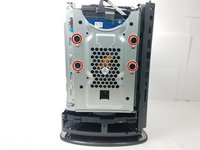
To remove the hard drive, remove the four 8mm Philips screws using a Philips #0 Screwdriver.
-
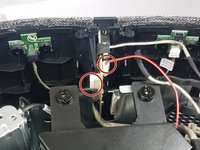
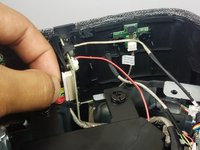
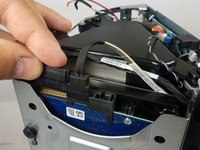
Remove Power and SATA cables from on top of the drive.
-
-
-
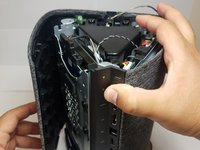
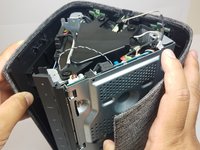
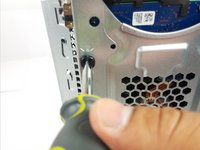
After screws have been removed grab the Hard Drive and pull it out of the dock.
-

 Ask FixBot







To reassemble your device, follow these instructions in reverse order.
Cancel: I did not complete this guide.
5 other people completed this guide.

Team

Cal Poly, Team S8-G4, Banghart Fall 2017 Member of Cal Poly, Team S8-G4, Banghart Fall 2017
CPSU-BANGHART-F17S8G4
4 Members
60 Guides authored
2 Guide Comments
Hi there, can you advise whether this was the 128gb SSD or the other 2gb drive?
This model comes with a 3.5" 1TB HDD standard.
