Introduction
This guide demonstrates how to replace the RAM of your HP Pavilion TPN-C125 laptop.
Replacing the RAM on your laptop after several years is a great way to lengthen its lifespan. Upgrading the RAM to a newer, faster version will likely increase your laptop's speed and ability to handle tasks. It is important, however, to make sure that the replacement RAM is compatible with the device. This can usually be confirmed by checking the service manual found online. In this case, any DDR3 SODIMM should be safe to use. Otherwise, the replacement process is fairly simple. The only tool necessary for this replacement is a small Phillips head screwdriver.
Before you begin this repair, turn off your laptop and unplug the charger.
What you need
-
-
-
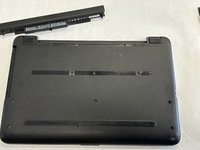
Flip the laptop over so the bottom is facing up and the external battery is at the top.
 Ask FixBot
-
-
-
Use your thumbs to slide the battery locks towards the center and pop the battery out.
-
-
-
-
Slowly peel off the two rubber stoppers found at the top corners of the laptop.
-
-
-
Use a Phillips #00 screwdriver to remove the twelve 10 mm screws (from the twelve holes shown) that secure the bottom case.
-
Use an opening tool to carefully separate the back case from the chassis, working around all four sides.
-
-
-
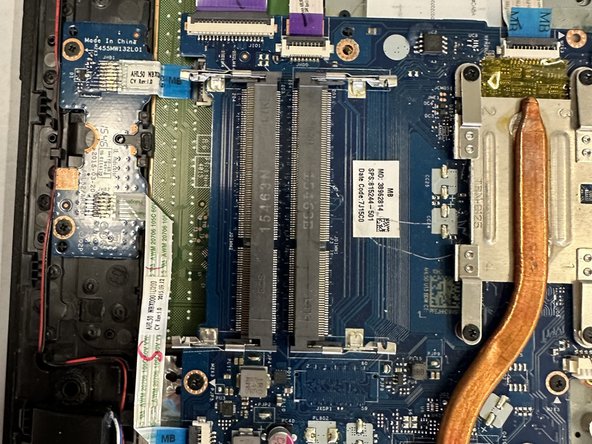
The RAM sticks can be found in the bottom right section of the laptop.
-
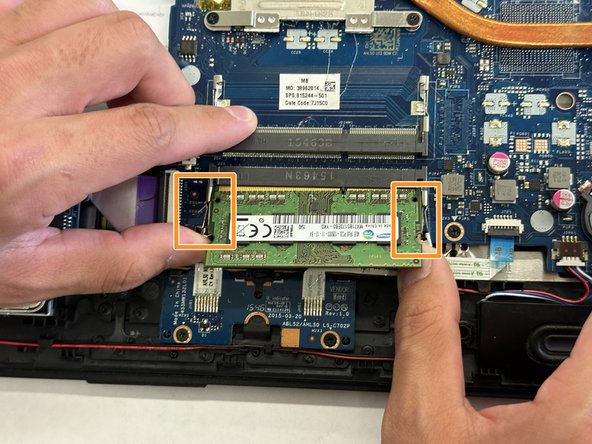
Push both side arms holding the RAM stick in place outwards.
-
Slide the RAM sticks out of the socket gently.
-
-
-
Carefully slide the new replacement RAM sticks into their slots.
-
Gently push the RAM sticks downward until the latches click into place to secure them.
-
-






To reassemble your device, follow these instructions in reverse order.
Cancel: I did not complete this guide.
2 other people completed this guide.

Team

CSU Los Angeles, Team 7-10, Grodsky Spring 2024 Member of CSU Los Angeles, Team 7-10, Grodsky Spring 2024
CSULA-GRODSKY-S24S7G10
2 Members
12 Guides authored
