Free Shipping on Domestic Orders $75+

HP Pavilion 15-ba003ds RAM Replacement

What you need

    1. HP Pavilion 15-ba003ds RAM Replacement, Battery: step 1, image 1 of 2 HP Pavilion 15-ba003ds RAM Replacement, Battery: step 1, image 2 of 2
      • Unplug the AC adapter from the corresponding socket in the laptop.

      • Turn off your laptop before starting this procedure. Make sure it's not in sleep or hibernation mode.

      • Use your fingers to push the slider located just under the battery on either side to unlock the battery from the laptop.

      • Carefully slide the battery out of the laptop frame and place it somewhere safe.

      Ask FixBot

      Add Comment

    1. HP Pavilion 15-ba003ds RAM Replacement, Disc Drive: step 2, image 1 of 1
      • Use a spudger to remove the two rubber feet next to the battery.

      • This will reveal two hidden screws.

      • Save the feet for reassembly.

      Ask FixBot

      Add Comment

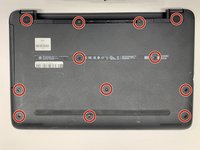
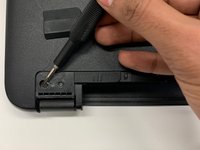
    2. HP Pavilion 15-ba003ds RAM Replacement: step 3, image 1 of 2 HP Pavilion 15-ba003ds RAM Replacement: step 3, image 2 of 2
      • Use a Phillips #00 screwdriver to remove twelve 8 mm screws from the bottom of your laptop including the two screws found underneath the rubber feet.

      Ask FixBot

      Add Comment

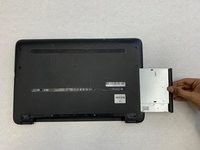
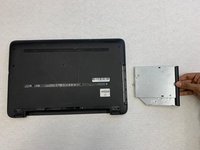
    3. HP Pavilion 15-ba003ds RAM Replacement: step 4, image 1 of 2 HP Pavilion 15-ba003ds RAM Replacement: step 4, image 2 of 2
      • Pull the disc drive from your laptop to remove it.

      Ask FixBot

      Add Comment

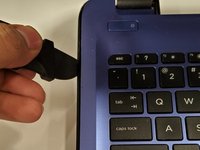
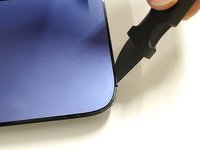
    1. HP Pavilion 15-ba003ds RAM Replacement, Backplate: step 5, image 1 of 3 HP Pavilion 15-ba003ds RAM Replacement, Backplate: step 5, image 2 of 3 HP Pavilion 15-ba003ds RAM Replacement, Backplate: step 5, image 3 of 3
      • Use a Jimmy to pry off the black backplate.

      Ask FixBot

      Add Comment

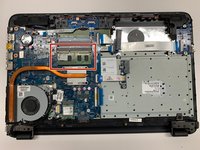
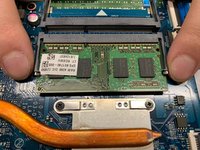
    1. HP Pavilion 15-ba003ds RAM Replacement, RAM Module: step 6, image 1 of 2 HP Pavilion 15-ba003ds RAM Replacement, RAM Module: step 6, image 2 of 2
      • To release the RAM, hold and pull the strips outwards on either side of the RAM.

      Ask FixBot

      Add Comment

Conclusion

To reassemble your device, follow these instructions in reverse order.

Cancel: I did not complete this guide.

Krushnam Badami

Member since: 01/14/20

342 Reputation

3 Guides authored

0 Guide Comments

Add Comment

View Statistics:

Past 24 Hours: 0

Past 7 Days: 3

Past 30 Days: 19

All Time: 552