
HP G60 RAM Replacement

jimenezser and 2 other contributors
Last updated on Sep 9, 2013
Views: 7.1K
View statistics:
- Past 24 Hours:
- 1
- Past 7 Days:
- 19
- Past 30 Days:
- 94
- All Time:
- 7,129
Comments: 1
1 guide comment.
Go to guide commentsCompleted: 5 6
5 people have marked this guide "completed." Will you be next?
6 people have marked this guide "completed." Including you — great job!
Favorites: 6 7
6 people have favorited (and subscribed to) this guide. Will you be next?
7 people have favorited (and subscribed to) this guide — including you!
Community-Contributed Guide
An awesome member of our community made this guide. It was not created by iFixit staff.
What you need
Parts

-
-
-
First, you should to remove the battery to avoid electric shocks
-
Slide and unlock the battery, then, lift it
 Ask FixBot
-
-
-
Remove the two screws with a not too large screwdriver
-
Now lift the cover, the screws are part of the cover
-
-
-
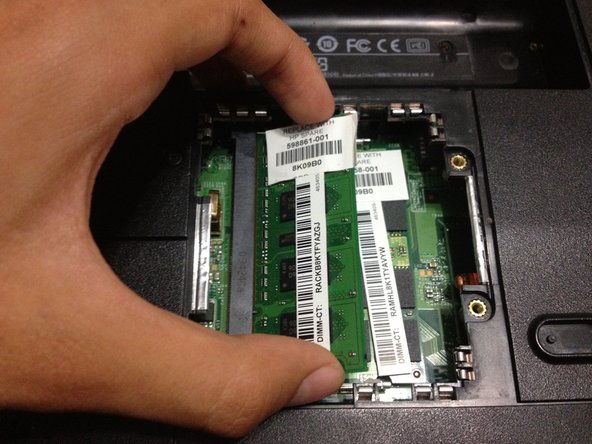
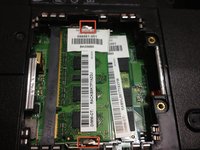
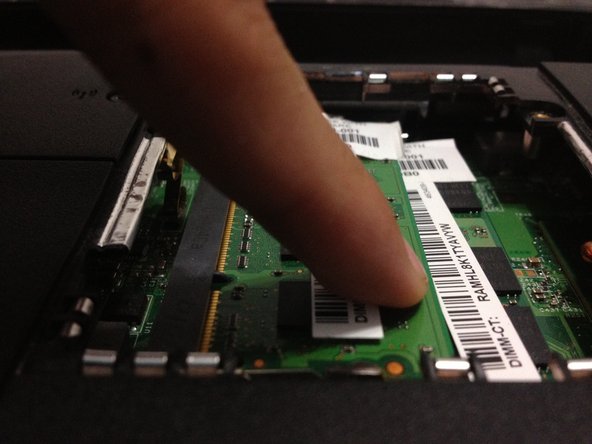
Push the little aluminum locks at the top and the bottom of the ram
-
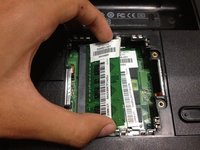
The memory will lift, then pull it
-
Make this with the another RAM slot
-
-
-
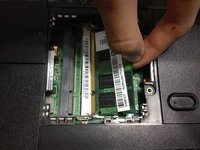
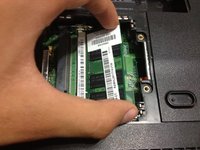
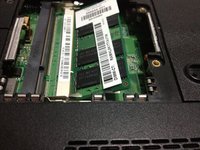
The new RAM memory should to be insert in a 45 degrees angle
-
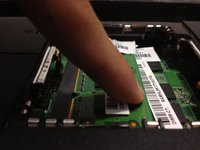
Then, push it and the memory will lock by itself
-
Make this with the second memory
-
-
-
-
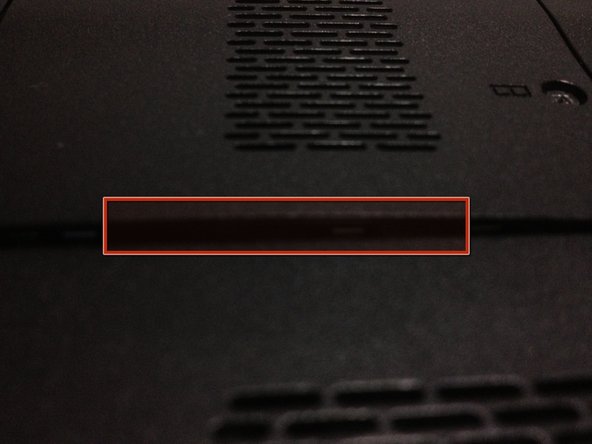
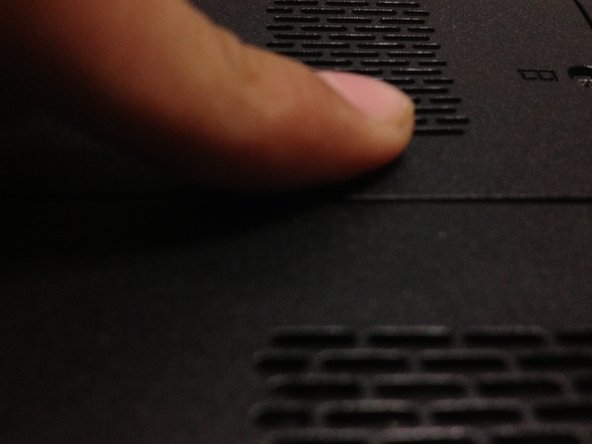
Insert the cover from right to left, then, screw it
-
If cover is lifted, press it softly and secure it
-
-






Cancel: I did not complete this guide.
5 other people completed this guide.

1 Guide Comment
Thanks for verifying the RAM replacement and that it was as easy as I thought it was, but that made me a bit nervous, being much more comfortable building desktops as large as my or my customer's budget would allow!
Take 'em out, put new ones back in. As a technical writer, I also appreciate that you kept it to the point without creating further questions to complicate that which is not complicated. Thanks again. Will check out some out your other work.
