Free Shipping on Domestic Orders $75+

HP Envy 17-3070NR Hard Drive Replacement

Views: 5.2K

View statistics:

Past 24 Hours:
3
Past 7 Days:
23
Past 30 Days:
96
All Time:
5,156
Comments: 0

No one has left comments on this guide. Will you be first?

Go to guide comments
Completed: 1

1 person has marked this guide "completed." Will you be next?

Favorites: 1

1 person has favorited (and subscribed to) this guide. Will you be next?

Time Required: 5 - 10 minutes
Difficulty: Easy
HP Envy 17-3070NR Hard Drive Replacement

Introduction

Go to step 1 ↓

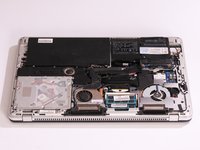
Use this guide to replace the hard drive of your HP Envy 17-3070NR. Whether you want to upgrade your storage, improve performance by switching to SSD or replace a faulty HDD, this guide is for you. Note that there are two bays for the drives on this laptop. Therefore, if you want to simply add another drive consider plugging it in into second cavity using already included connector.

What you need

Fix Kits

These kits contain all the parts and tools needed to complete this guide.

Parts

Tools

    1. HP Envy 17-3070NR Hard Drive Replacement, Back Cover: step 1, image 1 of 2 HP Envy 17-3070NR Hard Drive Replacement, Back Cover: step 1, image 2 of 2
      • Before you begin taking apart the computer, make sure that it is completely powered off.

      • Slide the release latch away from the nearest edge.

      • Slide the back cover off of the computer.

      Ask FixBot

      Add Comment

    2. HP Envy 17-3070NR Hard Drive Replacement: step 2, image 1 of 3 HP Envy 17-3070NR Hard Drive Replacement: step 2, image 2 of 3 HP Envy 17-3070NR Hard Drive Replacement: step 2, image 3 of 3
      • Remove the six 3.7mm Phillips screws.

      • Slide the back cover until it clicks, then lift it straight off.

      Ask FixBot

      Add Comment

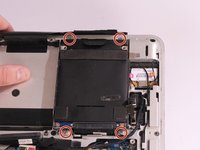
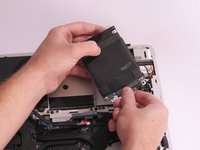
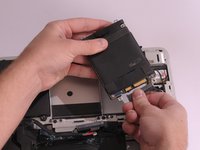
    1. HP Envy 17-3070NR Hard Drive Replacement, Hard Drive: step 3, image 1 of 3 HP Envy 17-3070NR Hard Drive Replacement, Hard Drive: step 3, image 2 of 3 HP Envy 17-3070NR Hard Drive Replacement, Hard Drive: step 3, image 3 of 3
      • Remove the four 3.7mm Phillips screws that hold the hard drive onto the computer.

      • Remove the hard drive by lifting it out of its cavity.

      • Unplug the hard drive cable that connects it to the main assembly.

      Ask FixBot

      Add Comment

Conclusion

To reassemble your device, follow these instructions in reverse order.

Cancel: I did not complete this guide.

One other person completed this guide.

Jasper Lewin

Member since: 04/21/15

750 Reputation

6 Guides authored

Team

Cal Poly, Team 14-8, Amido Spring 2015 Member of Cal Poly, Team 14-8, Amido Spring 2015

CPSU-AMIDO-S15S14G8

4 Members

144 Guides authored

0 Guide Comments

Add Comment

View Statistics:

Past 24 Hours: 3

Past 7 Days: 23

Past 30 Days: 96

All Time: 5,156