Introduction
Use this guide to replace or upgrade the RAM chips in the HP Elitebook 8460p.
If your computer is running slow or generating errors saying it is running out of memory, consider upgrading or replacing the RAM chips in your computer. Random Access Memory (RAM) is where the computer performs intermediate calculations and stores temporary data (like when you copy and paste items). It is a short term memory that allows the computer to quickly access information is it actively using. Thus, low computer performance is commonly attributed to a low amount of on-board temporary memory and can be solved by expanding the amount of RAM in your computer.
Make sure to ground yourself with an ESD strap to prevent electrostatic discharges from damaging the motherboard or other electrical components as the RAM chips connect directly to the motherboard.
What you need
-
-
-
On the back of the computer, slide the left switch towards the outside of the laptop until you hear a click.
 Ask FixBot
-
-
-
Slide the battery away from the switches until it can be lifted away from the laptop.
-
Lift the battery away from the laptop.
-
-
-
-
-
-
On the back of the laptop, slide the right switch toward the outside of the laptop until you hear a click.
-
-
-
Slide the back shell of the laptop away from the switches until it can be lifted up.
-
Lift the shell straight up.
-
-
-
-
-
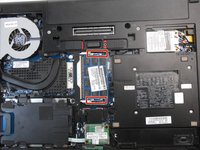
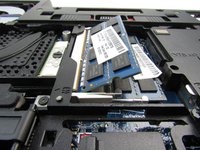
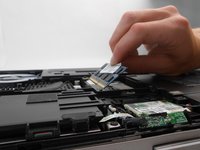
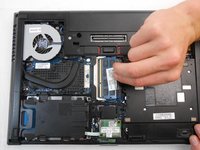
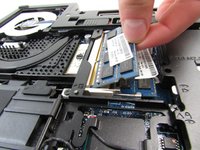
Using both thumbs, locate the two metal clips and pull them apart, allowing the RAM chip to pop upwards.
-
-




To reassemble your device, follow these instructions in reverse order.
Cancel: I did not complete this guide.
4 other people completed this guide.

Team

Embry-Riddle Aeronautical University, Team S12-G1, Lamothe Fall 2019 Member of Embry-Riddle Aeronautical University, Team S12-G1, Lamothe Fall 2019
ERAU-LAMOTHE-F19S12G1
4 Members
120 Guides authored
