Free Shipping on Domestic Orders $75+

HP Elitebook 840 G1 Hard Drive Replacement

Views: 31K

View statistics:

Past 24 Hours:
3
Past 7 Days:
34
Past 30 Days:
187
All Time:
31,400
Comments: 9

5 comments on steps, 4 guide comments.

Go to guide comments
Completed: 12

12 people have marked this guide "completed." Will you be next?

Favorites: 2

2 people have favorited (and subscribed to) this guide. Will you be next?

Time Required: 6 minutes
Difficulty: Moderate
Needs More Images

A few more images would make this guide's procedures crystal clear.

HP Elitebook 840 G1 Hard Drive Replacement

Introduction

Go to step 1 ↓

If the blue screen of death occurs as well as strange noises emanating from the hard drive occur, replace the faulty or failing hard drive in your HP Elitebook 840 G1.

What you need

Fix Kits

These kits contain all the parts and tools needed to complete this guide.

Parts

Tools

    1. HP Elitebook 840 G1 Hard Drive Replacement, Battery: step 1, image 1 of 1
      • Working on your device while it is turned on may result in electric shock. Make sure to shut down and unplug your device before you begin.

      • Slide the latch, to the right, away from the lock symbol.

      • Slide the cover away from the latch to remove it.

      Ask FixBot

      Add Comment

    2. HP Elitebook 840 G1 Hard Drive Replacement: step 2, image 1 of 1
      • Once the cover is removed you will be able to see the battery and the two latches that hold it in place.

      • The two latches should be pulled back, one of which is spring loaded and must be held in place in order to remove the battery.

      Ask FixBot

      Add Comment

    3. HP Elitebook 840 G1 Hard Drive Replacement: step 3, image 1 of 1
      • Battery should easily be lifted up and out.

      Ask FixBot

      Add Comment

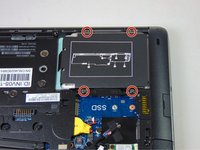
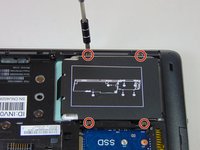
    1. HP Elitebook 840 G1 Hard Drive Replacement, Hard Drive: step 4, image 1 of 2 HP Elitebook 840 G1 Hard Drive Replacement, Hard Drive: step 4, image 2 of 2
      • Loosen the four Phillips screws securing the hard drive.

      • These screws will stay captive to the plastic hard drive bracket.

      Ask FixBot

      Add Comment

    2. HP Elitebook 840 G1 Hard Drive Replacement: step 5, image 1 of 1
      • Grab the pull tab on the hard drives plastic casing and pull it out and to the side.

      • Make sure all screws have been properly loosened and are no longer connected at the bottom before doing this step.

      • Remove the 2.5" hard drive from the plastic bracket.

      Ask FixBot

      Add Comment

Conclusion

To reassemble your device, follow these instructions in reverse order.

Cancel: I did not complete this guide.

12 other people completed this guide.

Ashley Williams

Member since: 08/27/15

2,497 Reputation

5 Guides authored

Team

USF Tampa, Team 5-3, Blackwell Fall 2015 Member of USF Tampa, Team 5-3, Blackwell Fall 2015

USFT-BLACKWELL-F15S5G3

4 Members

60 Guides authored

4 Guide Comments

I'm surprised not to see a caution about removing the hard drive, but I guess generally I fixit users are pretty computer savvy!

cadegans - Reply Share

The NEW hard drive does NOT have any OP system.  How does that work now ?????

Frank Mraz - Reply Share

In case you're still looking for an answer:

-Create a bootable usb flash drive with your os of choice: Download rufus, get iso file of os, flash the iso to the usb drive via rufus. (Unfortunately need a pc for this part).

-Put usb drive to your notebook and turn it on.

-Most notebooks should automatically start from that usb drive. However if not: your notebook brand should have specific button for that (Eg.: ESC, F2). You can google that and find out… OR choose usb drive as first boot option in your BIOS.

PS: If windows asks for key on installation, skip that part and use Microsoft Toolkit to activate it later ;)

Eren Üstün - Reply Share

Another answer to this would be to copy the contents of your old drive to the new drive. You can use various sata connectors to do this, either from the laptop itself, or using another computer.

David S - Reply Share

Add Comment

View Statistics:

Past 24 Hours: 3

Past 7 Days: 34

Past 30 Days: 187

All Time: 31,400