Introduction
RAM (Random Access Memory) is the laptop’s system storage. It is used to handle short-term data storage while being fast sending and receiving it. Upgrading RAM to faster and/or higher capacity ones can improve system responsiveness and/or allow more programs to be ran at the same time. Use this guide to replace the RAM in your HP EliteBook 8530w.
What you need
-
-
-
Turn the laptop off then place it down so that the back is facing up.
-
Slide the battery release switch to the left and hold it there.
 Ask FixBot
-
-
-
Pull the battery away upward and away from the laptop while continuing to hold the release switch.
-
-
-
-
-
-
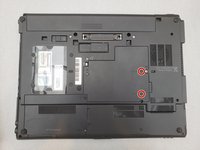
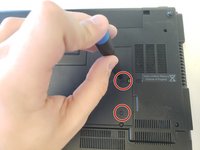
Unscrew the two screws with a RAM/WiFi icon using a Phillips #00 screwdriver.
-
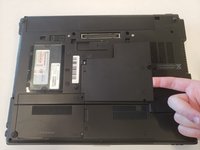
After the screws are loosened, pull the cover off by lifting up from the side with the screws.
-
-
-
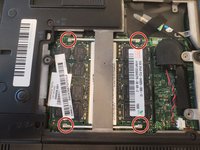
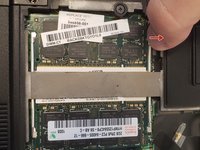
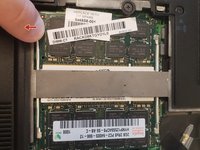
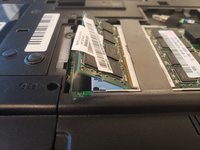
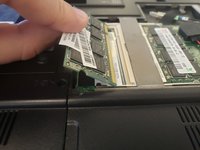
Pull the RAM out of the laptop in the direction the RAM is pointing at to remove it.
-
-






To reassemble your device, follow these instructions in reverse order.

Team

Embry-Riddle Aeronautical University, Team S14-G6, Lamothe Spring 2020 Member of Embry-Riddle Aeronautical University, Team S14-G6, Lamothe Spring 2020
ERAU-LAMOTHE-S20S14G6
3 Members
60 Guides authored
1 Guide Comment
I just removed my 2G ram from the back as soy said but the laptop still can run.
At the slot of the ram I removed it has a number 3 and I am wondering if it is a "hidden" one?
