
HP EliteBook 8530w Fan Replacement

Raymond Kwasneski and 3 other contributors
Last updated on May 7, 2024
Views: 1.1K
View statistics:
- Past 24 Hours:
- 3
- Past 7 Days:
- 15
- Past 30 Days:
- 64
- All Time:
- 1,148
Comments: 6
6 comments on steps.
Completed: 1 2
1 person has marked this guide "completed." Will you be next?
2 people have marked this guide "completed." Including you — great job!
Favorites: 0 1
No one has favorited (and subscribed to) this guide. Will you be the first?
1 person has favorited (and subscribed to) this guide — and that's you!
Introduction
Go to step 1 ↓If your device is frequently overheating or making excessive noise, especially during compute intensive tasks, it may be due to a malfunctioning or dirty fan. This guide will show you how to replace the fan in the HP EliteBook 8530w laptop in the hopes of alleviating these issues.
What you need
Tools


-
-
-
Turn the laptop off then place it down so that the back is facing up.
-
Slide the battery release switch to the left and hold it there.
 Ask FixBot
-
-
-
Pull the battery away upward and away from the laptop while continuing to hold the release switch.
-
-
-
-
-
Unscrew the two screws from the center panel with a Phillips #00 screwdriver.
-
-
-
Flip the laptop over then open the lid.
-
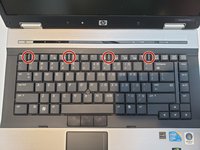
Slide the four tabs at the top of the keyboard towards you with your finger.
-
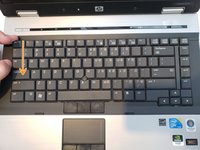
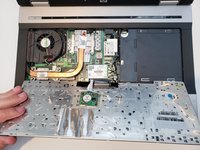
Wedge a finger or spudger in the top corner of the keyboard and hinge it forward to reveal the backside.
-
-
-
Tool used on this step:Tweezers$4.99
-
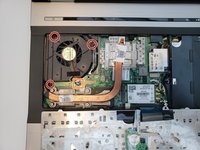
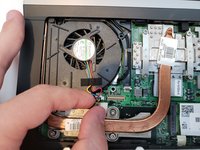
Use a Torx TR7 screwdriver to remove the three screws holding down the fan.
-
Gently remove the fan connector that plugs into the motherboard.
-
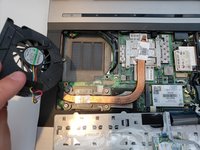
Remove the fan.
-
-




To reassemble your device, follow these instructions in reverse order.
Cancel: I did not complete this guide.
One other person completed this guide.

Team

Embry-Riddle Aeronautical University, Team S14-G6, Lamothe Spring 2020 Member of Embry-Riddle Aeronautical University, Team S14-G6, Lamothe Spring 2020
ERAU-LAMOTHE-S20S14G6
3 Members
60 Guides authored
