
HP Compaq nc6400 Screen Replacement

Luis Vazquez and 5 other contributors
Last updated on Jul 15, 2014
Views: 6.1K
View statistics:
- Past 24 Hours:
- 1
- Past 7 Days:
- 15
- Past 30 Days:
- 96
- All Time:
- 6,117
Comments: 3
2 comments on steps, 1 guide comment.
Go to guide commentsCompleted: 4 5
4 people have marked this guide "completed." Will you be next?
5 people have marked this guide "completed." Including you — great job!
Favorites: 4 5
4 people have favorited (and subscribed to) this guide. Will you be next?
5 people have favorited (and subscribed to) this guide — including you!
Introduction
Go to step 1 ↓This guide will take you through the process of replacing the screen on an HP Compaq nc6400 Laptop. You will need the correct replacement screen for your laptop to complete the installation.
What you need
Tools
-
Spudger4.9
-


-
-
-
Locate the battery lock below the battery labeled one.
-
Slide the lock all the way to the left to release the left lock of the battery.
-
-
-
Locate the lock labeled two at the bottom right corner below the battery.
-
Slide and hold the lock to the left.
-
-
-
-
Remove the four 1.2mm Philips #1 screws attaching the plastic cover to the monitor.
-
The screws may have a small, black plastic cover that lays flush with the screen. Remove these using a pointed tool such as the spudger or philips head screwdriver by prying them out.
-
-
-
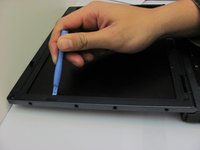
Pry up the plastic screen cover using a pry tool.
-
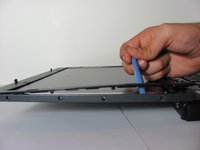
Keeping the pry tool under the trim, slide it around the entire screen until the the cover has completely detached from the base.
-
-
-
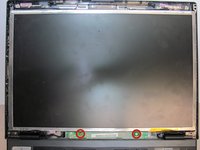
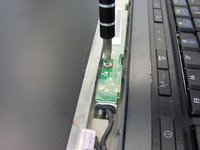
Remove the two 1.2 Philips #1 screws holding down the sensor board at the bottom of the monitor.
-
-
-
-
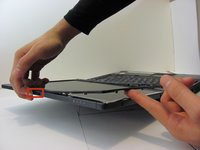
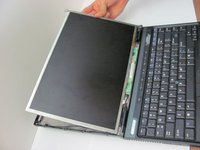
Without lifting the bottom of the monitor, gently flip the screen and lay it face down on the keyboard.
-
-
-
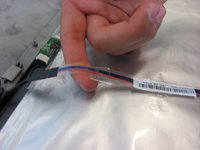
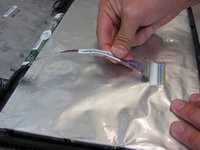
Remove the tape holding down the video cable to the monitor.
-
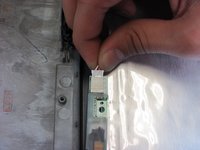
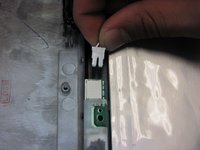
Gently pull out the video cable from the monitor.
-
-
-
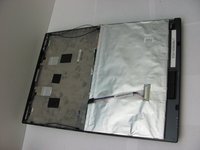
Once all cables attaching the casing to the monitor have been disconnected, remove the entire screen from the computer and lay it on a flat surface.
-
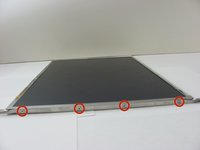
Remove the four 1.2 Philips #1 screws attaching the bezel to the right side of the monitor.
-
Attach bezel to replacement screen.
-
-

 Ask FixBot












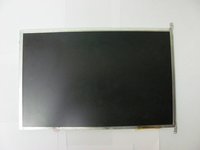
To reassemble your device, follow these instructions in reverse order.
Cancel: I did not complete this guide.
4 other people completed this guide.

Team

Cal Poly, Team 14-6, Forte Fall 2013 Member of Cal Poly, Team 14-6, Forte Fall 2013
CPSU-FORTE-F13S14G6
5 Members
60 Guides authored
