15% Off Selected iFixit Tools — Limited Time
Free Shipping on Domestic Orders $75+

HP Compaq dx2000MT RAM Replacement

What you need

  1. HP Compaq dx2000MT RAM Replacement, Removing the HP Compaq dx2000MT Case Doors: step 1, image 1 of 1
    • Turn off your computer and remove the power cable by pulling it straight out of its socket.

    Ask FixBot

    Add Comment

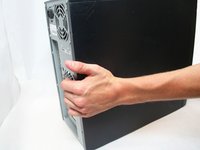
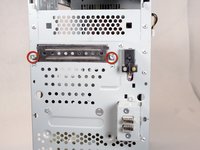
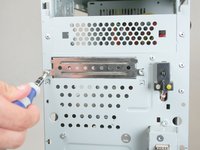
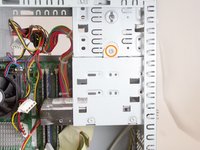
  2. HP Compaq dx2000MT RAM Replacement: step 2, image 1 of 2 HP Compaq dx2000MT RAM Replacement: step 2, image 2 of 2
    • Remove the two Phillips #2 screws that secure the case door to the device.

    Ask FixBot

    Add Comment

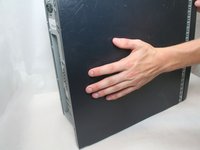
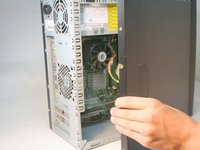
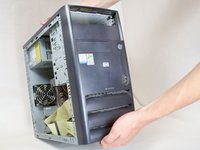
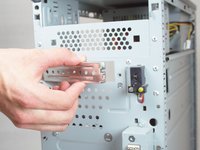
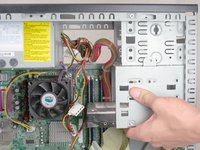
  3. HP Compaq dx2000MT RAM Replacement: step 3, image 1 of 3 HP Compaq dx2000MT RAM Replacement: step 3, image 2 of 3 HP Compaq dx2000MT RAM Replacement: step 3, image 3 of 3
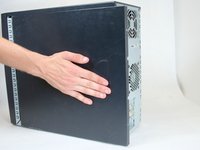
    • Remove the side case door by pushing towards the rear of the device with your hand.

    • This may take considerable force so keep pushing!

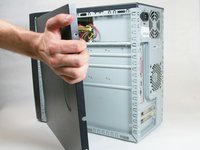
    • Once you slide the door back, remove it by pulling it outwards from the device.

    Ask FixBot

    Add Comment

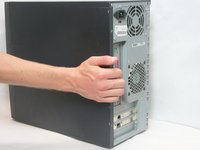
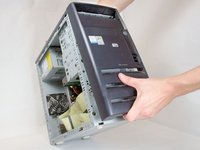
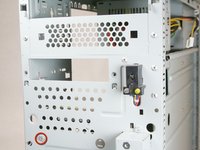
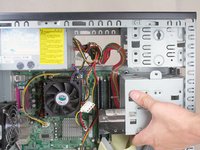
  4. HP Compaq dx2000MT RAM Replacement: step 4, image 1 of 3 HP Compaq dx2000MT RAM Replacement: step 4, image 2 of 3 HP Compaq dx2000MT RAM Replacement: step 4, image 3 of 3
    • Remove the side case door by pushing towards the rear of the device with your hand.

    • Once again, this may take considerable force.

    • Once you slide the door back, remove it by pulling it outwards from the device.

    Ask FixBot

    Add Comment

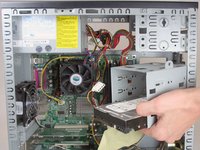
  5. HP Compaq dx2000MT RAM Replacement, Disassembling HP Compaq dx2000MT Hard Drive: step 5, image 1 of 3 HP Compaq dx2000MT RAM Replacement, Disassembling HP Compaq dx2000MT Hard Drive: step 5, image 2 of 3 HP Compaq dx2000MT RAM Replacement, Disassembling HP Compaq dx2000MT Hard Drive: step 5, image 3 of 3
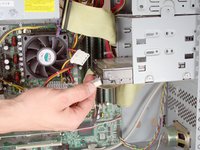
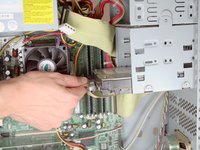
    • Remove the IDE data and power cables from the hard drive.

    Ask FixBot

    Add Comment

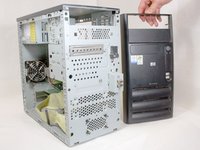
  6. HP Compaq dx2000MT RAM Replacement: step 6, image 1 of 3 HP Compaq dx2000MT RAM Replacement: step 6, image 2 of 3 HP Compaq dx2000MT RAM Replacement: step 6, image 3 of 3
    • Remove the front bezel by pulling upwards and out from below the lowest air vent.

    Ask FixBot

    Add Comment

  7. HP Compaq dx2000MT RAM Replacement: step 7, image 1 of 3 HP Compaq dx2000MT RAM Replacement: step 7, image 2 of 3 HP Compaq dx2000MT RAM Replacement: step 7, image 3 of 3
    • Remove the external drive faceplate by removing the two Torx T15 screws.

    Ask FixBot

    Add Comment

  8. HP Compaq dx2000MT RAM Replacement: step 8, image 1 of 2 HP Compaq dx2000MT RAM Replacement: step 8, image 2 of 2
    • Remove the following screws:

    • Front Torx T15.

    • Torx T15 mounting the hard drive cage to the optical drive bay.

    Ask FixBot

    Add Comment

  9. HP Compaq dx2000MT RAM Replacement: step 9, image 1 of 3 HP Compaq dx2000MT RAM Replacement: step 9, image 2 of 3 HP Compaq dx2000MT RAM Replacement: step 9, image 3 of 3
    • Fully remove the hard drive cage by sliding it towards the back of the device and pulling down.

    Ask FixBot

    Add Comment

  10. HP Compaq dx2000MT RAM Replacement: step 10, image 1 of 3 HP Compaq dx2000MT RAM Replacement: step 10, image 2 of 3 HP Compaq dx2000MT RAM Replacement: step 10, image 3 of 3
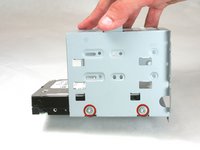
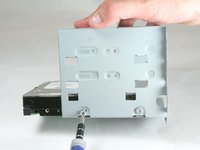
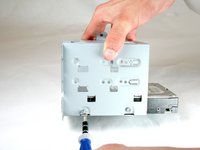
    • Remove the two Torx T15 screws holding this side of the hard drive in place.

    Ask FixBot

    Add Comment

  11. HP Compaq dx2000MT RAM Replacement: step 11, image 1 of 3 HP Compaq dx2000MT RAM Replacement: step 11, image 2 of 3 HP Compaq dx2000MT RAM Replacement: step 11, image 3 of 3
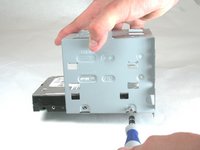
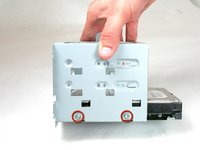
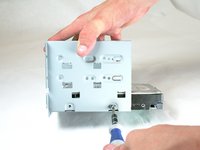
    • Proceed to the other side of the hard drive cage.

    • Remove the two Torx T15 screws holding this side of the hard drive in place.

    Ask FixBot

    Add Comment

  12. HP Compaq dx2000MT RAM Replacement: step 12, image 1 of 2 HP Compaq dx2000MT RAM Replacement: step 12, image 2 of 2
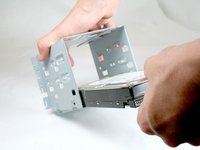
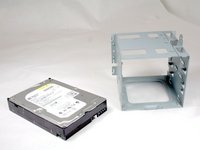
    • Remove the hard drive from the hard drive cage by pulling it outward from the cage.

    Ask FixBot

    Add Comment

  13. HP Compaq dx2000MT RAM Replacement, RAM: step 13, image 1 of 2 HP Compaq dx2000MT RAM Replacement, RAM: step 13, image 2 of 2
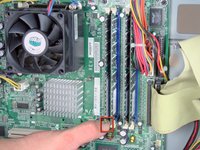
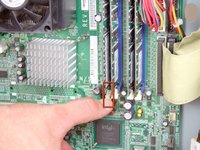
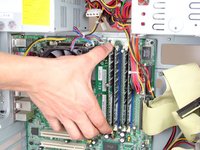
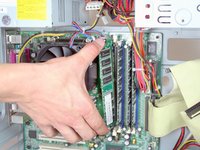
    • Release the lower portion of the RAM by pushing down on the bottom tab.

    Ask FixBot

    Add Comment

  14. HP Compaq dx2000MT RAM Replacement: step 14, image 1 of 2 HP Compaq dx2000MT RAM Replacement: step 14, image 2 of 2
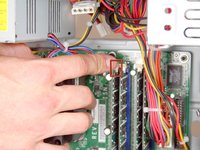
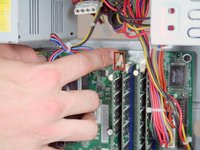
    • Release the upper portion of the RAM by pushing down on the upper tab.

    Ask FixBot

    Add Comment

  15. HP Compaq dx2000MT RAM Replacement: step 15, image 1 of 3 HP Compaq dx2000MT RAM Replacement: step 15, image 2 of 3 HP Compaq dx2000MT RAM Replacement: step 15, image 3 of 3
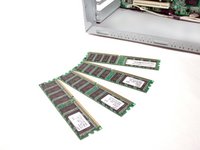
    • Remove the RAM by pulling it out towards the side of the device

    • Be careful about touching the top (right) and bottom (left)sides of the RAM! The static electricity in your fingers could short it. If you can, only touch the top and bottom of the RAM.

    • If replacing RAM, make sure it is the right type, speed, and size for your computer. Otherwise the RAM may not fit or your computer may not start up.

    Ask FixBot

    Add Comment

Conclusion

To reassemble your device, follow these instructions in reverse order.

Cancel: I did not complete this guide.

One other person completed this guide.

Logan Pace

Member since: 10/12/11

2,414 Reputation

9 Guides authored

Team

Cal Poly, Team 17-16, Regan Fall 2011 Member of Cal Poly, Team 17-16, Regan Fall 2011

CPSU-REGAN-F11S17G16

4 Members

17 Guides authored

0 Guide Comments

Add Comment

View Statistics:

Past 24 Hours: 0

Past 7 Days: 6

Past 30 Days: 53

All Time: 5,223