Free Shipping on Domestic Orders $75+

HP Beats Special Edition 15-p390nr WiFi Card Replacement

Views: 1.8K

View statistics:

Past 24 Hours:
1
Past 7 Days:
15
Past 30 Days:
81
All Time:
1,831
Comments: 5

5 comments on steps.

Completed: 3

3 people have marked this guide "completed." Will you be next?

Favorites: 0

No one has favorited (and subscribed to) this guide. Will you be the first?

Time Required: 10 minutes
Difficulty: Moderate
Action Shots

Be an action hero! This guide needs images that better demonstrate how to perform specific actions.

HP Beats Special Edition 15-p390nr WiFi Card  Replacement

Introduction

Go to step 1 ↓

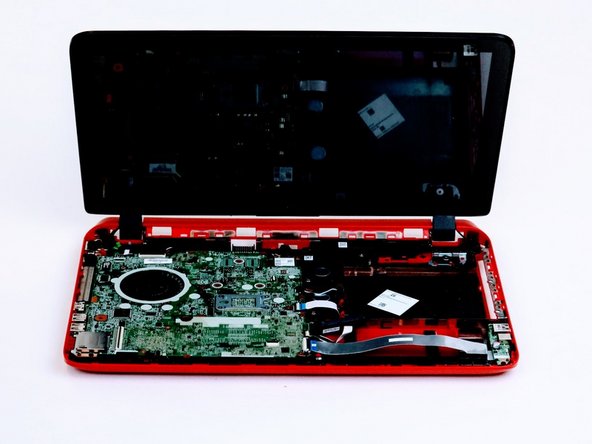
Use this guide to replace the WIFI card on your HP Beats Special Edition 15-p390nr. Make sure you have removed the keyboard panel by referring to the prerequisite guide.

What you need

Tools

    1. HP Beats Special Edition 15-p390nr WiFi Card  Replacement, Keyboard: step 1, image 1 of 2 HP Beats Special Edition 15-p390nr WiFi Card  Replacement, Keyboard: step 1, image 2 of 2
      • Turn computer off before starting.

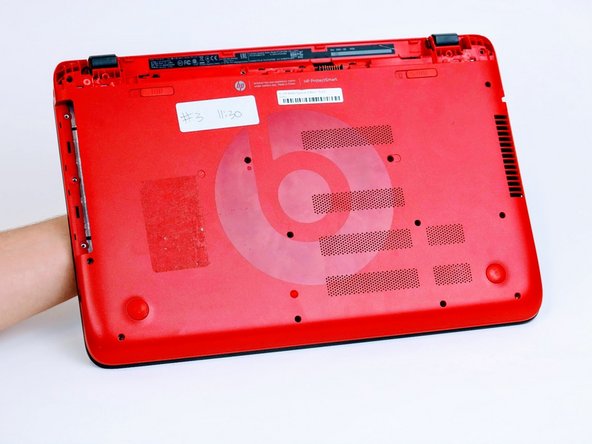
      • Turn computer over and begin removing noticeable 8mm screws with a Phillips #0 screwdriver.

      Ask FixBot

      Add Comment

    2. HP Beats Special Edition 15-p390nr WiFi Card  Replacement: step 2, image 1 of 2 HP Beats Special Edition 15-p390nr WiFi Card  Replacement: step 2, image 2 of 2
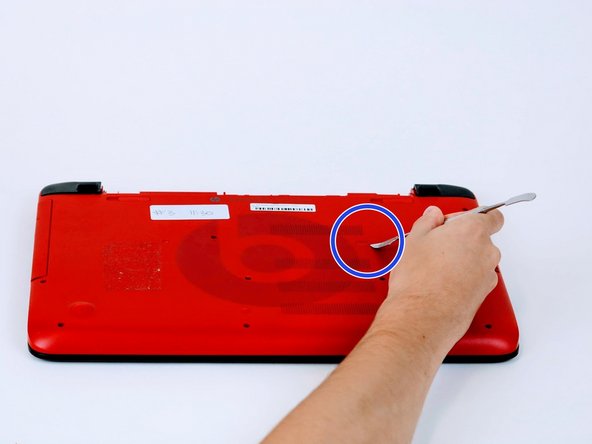
      • Some screws may be hidden under a screw cover.

      • Simply use a metal spudger to pop off the screw cover to unveil the hidden 8mm screw.

      • Screw cover may fly when removing.

      Ask FixBot

      Add Comment

    3. HP Beats Special Edition 15-p390nr WiFi Card  Replacement: step 3, image 1 of 2 HP Beats Special Edition 15-p390nr WiFi Card  Replacement: step 3, image 2 of 2
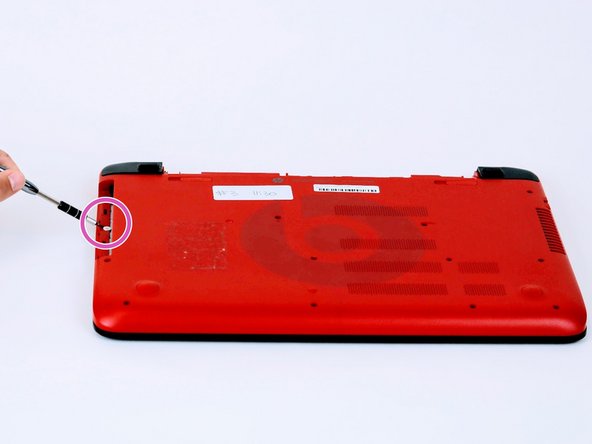
      • Once screws are removed you may now remove the optical drive.

      • Remove the hidden 3mm screw in the optical drive port.

      Ask FixBot

      Add Comment

    4. HP Beats Special Edition 15-p390nr WiFi Card  Replacement: step 4, image 1 of 2 HP Beats Special Edition 15-p390nr WiFi Card  Replacement: step 4, image 2 of 2
      • Remove the rubberized feet located on the left and right shoulder of the computer to uncover hidden 8mm screws.

      • Popping noises are normal.

      • The shoulder caps are removable. Underneath there are 2 additional screws.

      Ask FixBot

      Add Comment

    5. HP Beats Special Edition 15-p390nr WiFi Card  Replacement: step 5, image 1 of 2 HP Beats Special Edition 15-p390nr WiFi Card  Replacement: step 5, image 2 of 2
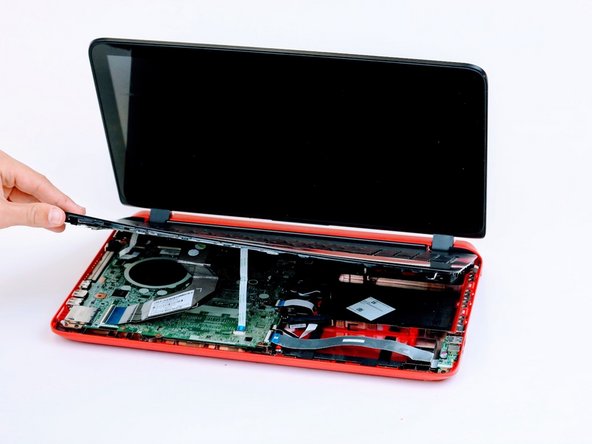
      • Flip computer over and wedge metal spudger along the computer to pop off keyboard panel

      Ask FixBot

      Add Comment

    6. HP Beats Special Edition 15-p390nr WiFi Card  Replacement: step 6, image 1 of 2 HP Beats Special Edition 15-p390nr WiFi Card  Replacement: step 6, image 2 of 2
      • Unclip wires connected to the motherboard and remove keyboard from the device.

      • 17 screws should be removed up to this point.

      Ask FixBot

      Add Comment

    1. HP Beats Special Edition 15-p390nr WiFi Card  Replacement, WiFi Card: step 7, image 1 of 1
      • Once the keyboard panel is removed you will need to locate the WiFi card

      Ask FixBot

      Add Comment

    2. HP Beats Special Edition 15-p390nr WiFi Card  Replacement: step 8, image 1 of 1
      • Remove two screws using the Phillips #0 screwdriver.

      Ask FixBot

      Add Comment

    3. HP Beats Special Edition 15-p390nr WiFi Card  Replacement: step 9, image 1 of 1
      • Remove wire connected to the back of the card by pulling it straight up.

      Ask FixBot

      Add Comment

    4. HP Beats Special Edition 15-p390nr WiFi Card  Replacement: step 10, image 1 of 1
      • Pull card away from you to remove it from the motherboard.

      • Refrain from wiggling or moving the card around, while connected to the motherboard, to prevent damage to connector pins.

      Ask FixBot

      Add Comment

Conclusion

To reassemble your device, follow these instructions in reverse order.

Cancel: I did not complete this guide.

3 other people completed this guide.

0 Guide Comments

Add Comment

View Statistics:

Past 24 Hours: 1

Past 7 Days: 15

Past 30 Days: 81

All Time: 1,831