Free Shipping on Domestic Orders $75+

HP Beats Special Edition 15-p390nr Fan Replacement

Views: 3.8K

View statistics:

Past 24 Hours:
1
Past 7 Days:
15
Past 30 Days:
88
All Time:
3,797
Comments: 5

5 comments on steps.

Completed: 1

1 person has marked this guide "completed." Will you be next?

Favorites: 0

No one has favorited (and subscribed to) this guide. Will you be the first?

Time Required: 20 minutes
Difficulty: Moderate
Action Shots

Be an action hero! This guide needs images that better demonstrate how to perform specific actions.

HP Beats Special Edition 15-p390nr Fan Replacement

Introduction

Go to step 1 ↓

If you find yourself needing to replace your HP Beats Special Edition 15-p390nr fans, use this guide to help you go through the process successfully.

What you need

Tools

    1. HP Beats Special Edition 15-p390nr Fan Replacement, Keyboard: step 1, image 1 of 2 HP Beats Special Edition 15-p390nr Fan Replacement, Keyboard: step 1, image 2 of 2
      • Turn computer off before starting.

      • Turn computer over and begin removing noticeable 8mm screws with a Phillips #0 screwdriver.

      Ask FixBot

      Add Comment

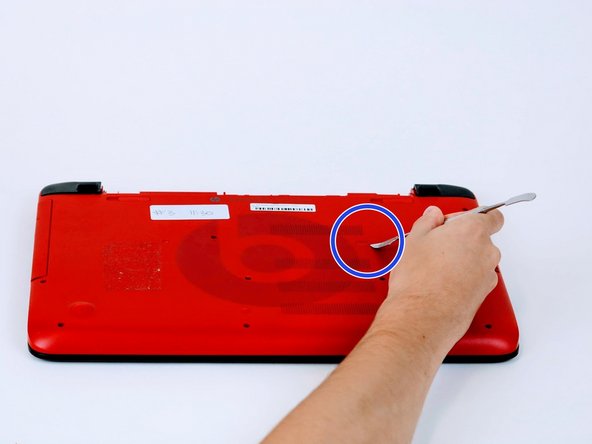
    2. HP Beats Special Edition 15-p390nr Fan Replacement: step 2, image 1 of 2 HP Beats Special Edition 15-p390nr Fan Replacement: step 2, image 2 of 2
      • Some screws may be hidden under a screw cover.

      • Simply use a metal spudger to pop off the screw cover to unveil the hidden 8mm screw.

      • Screw cover may fly when removing.

      Ask FixBot

      Add Comment

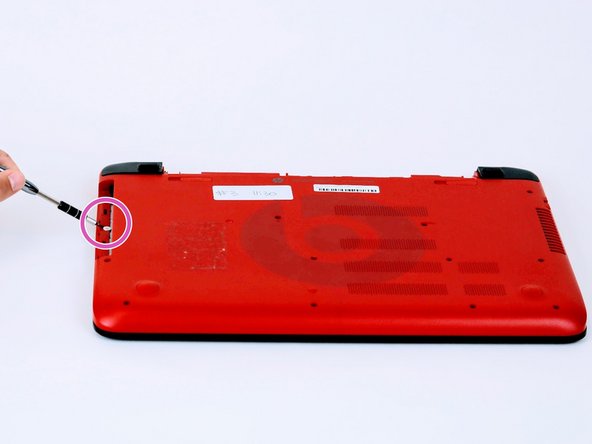
    3. HP Beats Special Edition 15-p390nr Fan Replacement: step 3, image 1 of 2 HP Beats Special Edition 15-p390nr Fan Replacement: step 3, image 2 of 2
      • Once screws are removed you may now remove the optical drive.

      • Remove the hidden 3mm screw in the optical drive port.

      Ask FixBot

      Add Comment

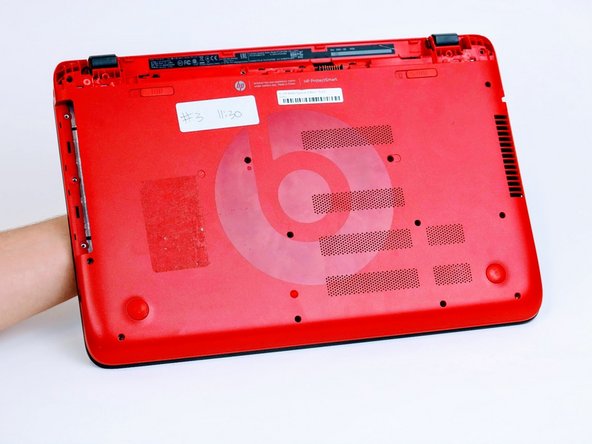
    4. HP Beats Special Edition 15-p390nr Fan Replacement: step 4, image 1 of 2 HP Beats Special Edition 15-p390nr Fan Replacement: step 4, image 2 of 2
      • Remove the rubberized feet located on the left and right shoulder of the computer to uncover hidden 8mm screws.

      • Popping noises are normal.

      • The shoulder caps are removable. Underneath there are 2 additional screws.

      Ask FixBot

      Add Comment

    5. HP Beats Special Edition 15-p390nr Fan Replacement: step 5, image 1 of 2 HP Beats Special Edition 15-p390nr Fan Replacement: step 5, image 2 of 2
      • Flip computer over and wedge metal spudger along the computer to pop off keyboard panel

      Ask FixBot

      Add Comment

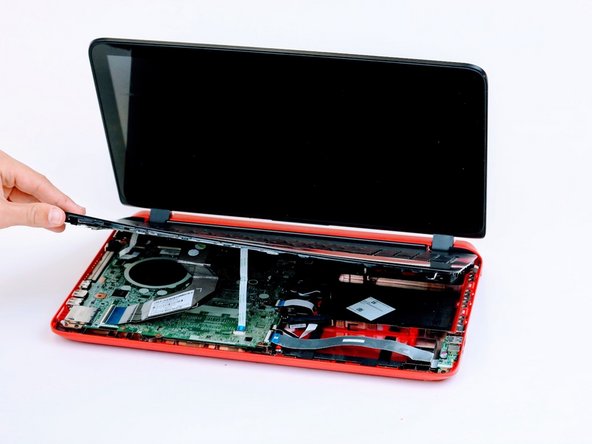
    6. HP Beats Special Edition 15-p390nr Fan Replacement: step 6, image 1 of 2 HP Beats Special Edition 15-p390nr Fan Replacement: step 6, image 2 of 2
      • Unclip wires connected to the motherboard and remove keyboard from the device.

      • 17 screws should be removed up to this point.

      Ask FixBot

      Add Comment

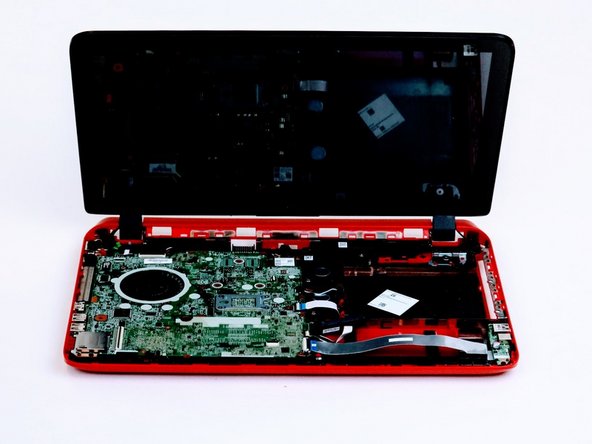
    1. HP Beats Special Edition 15-p390nr Fan Replacement, Motherboard: step 7, image 1 of 1
      • Remove screws from the motherboard.

      • 11 screws should be removed from the motherboard

      Ask FixBot

      Add Comment

    2. HP Beats Special Edition 15-p390nr Fan Replacement: step 8, image 1 of 1
      • Unclamp wire strips from motherboard.

      Ask FixBot

      Add Comment

    3. HP Beats Special Edition 15-p390nr Fan Replacement: step 9, image 1 of 1
      • Detach by lifting the motherboard up and flip the motherboard over.

      Ask FixBot

      Add Comment

    4. HP Beats Special Edition 15-p390nr Fan Replacement: step 10, image 1 of 1
      • Unclip wifi card for further procedures

      Ask FixBot

      Add Comment

    1. HP Beats Special Edition 15-p390nr Fan Replacement, Fan: step 11, image 1 of 1
      • Remove the fan cable from the connector that connects to the motherboard.

      • Pull straight out to avoid damage to connectors.

      Ask FixBot

      Add Comment

    2. HP Beats Special Edition 15-p390nr Fan Replacement: step 12, image 1 of 1
      • Remove all three screws that hold the fan to the system board

      Ask FixBot

      Add Comment

    3. HP Beats Special Edition 15-p390nr Fan Replacement: step 13, image 1 of 1
      • Lift and remove the fan from the top cover.

      Ask FixBot

      Add Comment

Conclusion

To reassemble your device, follow these instructions in reverse order.

Cancel: I did not complete this guide.

One other person completed this guide.

0 Guide Comments

Add Comment

View Statistics:

Past 24 Hours: 1

Past 7 Days: 15

Past 30 Days: 88

All Time: 3,797