Free Shipping on Domestic Orders $75+

HP 15-ay014dx RAM Replacement

What you need

    1. HP 15-ay014dx RAM Replacement, Battery: step 1, image 1 of 1
      • Disconnect device from power source and power down.

      Ask FixBot

      Add Comment

    2. HP 15-ay014dx RAM Replacement: step 2, image 1 of 1
      • With the device turned upside down, use your index fingers to push the battery latches in towards each other.

      Ask FixBot

      Add Comment

    3. HP 15-ay014dx RAM Replacement: step 3, image 1 of 1
      • The latch on your left will stay at the inward position, while the latch on the right will slide back out.

      • Gently grasp the battery and pull it back away from the device and yourself.

      Ask FixBot

      Add Comment

    1. HP 15-ay014dx RAM Replacement, Optical Drive: step 4, image 1 of 1
      • Close the laptop and lay it down with the bottom facing up.

      • Using a size #00 Phillips screw drive remove the screw holding in the optical drive.

      Ask FixBot

      Add Comment

    2. HP 15-ay014dx RAM Replacement: step 5, image 1 of 1
      • Grip the optical drive and gently pull it out.

      Ask FixBot

      Add Comment

    1. HP 15-ay014dx RAM Replacement, RAM: step 6, image 1 of 1
      • Remove the 11 screws holding the body of the laptop together with a size #00 Phillips screwdriver.

      Ask FixBot

      Add Comment

    2. HP 15-ay014dx RAM Replacement: step 7, image 1 of 2 HP 15-ay014dx RAM Replacement: step 7, image 2 of 2
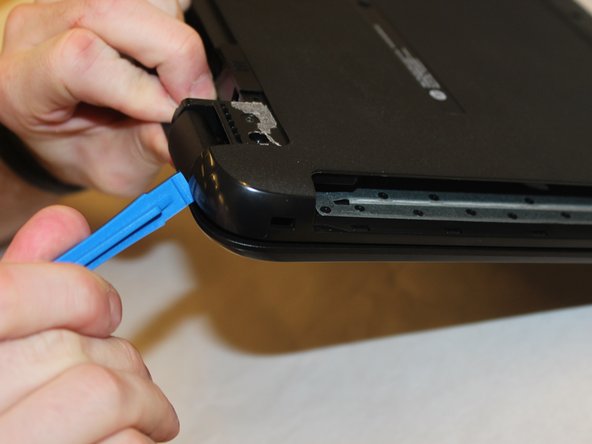
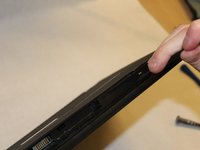
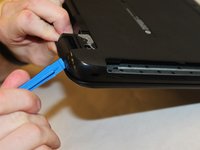
      • Use the spudger to press the tabs in the back of the computer. Carefully remove the back of the laptop by prying around the sides using the plastic opening tool.

      Ask FixBot

      Add Comment

    3. HP 15-ay014dx RAM Replacement: step 8, image 1 of 2 HP 15-ay014dx RAM Replacement: step 8, image 2 of 2
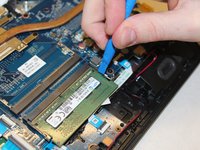
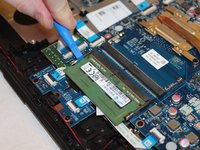
      • Undo the clips holding the RAM in place using the plastic opening tool.

      Ask FixBot

      Add Comment

    4. HP 15-ay014dx RAM Replacement: step 9, image 1 of 1
      • Carefully pull out the RAM from the motherboard.

      Ask FixBot

      Add Comment

Conclusion

To reassemble your device, follow these instructions in reverse order.

Cancel: I did not complete this guide.

7 other people completed this guide.

Drake Scoville

Member since: 09/21/17

578 Reputation

4 Guides authored

0 Guide Comments

Add Comment

View Statistics:

Past 24 Hours: 0

Past 7 Days: 4

Past 30 Days: 23

All Time: 1,044