
HP 15-R263DX RAM Replacement

Drake Hort and 3 other contributors
Last updated on Jun 26, 2018
Views: 2.1K
View statistics:
- Past 24 Hours:
- 1
- Past 7 Days:
- 14
- Past 30 Days:
- 56
- All Time:
- 2,094
Comments: 2
1 comment on steps, 1 guide comment.
Go to guide commentsCompleted: 6 7
6 people have marked this guide "completed." Will you be next?
7 people have marked this guide "completed." Including you — great job!
Favorites: 0 1
No one has favorited (and subscribed to) this guide. Will you be the first?
1 person has favorited (and subscribed to) this guide — and that's you!
Introduction
Go to step 1 ↓If the computer won't load past the startup screen or randomly crashes during normal operation, there isn't enough RAM or the RAM is damaged and needs replacement.
What you need
Tools
-
Spudger4.9
-


-
-
-
Eject the battery from the computer by sliding the two clips on the bottom of the computer toward the center of the computer.
-
Slide the battery out as shown in the picture.
 Ask FixBot
-
-
-
-
-
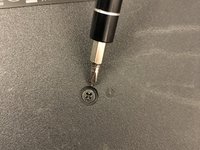
Using a Phillips #1 screwdriver, remove the small screw next to the disc engraving shown in the picture.
-
-
-
-
-
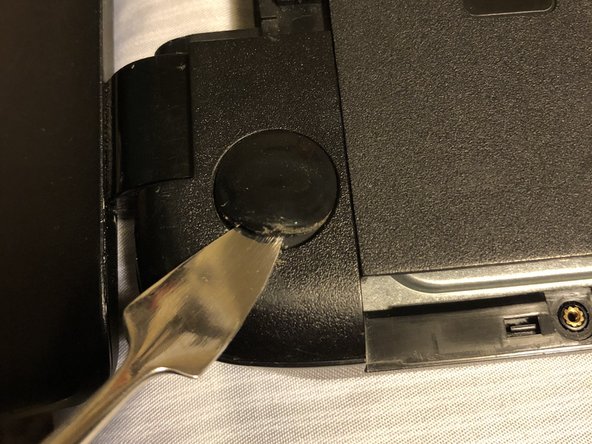
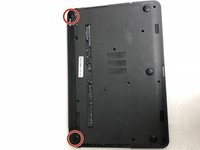
Locate the two corner grips on the hinge side of the computer.
-
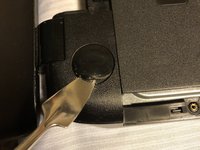
Using a metal spudger, remove the two corner grips to reveal the screws.
-
-
-
Remove the 11 small screws on the bottom of the computer that are shown in the picture.
-
-
-
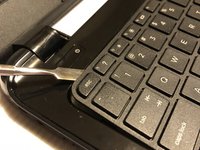
Using a spudger, pry around the edges of the keyboard until all clips are disengaged and the keyboard is loose from the computer.
-
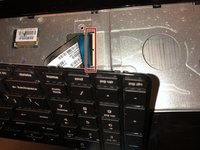
To disconnect the ribbon connector, flip up the black clip shown in the picture.
-
Gently pull the ribbon until disconnected.
-
-
-
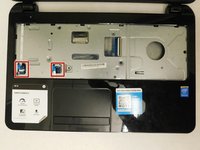
Disconnect the other two ribbon connectors underneath the keyboard by fliping up the black clips.
-
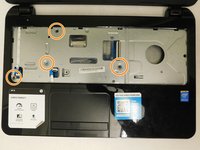
Remove the 4 small screws shown in the picture.
-
-
-
Disengage the face plate clips by prying the case away from around the outer edge of the face plate with a metal wedge.
-
The face plate can then be lifted away from the computer.
-
-
-
-
-
Remove the 2 black screws holding the hard drive to the computer frame.
-
-
-
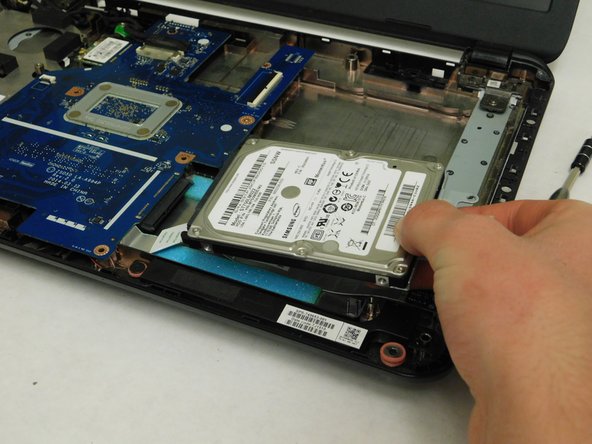
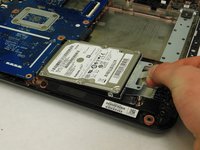
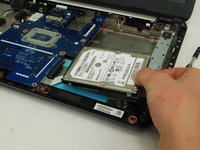
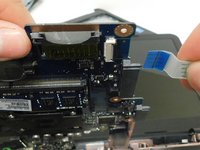
Gently slide the hard drive away from the motherboard to disconnect it.
-
After it's disconnected, lift the hard drive up to remove it from the computer.
-
-
-
-
-
-
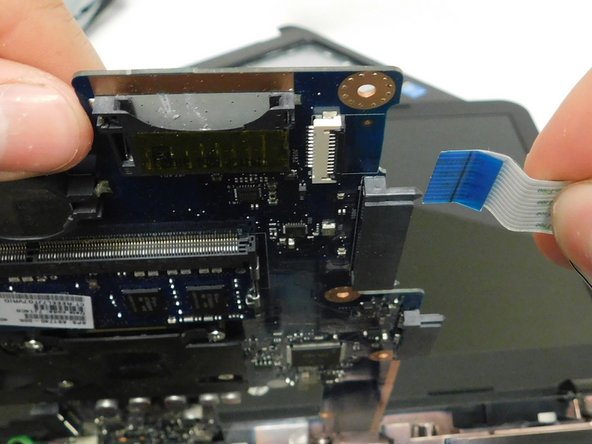
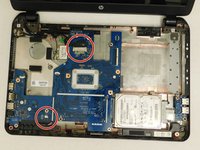
Remove the 2 screws holding the motherboard into the case of the laptop.
-
-
-
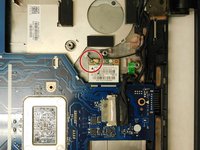
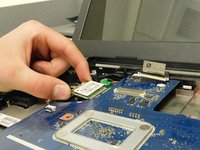
Remove the screw holding the WiFi chip in place.
-
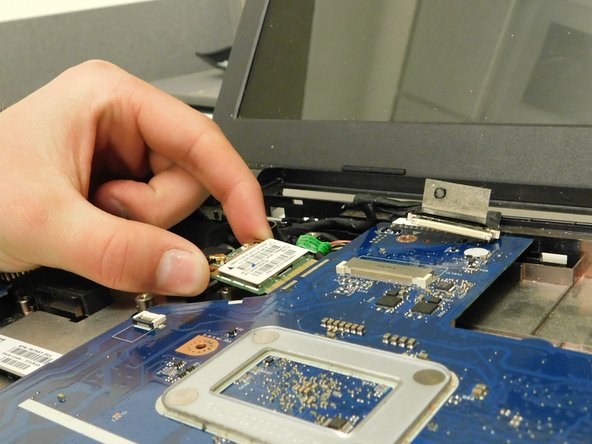
Slide the chip away from the motherboard and set it elsewhere inside the computer.
-
-
-
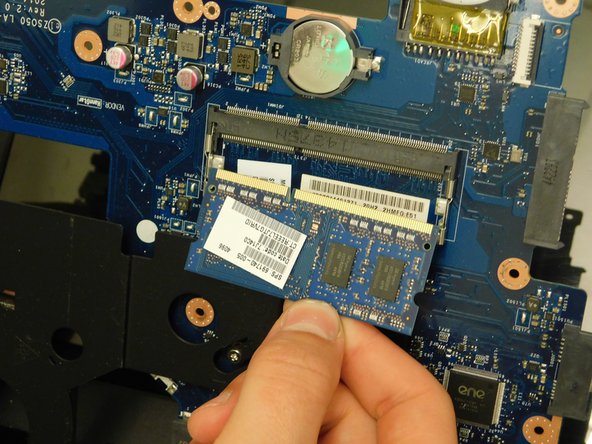
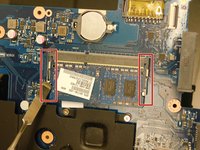
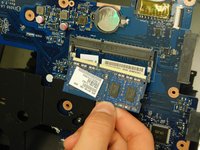
Remove the RAM chip by simultaneously prying the 2 spring clips away from the RAM.
-
-















To reassemble your device, follow these instructions in reverse order.
Cancel: I did not complete this guide.
6 other people completed this guide.

Team

Washington State, Team S2-G3, Lobnitz Spring 2018 Member of Washington State, Team S2-G3, Lobnitz Spring 2018
WSU-LOBNITZ-S18S2G3
8 Members
84 Guides authored
