
HP 15-R011DX RAM (Random Access Memory) Replacement

Joshua Brockman and 2 other contributors
Last updated on Jul 1, 2019
Views: 1.6K
View statistics:
- Past 24 Hours:
- 1
- Past 7 Days:
- 13
- Past 30 Days:
- 58
- All Time:
- 1,563
Comments: 5
5 comments on steps.
Completed: 3 4
3 people have marked this guide "completed." Will you be next?
4 people have marked this guide "completed." Including you — great job!
Favorites: 0 1
No one has favorited (and subscribed to) this guide. Will you be the first?
1 person has favorited (and subscribed to) this guide — and that's you!
Introduction
Go to step 1 ↓The RAM of a device is key to its performance. Due to this, it is vital to knowing how to replace the RAM drive that is in your HP device. Always remember however that before replacing internal components that you should always back up the data in your device.
What you need
Tools


-
-
-
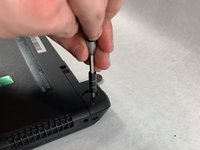
Slide the lock mechanism on the left side of the laptop to the right.
 Ask FixBot
-
-
-
-
-
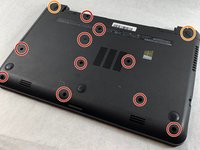
Flip the laptop over to reveal screw locations.
-
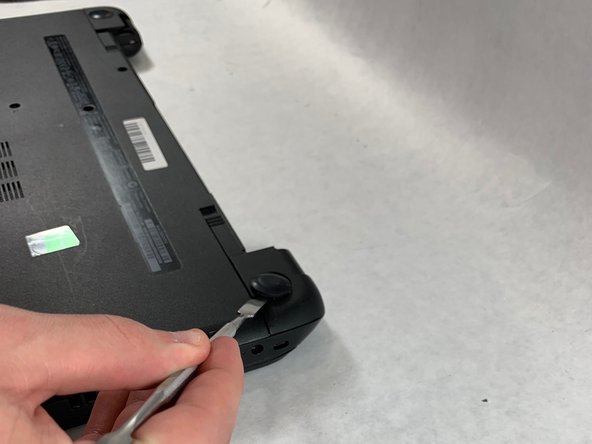
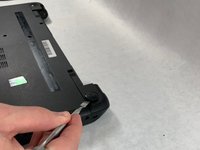
Use a metal spudger to remove the two rear rubber feet. There are screws hidden underneath them.
-
-
-
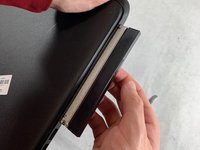
Remove the DVD drive from the laptop.
-
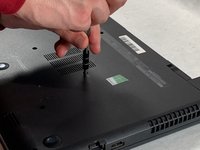
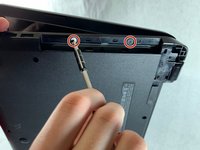
Remove the two 3 mm Phillips #1 screws underneath the DVD drive.
-
-
-
Flip the laptop and open.
-
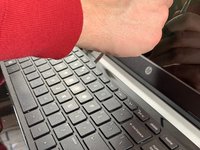
Detach the keyboard by prying it free from the laptop using a spudger.
-
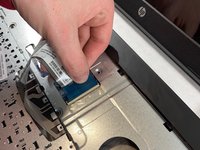
Disconnect the keyboard ribbon cable.
-
-
-
Disconnect the two narrow ribbon cables to the left of the keyboard connection.
-
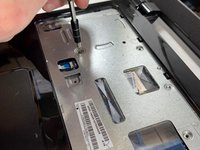
Remove five 4 mm Phillips #1 screws from the metal tray for the keyboard.
-
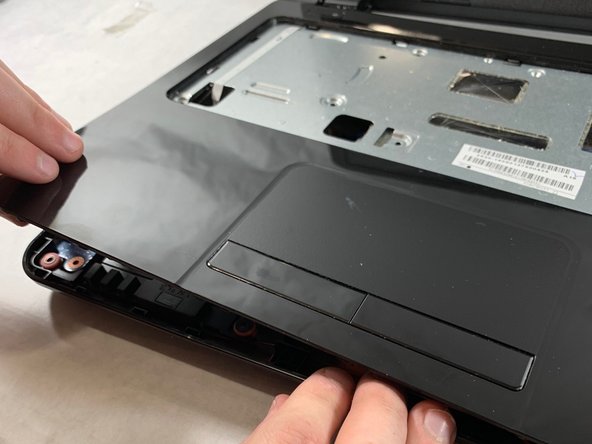
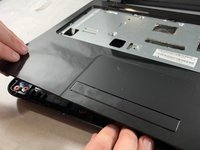
Pry open the plastic casing using a spudger.
-
-
-
-
-
Remove two 5 mm Phillips #1 screws located at the base of the hard drive.
-
-
-
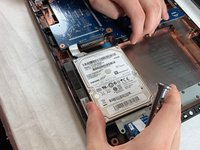
Pull the hard drive upwards and away from the laptop.
-
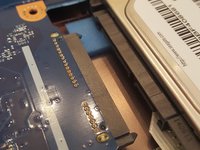
The hard drive should disconnect from its port on the motherboard as shown in the second image.
-
-
-
Flip the hard drive over.
-
Remove the two 4 mm Phillips #1 screws from the base of the hard drive.
-
Remove the mounting brace (silver bracket) from the hard drive.
-
-
-
-
-
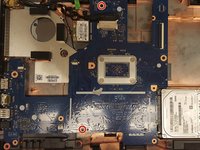
Remove the remaining two 5 mm Philips #1 screws from the motherboard.
-
-
-
Remove the tape from the display connector attached to the motherboard.
-
Disconnect the display connector from the motherboard.
-
-
-
-
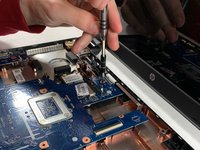
Remove one 4 mm Phillips #1 screw from the wireless chip.
-
Remove the wireless chip from the motherboard.
-
-
-
Remove two 5 mm Phillips #1 screws from the USB component connected to the motherboard.
-
Lift the USB component until the band connecting it to the motherboard lifts off of the laptop.
-
-
-
Slowly lift the motherboard out of the computer.
-
Disconnect the power connector from the motherboard as shown in the image.
-
-
-
-
-
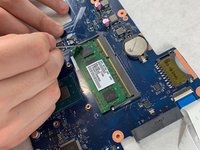
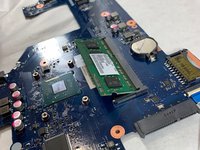
Locate the RAM drive on the underside of the motherboard.
-
-
















To reassemble your device, follow these instructions in reverse order.
Cancel: I did not complete this guide.
3 other people completed this guide.

Team

UMass Dartmouth, Team S2-G4, Bailey Spring 2019 Member of UMass Dartmouth, Team S2-G4, Bailey Spring 2019
UMASSD-BAILEY-S19S2G4
3 Members
72 Guides authored
