Free Shipping on Domestic Orders $75+

Graco Secure Coverage Speaker Replacement on Parent Unit

Views: 647

View statistics:

Past 24 Hours:
2
Past 7 Days:
19
Past 30 Days:
76
All Time:
647
Comments: 0

No one has left comments on this guide. Will you be first?

Go to guide comments
Completed: 0

No one has marked this guide "completed." Will you be the first?

Favorites: 0

No one has favorited (and subscribed to) this guide. Will you be the first?

Time Required: No estimate
Difficulty: Moderate
Missing Steps

Oops! This guide is currently missing one or more important steps.

Graco Secure Coverage  Speaker Replacement on Parent Unit

Introduction

Go to step 1 ↓

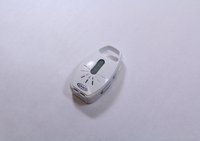
Use this guide to replace the speaker on your Graco Secure Coverage Digital Baby Monitor for parent unit.

The speaker replacement includes the speaker and battery replacement.

What you need

Tools

    1. Graco Secure Coverage  Speaker Replacement on Parent Unit, Parent Unit Battery: step 1, image 1 of 3 Graco Secure Coverage  Speaker Replacement on Parent Unit, Parent Unit Battery: step 1, image 2 of 3 Graco Secure Coverage  Speaker Replacement on Parent Unit, Parent Unit Battery: step 1, image 3 of 3
      • Using plastic opening tool, pry and remove the battery lid.

      Ask FixBot

      Add Comment

    2. Graco Secure Coverage  Speaker Replacement on Parent Unit: step 2, image 1 of 1
      • Remove the battery by holding the device with one hand and pulling the battery out with other hand carefully.

      • Make sure that you disconnect the battery's wire before you remove the battery.

      Ask FixBot

      Add Comment

    1. Graco Secure Coverage  Speaker Replacement on Parent Unit, Parent Unit Speaker: step 3, image 1 of 2 Graco Secure Coverage  Speaker Replacement on Parent Unit, Parent Unit Speaker: step 3, image 2 of 2
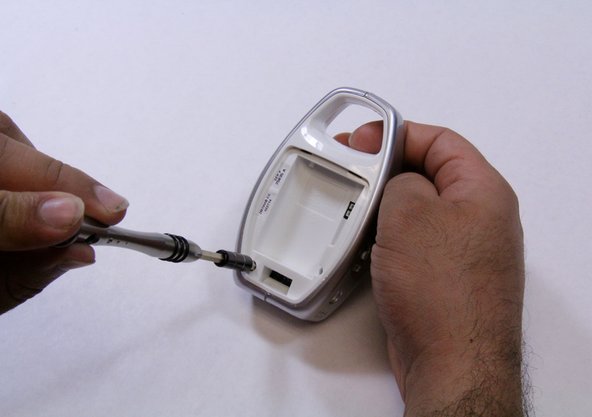
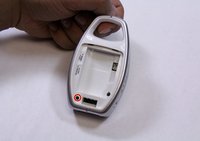
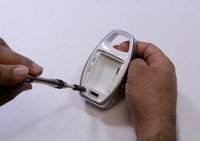
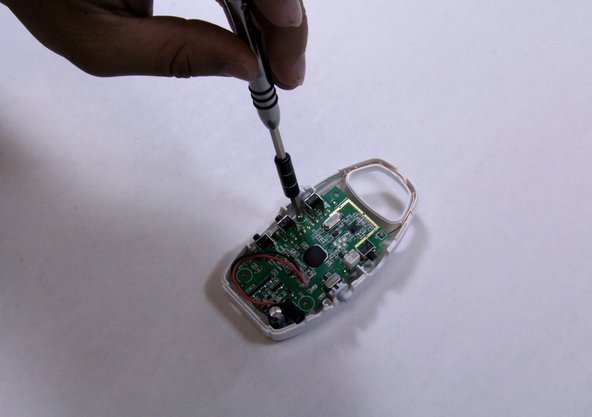
      • There are two screws on the rare case of the device. For the one shown in red marker requires either an extended screwdriver or putting on a little pressure on a regular screwdriver.

      • Remove the two 9mm Phillips #1 screws from the rare case of the device.

      • If you cannot remove the screw with low pressure, do not use high pressure to remove it. It may cause a damage on the device case. Use an extended screwdriver instead.

      Ask FixBot

      Add Comment

    2. Graco Secure Coverage  Speaker Replacement on Parent Unit: step 4, image 1 of 2 Graco Secure Coverage  Speaker Replacement on Parent Unit: step 4, image 2 of 2
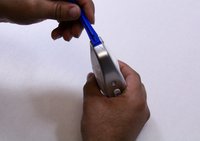
      • Using opening plastic tool, pry the two grey cases from both sides of the device.

      • Take your time and apply constant force to avoid breaking or damaging any other plastic parts.

      • While pry off the grey cases, hold the device with your other hand to remove the cases.

      Ask FixBot

      Add Comment

    3. Graco Secure Coverage  Speaker Replacement on Parent Unit: step 5, image 1 of 1
      • Pry the edges of the device to separate the front case away from the rare case.

      • While prying the edges, hold the device with one hand to pull out each case a part.

      • Make sure you use a constant force, and the pushbuttons are pried off completely.

      Ask FixBot

      Add Comment

    4. Graco Secure Coverage  Speaker Replacement on Parent Unit: step 6, image 1 of 2 Graco Secure Coverage  Speaker Replacement on Parent Unit: step 6, image 2 of 2
      • Remove the 7mm Phillips #1 screw from the mother board.

      • Place the screw in a secure place.

      • Pull out the mother board away from the case carefully.

      Ask FixBot

      Add Comment

    5. Graco Secure Coverage  Speaker Replacement on Parent Unit: step 7, image 1 of 2 Graco Secure Coverage  Speaker Replacement on Parent Unit: step 7, image 2 of 2
      • Pick up the motherboard.

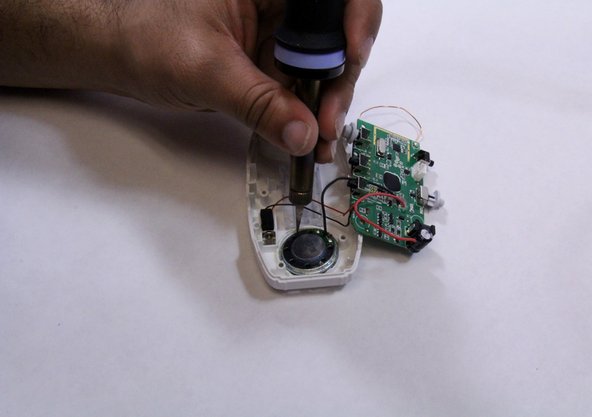
      • Solder off the speaker from the device's case.

      • Solder off the speaker from the mother board.

      • There are many pins attached to the mother board, make sure you solder off the proper pins that attached to the speaker wires.

      • Replace the speaker.

      Ask FixBot

      Add Comment

Conclusion

To reassemble your device, follow these instructions in reverse order.

Cancel: I did not complete this guide.

Ahmed Elshaer

Member since: 09/09/15

201 Reputation

2 Guides authored

Team

USF Tampa, Team 6-5, Remmell Fall 2015 Member of USF Tampa, Team 6-5, Remmell Fall 2015

USFT-REMMELL-F15S6G5

4 Members

96 Guides authored

0 Guide Comments

Add Comment

View Statistics:

Past 24 Hours: 2

Past 7 Days: 19

Past 30 Days: 76

All Time: 647