Free Shipping on Domestic Orders $75+

Google Pixel Watch 2 Opening Procedure

Prerequisite Only
This is a prerequisite-only guide! This guide is part of another procedure and isn’t meant to be used alone.

What you need

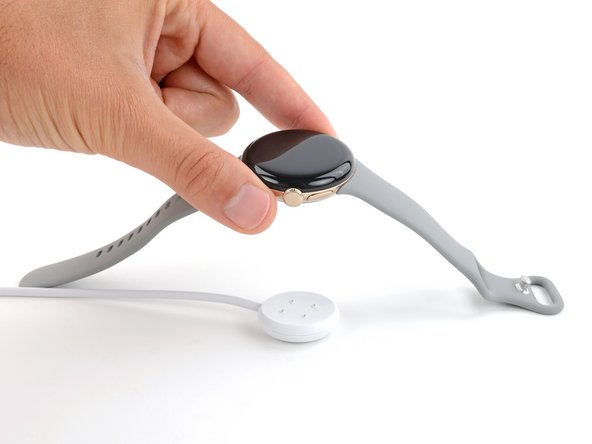
    1. Google Pixel Watch 2 Opening Procedure, Prepare your watch for disassembly: step 1, image 1 of 2 Google Pixel Watch 2 Opening Procedure, Prepare your watch for disassembly: step 1, image 2 of 2
      • Before starting this repair, remove your watch from the charger and let its battery drain completely—the watch should shut down from low battery. A charged lithium‑ion battery may catch fire if damaged.

      • Letting the battery drain completely also prevents accidentally turning your watch back on when gripping it during repair.

      Ask FixBot

      Add Comment

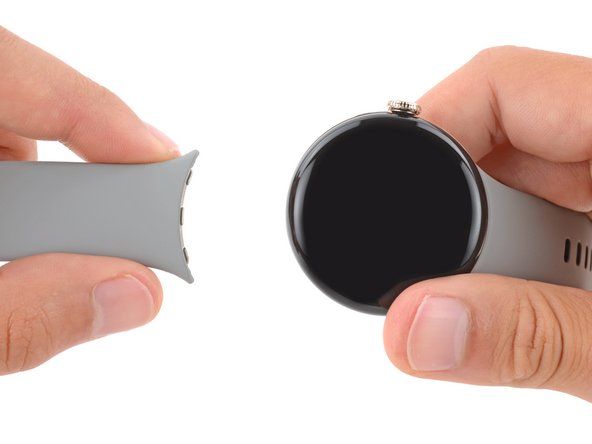
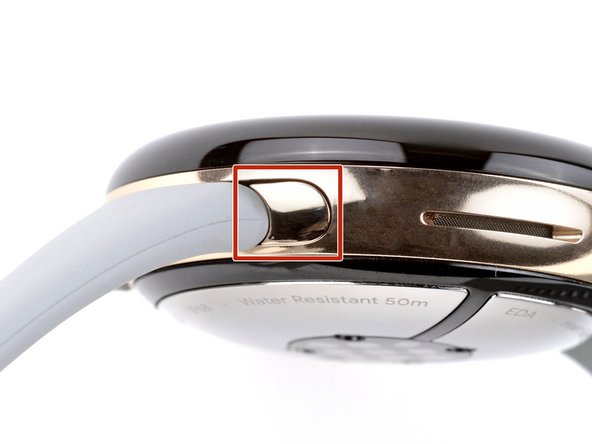
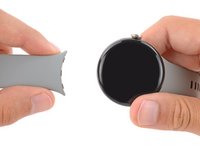
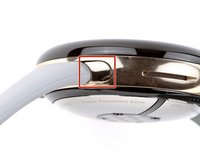
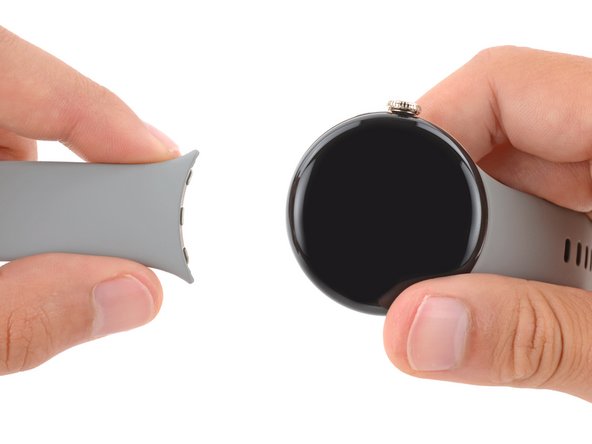
    2. Google Pixel Watch 2 Opening Procedure, Remove both watch bands: step 2, image 1 of 2 Google Pixel Watch 2 Opening Procedure, Remove both watch bands: step 2, image 2 of 2
      • Remove both watch bands by pressing the release button and sliding the band out of its groove.

      Ask FixBot

      Add Comment

    3. Google Pixel Watch 2 Opening Procedure, Put your watch in the vise: step 3, image 1 of 1
      • Inserting a tool between the screen and frame is very difficult. Using a vise to secure the frame makes it significantly easier.

      • Secure your watch with a small vise so the jaws go into the watch band grooves on the frame.

      • If your vice has sharp or metal jaws, consider wrapping the frame in a thin cloth to prevent scratching or damaging the frame.

      Ask FixBot

      Add Comment

    4. Google Pixel Watch 2 Opening Procedure, Safety precautions: step 4, image 1 of 1
      Tool used on this step:
      iFlex Opening Tool
      $11.99
      Buy
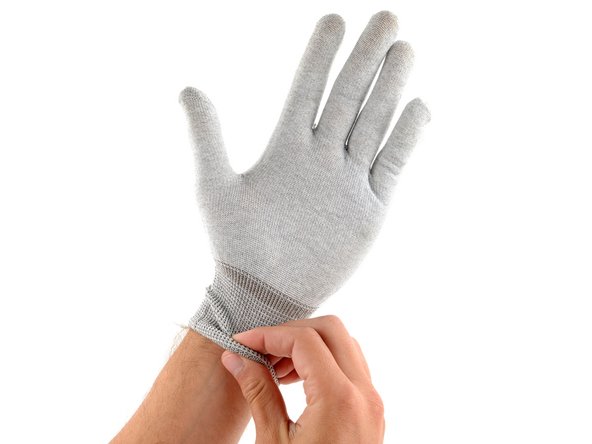
      • The gap between the screen and frame is extremely small. You'll need a thin tool such as an iFlex to create an initial gap.

      • Don't grip the iFlex or similar metal tools by the edges—they're very sharp. Wear gloves to protect yourself.

      Ask FixBot
      Add Comment

    5. Google Pixel Watch 2 Opening Procedure, Heat the screen adhesive: step 5, image 1 of 1
      • Very strong adhesive secures the screen to the frame. Heating the screen softens the adhesive, making it easier to separate.

      • Use a hair dryer or heat gun to heat the right edge of screen around the watch crown until it's slightly too hot to touch.

      • Be careful not to heat the screen more than this, as it may damage the screen and/or battery.

      Ask FixBot

      Add Comment

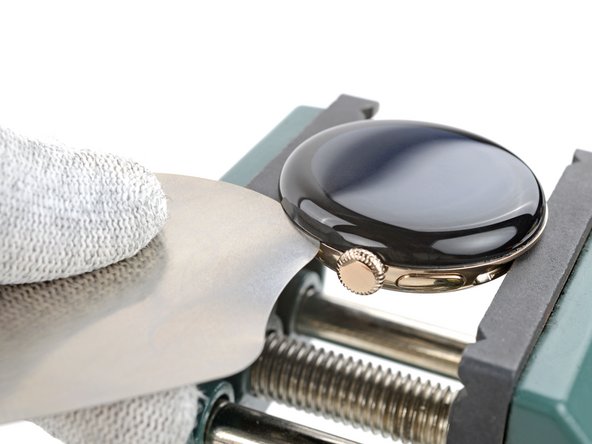
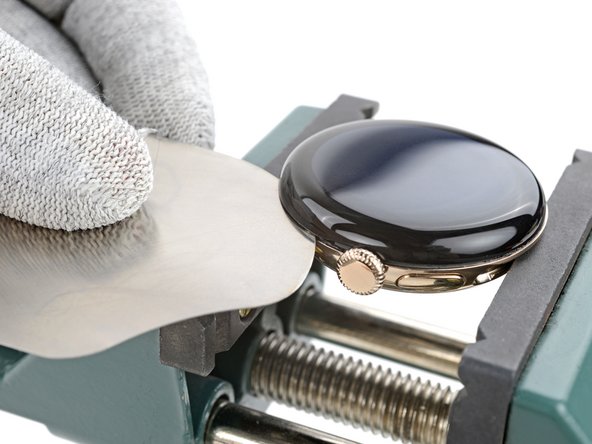
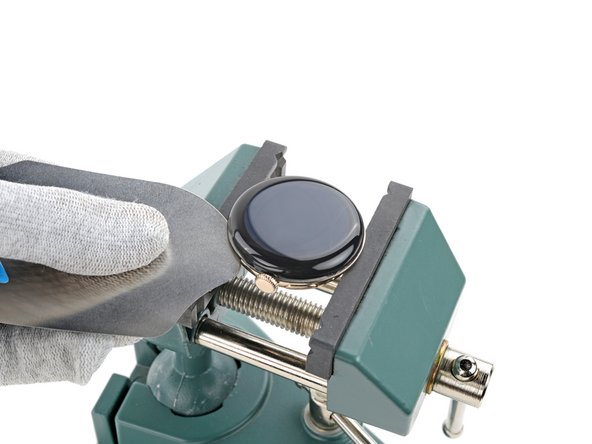
    6. Google Pixel Watch 2 Opening Procedure, Insert an iFlex: step 6, image 1 of 3 Google Pixel Watch 2 Opening Procedure, Insert an iFlex: step 6, image 2 of 3 Google Pixel Watch 2 Opening Procedure, Insert an iFlex: step 6, image 3 of 3
      • Insert the tip of an iFlex between the screen and frame just below the watch crown (opposite the side button).

      • This is very difficult and will take multiple attempts. If the screen cools down, apply more heat and try again.

      • Rotate the iFlex so its longer edge is between the screen and frame.

      Ask FixBot

      Add Comment

    7. Google Pixel Watch 2 Opening Procedure, Separate the screen adhesive: step 7, image 1 of 3 Google Pixel Watch 2 Opening Procedure, Separate the screen adhesive: step 7, image 2 of 3 Google Pixel Watch 2 Opening Procedure, Separate the screen adhesive: step 7, image 3 of 3
      • Hold the iFlex at a slight upward angle and slide it clockwise around the perimeter of the watch to separate the adhesive. Stop when you reach the side button.

      • Don't slide farther than this or you'll damage the screen cable.

      Ask FixBot

      Add Comment

    8. Google Pixel Watch 2 Opening Procedure, Remove your watch from the vise: step 8, image 1 of 1
      • Remove your watch from the vise.

      Ask FixBot

      Add Comment

    9. Google Pixel Watch 2 Opening Procedure, Disassembly information: step 9, image 1 of 2 Google Pixel Watch 2 Opening Procedure, Disassembly information: step 9, image 2 of 2
      • Throughout the rest of your repair:

      • Consider placing your watch on something soft like a clean cloth to help stabilize it and prevent damage.

      • Attach and remove the watch bands as needed to get a better grip or stabilize your watch.

      Ask FixBot

      Add Comment

    10. Google Pixel Watch 2 Opening Procedure, Swing open the screen: step 10, image 1 of 3 Google Pixel Watch 2 Opening Procedure, Swing open the screen: step 10, image 2 of 3 Google Pixel Watch 2 Opening Procedure, Swing open the screen: step 10, image 3 of 3
      Tool used on this step:
      E6000 Adhesive Glue
      $2.99
      Buy
      • Be careful not to strain the screen cable during the rest of your repair.

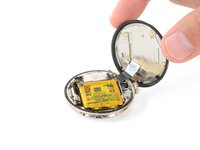
      • Swing open the screen and put it in an upright position next to the watch crown.

      • If the screen feels stuck, go back around the perimeter and carefully separate any remaining adhesive with the iFlex. Be very careful not to damage the screen cable near the crown.

      • During reassembly:

      • This is a good point to plug in and test your watch before sealing it up. Be sure to power it down completely before you continue working.

      • Use a spudger and tweezers to remove all the old screen adhesive from the frame and screen. Then, clean up any adhesive residue with high‑concentration (>90%) isopropyl alcohol and a cotton swab.

      • You'll need to seal your watch with strong adhesive glue. Apply the glue to the perimeter of the frame and firmly press the screen into place.

      • Most strong adhesive glues have a long curing time—read the instructions for proper use.

      Ask FixBot

      Add Comment

Conclusion

To reassemble your device, follow these instructions in reverse order.

Cancel: I did not complete this guide.

Spencer Day

Member since: 09/14/22

205,821 Reputation

1,267 Guides authored

Team

iFixit Member of iFixit

Staff

122 Members

72,401 Guides authored

0 Guide Comments

Add Comment

View Statistics:

Past 24 Hours: 0

Past 7 Days: 3

Past 30 Days: 17

All Time: 225