
Lenovo ThinkPad X260 Internal Battery Replacement

Ammarin Sinthana and 6 other contributors
Last updated on Sep 16, 2026
Views: 5.5K
View statistics:
- Past 24 Hours:
- 8
- Past 7 Days:
- 54
- Past 30 Days:
- 231
- All Time:
- 5,461
Comments: 0
No one has left comments on this guide. Will you be first?
Go to guide commentsCompleted: 1 2
1 person has marked this guide "completed." Will you be next?
2 people have marked this guide "completed." Including you — great job!
Favorites: 1 2
1 person has favorited (and subscribed to) this guide. Will you be next?
2 people have favorited (and subscribed to) this guide — including you!
Featured Student Guide
This guide has been the hard work of our awesome students and is found to be exceptionally cool by the iFixit staff.
Introduction
Go to step 1 ↓This is a simple guide designed to help extend the life of a Lenovo ThinkPad X260 by replacing the internal battery. The life expectancy for the internal battery is about the same as the external battery which is 2-3 years. However, this does not mean that it must be replaced after 3 years. The expectancy shows how quickly the battery deteriorates and is unable to hold the charge as much as before. After replacing the internal battery, this laptop will run smoother and be able to hold a maximum charge for another 2-3 years. If the internal battery is swollen or leaking fluid, stop immediately and put on protective gear such as thick gloves and goggles before doing anything else to the component. This repair is always easier to perform with a clean organized work area with proper tools. Refer to the link below for proper procedure to dispose of a faulty battery.
What you need
Parts


Tools


-
-
-
Start by pinching the switches on either side of the battery outwards.
-
At the same time push the external battery, located in the back, upwards.
-
Remove the external battery from the laptop.
-
-
-
-
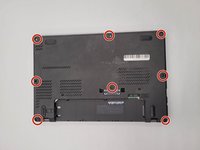
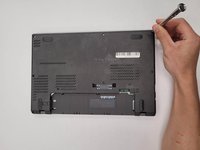
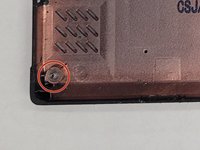
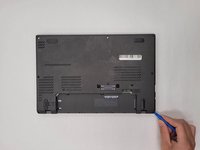
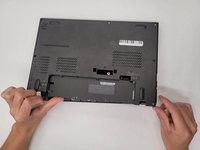
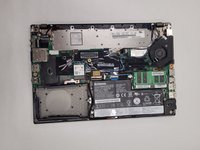
Loosen the eight 4.2 mm screws holding the back cover on using a Phillips #1 screwdriver.
-
-
-
-
Tool used on this step:Tweezers$4.99
-
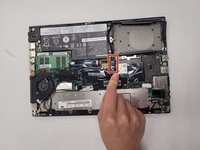
Detach the black battery connector using a pair of tweezers.
-
-
-
-
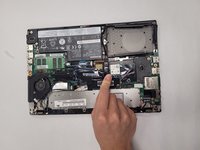
Remove the four 3.3 mm screws locking down the battery using a Phillips #1 screwdriver.
-
-
-
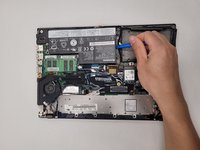
Carefully remove the internal battery unit from the laptop using an iFixit opening tool.
-
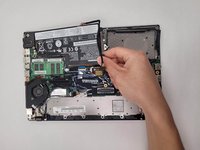
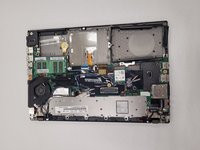
Pick up the battery and take it off the laptop frame.
-
-


 Ask FixBot








To reassemble your device, follow these instructions in reverse order.
Cancel: I did not complete this guide.
One other person completed this guide.
Team

IUPUI, Team 1-3, Harley Summer 2023 Member of IUPUI, Team 1-3, Harley Summer 2023
IUPUI-HARLEY-SU23S1G3
3 Members
48 Guides authored
