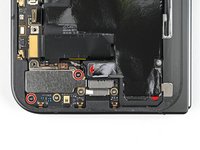
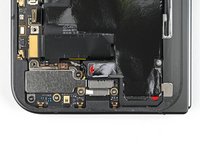
Google Pixel 9 Pro Fold Logic Board Reinstallation

Prerequisite Only
This is a prerequisite-only guide! This guide is part of another procedure and isn’t meant to be used alone.
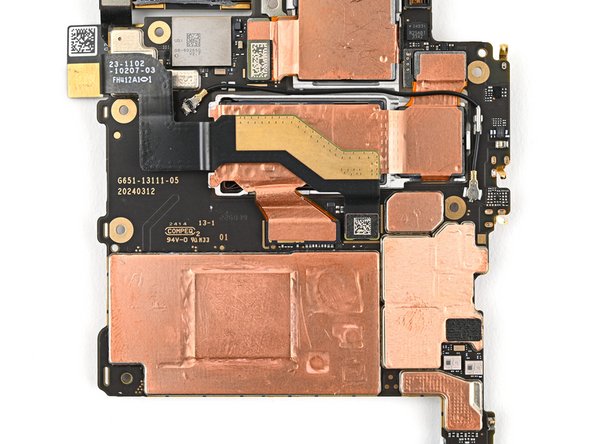
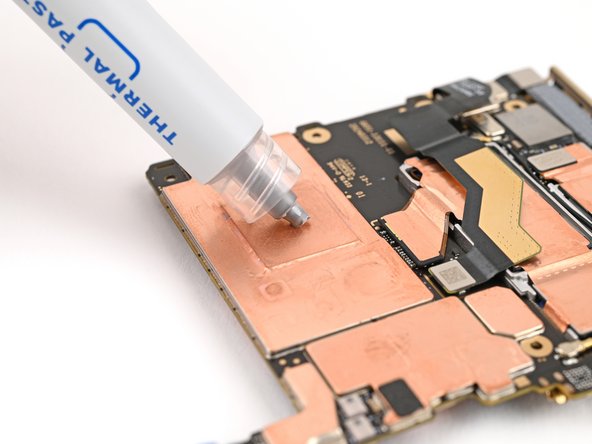
  1. Google Pixel 9 Pro Fold Logic Board Reinstallation, Apply new thermal paste: step 1, image 1 of 3 Google Pixel 9 Pro Fold Logic Board Reinstallation, Apply new thermal paste: step 1, image 2 of 3 Google Pixel 9 Pro Fold Logic Board Reinstallation, Apply new thermal paste: step 1, image 3 of 3
    • Apply small beads of thermal paste (five total) to the motherboard in the same locations as the old thermal paste.

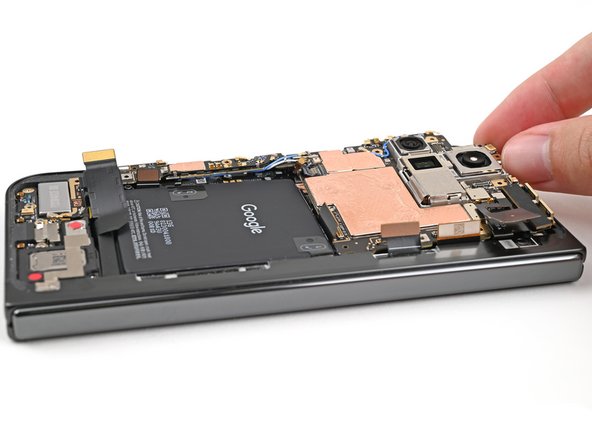
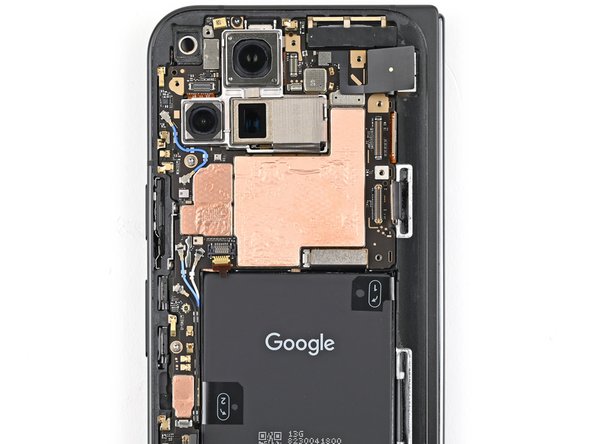
  2. Google Pixel 9 Pro Fold Logic Board Reinstallation, Reinstall the logic board: step 2, image 1 of 2 Google Pixel 9 Pro Fold Logic Board Reinstallation, Reinstall the logic board: step 2, image 2 of 2
    • Place the logic board back into its cutout in the frame, making sure no cables get trapped underneath it.

  3. Google Pixel 9 Pro Fold Logic Board Reinstallation: step 3, image 1 of 2 Google Pixel 9 Pro Fold Logic Board Reinstallation: step 3, image 2 of 2
    • Use a Torx Plus 3IP driver to install the three screws securing the logic board:

    • One 2.2 mm‑long screw

    • Two 2.6 mm‑long screws

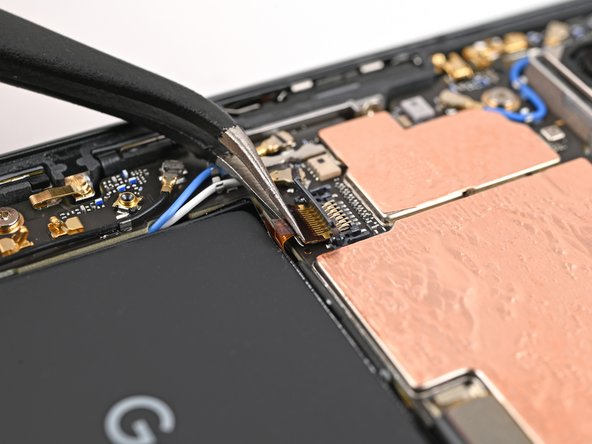
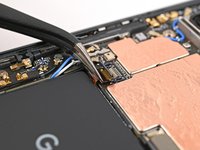
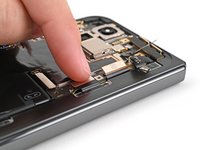
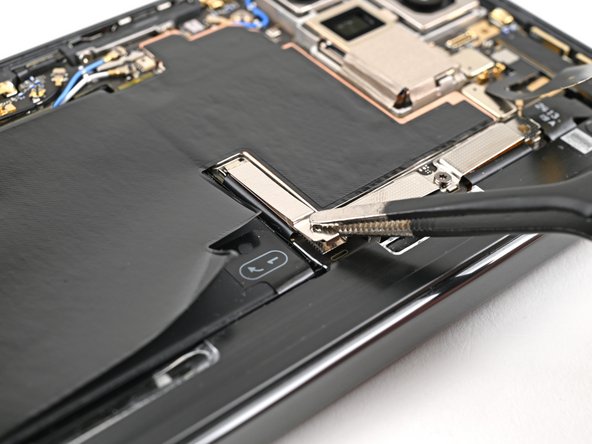
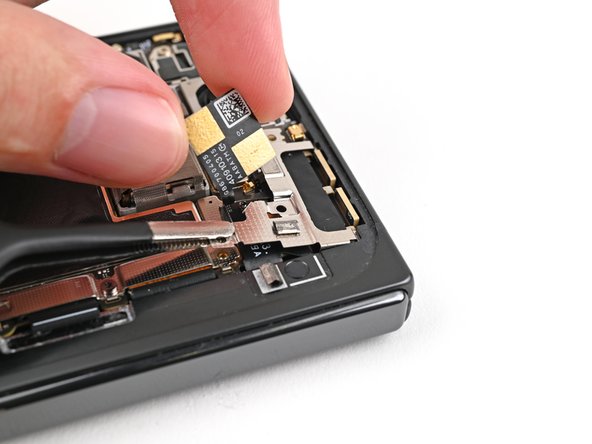
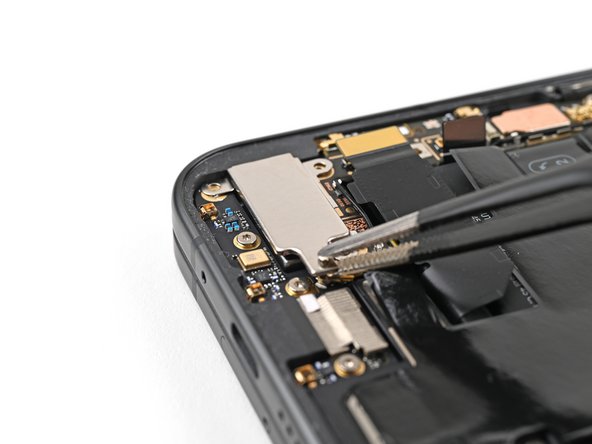
  4. Google Pixel 9 Pro Fold Logic Board Reinstallation, Reconnect the side button cable: step 4, image 1 of 2 Google Pixel 9 Pro Fold Logic Board Reinstallation, Reconnect the side button cable: step 4, image 2 of 2
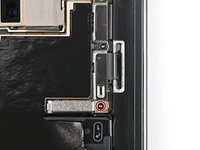
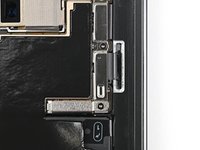
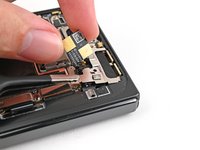
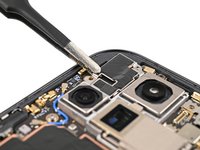
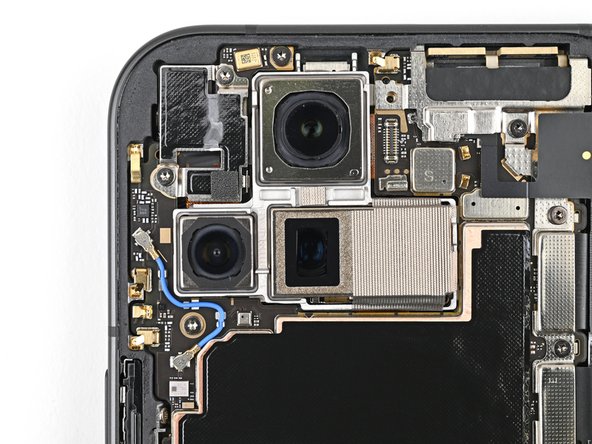
    • Use angled tweezers to push the side button cable back into its slot.

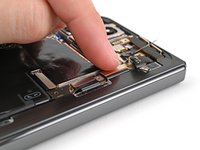
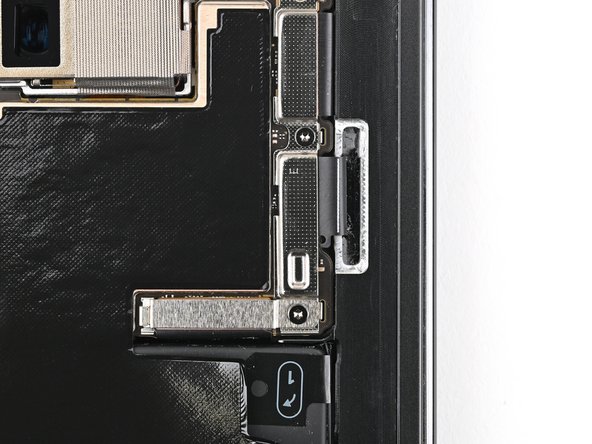
  5. Google Pixel 9 Pro Fold Logic Board Reinstallation: step 5, image 1 of 1
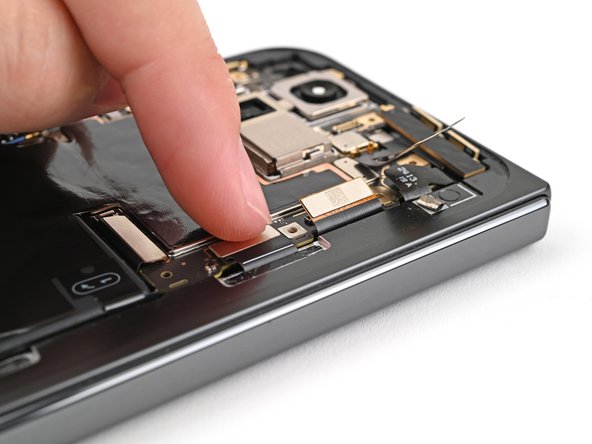
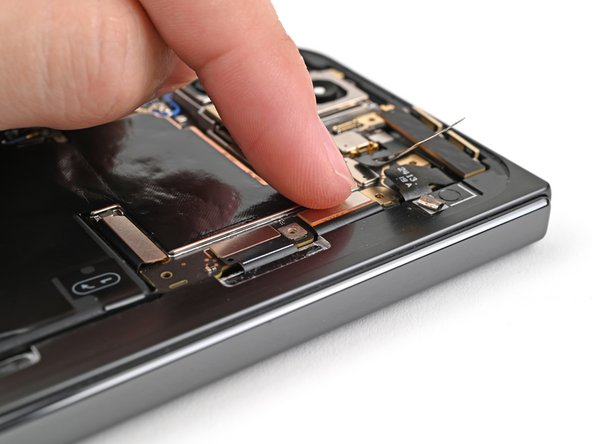
    • Flip the locking tab down and lightly press on it until it clicks into place.

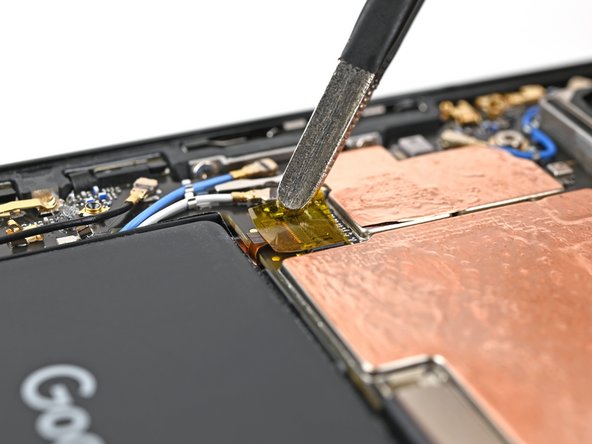
  6. Google Pixel 9 Pro Fold Logic Board Reinstallation: step 6, image 1 of 2 Google Pixel 9 Pro Fold Logic Board Reinstallation: step 6, image 2 of 2
    • Place the yellow tape over the ZIF connector and its cable.

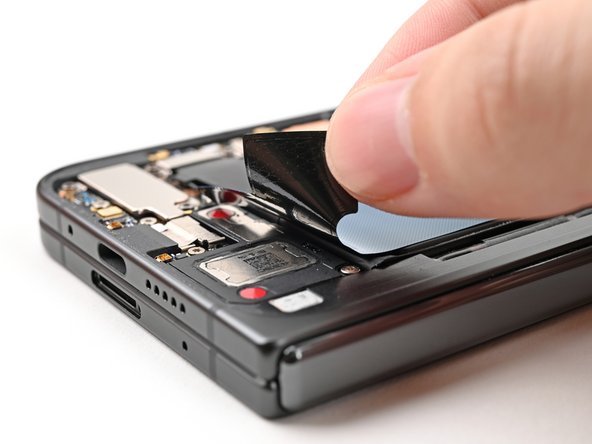
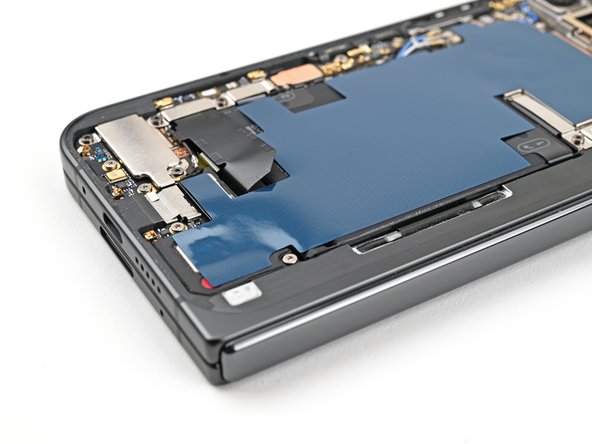
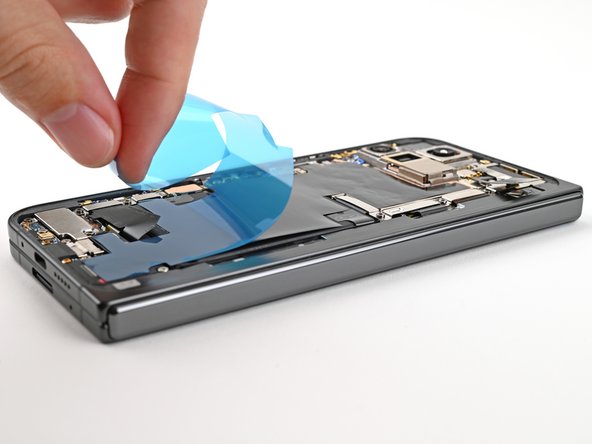
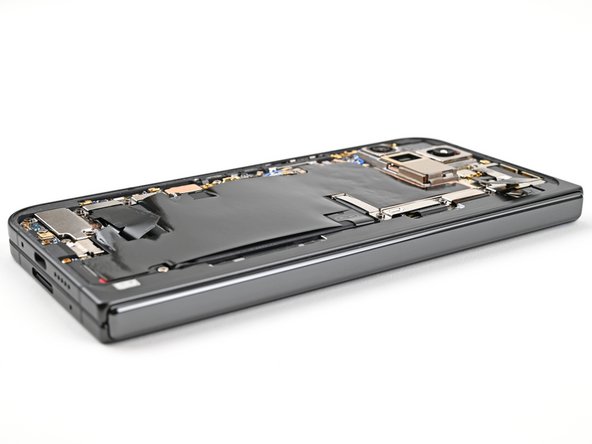
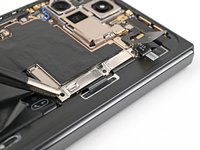
  7. Google Pixel 9 Pro Fold Logic Board Reinstallation, Apply the new graphite sheet: step 7, image 1 of 3 Google Pixel 9 Pro Fold Logic Board Reinstallation, Apply the new graphite sheet: step 7, image 2 of 3 Google Pixel 9 Pro Fold Logic Board Reinstallation, Apply the new graphite sheet: step 7, image 3 of 3
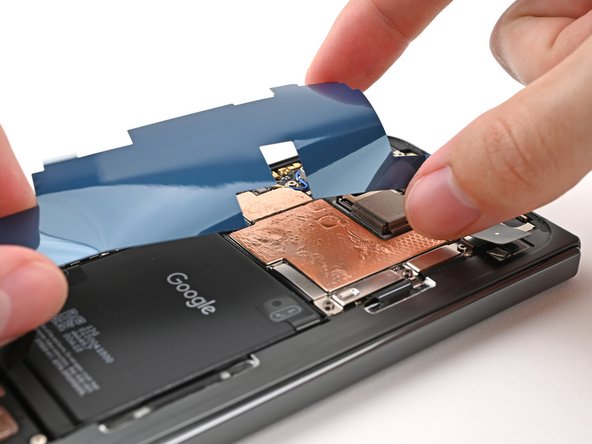
    • Peel the clear liner off your replacement graphite sheet to expose the adhesive on the upper half.

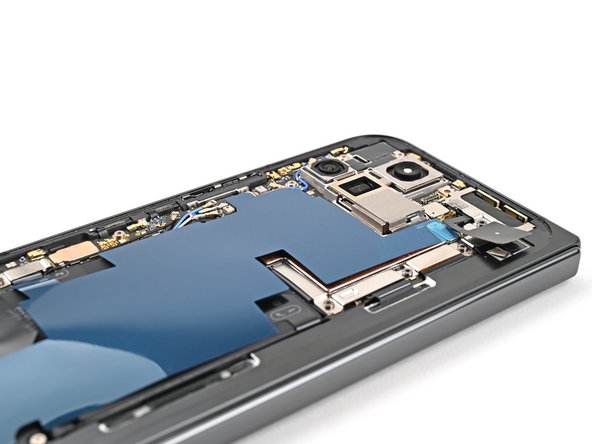
    • Align the upper half of the graphite sheet over the logic board and lay it down.

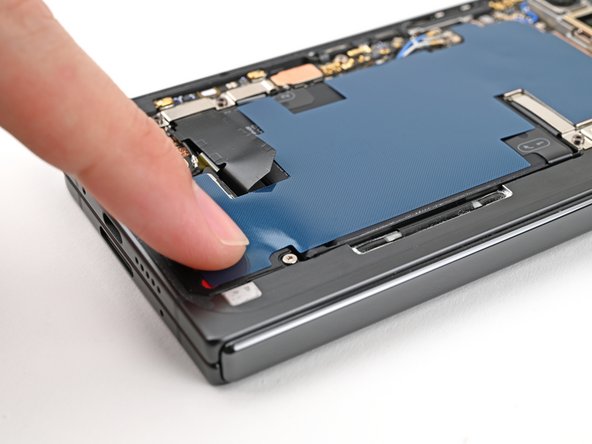
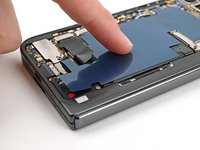
  8. Google Pixel 9 Pro Fold Logic Board Reinstallation: step 8, image 1 of 2 Google Pixel 9 Pro Fold Logic Board Reinstallation: step 8, image 2 of 2
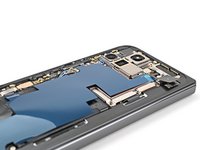
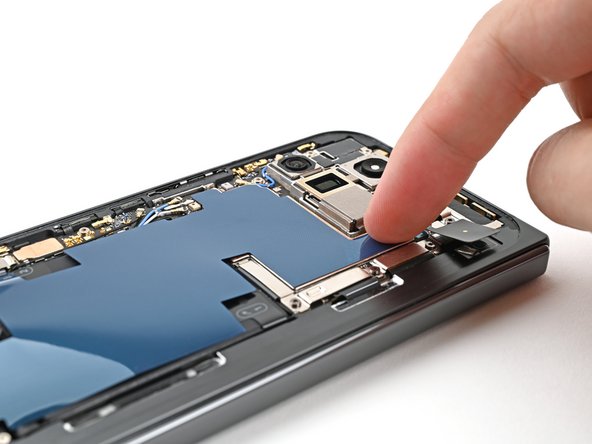
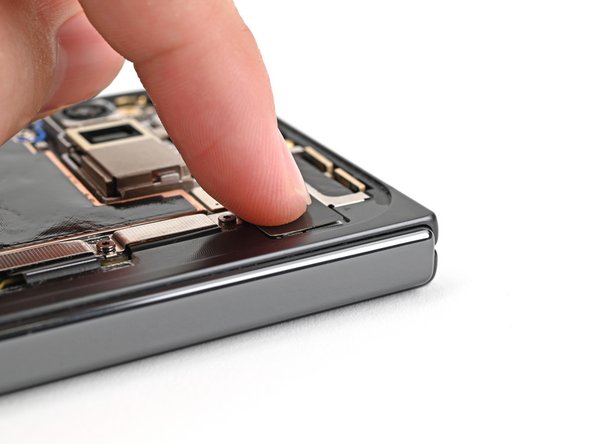
    • Use your finger to press down the upper half of the graphite sheet and secure it to the logic board.

  9. Google Pixel 9 Pro Fold Logic Board Reinstallation: step 9, image 1 of 2 Google Pixel 9 Pro Fold Logic Board Reinstallation: step 9, image 2 of 2
    • Remove the blue liner from the bottom of the graphite sheet to expose the adhesive underneath.

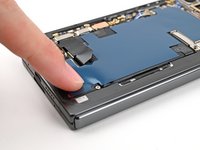
  10. Google Pixel 9 Pro Fold Logic Board Reinstallation: step 10, image 1 of 3 Google Pixel 9 Pro Fold Logic Board Reinstallation: step 10, image 2 of 3 Google Pixel 9 Pro Fold Logic Board Reinstallation: step 10, image 3 of 3
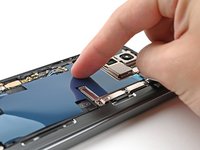
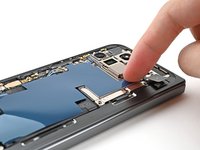
    • Drag your finger from the middle section of the graphite sheet to the adhesive spot on the loudspeaker to flatten the graphite sheet and adhere it.

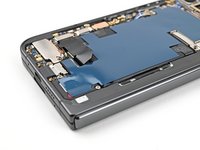
  11. Google Pixel 9 Pro Fold Logic Board Reinstallation: step 11, image 1 of 3 Google Pixel 9 Pro Fold Logic Board Reinstallation: step 11, image 2 of 3 Google Pixel 9 Pro Fold Logic Board Reinstallation: step 11, image 3 of 3
    • Grip the pull tab at the top of the graphite sheet and peel off the remaining liner.

  12. Google Pixel 9 Pro Fold Logic Board Reinstallation, Reconnect the right side cables: step 12, image 1 of 3 Google Pixel 9 Pro Fold Logic Board Reinstallation, Reconnect the right side cables: step 12, image 2 of 3 Google Pixel 9 Pro Fold Logic Board Reinstallation, Reconnect the right side cables: step 12, image 3 of 3
    • Reconnect the inner display cable and the top and bottom interconnect cable press connectors.

  13. Google Pixel 9 Pro Fold Logic Board Reinstallation, Reinstall the inner display cable bracket: step 13, image 1 of 2 Google Pixel 9 Pro Fold Logic Board Reinstallation, Reinstall the inner display cable bracket: step 13, image 2 of 2
    • Reinsert the inner display cable bracket clip under its slot in the logic board and align the screw holes.

  14. Google Pixel 9 Pro Fold Logic Board Reinstallation: step 14, image 1 of 2 Google Pixel 9 Pro Fold Logic Board Reinstallation: step 14, image 2 of 2
    • Use a Torx Plus 3IP driver to install the 3.0 mm‑long screw securing the inner display cable bracket.

  15. Google Pixel 9 Pro Fold Logic Board Reinstallation, Reinstall the bottom interconnect cable bracket: step 15, image 1 of 2 Google Pixel 9 Pro Fold Logic Board Reinstallation, Reinstall the bottom interconnect cable bracket: step 15, image 2 of 2
    • Reinsert the bottom interconnect bracket clip under its slot in the frame and align the screw hole.

  16. Google Pixel 9 Pro Fold Logic Board Reinstallation: step 16, image 1 of 2 Google Pixel 9 Pro Fold Logic Board Reinstallation: step 16, image 2 of 2
    • Use a Torx Plus 3IP driver to install the 3.0 mm‑long screw securing the interconnect cable bracket.

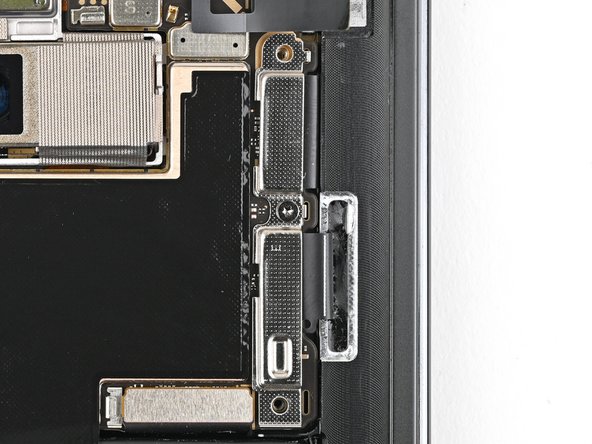
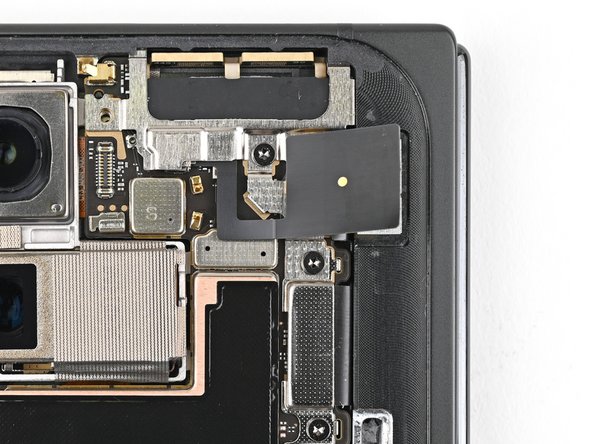
  17. Google Pixel 9 Pro Fold Logic Board Reinstallation, Reinstall the ultra wideband bracket: step 17, image 1 of 2 Google Pixel 9 Pro Fold Logic Board Reinstallation, Reinstall the ultra wideband bracket: step 17, image 2 of 2
    • While holding the ultra wideband antenna out of the way, reinsert the ultra wideband bracket clip under its slot in the frame and align the screw holes.

  18. Google Pixel 9 Pro Fold Logic Board Reinstallation: step 18, image 1 of 2 Google Pixel 9 Pro Fold Logic Board Reinstallation: step 18, image 2 of 2
    • Use a Torx Plus 3IP driver to install the two 3.0 mm‑long screws securing the ultra wideband bracket.

  19. Google Pixel 9 Pro Fold Logic Board Reinstallation, Replace the ultra wideband bracket adhesive: step 19, image 1 of 3 Google Pixel 9 Pro Fold Logic Board Reinstallation, Replace the ultra wideband bracket adhesive: step 19, image 2 of 3 Google Pixel 9 Pro Fold Logic Board Reinstallation, Replace the ultra wideband bracket adhesive: step 19, image 3 of 3
    • If the adhesive on your ultra wideband bracket is still sticky, skip this step.

    • Remove the old adhesive and foam on the ultra wideband bracket and under the antenna.

    • Replace the corresponding adhesive and foam to the bracket and the frame.

    • Press the ultra wideband antenna to the frame and re‑adhere it.

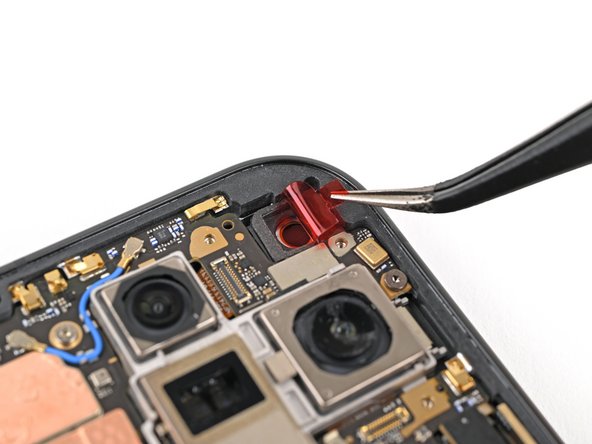
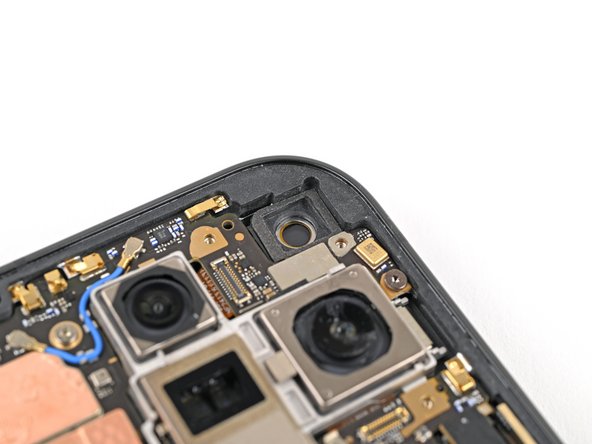
  20. Google Pixel 9 Pro Fold Logic Board Reinstallation, Remove the old adhesive: step 20, image 1 of 3 Google Pixel 9 Pro Fold Logic Board Reinstallation, Remove the old adhesive: step 20, image 2 of 3 Google Pixel 9 Pro Fold Logic Board Reinstallation, Remove the old adhesive: step 20, image 3 of 3
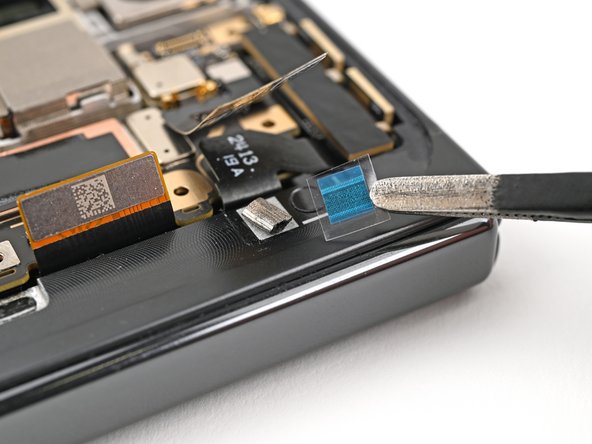
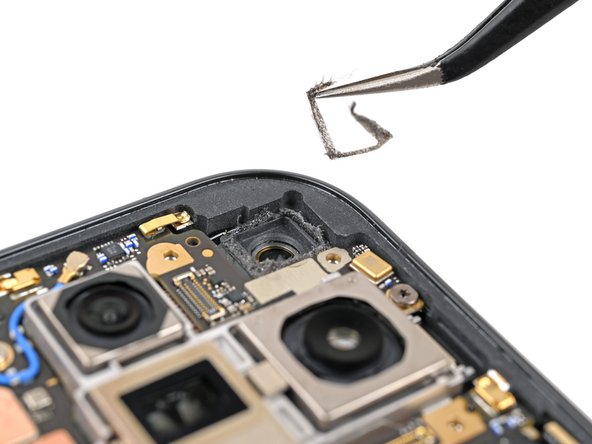
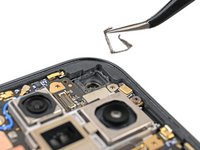
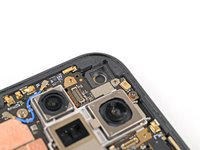
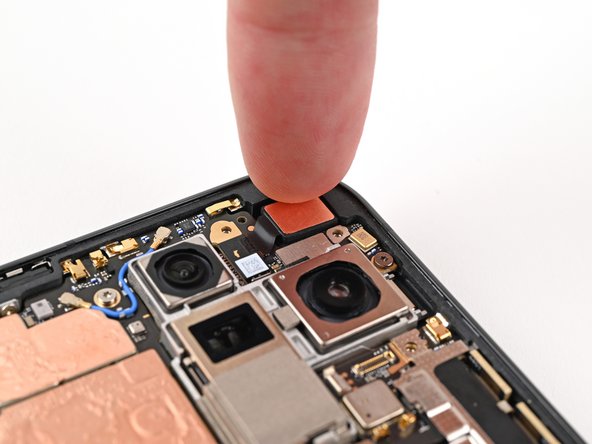
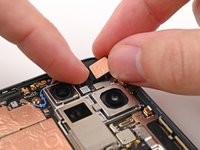
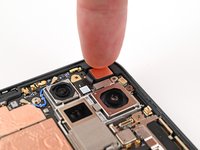
    • Use tweezers, or your fingers, to remove the old adhesive foam from the inner front camera cutout.

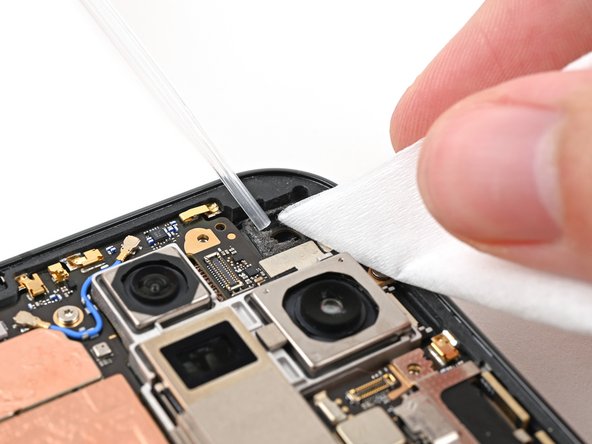
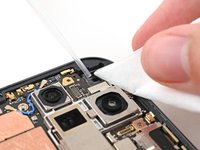
    • Use isopropyl alcohol (>90% or greater) and a coffee filter or lint‑free cloth to remove any adhesive residue.

  21. Google Pixel 9 Pro Fold Logic Board Reinstallation, Apply the new adhesive: step 21, image 1 of 3 Google Pixel 9 Pro Fold Logic Board Reinstallation, Apply the new adhesive: step 21, image 2 of 3 Google Pixel 9 Pro Fold Logic Board Reinstallation, Apply the new adhesive: step 21, image 3 of 3
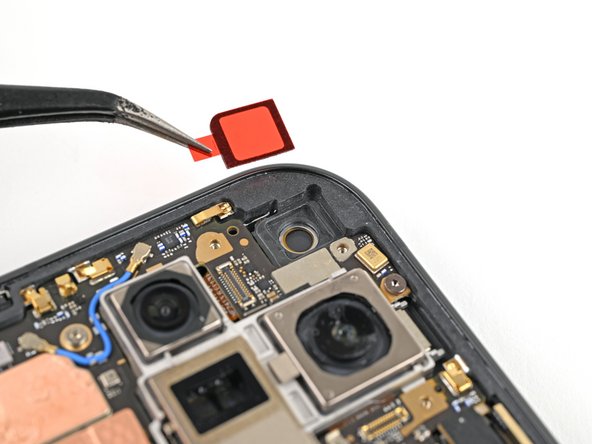
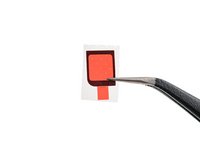
    • Peel the replacement inner front camera adhesive foam off its clear liner to expose the adhesive underneath.

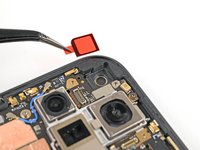
    • Align the adhesive foam over the cutout in the frame so that the pull tab is facing the bottom of the phone.

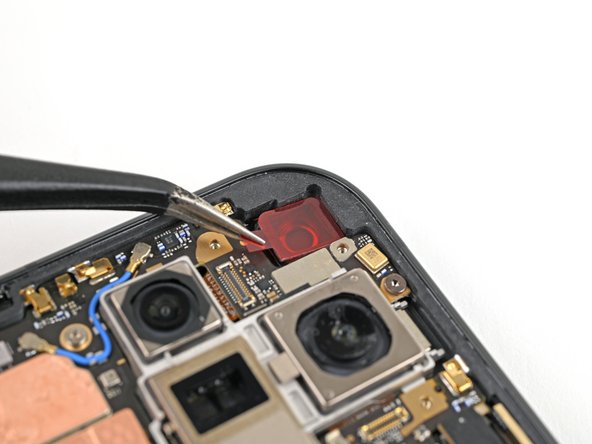
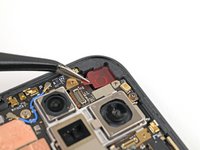
    • Place the adhesive in the cutout.

  22. Google Pixel 9 Pro Fold Logic Board Reinstallation: step 22, image 1 of 3 Google Pixel 9 Pro Fold Logic Board Reinstallation: step 22, image 2 of 3 Google Pixel 9 Pro Fold Logic Board Reinstallation: step 22, image 3 of 3
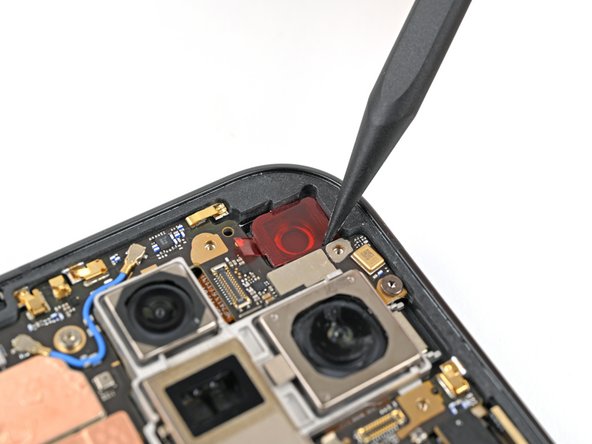
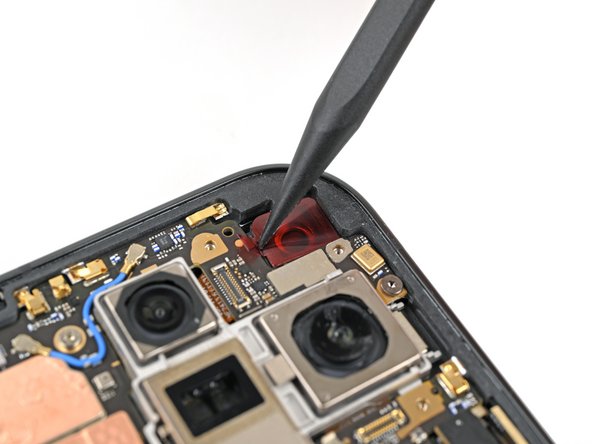
    • Use the tip of a spudger to press along the edges of the adhesive foam to secure it to the frame.

  23. Google Pixel 9 Pro Fold Logic Board Reinstallation: step 23, image 1 of 3 Google Pixel 9 Pro Fold Logic Board Reinstallation: step 23, image 2 of 3 Google Pixel 9 Pro Fold Logic Board Reinstallation: step 23, image 3 of 3
    • Use tweezers, or your fingers, to peel off the colored liner and expose the adhesive underneath.

  24. Google Pixel 9 Pro Fold Logic Board Reinstallation, Reinstall the inner front camera: step 24, image 1 of 2 Google Pixel 9 Pro Fold Logic Board Reinstallation, Reinstall the inner front camera: step 24, image 2 of 2
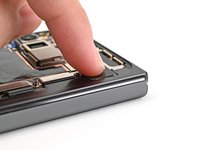
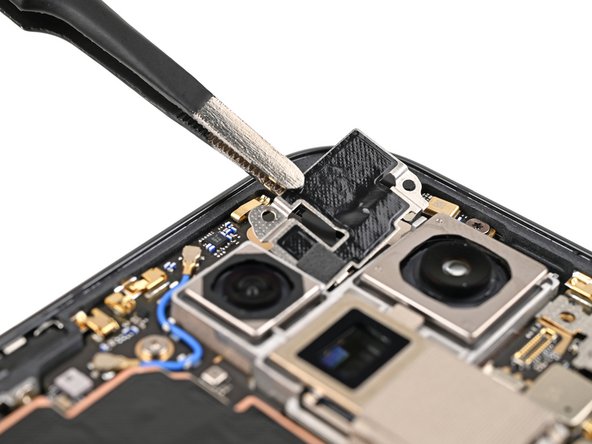
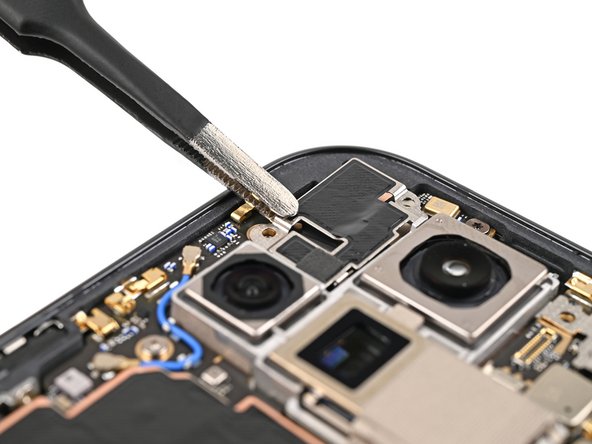
    • While holding the inner front camera above its cutout, reconnect its press connector.

    • Lay the inner front camera in its cutout and press down to secure it to the adhesive.

  25. Google Pixel 9 Pro Fold Logic Board Reinstallation, Reinstall the inner front camera bracket: step 25, image 1 of 3 Google Pixel 9 Pro Fold Logic Board Reinstallation, Reinstall the inner front camera bracket: step 25, image 2 of 3 Google Pixel 9 Pro Fold Logic Board Reinstallation, Reinstall the inner front camera bracket: step 25, image 3 of 3
    • Reinsert the inner front camera bracket clip under its slot in the logic board and align the screw holes.

  26. Google Pixel 9 Pro Fold Logic Board Reinstallation: step 26, image 1 of 2 Google Pixel 9 Pro Fold Logic Board Reinstallation: step 26, image 2 of 2
    • Use a Torx Plus 3IP driver to install the two 2.6 mm‑long screws securing the inner front camera bracket.

  27. Google Pixel 9 Pro Fold Logic Board Reinstallation, Reconnect the antenna cable: step 27, image 1 of 1
    • Use tweezers to hold the antenna cable's connector in place over its socket and gently press down with your finger or a spudger until the connector snaps into place.

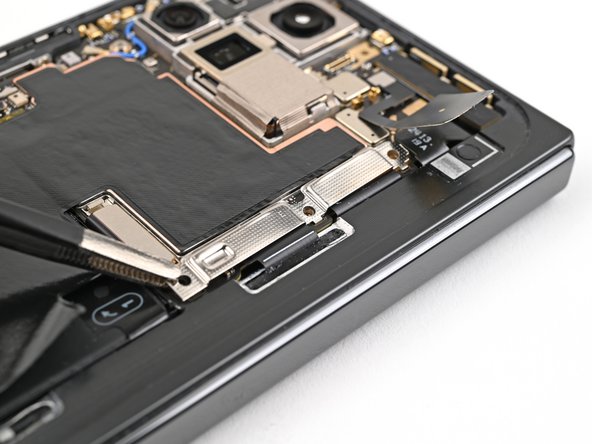
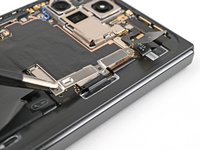
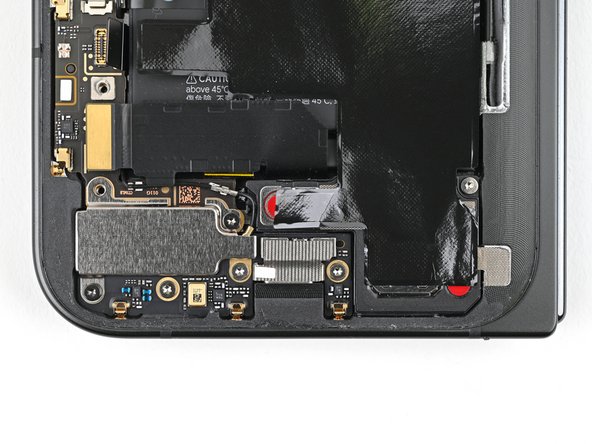
  28. Google Pixel 9 Pro Fold Logic Board Reinstallation, Reinstall the vibrator bracket: step 28, image 1 of 2 Google Pixel 9 Pro Fold Logic Board Reinstallation, Reinstall the vibrator bracket: step 28, image 2 of 2
    • Place the vibrator bracket on the logic board and align its screw holes.

  29. Google Pixel 9 Pro Fold Logic Board Reinstallation: step 29, image 1 of 2 Google Pixel 9 Pro Fold Logic Board Reinstallation: step 29, image 2 of 2
    • Use a Torx Plus 3IP driver to install the two 3.0 mm‑long screws securing the vibrator bracket.

  30. Google Pixel 9 Pro Fold Logic Board Reinstallation, Reconnect the USB-C port board cable: step 30, image 1 of 1
    • Reconnect the USB-C port board cable press connector.

Conclusion

To reassemble your device, follow these instructions in reverse order.

Alex Diaz-Kokaisl

Member since: 01/16/22

214,183 Reputation

1,041 Guides authored

Team

iFixit Member of iFixit

Staff

123 Members

23,758 Guides authored

0 Guide Comments

Add Comment

View Statistics:

Past 24 Hours: 0

Past 7 Days: 1

Past 30 Days: 2

All Time: 65