Free Shipping on Domestic Orders $75+

Google Pixel 10 Pro XL Battery Installation

Prerequisite Only
This is a prerequisite-only guide! This guide is part of another procedure and isn’t meant to be used alone.

What you need

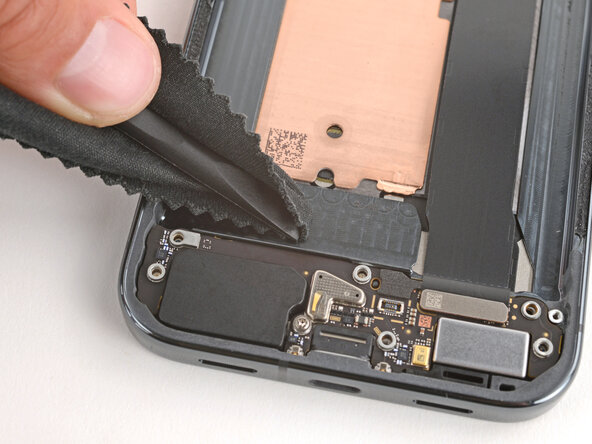
    1. Google Pixel 10 Pro XL Battery Installation, Clean the battery recess: step 1, image 1 of 3 Google Pixel 10 Pro XL Battery Installation, Clean the battery recess: step 1, image 2 of 3 Google Pixel 10 Pro XL Battery Installation, Clean the battery recess: step 1, image 3 of 3
      • Before installing a new battery, check the recess for leftover bits of plastic, as well as adhesive residue from the battery sleeve.

      • If the battery came out cleanly, you can skip this step.

      • Remove any bits of plastic from the old battery sleeve.

      • Use one or two drops high‑concentration (>90%) isopropyl alcohol and a microfiber or lint‑free cloth to clean up any adhesive residue.

      • Be careful not to get alcohol in the cutouts in the battery recess—the bottom of the screen is exposed and may get damaged.

      • Allow the alcohol to dry completely before continuing.

      Ask FixBot

      Add Comment

    2. Google Pixel 10 Pro XL Battery Installation, Remove the battery liner: step 2, image 1 of 1
      • Remove the large, colored liner from the battery to expose the adhesive.

      Ask FixBot

      Add Comment

    3. Google Pixel 10 Pro XL Battery Installation, Install the battery: step 3, image 1 of 3 Google Pixel 10 Pro XL Battery Installation, Install the battery: step 3, image 2 of 3 Google Pixel 10 Pro XL Battery Installation, Install the battery: step 3, image 3 of 3
      • Hold the battery above its recess and use your finger to push down and reconnect the battery press connector.

      • Temporarily reconnecting the battery ensures that it's sitting properly in its recess.

      • Lay the battery into its recess and press down firmly to secure it.

      Ask FixBot

      Add Comment

    4. Google Pixel 10 Pro XL Battery Installation, Disconnect the battery: step 4, image 1 of 2 Google Pixel 10 Pro XL Battery Installation, Disconnect the battery: step 4, image 2 of 2
      • Use a spudger to pry up and disconnect the battery.

      Ask FixBot

      Add Comment

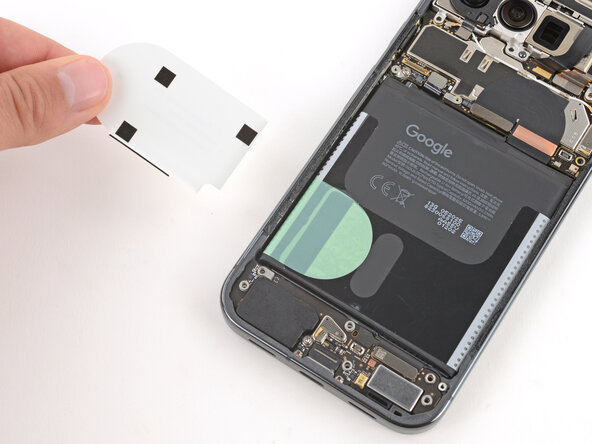
    5. Google Pixel 10 Pro XL Battery Installation: step 5, image 1 of 2 Google Pixel 10 Pro XL Battery Installation: step 5, image 2 of 2
      • Use your fingers to remove any remaining stickers or liners from the battery.

      Ask FixBot

      Add Comment

Finish Line

Cancel: I did not complete this guide.

Spencer Day

Member since: 09/14/22

206,063 Reputation

1,267 Guides authored

0 Guide Comments

Add Comment

View Statistics:

Past 24 Hours: 1

Past 7 Days: 3

Past 30 Days: 15

All Time: 75