
Gateway W350I Keyboard Replacement

Spencer and 3 other contributors
Last updated on Jan 8, 2015
Views: 2.1K
View statistics:
- Past 24 Hours:
- 5
- Past 7 Days:
- 25
- Past 30 Days:
- 94
- All Time:
- 2,132
Comments: 3
2 comments on steps, 1 guide comment.
Go to guide commentsCompleted: 3 4
3 people have marked this guide "completed." Will you be next?
4 people have marked this guide "completed." Including you — great job!
Favorites: 0 1
No one has favorited (and subscribed to) this guide. Will you be the first?
1 person has favorited (and subscribed to) this guide — and that's you!
Introduction
Go to step 1 ↓This repair is needed in situations where your keyboard stops working. If you have checked that all the keys are properly seated and that there is nothing blocking key movement, replacing the keyboard should correct the issue.
What you need
Tools


-
-
-
Turn the laptop upside down and position it as shown in the image.
 Ask FixBot
-
-
-
Slide the locking switch towards the open lock picture.
-
Hold the release switch in the unlocked position while simultaneously pushing the battery away from the laptop.
-
Once the laptop is disengaged, completely remove the battery from the laptop.
-
-
-
-
-
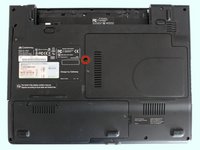
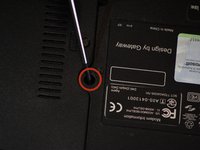
Remove a 4mm Phillips #0 screw just beneath the battery that holds the speaker cover panel.
-
-
-
Remove the 4mm Phillips #0 screw that secures the keyboard.
-
-
-
Reposition the laptop so that it is upright with the display open.
-
-
-
Carefully pry up on the right and left sides of the speaker cover panel.
-
-
-
-
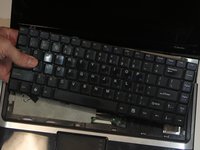
Gently pry up on the corners of the keyboard with the plastic opening tool to free the keyboard.
-
-
-
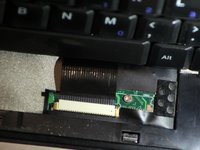
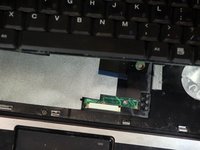
Pull on the cord connecting the keyboard to the computer until it slides out.
-
-












To reassemble your device, follow these instructions in reverse order.
Cancel: I did not complete this guide.
3 other people completed this guide.

Team

USF Tampa, Team 4-1, Brown Fall 2014 Member of USF Tampa, Team 4-1, Brown Fall 2014
USFT-BROWN-F14S4G1
3 Members
60 Guides authored
