Free Shipping on Domestic Orders $75+

GameSir G4 Pro Buttons Replacement

What you need

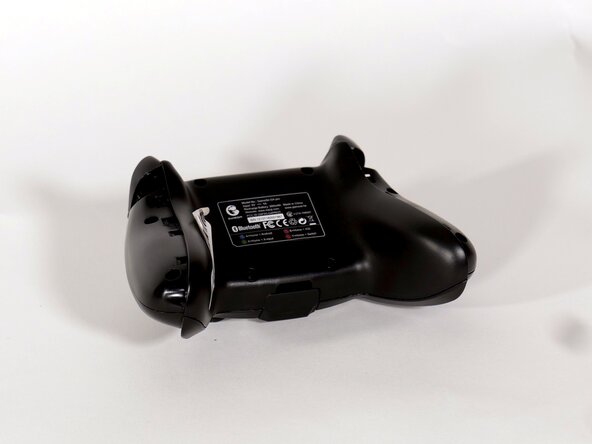
  1. GameSir G4 Pro Buttons Replacement, Battery: step 1, image 1 of 2 GameSir G4 Pro Buttons Replacement, Battery: step 1, image 2 of 2
    • Remove the dongle from the controller.

    Ask FixBot

    Add Comment

  2. GameSir G4 Pro Buttons Replacement: step 2, image 1 of 2 GameSir G4 Pro Buttons Replacement: step 2, image 2 of 2
    • Use a metal spudger to remove the rubber screw caps on the rear case.

    Ask FixBot

    Add Comment

  3. GameSir G4 Pro Buttons Replacement: step 3, image 1 of 3 GameSir G4 Pro Buttons Replacement: step 3, image 2 of 3 GameSir G4 Pro Buttons Replacement: step 3, image 3 of 3
    • Use a Phillips #1 screwdriver to remove the four 9.5 mm screws on the rear case.

    Ask FixBot

    Add Comment

  4. GameSir G4 Pro Buttons Replacement: step 4, image 1 of 3 GameSir G4 Pro Buttons Replacement: step 4, image 2 of 3 GameSir G4 Pro Buttons Replacement: step 4, image 3 of 3
    • Use a metal spudger to pry off the two controller grips.

    Ask FixBot

    Add Comment

  5. GameSir G4 Pro Buttons Replacement: step 5, image 1 of 3 GameSir G4 Pro Buttons Replacement: step 5, image 2 of 3 GameSir G4 Pro Buttons Replacement: step 5, image 3 of 3
    • Use a Phillips #1 screwdriver to remove the 9.5 mm screws on the top of each handle.

    • Use a Phillips #0 screwdriver to remove the 9.5 mm screws on the bottom of each handle.

    Ask FixBot

    Add Comment

  6. GameSir G4 Pro Buttons Replacement: step 6, image 1 of 1
    • Optional: Wrap an antistatic wrist strap around your wrist and attach the clamp to a grounded metal surface.

    Ask FixBot

    Add Comment

  7. GameSir G4 Pro Buttons Replacement: step 7, image 1 of 2 GameSir G4 Pro Buttons Replacement: step 7, image 2 of 2
    • Remove the back panel.

    Ask FixBot

    Add Comment

  8. GameSir G4 Pro Buttons Replacement: step 8, image 1 of 2 GameSir G4 Pro Buttons Replacement: step 8, image 2 of 2
    • Use tweezers or your fingernails to walk the white battery connector out of its motherboard socket.

    Ask FixBot

    Add Comment

  9. GameSir G4 Pro Buttons Replacement: step 9, image 1 of 2 GameSir G4 Pro Buttons Replacement: step 9, image 2 of 2
    • Lift and remove the battery.

    Ask FixBot

    Add Comment

  10. GameSir G4 Pro Buttons Replacement, Buttons: step 10, image 1 of 2 GameSir G4 Pro Buttons Replacement, Buttons: step 10, image 2 of 2
    • Gently pry the motherboard from the faceplate.

    Ask FixBot

    Add Comment

  11. GameSir G4 Pro Buttons Replacement: step 11, image 1 of 2 GameSir G4 Pro Buttons Replacement: step 11, image 2 of 2
    • Gently remove the printed circuit board from the shell. The select, start, turbo, screenshot, and home buttons should naturally fall out and allow for easy replacement.

    Ask FixBot

    Add Comment

Conclusion

To reassemble your device, follow these instructions in reverse order.

Cancel: I did not complete this guide.

0 Guide Comments

Add Comment

View Statistics:

Past 24 Hours: 1

Past 7 Days: 11

Past 30 Days: 11

All Time: 32