Game Boy Advance LCD Screen Replacement

Archived Guide
This guide is retained solely for historical purposes. Use the updated version of the guide to perform your repair.

What you need

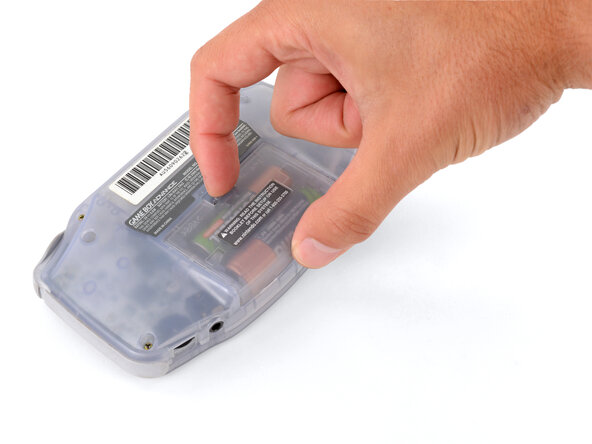
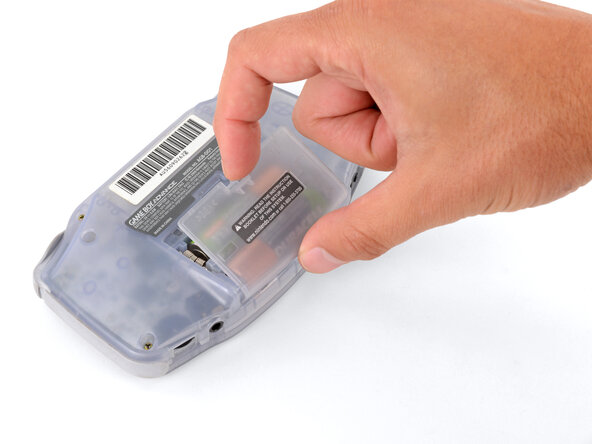
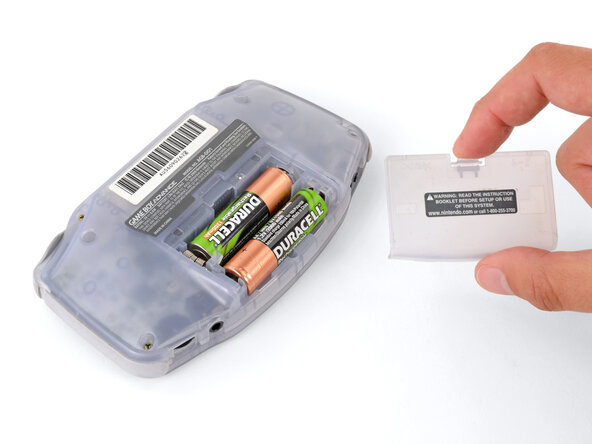
  1. Game Boy Advance LCD Screen Replacement, Remove the battery cover: step 1, image 1 of 3 Game Boy Advance LCD Screen Replacement, Remove the battery cover: step 1, image 2 of 3 Game Boy Advance LCD Screen Replacement, Remove the battery cover: step 1, image 3 of 3
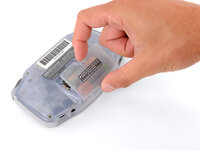
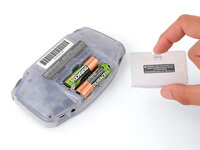
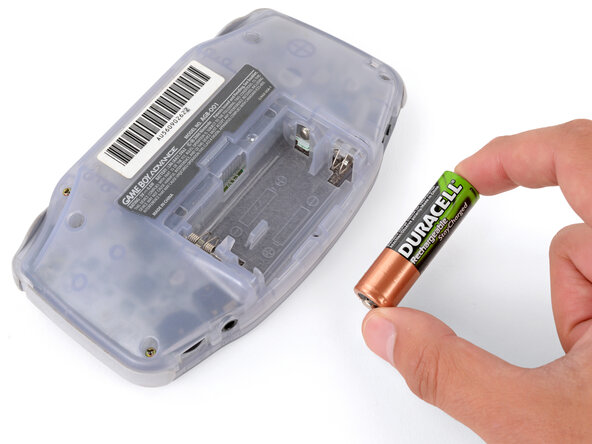
    • Release the battery cover tab with your finger and swing the cover away from your Game Boy to remove it.

    • During reassembly, insert the tabs on the bottom edge of the cover into their cutouts and press the cover into place.

  2. Game Boy Advance LCD Screen Replacement, Remove the batteries: step 2, image 1 of 3 Game Boy Advance LCD Screen Replacement, Remove the batteries: step 2, image 2 of 3 Game Boy Advance LCD Screen Replacement, Remove the batteries: step 2, image 3 of 3
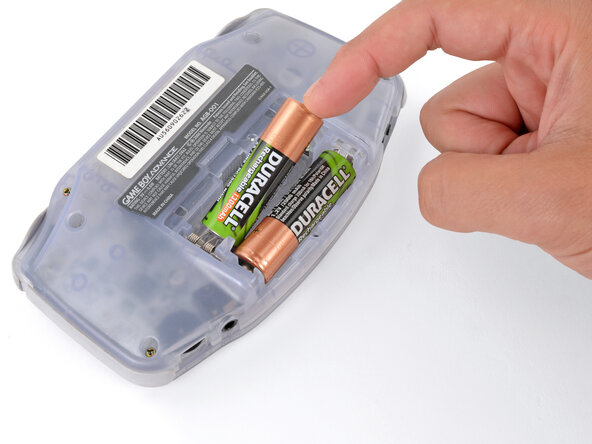
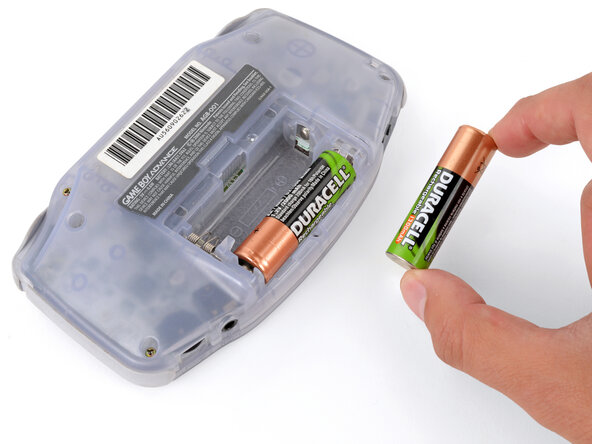
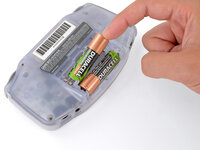
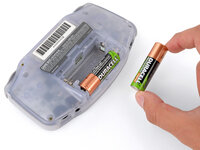
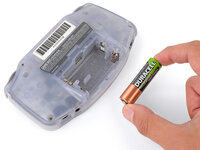
    • Remove the two AA batteries.

    • If the metal terminals are corroded, follow this guide to clean them.

    • When installing batteries, use the diagram in the battery well to properly orient them.

  3. Game Boy Advance LCD Screen Replacement, Remove the back shell screws: step 3, image 1 of 2 Game Boy Advance LCD Screen Replacement, Remove the back shell screws: step 3, image 2 of 2
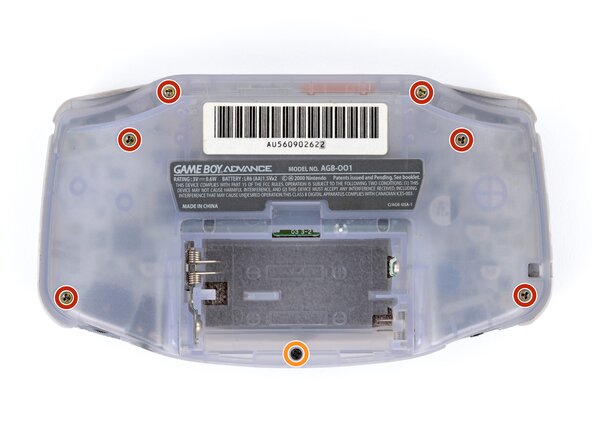
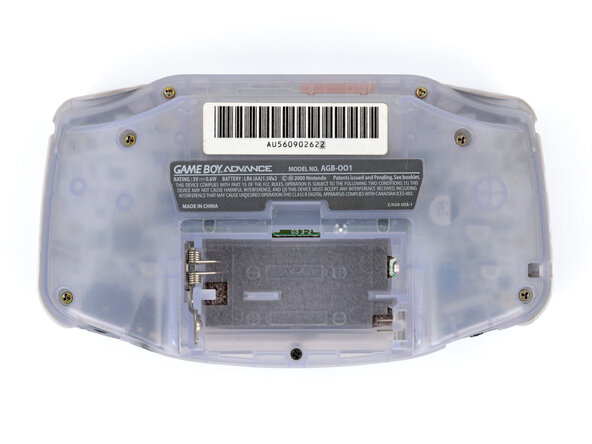
    • Remove the seven screws securing the back shell:

    • Six 9.4 mm‑long tri‑point Y0 screws

    • One 8.5 mm‑long JIS 1 screw

    • You can try to use a non-iFixit Phillips driver in a pinch, but you risk damaging or stripping screws. Push down firmly on the driver and twist slowly.

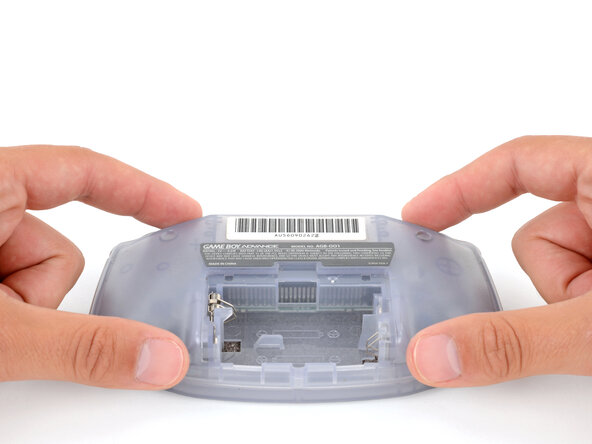
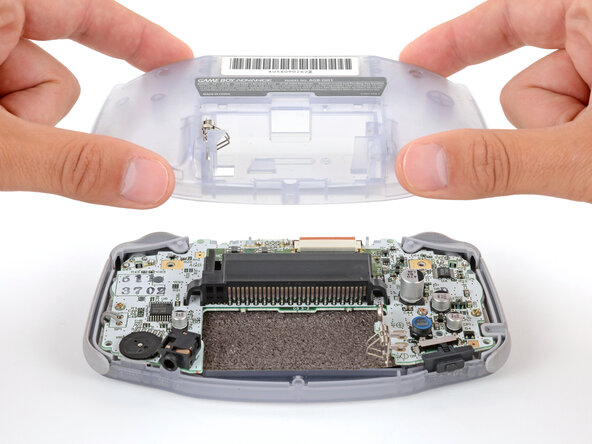
  4. Game Boy Advance LCD Screen Replacement, Remove the back shell: step 4, image 1 of 2 Game Boy Advance LCD Screen Replacement, Remove the back shell: step 4, image 2 of 2
    • Lift the back shell straight up and remove it.

    • During reassembly, squeeze the shell firmly around the edges and ensure the shoulder buttons and bumpers are properly seated with no large gaps. Gently test the buttons to make sure everything feels correct.

  5. Game Boy Advance LCD Screen Replacement, Remove Triggers: step 5, image 1 of 2 Game Boy Advance LCD Screen Replacement, Remove Triggers: step 5, image 2 of 2
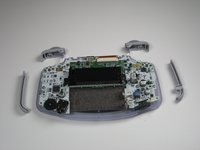
    • Remove left and right triggers by lifting and pulling them away from the system.

    • Do the same for side panels

    • For finicky or jammed triggers only! Adjust and correct triggers and reassemble. Most jammed triggers are caused by buttons misplaced or jammed in its enclosure.

  6. Game Boy Advance LCD Screen Replacement, Remove the On/Off Switch: step 6, image 1 of 1
    • Remove the gray On/Off Switch by pulling up and away from the unit. Replace with another switch if necessary.

  7. Game Boy Advance LCD Screen Replacement, Buttons and LCD Screen: step 7, image 1 of 1
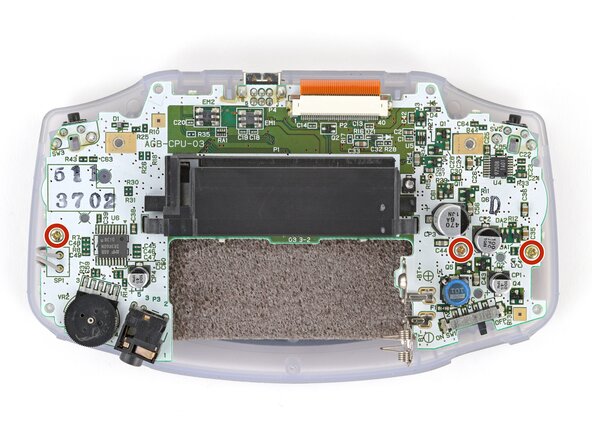
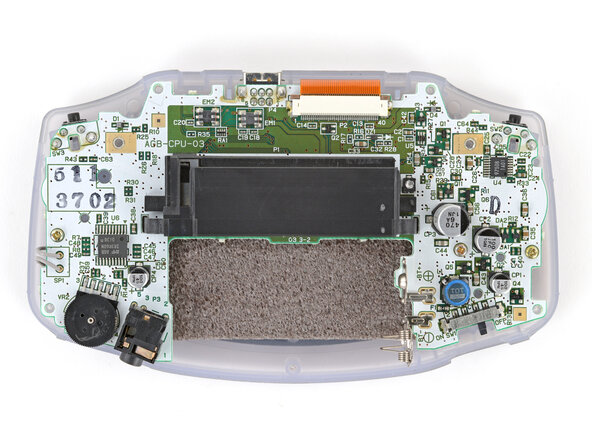
    • Remove the three screws on the circuit board with a Phillips #1 screw driver.

  8. Game Boy Advance LCD Screen Replacement: step 8, image 1 of 2 Game Boy Advance LCD Screen Replacement: step 8, image 2 of 2
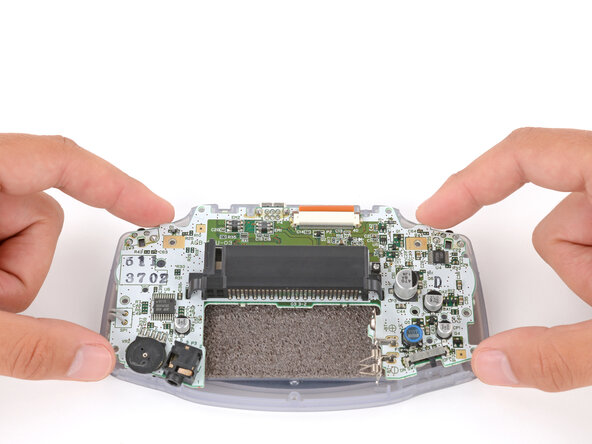
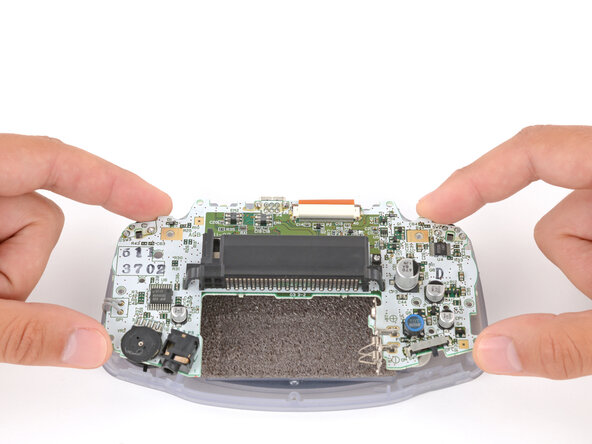
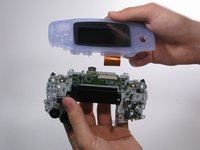
    • Pull circuit board away from the front panel by pulling up at the bottom of the circuit board, keeping the top ribbon still connected.

    • Handle with care! The ribbon connecting the circuit board to the LCD screen can easily be damaged and will require replacement if broken.

  9. Game Boy Advance LCD Screen Replacement, Remove the motherboard screws: step 9, image 1 of 2 Game Boy Advance LCD Screen Replacement, Remove the motherboard screws: step 9, image 2 of 2
    • Use a JIS 1 screwdriver to remove the three 7 mm‑long screws securing the motherboard.

  10. Game Boy Advance LCD Screen Replacement, Reposition the motherboard: step 10, image 1 of 3 Game Boy Advance LCD Screen Replacement, Reposition the motherboard: step 10, image 2 of 3 Game Boy Advance LCD Screen Replacement, Reposition the motherboard: step 10, image 3 of 3
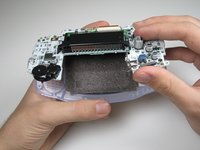
    • Be careful not to strain the screen cable that connects the motherboard.

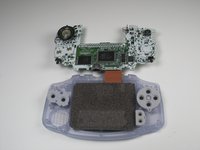
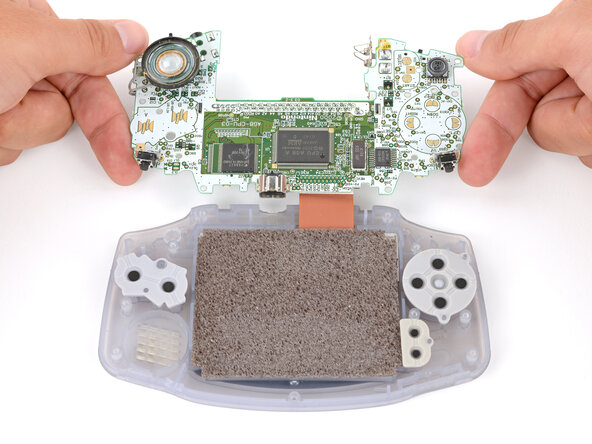
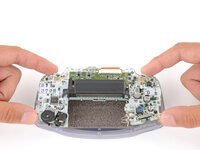
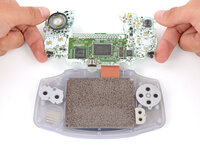
    • Carefully flip the motherboard over the top edge of your Game Boy and rest it on your work surface.

    • During reassembly, make sure the speaker gets correctly slotted into its circular cutout (including a small tab on the bottom) when lowering the motherboard into place.

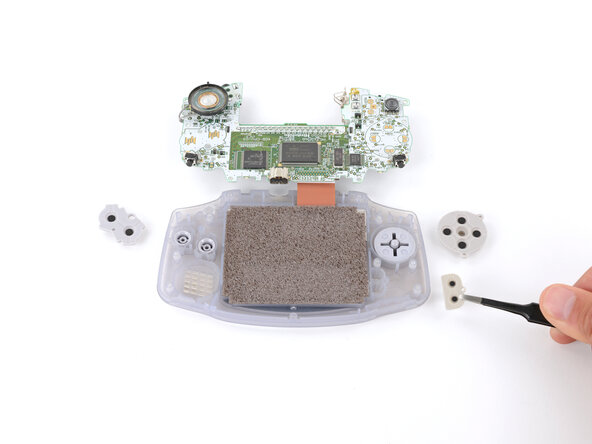
  11. Game Boy Advance LCD Screen Replacement, Remove the silicone pads: step 11, image 1 of 3 Game Boy Advance LCD Screen Replacement, Remove the silicone pads: step 11, image 2 of 3 Game Boy Advance LCD Screen Replacement, Remove the silicone pads: step 11, image 3 of 3
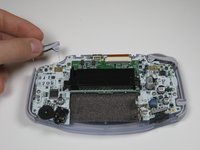
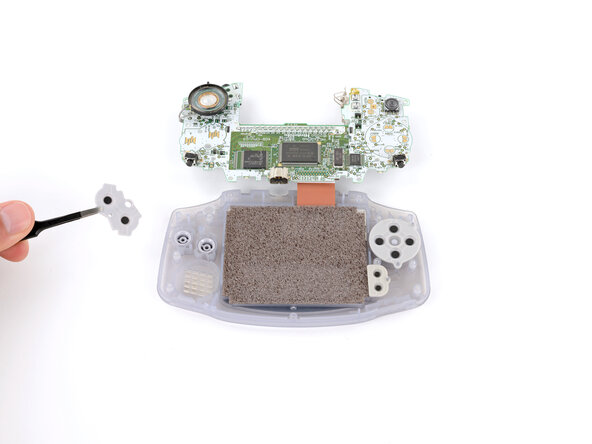
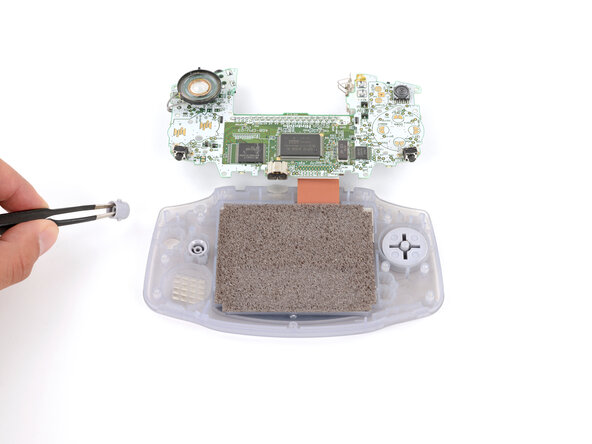
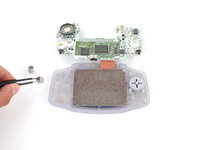
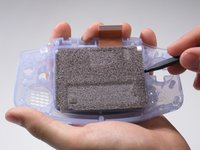
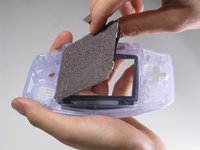
    • Use tweezers or your fingers to remove the three silicone pads covering the buttons (A and B, the D‑pad, and Start/Select ).

    • If any of the pads are missing, they may be stuck to their corresponding spot on the motherboard.

    • During reassembly, use your fingers to press each pad into place, using the alignment pegs to properly orient them.

  12. Game Boy Advance LCD Screen Replacement, Remove the action buttons and D‑pad: step 12, image 1 of 3 Game Boy Advance LCD Screen Replacement, Remove the action buttons and D‑pad: step 12, image 2 of 3 Game Boy Advance LCD Screen Replacement, Remove the action buttons and D‑pad: step 12, image 3 of 3
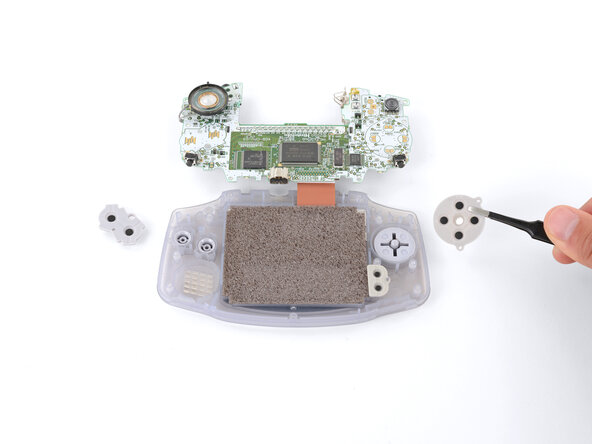
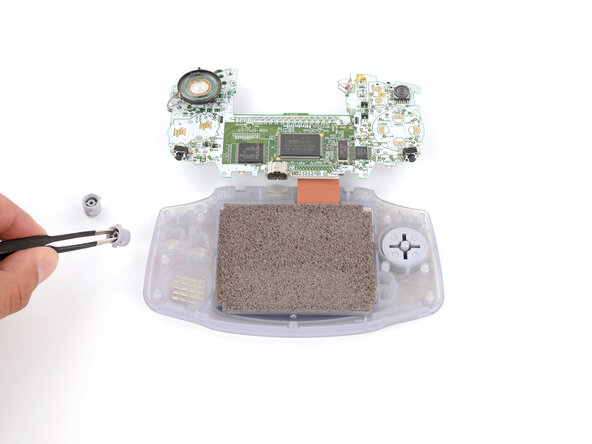
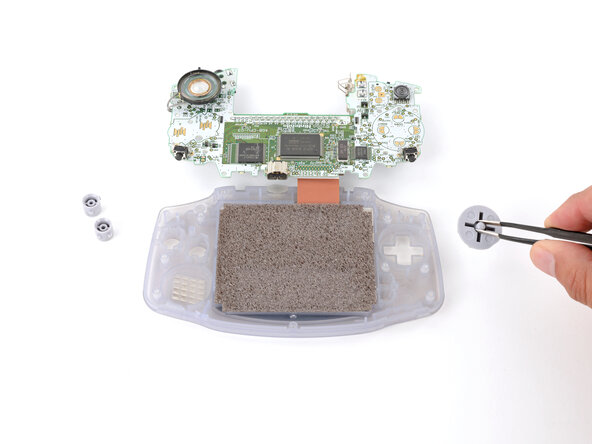
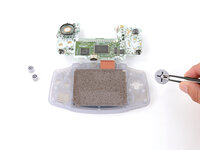
    • Use tweezers or your fingers to remove the buttons (A and B as well as the D‑pad).

    • The Start/Select buttons are part of the silicone pad—there are no other buttons to remove.

    • When re‑inserting the action buttons, note that each one is keyed specifically for its recess and proper orientation.

  13. Game Boy Advance LCD Screen Replacement, LCD Screen: step 13, image 1 of 3 Game Boy Advance LCD Screen Replacement, LCD Screen: step 13, image 2 of 3 Game Boy Advance LCD Screen Replacement, LCD Screen: step 13, image 3 of 3
    Tool used on this step:
    Tweezers
    $4.99
    Buy
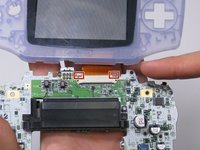
    • Use a spudger/tweezers/fingernail to unlatch the LCD ribbon port by pulling the grey tabs on the sides upwards (towards the top edge of the PCB).

    • Once the LCD ribbon port has been unlatched, the LCD ribbon should very easily slide out and can be removed with zero force using fingers or tweezers.

  14. Game Boy Advance LCD Screen Replacement: step 14, image 1 of 3 Game Boy Advance LCD Screen Replacement: step 14, image 2 of 3 Game Boy Advance LCD Screen Replacement: step 14, image 3 of 3
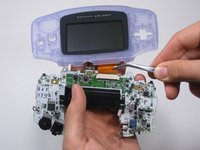
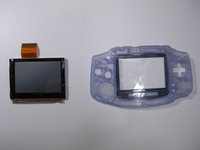
    • Use the spudger to lift the screen from the front panel. Place the spudger in the space directly left of the D-pad.

    • The screen and the front panel is connected by a black tape that could rip if not removed carefully.

Conclusion

To reassemble your device, follow these instructions in reverse order.

18 other people completed this guide.

Aldo Corona

Member since: 01/25/10

886 Reputation

8 Guides authored

Team

Cal Poly, Team 16-29, Maness Winter 2010 Member of Cal Poly, Team 16-29, Maness Winter 2010

CPSU-MANESS-W10S16G29

5 Members

81 Guides authored

0 Guide Comments

Add Comment

View Statistics:

Past 24 Hours: 1

Past 7 Days: 1

Past 30 Days: 7

All Time: 28,135