Framework Laptop 16 Wi-Fi Module Replacement

What you need

  1. Framework Laptop 16 Wi-Fi Module Replacement, Before you begin: step 1, image 1 of 1
    • Unplug all cables and fully shut down your laptop.

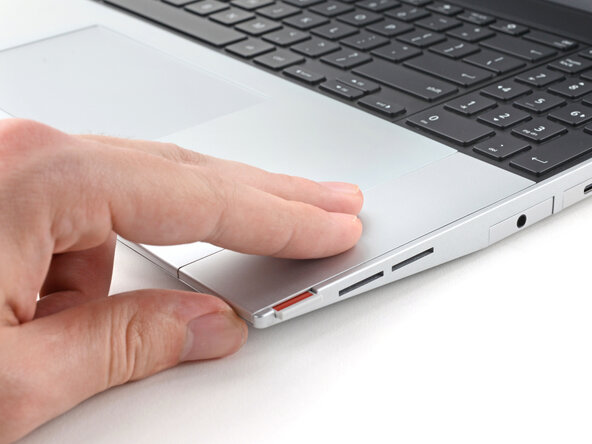
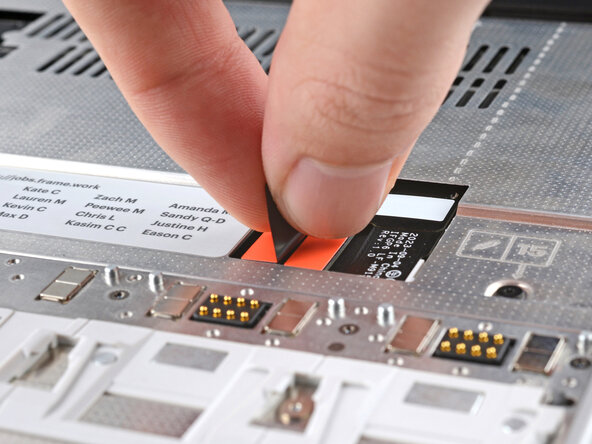
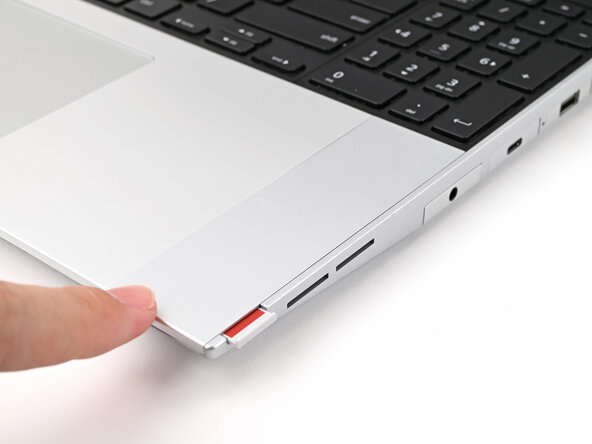
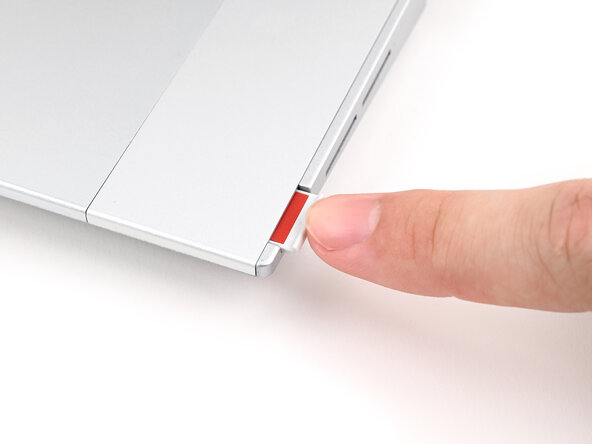
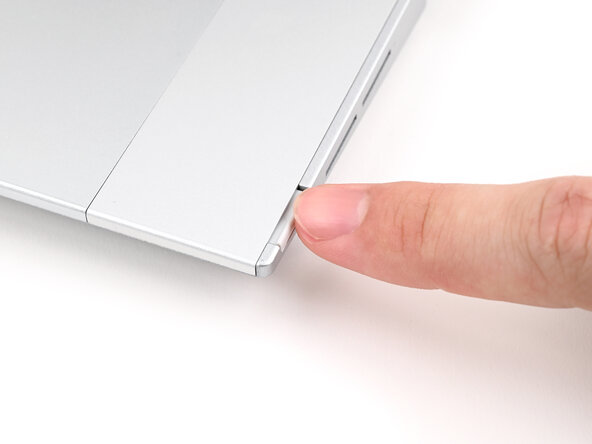
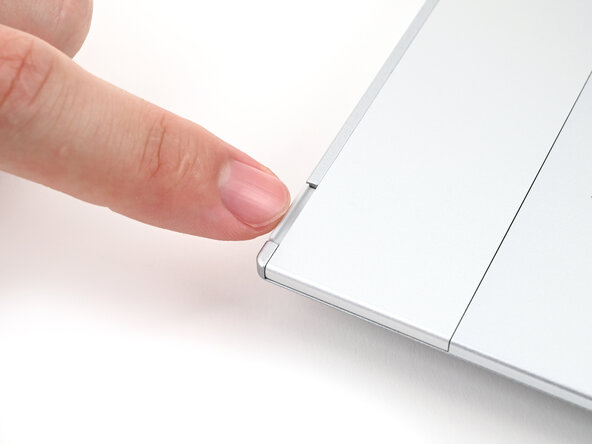
  2. Framework Laptop 16 Wi-Fi Module Replacement, Unlock the Input Modules: step 2, image 1 of 3 Framework Laptop 16 Wi-Fi Module Replacement, Unlock the Input Modules: step 2, image 2 of 3 Framework Laptop 16 Wi-Fi Module Replacement, Unlock the Input Modules: step 2, image 3 of 3
    • Use your fingernail to pull out the two Input Module latches and unlock them.

    • The latch will show red if it's unlocked.

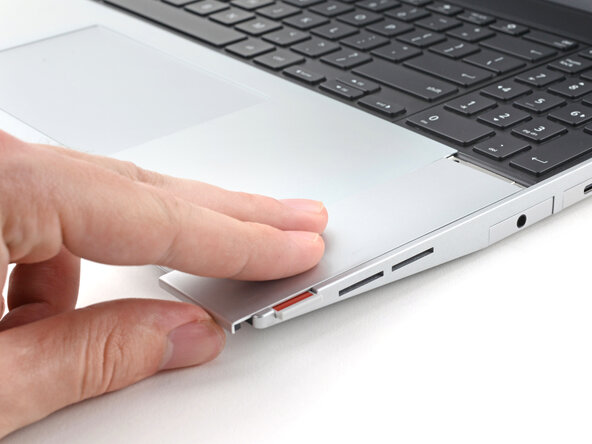
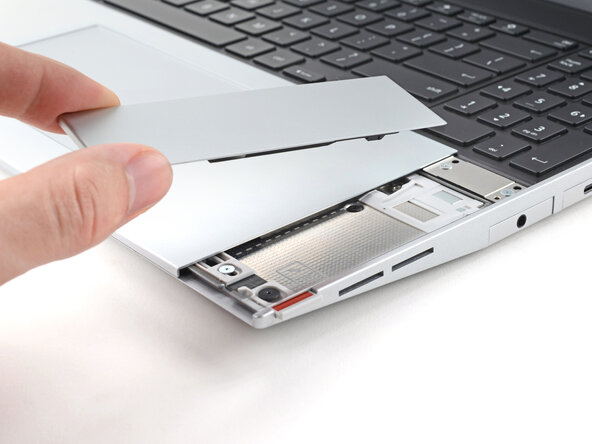
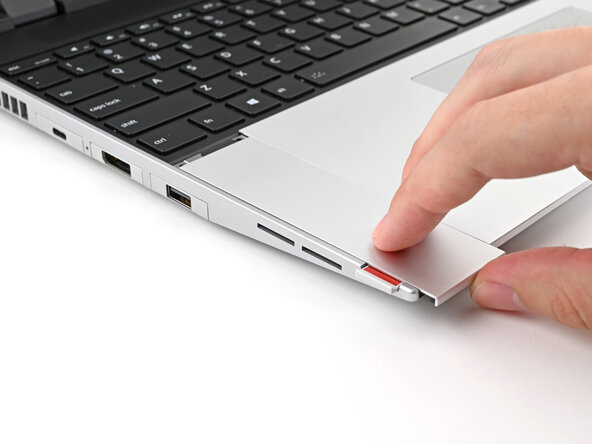
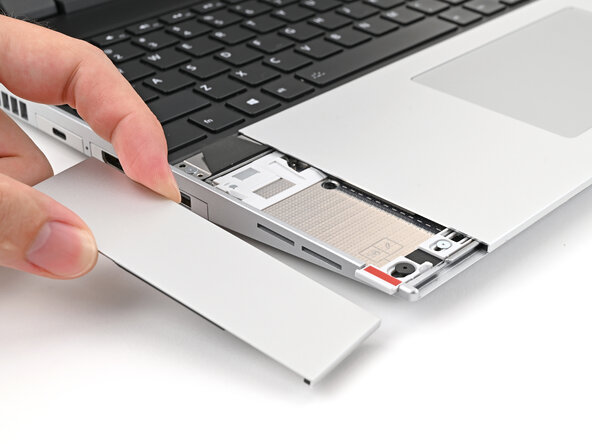
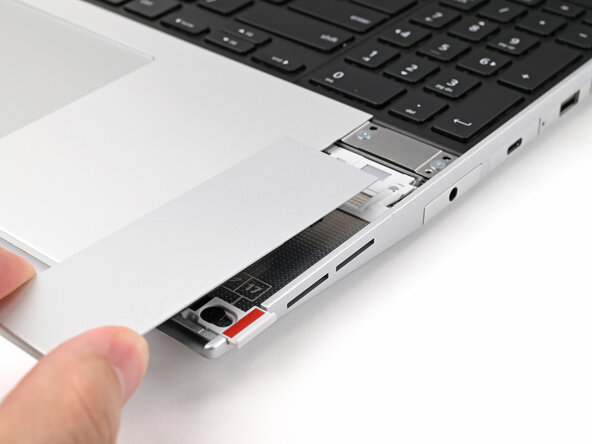
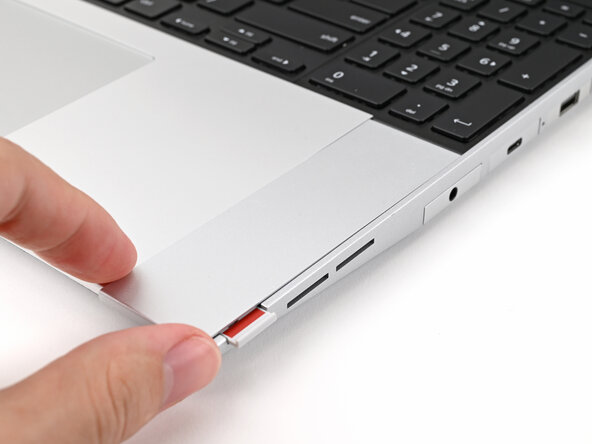
  3. Framework Laptop 16 Wi-Fi Module Replacement, Remove the Touchpad Spacers: step 3, image 1 of 3 Framework Laptop 16 Wi-Fi Module Replacement, Remove the Touchpad Spacers: step 3, image 2 of 3 Framework Laptop 16 Wi-Fi Module Replacement, Remove the Touchpad Spacers: step 3, image 3 of 3
    • Use your fingers to slide the Touchpad Spacer toward the bottom edge of the laptop and unclip it.

    • If you're having trouble, check if the corresponding Input Module latch is properly unlocked.

    • Lift the Touchpad Spacer off the laptop and remove it.

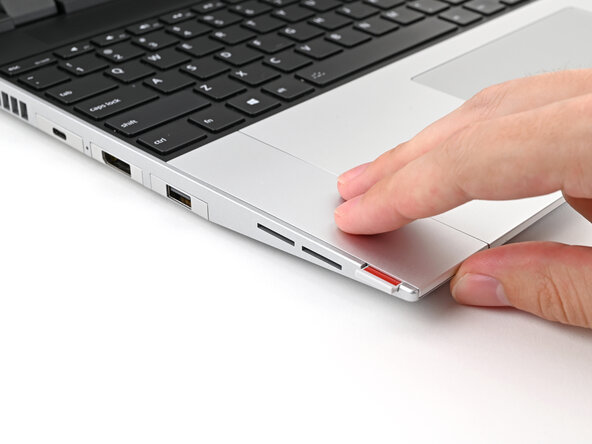
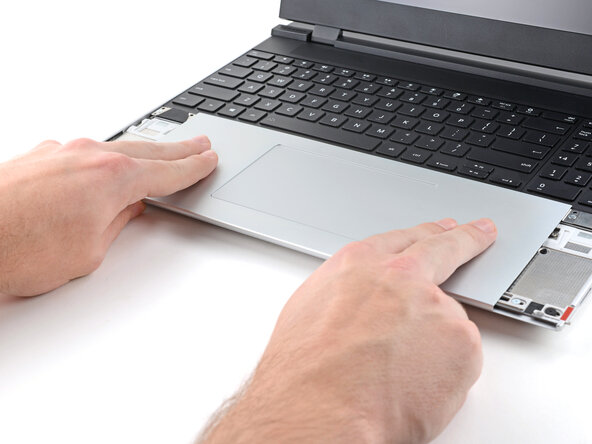
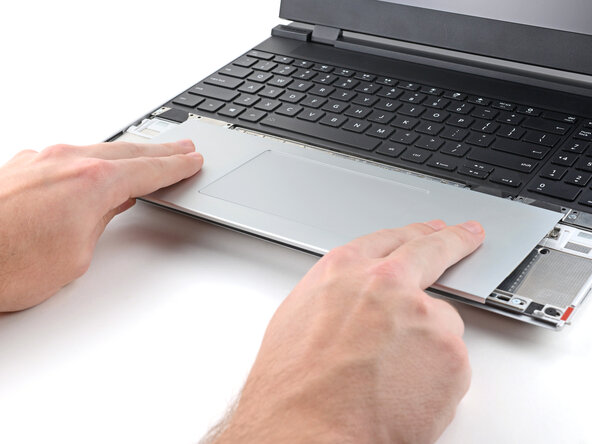
  4. Framework Laptop 16 Wi-Fi Module Replacement: step 4, image 1 of 3 Framework Laptop 16 Wi-Fi Module Replacement: step 4, image 2 of 3 Framework Laptop 16 Wi-Fi Module Replacement: step 4, image 3 of 3
    • Repeat the same procedure for the other touchpad spacer.

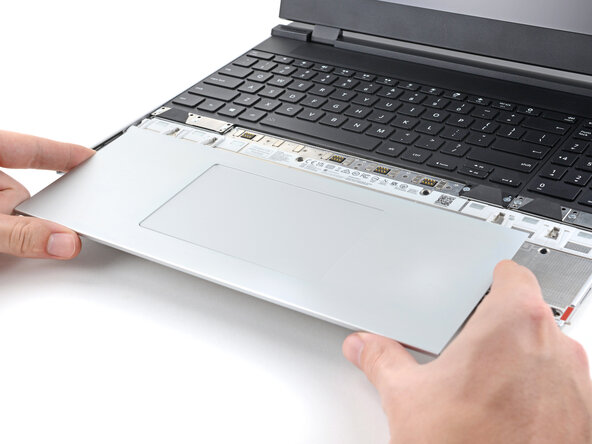
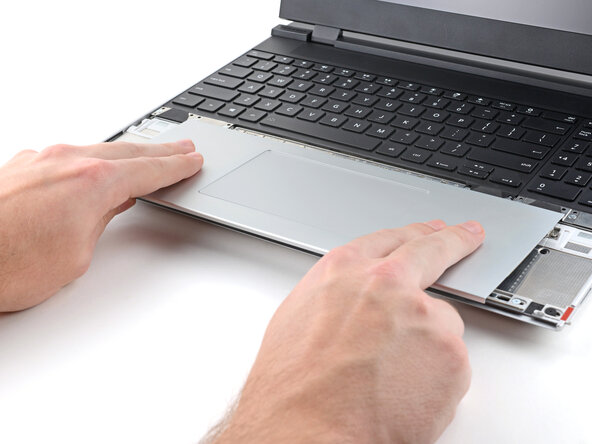
  5. Framework Laptop 16 Wi-Fi Module Replacement, Remove the Touchpad Module: step 5, image 1 of 3 Framework Laptop 16 Wi-Fi Module Replacement, Remove the Touchpad Module: step 5, image 2 of 3 Framework Laptop 16 Wi-Fi Module Replacement, Remove the Touchpad Module: step 5, image 3 of 3
    • Use your fingers to slide the Touchpad Module toward the bottom edge of the laptop and disconnect it.

    • If you're having trouble, check if the Input Module latches are properly unlocked.

    • Lift the Touchpad Module and remove it.

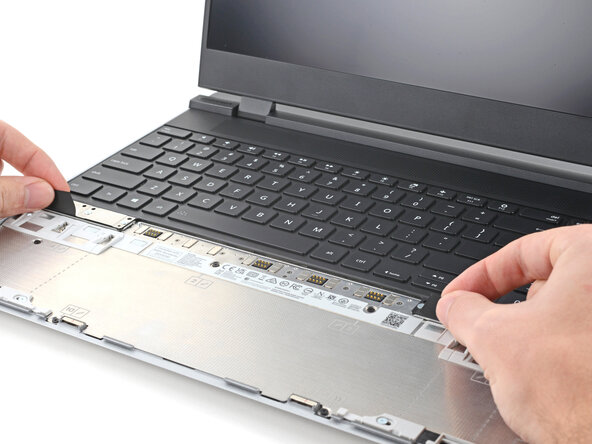
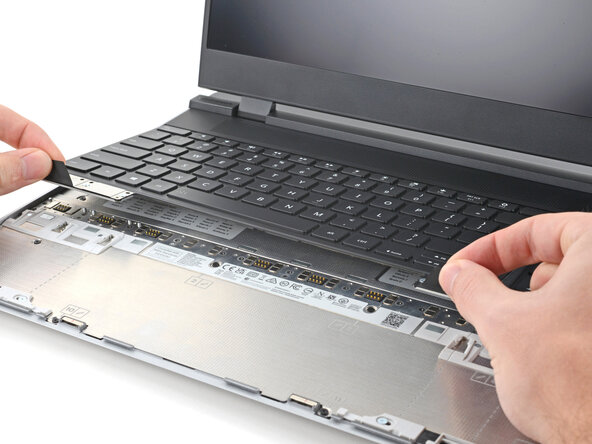
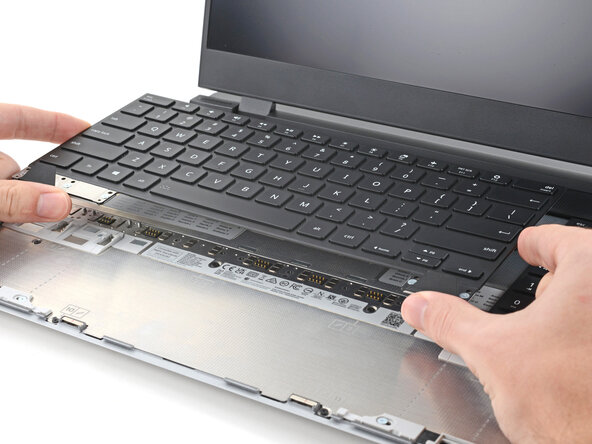
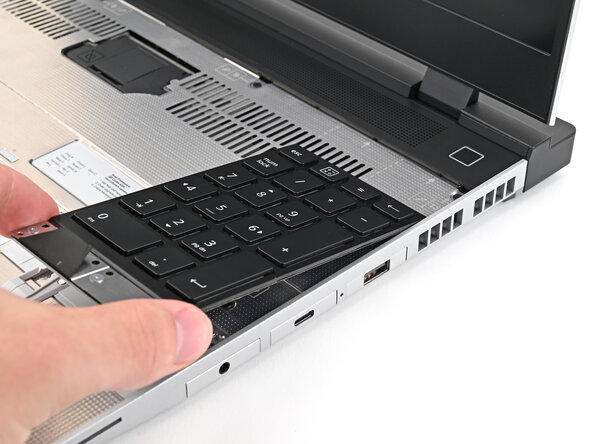
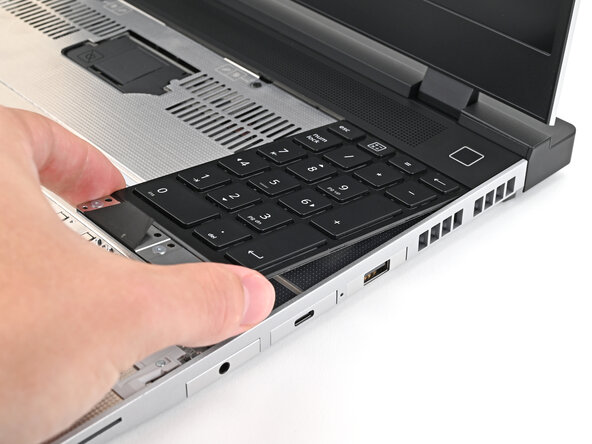
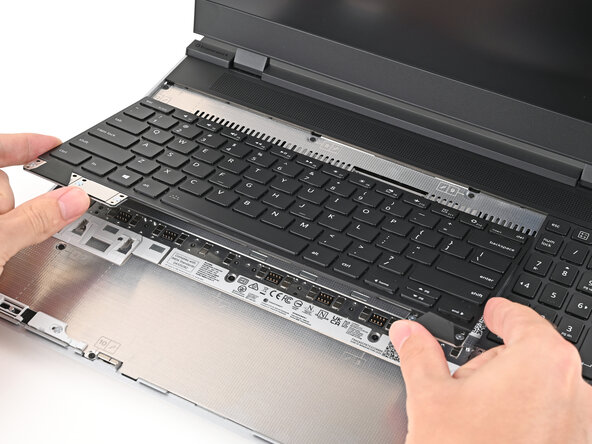
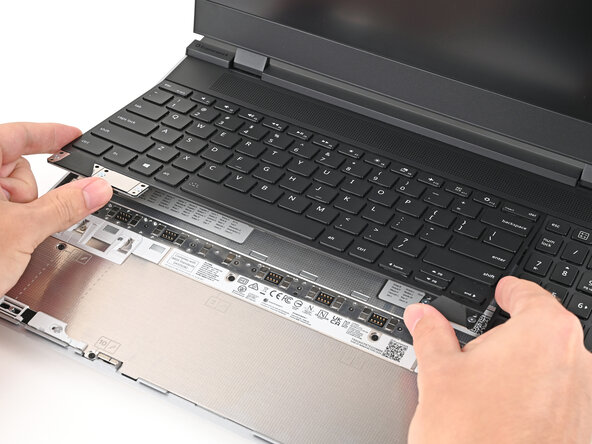
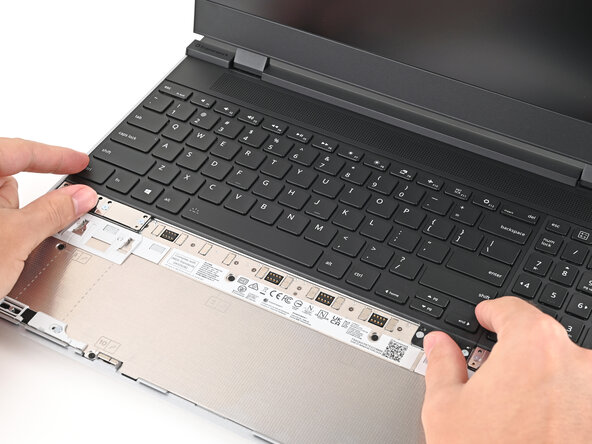
  6. Framework Laptop 16 Wi-Fi Module Replacement, Remove the keyboard: step 6, image 1 of 3 Framework Laptop 16 Wi-Fi Module Replacement, Remove the keyboard: step 6, image 2 of 3 Framework Laptop 16 Wi-Fi Module Replacement, Remove the keyboard: step 6, image 3 of 3
    • The keyboard is held in place with strong magnets. Apply gradually increasing force to avoid having the keyboard violently eject.

    • Grip the two pull tabs along the bottom of the keyboard and lift until its magnets release.

    • Remove the keyboard.

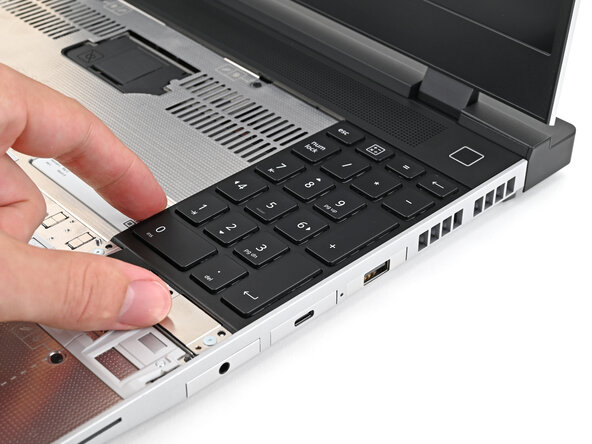
  7. Framework Laptop 16 Wi-Fi Module Replacement, Remove the Input Modules: step 7, image 1 of 3 Framework Laptop 16 Wi-Fi Module Replacement, Remove the Input Modules: step 7, image 2 of 3 Framework Laptop 16 Wi-Fi Module Replacement, Remove the Input Modules: step 7, image 3 of 3
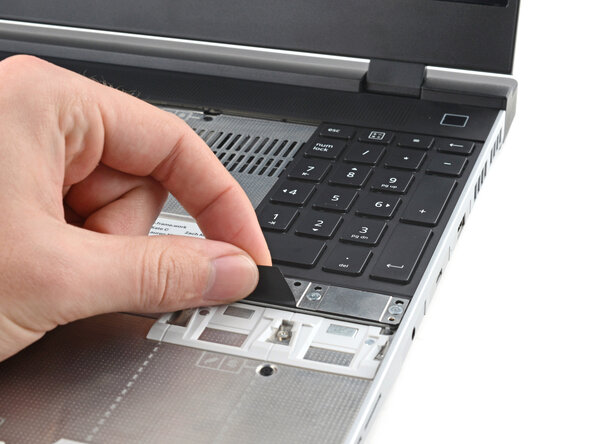
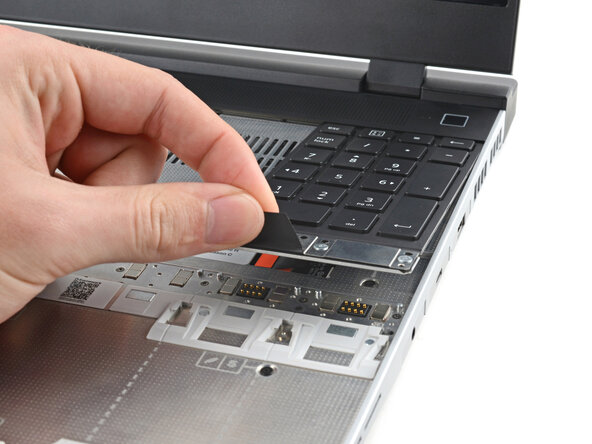
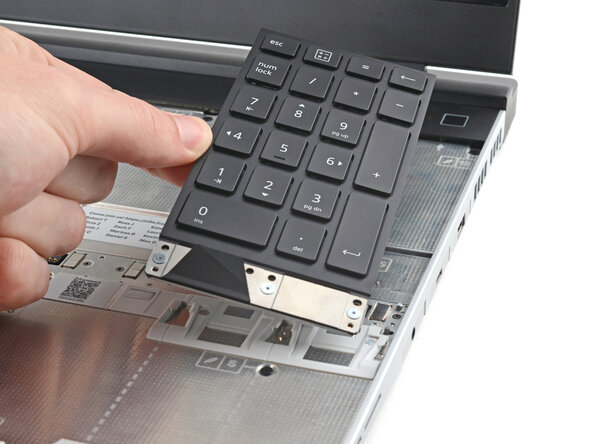
    • Your Input Module(s) might be different, but the procedure to remove them is the same.

    • Grip the pull tab at the bottom of the Input Module and lift until its magnets release.

    • Remove the Input Module.

    • Repeat for any remaining Input Modules.

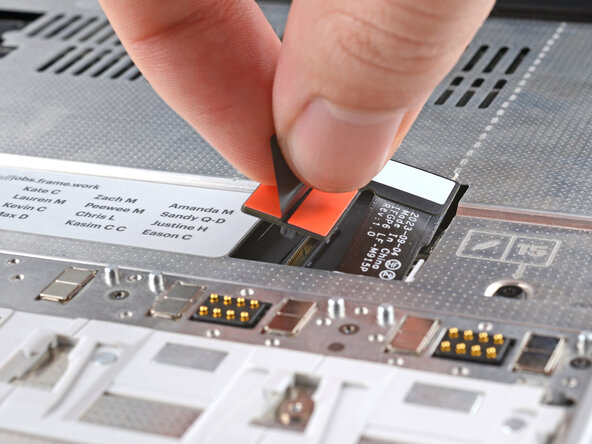
  8. Framework Laptop 16 Wi-Fi Module Replacement, Disconnect the Mid Plate cable: step 8, image 1 of 2 Framework Laptop 16 Wi-Fi Module Replacement, Disconnect the Mid Plate cable: step 8, image 2 of 2
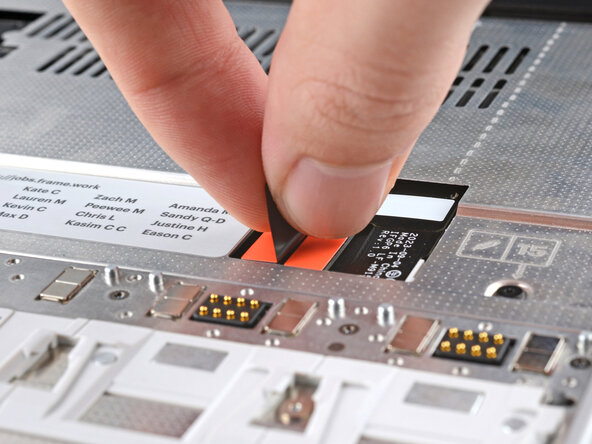
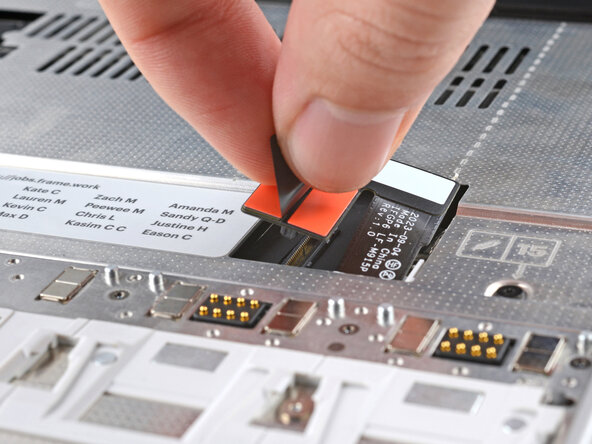
    • Grip the black pull tab on the Mid Plate cable press connector.

    • Lift up to disconnect the Mid Plate cable.

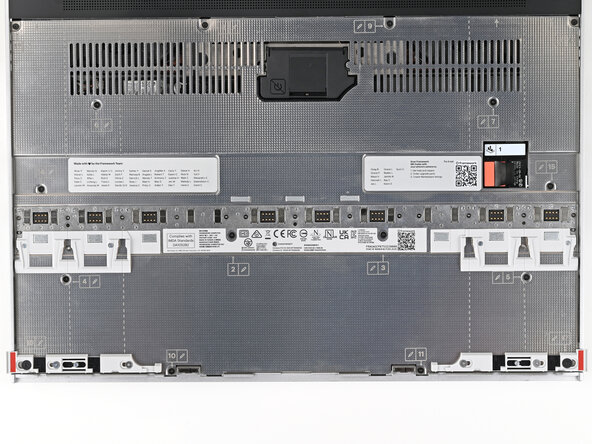
  9. Framework Laptop 16 Wi-Fi Module Replacement, Loosen the Mid Plate screws: step 9, image 1 of 2 Framework Laptop 16 Wi-Fi Module Replacement, Loosen the Mid Plate screws: step 9, image 2 of 2
    • The Mid Plate screws are ordered from 2–17 (number 1 is the press connector). You don't have to follow the order, but you can use it to help keep track of the screws you've loosened.

    • Use your Framework Screwdriver to loosen the 16 captive T5 Torx screws securing the Mid Plate.

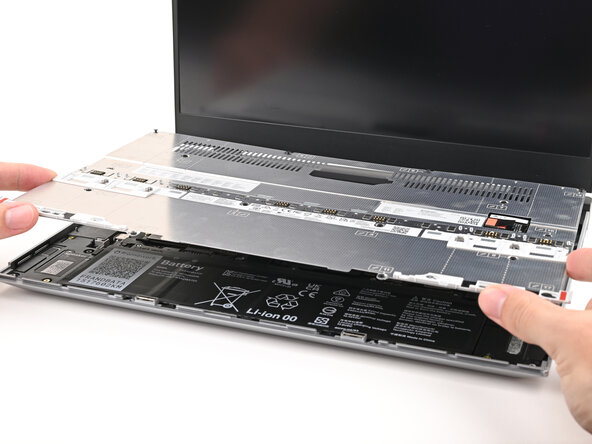
  10. Framework Laptop 16 Wi-Fi Module Replacement, Remove the Mid Plate: step 10, image 1 of 3 Framework Laptop 16 Wi-Fi Module Replacement, Remove the Mid Plate: step 10, image 2 of 3 Framework Laptop 16 Wi-Fi Module Replacement, Remove the Mid Plate: step 10, image 3 of 3
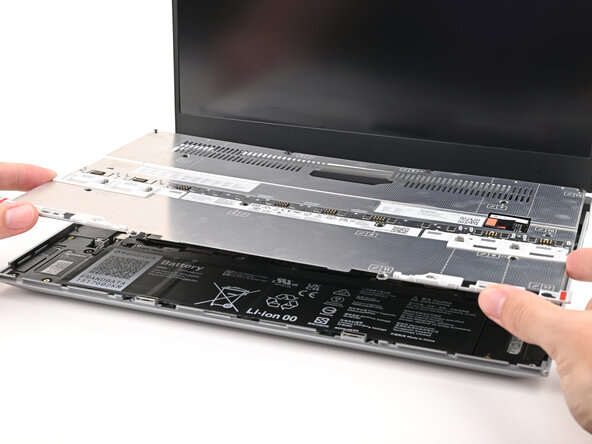
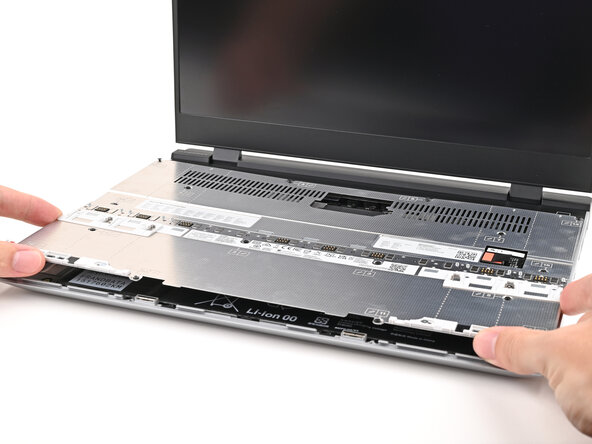
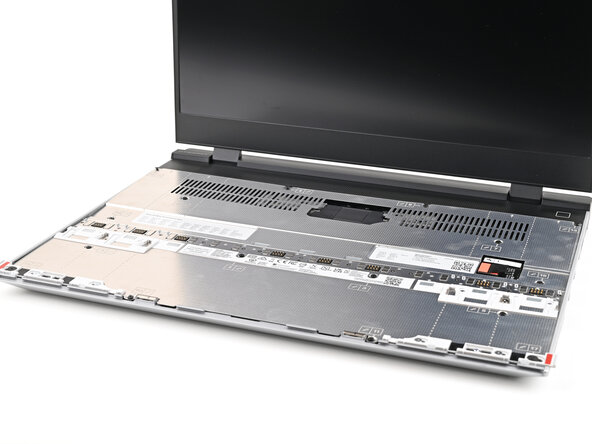
    • Use your fingers to lift the Mid Plate off the laptop and remove it.

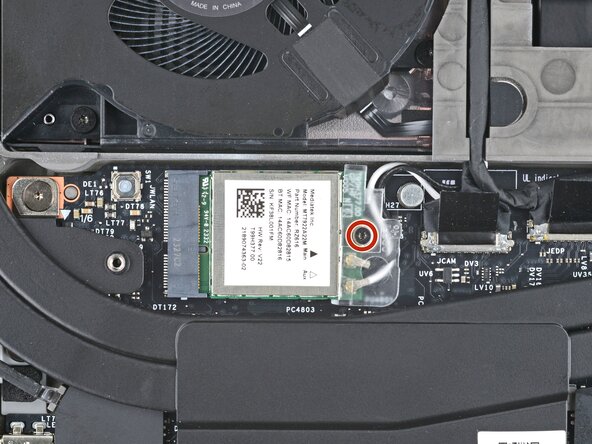
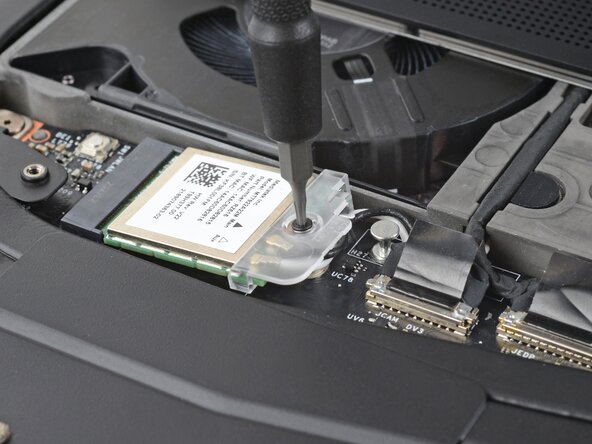
  11. Framework Laptop 16 Wi-Fi Module Replacement, Loosen the Wi-Fi module screw: step 11, image 1 of 2 Framework Laptop 16 Wi-Fi Module Replacement, Loosen the Wi-Fi module screw: step 11, image 2 of 2
    • Use your Framework Screwdriver to loosen the captive T5 Torx screw securing Wi-Fi module.

    • The module might pop up at a shallow angle when you loosen the screw.

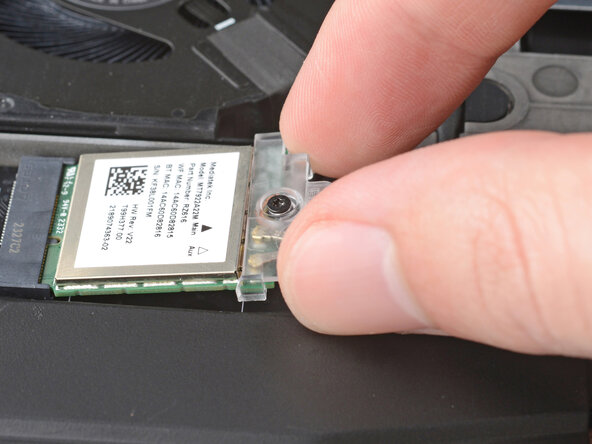
  12. Framework Laptop 16 Wi-Fi Module Replacement, Remove the Wi-Fi module cover: step 12, image 1 of 2 Framework Laptop 16 Wi-Fi Module Replacement, Remove the Wi-Fi module cover: step 12, image 2 of 2
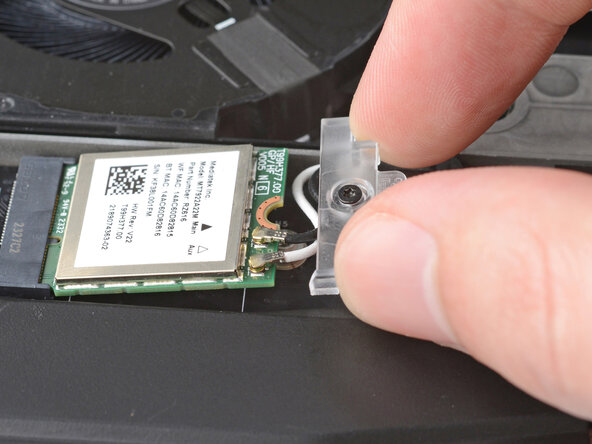
    • Slide the clear plastic cover straight off the module and remove it.

  13. Framework Laptop 16 Wi-Fi Module Replacement, Disconnect the Wi-Fi module: step 13, image 1 of 3 Framework Laptop 16 Wi-Fi Module Replacement, Disconnect the Wi-Fi module: step 13, image 2 of 3 Framework Laptop 16 Wi-Fi Module Replacement, Disconnect the Wi-Fi module: step 13, image 3 of 3
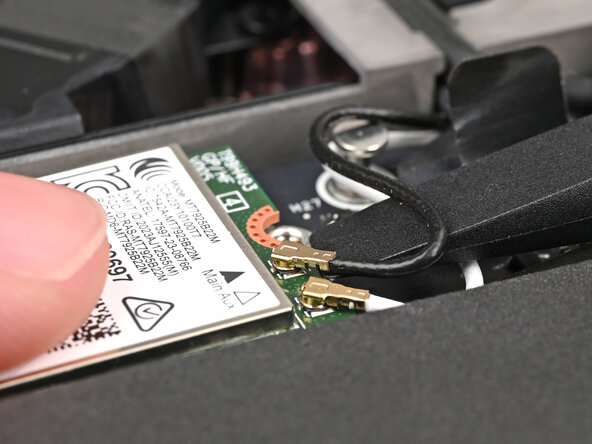
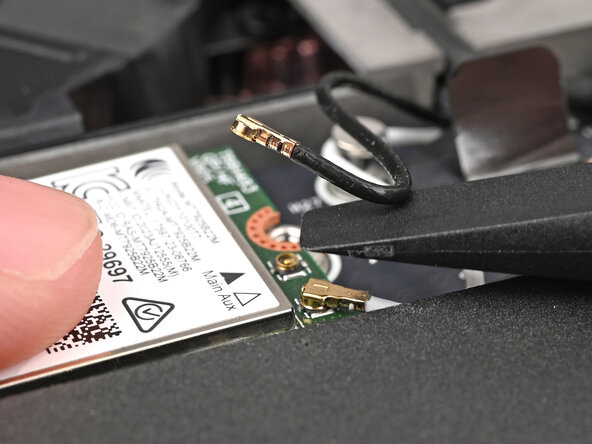
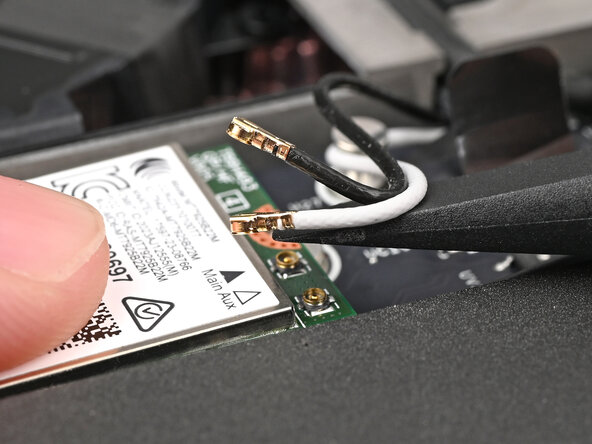
    • While holding the Wi-Fi module down, insert the flat end of your Framework Screwdriver under one of the coaxial connectors, where the cable meets the metal head.

    • Lift the screwdriver straight up to disconnect the coaxial cable.

    • Repeat for the other coaxial cable.

  14. Framework Laptop 16 Wi-Fi Module Replacement, Remove the Wi-Fi Module: step 14, image 1 of 2 Framework Laptop 16 Wi-Fi Module Replacement, Remove the Wi-Fi Module: step 14, image 2 of 2
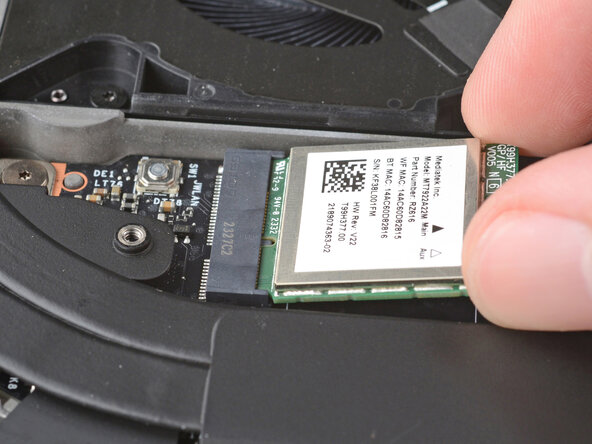
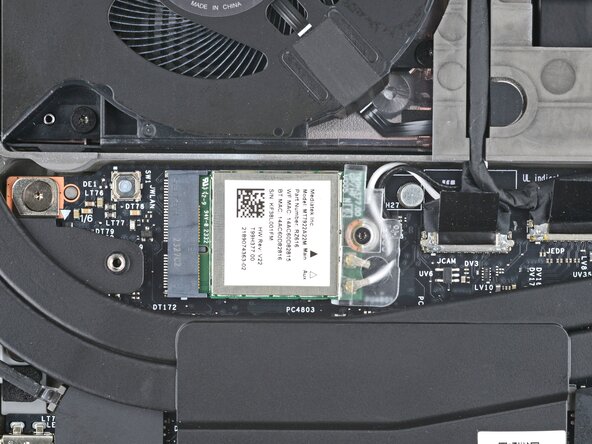
    • Grip the end of the Wi-Fi Module with the screw hole and slide it out of its socket.

    • Remove the Wi-Fi Module.

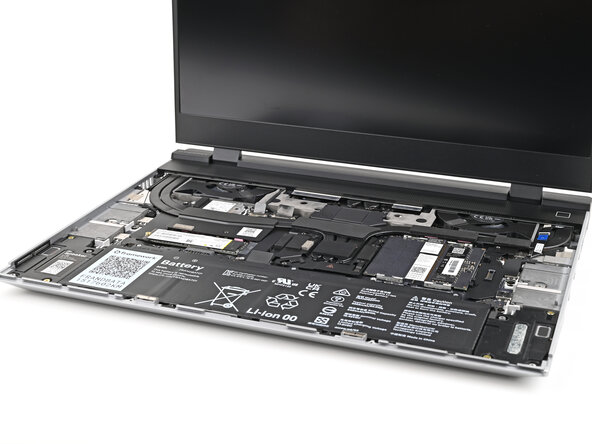
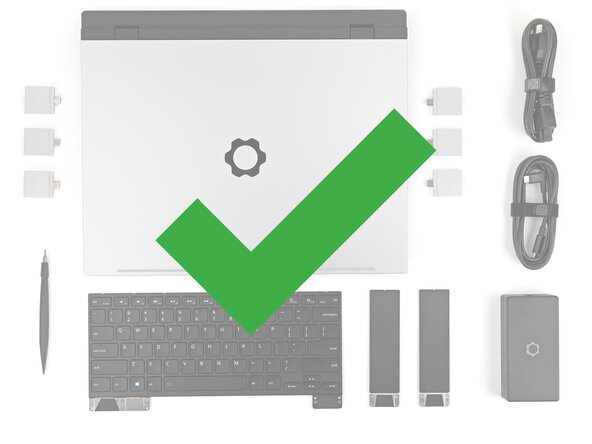
  15. Framework Laptop 16 Wi-Fi Module Replacement, Disassembly complete: step 15, image 1 of 1
    • Congratulations on completing disassembly! The remaining steps will show how to reassemble your Framework Laptop.

  16. Framework Laptop 16 Wi-Fi Module Replacement, Install the Wi-Fi module: step 16, image 1 of 2 Framework Laptop 16 Wi-Fi Module Replacement, Install the Wi-Fi module: step 16, image 2 of 2
    • Hold the Wi-Fi module by its edges. Don't touch the gold contacts with your fingers. If you do, wipe the contacts with a clean, lint-free cloth to remove any finger oils.

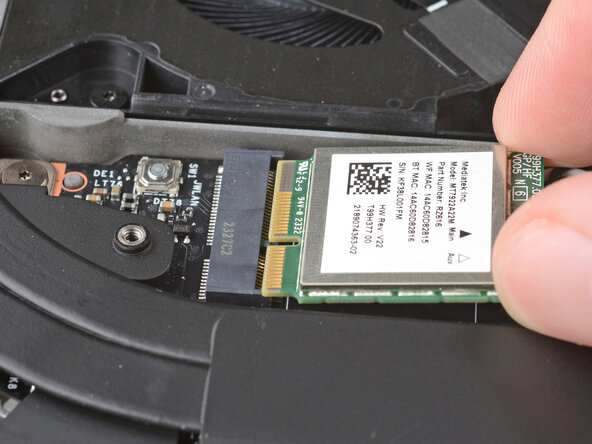
    • Align the Wi-Fi module's gold contacts and notch with the socket on the Mainboard.

    • Insert the Wi-Fi module into the socket at a shallow angle. The gold contacts should mostly be covered by the socket.

    • The Wi-Fi module fits into the socket in one orientation. If it doesn't fit, try flipping the module.

  17. Framework Laptop 16 Wi-Fi Module Replacement: step 17, image 1 of 3 Framework Laptop 16 Wi-Fi Module Replacement: step 17, image 2 of 3 Framework Laptop 16 Wi-Fi Module Replacement: step 17, image 3 of 3
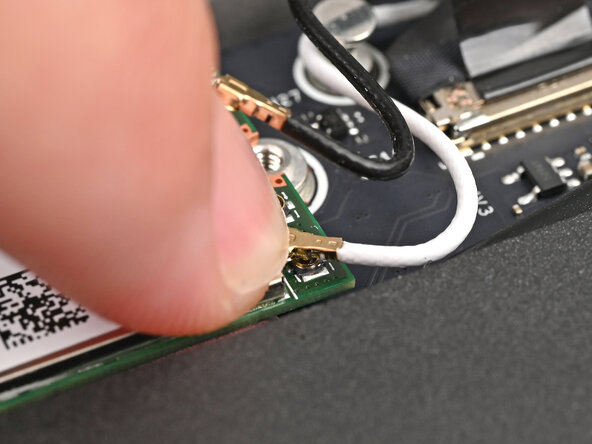
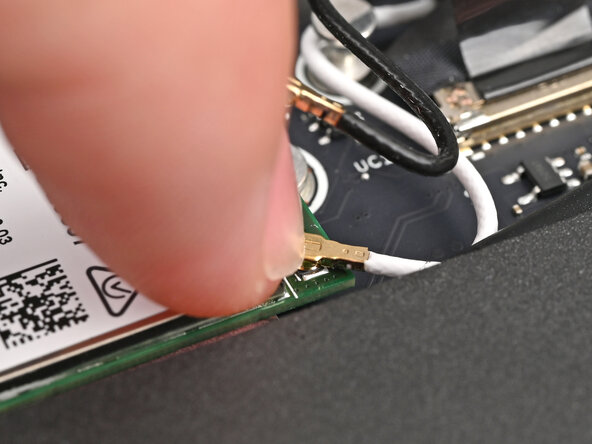
    • Hold the Wi-Fi module down with your finger.

    • Position the white antenna cable connector over the left Wi-Fi module's coaxial socket.

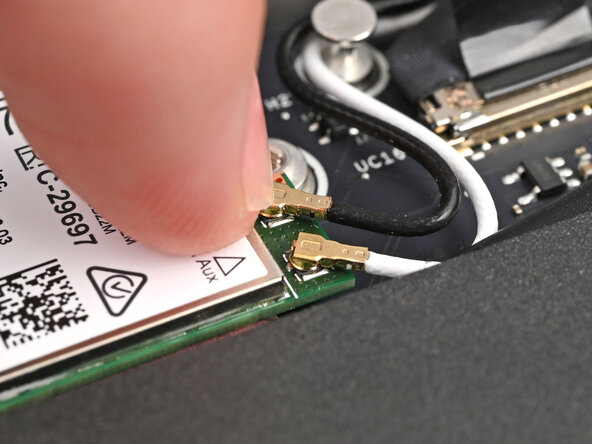
    • If you're unsure which cable goes where, refer to the arrows on the Wi-Fi module for which color cable matches with its connector.

    • Tweezers can help position the connector.

    • Use your finger to press the connector into place. You should feel a faint click, and the cable will stay attached to the socket by itself.

    • These connectors are very delicate! If the connector doesn't feel like it's clicking in place, reposition the connector and try again.

    • Repeat the procedure with the black antenna cable.

  18. Framework Laptop 16 Wi-Fi Module Replacement: step 18, image 1 of 2 Framework Laptop 16 Wi-Fi Module Replacement: step 18, image 2 of 2
    • Slide the clear plastic cover on the module and align its screw with the screw hole cutout.

  19. Framework Laptop 16 Wi-Fi Module Replacement, Tighten the Wi-Fi module screw: step 19, image 1 of 2 Framework Laptop 16 Wi-Fi Module Replacement, Tighten the Wi-Fi module screw: step 19, image 2 of 2
    • Use your Framework Screwdriver to tighten the captive T5 Torx screw securing Wi-Fi module.

  20. Framework Laptop 16 Wi-Fi Module Replacement, Place the Mid Plate: step 20, image 1 of 3 Framework Laptop 16 Wi-Fi Module Replacement, Place the Mid Plate: step 20, image 2 of 3 Framework Laptop 16 Wi-Fi Module Replacement, Place the Mid Plate: step 20, image 3 of 3
    • Place the Mid Plate on the laptop, making sure it sits evenly on its alignment pegs.

  21. Framework Laptop 16 Wi-Fi Module Replacement, Tighten the Mid Plate screws: step 21, image 1 of 2 Framework Laptop 16 Wi-Fi Module Replacement, Tighten the Mid Plate screws: step 21, image 2 of 2
    • Use your Framework Screwdriver to tighten the 16 captive T5 Torx screws in order (starting with 2) to secure the Mid Plate evenly.

  22. Framework Laptop 16 Wi-Fi Module Replacement, Connect the Mid Plate cable: step 22, image 1 of 2 Framework Laptop 16 Wi-Fi Module Replacement, Connect the Mid Plate cable: step 22, image 2 of 2
    • Align the Mid Plate cable press connector over its socket and press down to connect it.

  23. Framework Laptop 16 Wi-Fi Module Replacement, Install the Input Modules: step 23, image 1 of 3 Framework Laptop 16 Wi-Fi Module Replacement, Install the Input Modules: step 23, image 2 of 3 Framework Laptop 16 Wi-Fi Module Replacement, Install the Input Modules: step 23, image 3 of 3
    • Your Input Module(s) might be different, but the procedure to remove them is the same.

    • Align the top edge of the Input Module with the top edge of the laptop.

    • Lay the Input Module on the laptop and let the magnets pull the keyboard into place

    • Make sure the Input Module is seated properly on its alignment pegs and sits flush with the edges of the laptop.

    • Repeat for any remaining Input Modules.

  24. Framework Laptop 16 Wi-Fi Module Replacement, Install the keyboard: step 24, image 1 of 3 Framework Laptop 16 Wi-Fi Module Replacement, Install the keyboard: step 24, image 2 of 3 Framework Laptop 16 Wi-Fi Module Replacement, Install the keyboard: step 24, image 3 of 3
    • Align the top edge of the keyboard with the top edge of the laptop.

    • Lay the keyboard on the laptop and let the magnets pull the keyboard into place

    • Make sure the keyboard is seated properly on its alignment pegs and sits flush with the edges of the laptop.

  25. Framework Laptop 16 Wi-Fi Module Replacement, Install the Touchpad Module: step 25, image 1 of 2 Framework Laptop 16 Wi-Fi Module Replacement, Install the Touchpad Module: step 25, image 2 of 2
    • Place the Touchpad Module flat on its cutout so its clips are properly aligned.

    • Press the Touchpad Module down and slide it into place so it lines up evenly with the bottom edge of the laptop.

  26. Framework Laptop 16 Wi-Fi Module Replacement, Install the Touchpad Spacers: step 26, image 1 of 3 Framework Laptop 16 Wi-Fi Module Replacement, Install the Touchpad Spacers: step 26, image 2 of 3 Framework Laptop 16 Wi-Fi Module Replacement, Install the Touchpad Spacers: step 26, image 3 of 3
    • Place the Touchpad Spacer over its spot on the laptop with the bottom edge overhanging slightly.

    • Slide the Touchpad Spacer towards the top of the laptop to secure it.

    • Repeat the same procedure for the other Touchpad Spacer.
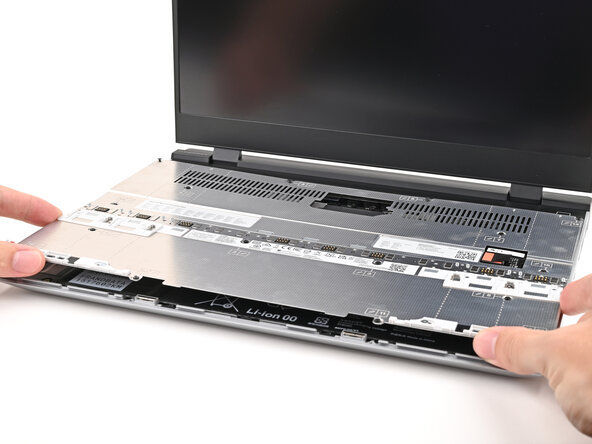
  27. Framework Laptop 16 Wi-Fi Module Replacement, Lock the Input Modules: step 27, image 1 of 3 Framework Laptop 16 Wi-Fi Module Replacement, Lock the Input Modules: step 27, image 2 of 3 Framework Laptop 16 Wi-Fi Module Replacement, Lock the Input Modules: step 27, image 3 of 3
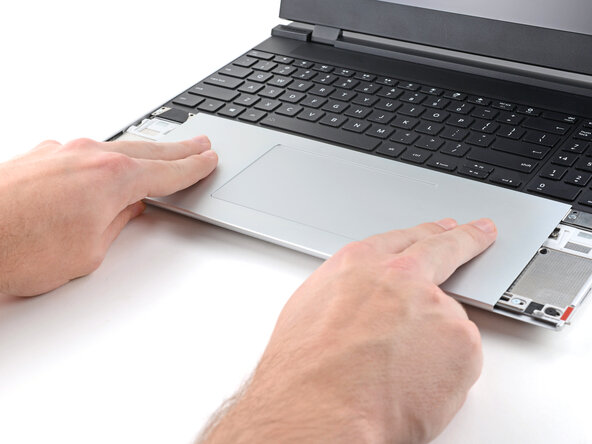
    • Push the Input Module latches back into place to lock them.

Conclusion

If you need help, contact Framework support.

Alex Diaz-Kokaisl

Member since: 01/16/22

213,259 Reputation

1,040 Guides authored

0 Guide Comments

Add Comment

View Statistics:

Past 24 Hours: 1

Past 7 Days: 5

Past 30 Days: 24

All Time: 114