Free Shipping on Domestic Orders $75+

Framework Laptop 16 Graphics Module Thermal Pad Removal

Prerequisite Only
This is a prerequisite-only guide! This guide is part of another procedure and isn’t meant to be used alone.
    1. Framework Laptop 16 Graphics Module Thermal Pad Removal, Graphics Module information: step 1, image 1 of 2 Framework Laptop 16 Graphics Module Thermal Pad Removal, Graphics Module information: step 1, image 2 of 2
      • There are two models of Graphics Modules:

      • NVIDIA® GeForce RTX™ 5070 (first photo)

      • AMD Radeon™ RX 7700S (second photo)

      • There are slight visual differences between the models, but the disassembly procedure is the same.

      Ask FixBot

      Add Comment

    2. Framework Laptop 16 Graphics Module Thermal Pad Removal, Remove the Graphics Module cover screws: step 2, image 1 of 3 Framework Laptop 16 Graphics Module Thermal Pad Removal, Remove the Graphics Module cover screws: step 2, image 2 of 3 Framework Laptop 16 Graphics Module Thermal Pad Removal, Remove the Graphics Module cover screws: step 2, image 3 of 3
      • Use your Framework Screwdriver to remove the four 3.6 mm‑long T5 Torx screws securing the Graphics Module cover:

      • Two screws on the flat surface of the module, next to the fans.

      • Two screws on the thin edge of the module, near the ends. You'll need to flip the module on its back edge to access them.

      Ask FixBot

      Add Comment

    3. Framework Laptop 16 Graphics Module Thermal Pad Removal, Remove the Graphics Module cover: step 3, image 1 of 3 Framework Laptop 16 Graphics Module Thermal Pad Removal, Remove the Graphics Module cover: step 3, image 2 of 3 Framework Laptop 16 Graphics Module Thermal Pad Removal, Remove the Graphics Module cover: step 3, image 3 of 3
      • Use your fingers to lift the cover off the Graphics Module and remove it.

      Ask FixBot

      Add Comment

    4. Framework Laptop 16 Graphics Module Thermal Pad Removal, Disconnect the left fan: step 4, image 1 of 3 Framework Laptop 16 Graphics Module Thermal Pad Removal, Disconnect the left fan: step 4, image 2 of 3 Framework Laptop 16 Graphics Module Thermal Pad Removal, Disconnect the left fan: step 4, image 3 of 3
      • Use the flat end of a spudger, or a clean fingernail, to lift up and release the locking tab on the left fan ZIF connector.

      • Use your fingers to grip the brown pull tab and slide the fan cable straight out of its socket.

      Ask FixBot

      Add Comment

    5. Framework Laptop 16 Graphics Module Thermal Pad Removal, Loosen the left fan screws: step 5, image 1 of 2 Framework Laptop 16 Graphics Module Thermal Pad Removal, Loosen the left fan screws: step 5, image 2 of 2
      • Use a T5 Torx screwdriver to loosen the four captive screws securing the left fan.

      Ask FixBot

      Add Comment

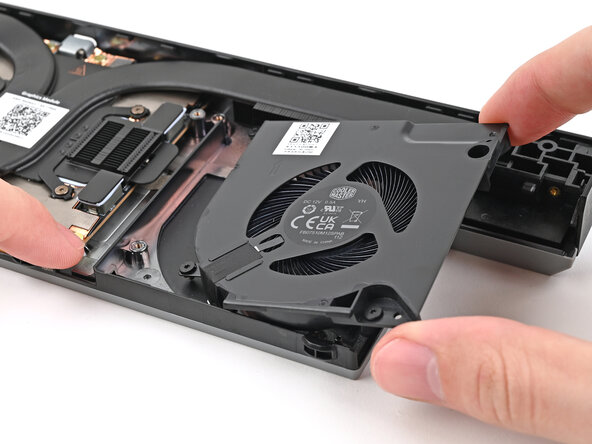
    6. Framework Laptop 16 Graphics Module Thermal Pad Removal, Remove the left fan: step 6, image 1 of 3 Framework Laptop 16 Graphics Module Thermal Pad Removal, Remove the left fan: step 6, image 2 of 3 Framework Laptop 16 Graphics Module Thermal Pad Removal, Remove the left fan: step 6, image 3 of 3
      • Use one hand to press the fan cable flat to the module.

      • Use your other hand to pull the fan out of its housing, making sure to thread the cable though its slot.

      • Remove the fan.

      Ask FixBot

      Add Comment

    7. Framework Laptop 16 Graphics Module Thermal Pad Removal, Disconnect the right fan: step 7, image 1 of 3 Framework Laptop 16 Graphics Module Thermal Pad Removal, Disconnect the right fan: step 7, image 2 of 3 Framework Laptop 16 Graphics Module Thermal Pad Removal, Disconnect the right fan: step 7, image 3 of 3
      • Use the flat end of a spudger, or a clean fingernail, to lift up and release the locking tab on the right fan ZIF connector.

      • Use your fingers to grip the brown pull tab and slide the fan cable straight out of its socket.

      Ask FixBot

      Add Comment

    8. Framework Laptop 16 Graphics Module Thermal Pad Removal, Loosen the right fan screws: step 8, image 1 of 2 Framework Laptop 16 Graphics Module Thermal Pad Removal, Loosen the right fan screws: step 8, image 2 of 2
      • Use a T5 Torx screwdriver to loosen the four captive screws securing the right fan.

      Ask FixBot

      Add Comment

    9. Framework Laptop 16 Graphics Module Thermal Pad Removal, Remove the right fan: step 9, image 1 of 3 Framework Laptop 16 Graphics Module Thermal Pad Removal, Remove the right fan: step 9, image 2 of 3 Framework Laptop 16 Graphics Module Thermal Pad Removal, Remove the right fan: step 9, image 3 of 3
      • Use one hand to press the fan cable flat to the module.

      • Use your other hand to pull the fan out of its housing, making sure to thread the cable though its slot.

      • Remove the fan.

      Ask FixBot

      Add Comment

    10. Framework Laptop 16 Graphics Module Thermal Pad Removal, Remove the Graphics Module heatsink screws: step 10, image 1 of 2 Framework Laptop 16 Graphics Module Thermal Pad Removal, Remove the Graphics Module heatsink screws: step 10, image 2 of 2
      • The screw configuration will look different depending on your Graphics Module, but the procedure is the same.

      • Use your Framework Screwdriver to loosen the captive T5 Torx screws securing the Graphics Module Heatsink:

      • Loosen the captive screw at the bottom left corner of the heatsink.

      • Loosen the captive screws directly over the GPU in order from 1–4 (the numbers are engraved on the metal near the screw).

      Ask FixBot

      Add Comment

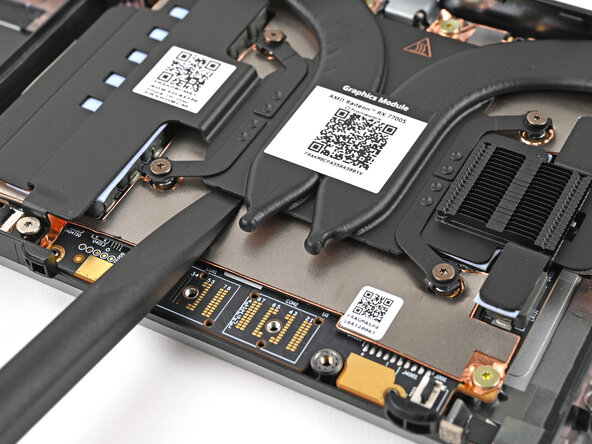
    11. Framework Laptop 16 Graphics Module Thermal Pad Removal, Pry up the heatsink: step 11, image 1 of 3 Framework Laptop 16 Graphics Module Thermal Pad Removal, Pry up the heatsink: step 11, image 2 of 3 Framework Laptop 16 Graphics Module Thermal Pad Removal, Pry up the heatsink: step 11, image 3 of 3
      • Use the flat end of the Framework Screwdriver to pry up the flat metal plate under the heat pipes until you feel the thermal pads separate.

      • Don't pry under the heat pipes as you risk bending them.

      Ask FixBot

      Add Comment

    12. Framework Laptop 16 Graphics Module Thermal Pad Removal, Remove the heatsink: step 12, image 1 of 2 Framework Laptop 16 Graphics Module Thermal Pad Removal, Remove the heatsink: step 12, image 2 of 2
      • Grip the edges of the heatsink, near its curved pipes, and lift it straight up to remove it.

      Ask FixBot

      Add Comment

Conclusion

To reassemble your device, follow these instructions in reverse order.

Cancel: I did not complete this guide.

Alex Diaz-Kokaisl

Member since: 01/16/22

250,021 Reputation

1,203 Guides authored

0 Guide Comments

Add Comment

View Statistics:

Past 24 Hours: 1

Past 7 Days: 1

Past 30 Days: 11

All Time: 91