Free Shipping on Domestic Orders $75+

Framework Desktop Wi-Fi Module Installation

Prerequisite Only
This is a prerequisite-only guide! This guide is part of another procedure and isn’t meant to be used alone.
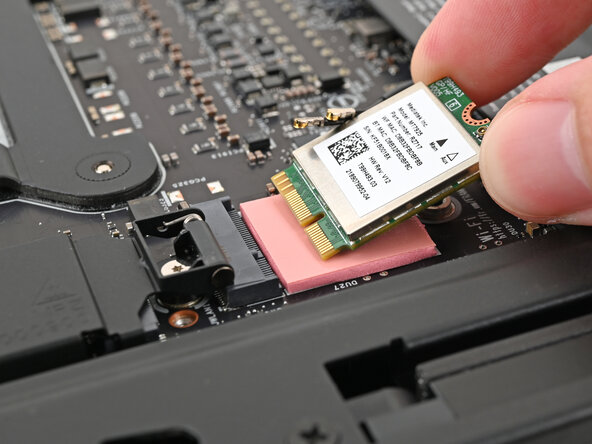
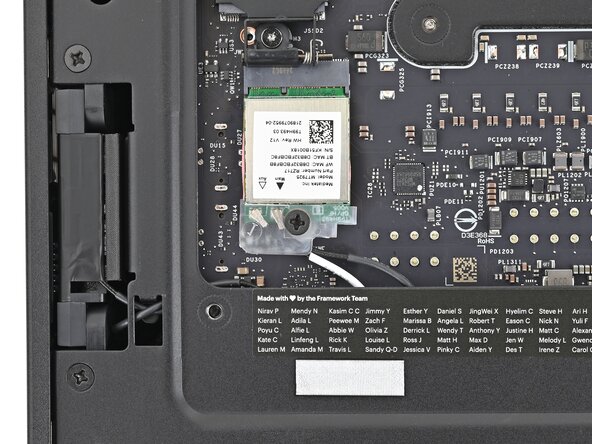
    1. Framework Desktop Wi-Fi Module Installation, Install the Wi-Fi module: step 1, image 1 of 2 Framework Desktop Wi-Fi Module Installation, Install the Wi-Fi module: step 1, image 2 of 2
      • Hold the Wi-Fi module by its edges. Don't touch the gold contacts with your fingers. If you do, wipe the contacts with a clean, lint-free cloth to remove any finger oils.

      • Align the Wi-Fi module's gold contacts and notch with the socket on the Mainboard.

      • Insert the Wi-Fi module into the socket at a shallow angle. The gold contacts should mostly be covered by the socket.

      • The Wi-Fi module fits into the socket in one orientation. If it doesn't fit, try flipping the module.

      Ask FixBot

      Add Comment

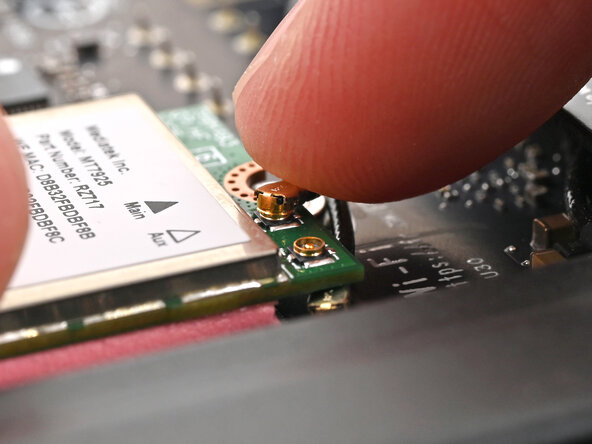
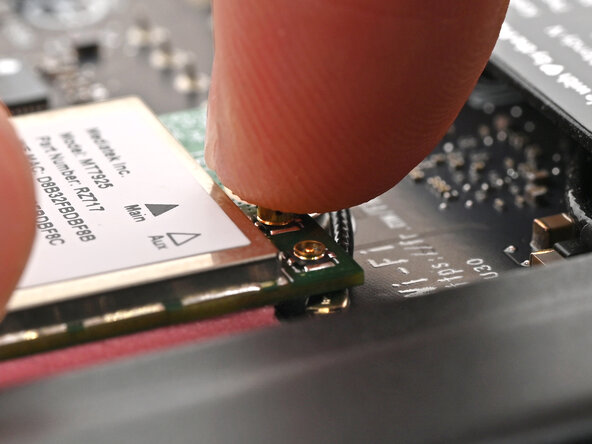
    2. Framework Desktop Wi-Fi Module Installation, Connect the Wi-Fi Module: step 2, image 1 of 3 Framework Desktop Wi-Fi Module Installation, Connect the Wi-Fi Module: step 2, image 2 of 3 Framework Desktop Wi-Fi Module Installation, Connect the Wi-Fi Module: step 2, image 3 of 3
      • Hold the Wi-Fi module down with your fingers.

      • Position the black antenna cable connector over the left Wi-Fi module's coaxial socket.

      • Tweezers can help position the connector.

      • Use your finger to press the connector into place. You should feel a faint click, and the cable will stay attached to the socket by itself.

      • These connectors are very delicate! If the connector doesn't feel like it's clicking in place, reposition the connector and try again.

      • Repeat the procedure with the white antenna cable.

      Ask FixBot

      Add Comment

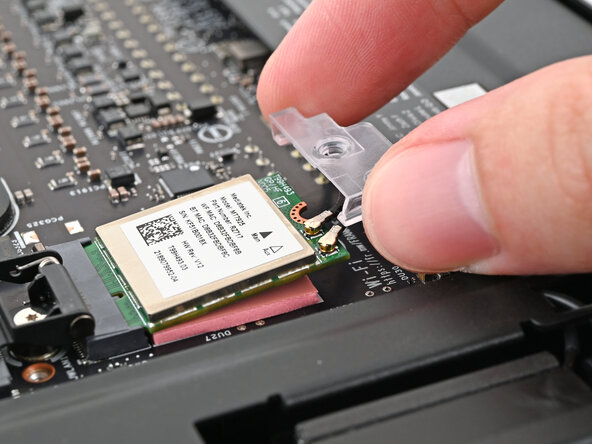
    3. Framework Desktop Wi-Fi Module Installation: step 3, image 1 of 3 Framework Desktop Wi-Fi Module Installation: step 3, image 2 of 3 Framework Desktop Wi-Fi Module Installation: step 3, image 3 of 3
      • Hook the Wi-Fi bracket over the corner of the Wi-Fi module opposite the antenna cables.

      • Rotate the bracket over the Wi-Fi module, making sure the screw hole isn't being obstructed by the antenna cables.

      Ask FixBot

      Add Comment

    4. Framework Desktop Wi-Fi Module Installation, Install the Wi-Fi module screw: step 4, image 1 of 2 Framework Desktop Wi-Fi Module Installation, Install the Wi-Fi module screw: step 4, image 2 of 2
      • Use your Framework Desktop Screwdriver to install the screw securing the Wi-Fi module.

      Ask FixBot

      Add Comment

Conclusion

To reassemble your device, follow these instructions in reverse order.

Cancel: I did not complete this guide.

Alex Diaz-Kokaisl

Member since: 01/16/22

249,970 Reputation

1,203 Guides authored

0 Guide Comments

Add Comment

View Statistics:

Past 24 Hours: 0

Past 7 Days: 2

Past 30 Days: 6

All Time: 102