Free Shipping on Domestic Orders $75+

Framework Desktop Power Supply Installation (Case)

Prerequisite Only
This is a prerequisite-only guide! This guide is part of another procedure and isn’t meant to be used alone.
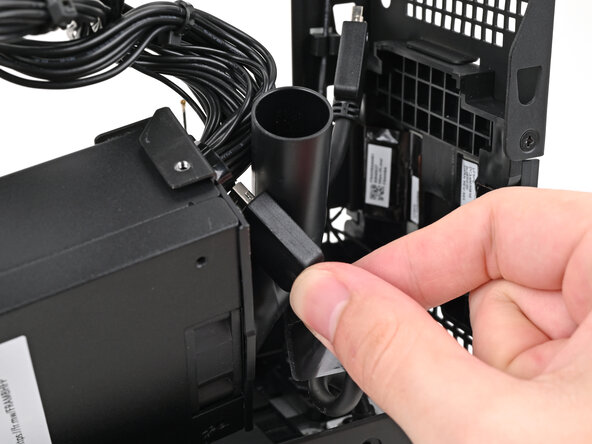
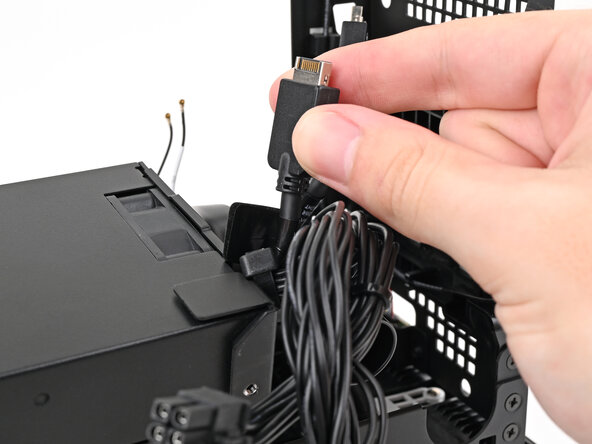
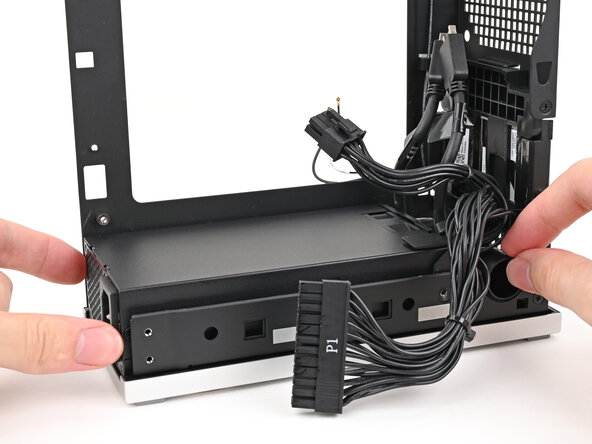
    1. Framework Desktop Power Supply Installation (Case), Insert the Expansion card cable: step 1, image 1 of 3 Framework Desktop Power Supply Installation (Case), Insert the Expansion card cable: step 1, image 2 of 3 Framework Desktop Power Supply Installation (Case), Insert the Expansion card cable: step 1, image 3 of 3
      • Thread the right Expansion card cable through the gap between the power supply and its duct.

      Ask FixBot

      Add Comment

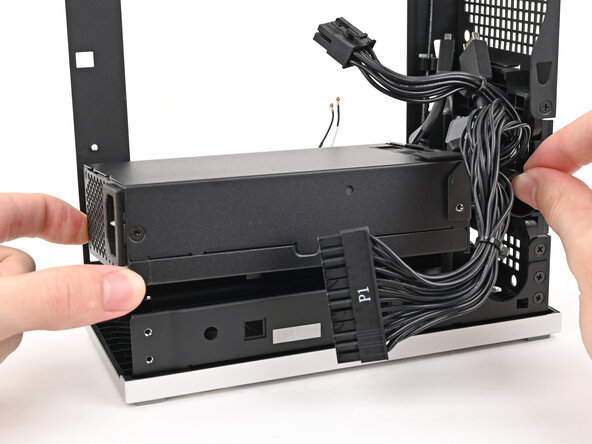
    2. Framework Desktop Power Supply Installation (Case), Place the power supply: step 2, image 1 of 2 Framework Desktop Power Supply Installation (Case), Place the power supply: step 2, image 2 of 2
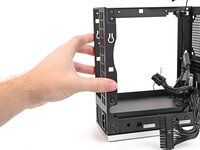
      • Place the power supply into its slot in the bottom of the Desktop.

      Ask FixBot

      Add Comment

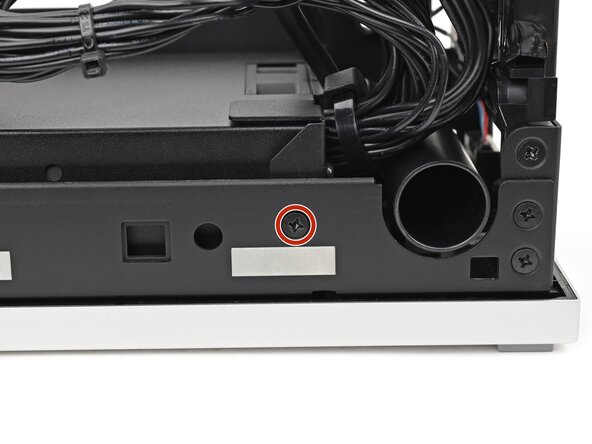
    3. Framework Desktop Power Supply Installation (Case), Install the power supply screw: step 3, image 1 of 2 Framework Desktop Power Supply Installation (Case), Install the power supply screw: step 3, image 2 of 2
      • Use your Framework Desktop Screwdriver to install the 4.0 mm‑long Phillips screw securing the power supply.

      Ask FixBot

      Add Comment

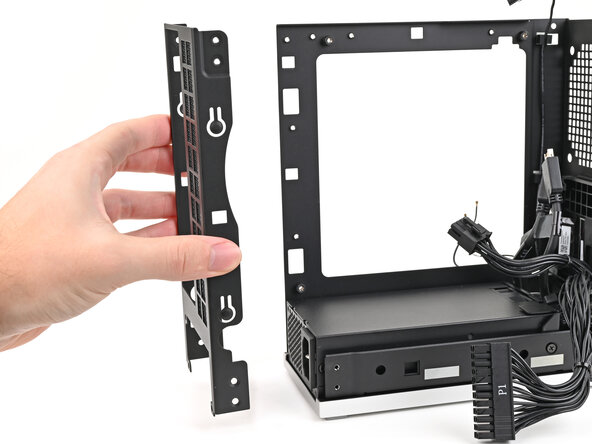
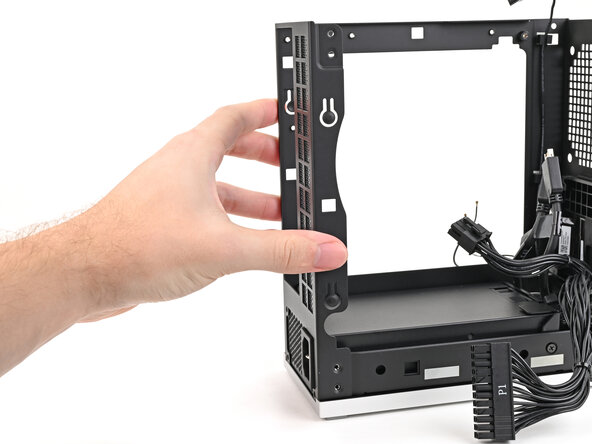
    4. Framework Desktop Power Supply Installation (Case), Place the rear plate: step 4, image 1 of 2 Framework Desktop Power Supply Installation (Case), Place the rear plate: step 4, image 2 of 2
      • If you didn't remove the rear plate, skip this step.

      • Place the rear plate onto the back of the Desktop.

      Ask FixBot

      Add Comment

    5. Framework Desktop Power Supply Installation (Case), Install the rear plate screws: step 5, image 1 of 3 Framework Desktop Power Supply Installation (Case), Install the rear plate screws: step 5, image 2 of 3 Framework Desktop Power Supply Installation (Case), Install the rear plate screws: step 5, image 3 of 3
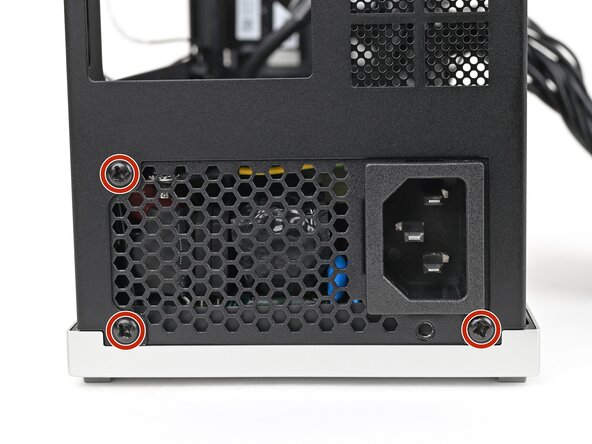
      • Use your Framework Desktop Screwdriver to install the three 5.9 mm‑long Phillips screws securing the power supply.

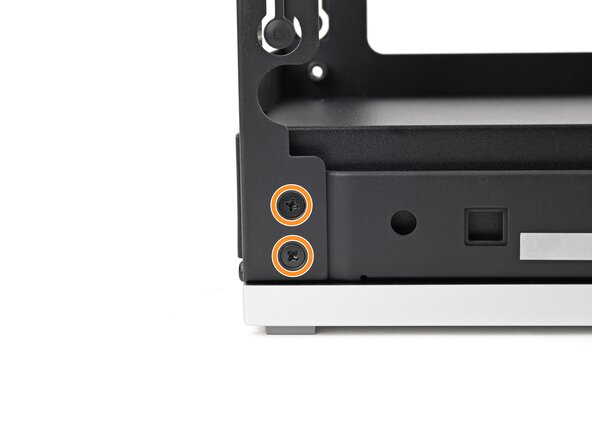
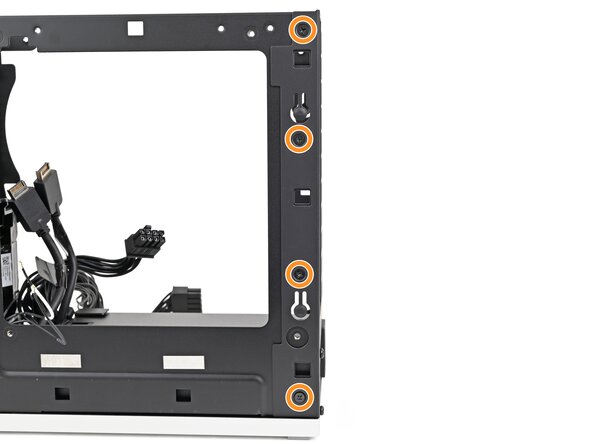
      • If you removed the rear plate, use your Framework Desktop Screwdriver to install the six 4.0 mm‑long screws securing the rear plate.

      Ask FixBot

      Add Comment

Conclusion

To reassemble your device, follow these instructions in reverse order.

Cancel: I did not complete this guide.

Alex Diaz-Kokaisl

Member since: 01/16/22

250,018 Reputation

1,203 Guides authored

0 Guide Comments

Add Comment

View Statistics:

Past 24 Hours: 0

Past 7 Days: 2

Past 30 Days: 14

All Time: 47