Free Shipping on Domestic Orders $75+

Framework Desktop Power Button Board Removal

Prerequisite Only
This is a prerequisite-only guide! This guide is part of another procedure and isn’t meant to be used alone.
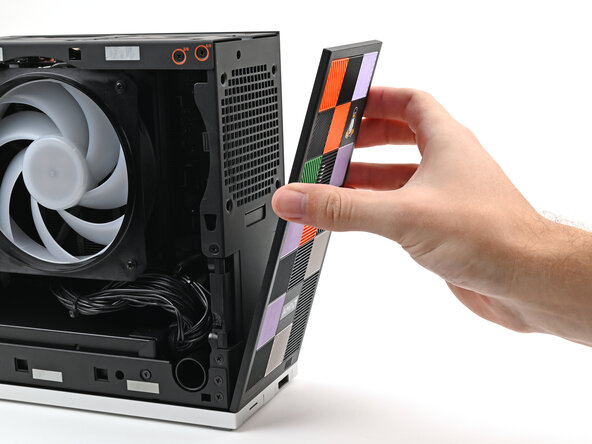
    1. Framework Desktop Power Button Board Removal, Remove the Front Panel: step 1, image 1 of 3 Framework Desktop Power Button Board Removal, Remove the Front Panel: step 1, image 2 of 3 Framework Desktop Power Button Board Removal, Remove the Front Panel: step 1, image 3 of 3
      • Use your fingers to pull the Front Panel off the magnets securing it to the chassis.

      Ask FixBot

      Add Comment

    2. Framework Desktop Power Button Board Removal, Remove the top plate screws: step 2, image 1 of 2 Framework Desktop Power Button Board Removal, Remove the top plate screws: step 2, image 2 of 2
      • While holding the Desktop steady, use your Framework Desktop Screwdriver to remove the eight 4.0 mm‑long Phillips screws securing the top plate.

      Ask FixBot

      Add Comment

    3. Framework Desktop Power Button Board Removal, Remove the top plate: step 3, image 1 of 2 Framework Desktop Power Button Board Removal, Remove the top plate: step 3, image 2 of 2
      • Lift the top plate off the Desktop and remove it.

      Ask FixBot

      Add Comment

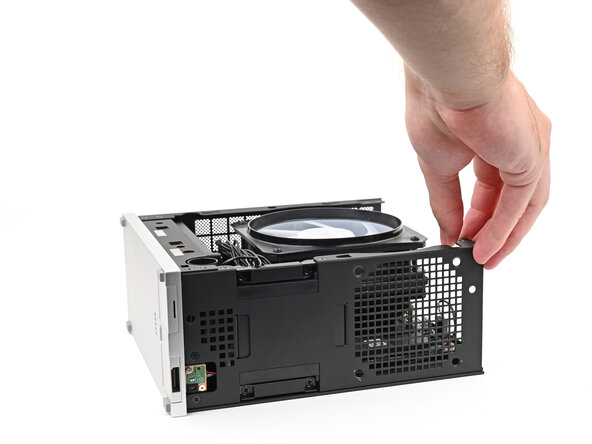
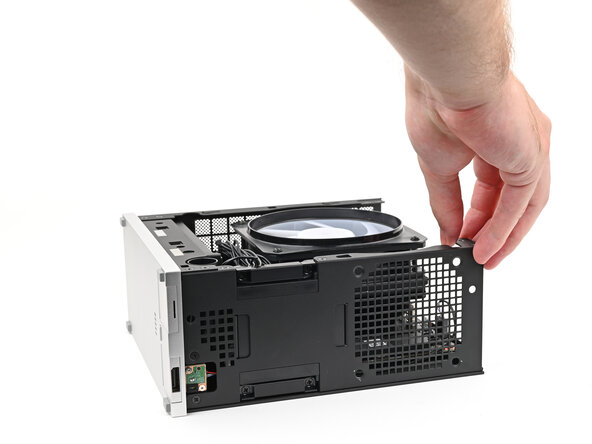
    4. Framework Desktop Power Button Board Removal, Reposition the Desktop: step 4, image 1 of 2 Framework Desktop Power Button Board Removal, Reposition the Desktop: step 4, image 2 of 2
      • Rotate the Desktop onto its right side so the Mainboard is facing upward.

      Ask FixBot

      Add Comment

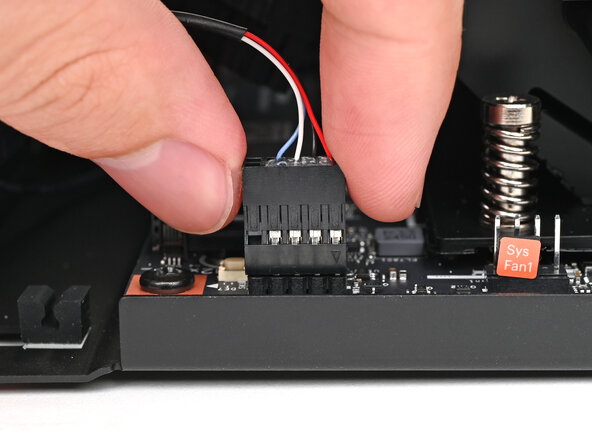
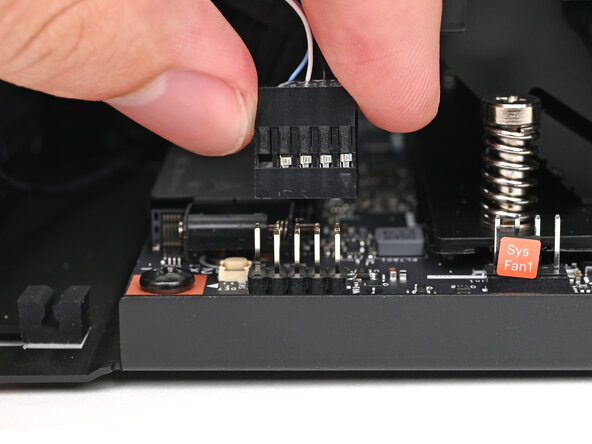
    5. Framework Desktop Power Button Board Removal, Disconnect the power button: step 5, image 1 of 2 Framework Desktop Power Button Board Removal, Disconnect the power button: step 5, image 2 of 2
      • Use your fingers to lift the power button cable connector off its nine‑pronged socket on the Mainboard.

      Ask FixBot

      Add Comment

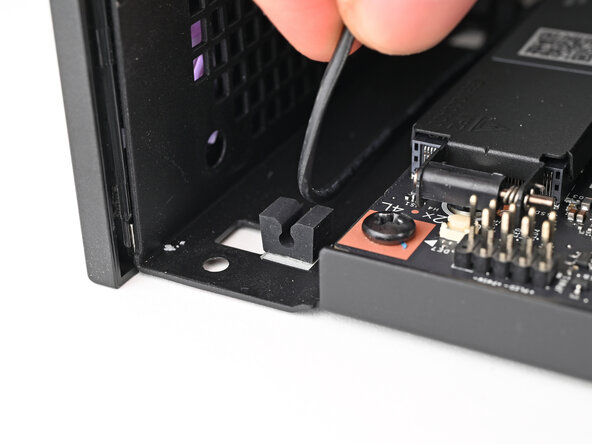
    6. Framework Desktop Power Button Board Removal, Reroute the power button cable: step 6, image 1 of 2 Framework Desktop Power Button Board Removal, Reroute the power button cable: step 6, image 2 of 2
      • Pull the power button cable out of its rubber clips in the chassis.

      Ask FixBot

      Add Comment

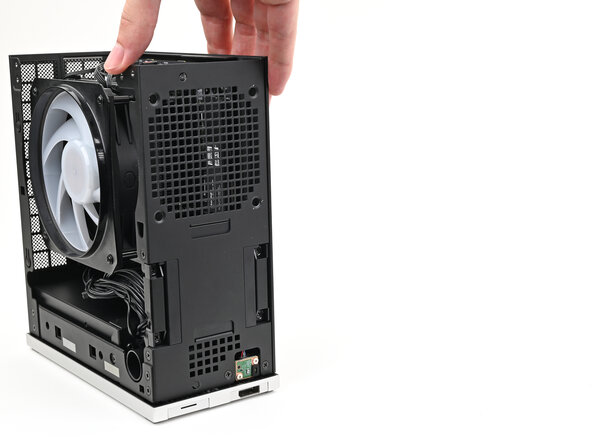
    7. Framework Desktop Power Button Board Removal, Reposition the Desktop: step 7, image 1 of 2 Framework Desktop Power Button Board Removal, Reposition the Desktop: step 7, image 2 of 2
      • Rotate the Desktop so it sits upright.

      Ask FixBot

      Add Comment

    8. Framework Desktop Power Button Board Removal, Remove the Power Button Board screws: step 8, image 1 of 2 Framework Desktop Power Button Board Removal, Remove the Power Button Board screws: step 8, image 2 of 2
      • Use your Framework Desktop Screwdriver to remove the two 4.5 mm‑long screws securing the Power Button Board.

      Ask FixBot

      Add Comment

    9. Framework Desktop Power Button Board Removal, Reposition the Power Button Board: step 9, image 1 of 2 Framework Desktop Power Button Board Removal, Reposition the Power Button Board: step 9, image 2 of 2
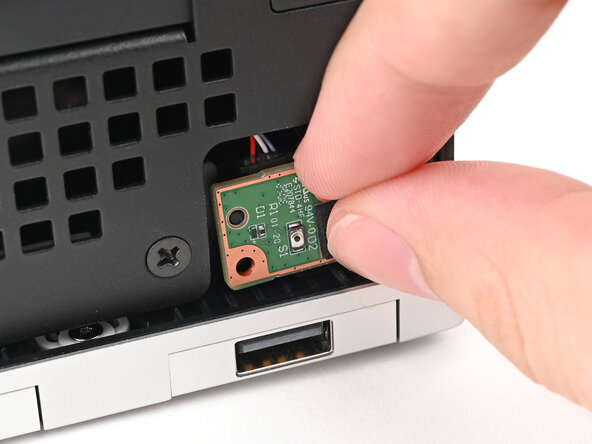
      • Use your finger to pull the Power Button Board off its alignment peg.

      Ask FixBot

      Add Comment

    10. Framework Desktop Power Button Board Removal, Remove the Power Button Board: step 10, image 1 of 3 Framework Desktop Power Button Board Removal, Remove the Power Button Board: step 10, image 2 of 3 Framework Desktop Power Button Board Removal, Remove the Power Button Board: step 10, image 3 of 3
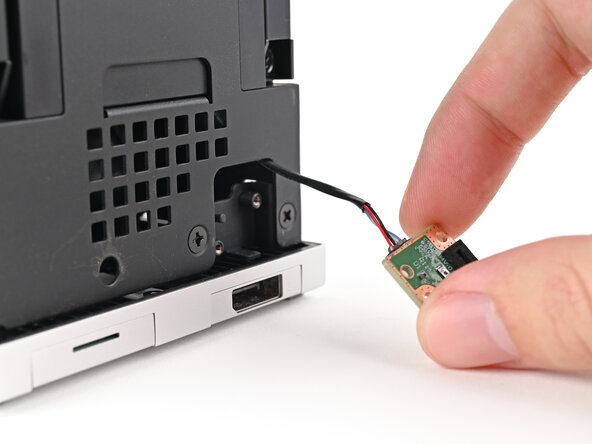
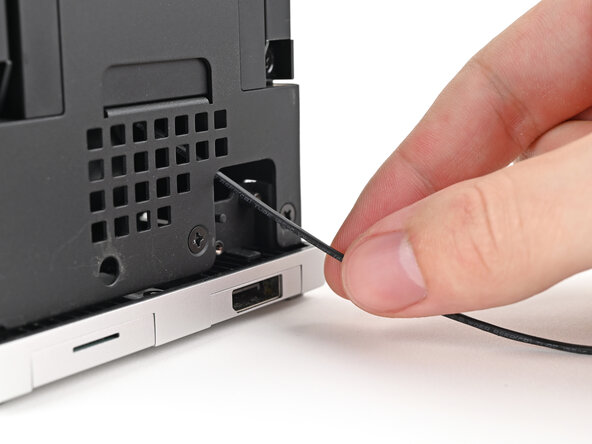
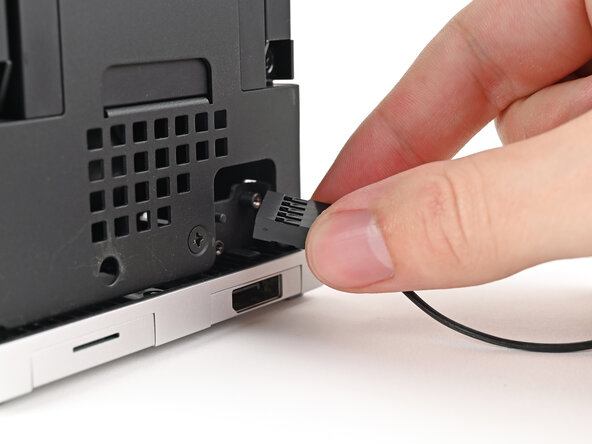
      • Pull the Power Button Board away from the Desktop, threading its cable through the chassis.

      Ask FixBot

      Add Comment

Conclusion

To reassemble your device, follow these instructions in reverse order.

Cancel: I did not complete this guide.

Alex Diaz-Kokaisl

Member since: 01/16/22

249,973 Reputation

1,203 Guides authored

0 Guide Comments

Add Comment

View Statistics:

Past 24 Hours: 1

Past 7 Days: 1

Past 30 Days: 9

All Time: 63