Free Shipping on Domestic Orders $75+

Framework Desktop Mainboard Removal (Mainboard Replacement)

Prerequisite Only
This is a prerequisite-only guide! This guide is part of another procedure and isn’t meant to be used alone.
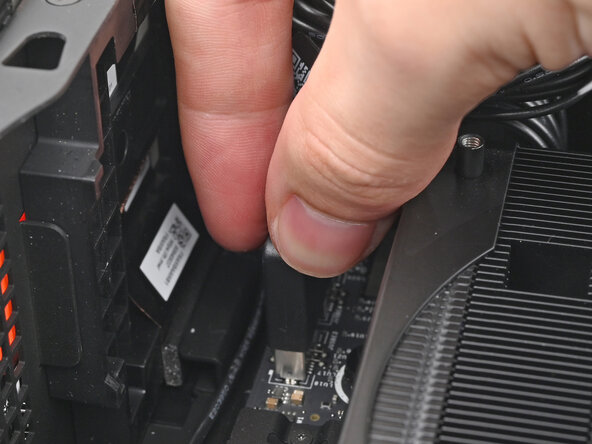
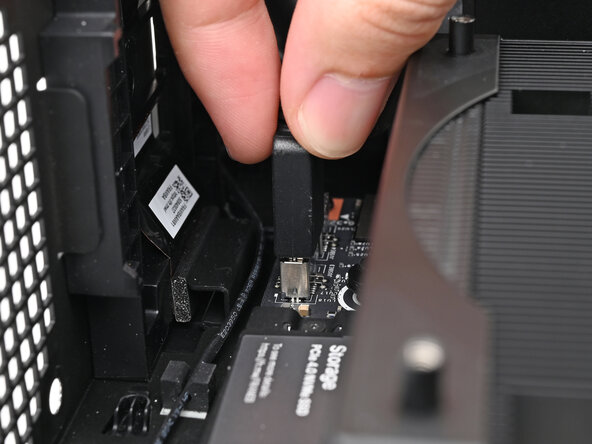
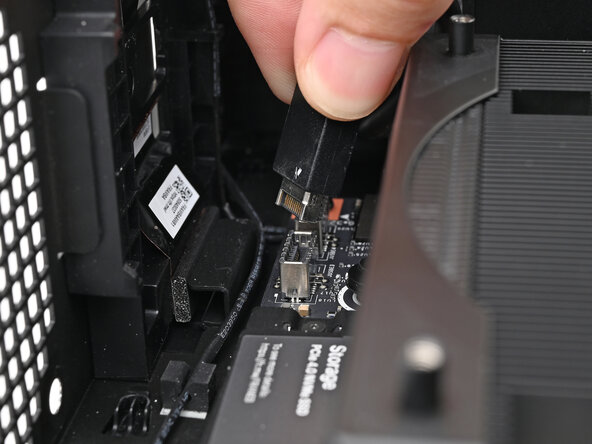
    1. Framework Desktop Mainboard Removal (Mainboard Replacement), Disconnect the top Expansion Card cable: step 1, image 1 of 2 Framework Desktop Mainboard Removal (Mainboard Replacement), Disconnect the top Expansion Card cable: step 1, image 2 of 2
      • Pull the top Expansion Card connector straight out of its socket in the Mainboard to disconnect it.

      Ask FixBot

      Add Comment

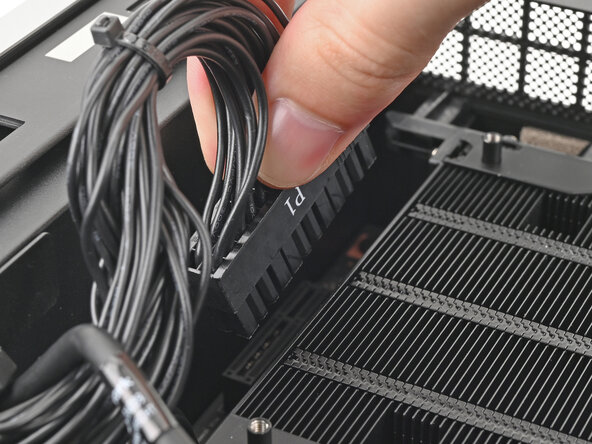
    2. Framework Desktop Mainboard Removal (Mainboard Replacement), Disconnect the main power cable: step 2, image 1 of 2 Framework Desktop Mainboard Removal (Mainboard Replacement), Disconnect the main power cable: step 2, image 2 of 2
      • While squeezing the clip on the main power cable, pull it straight up and out of its socket to disconnect it.

      Ask FixBot

      Add Comment

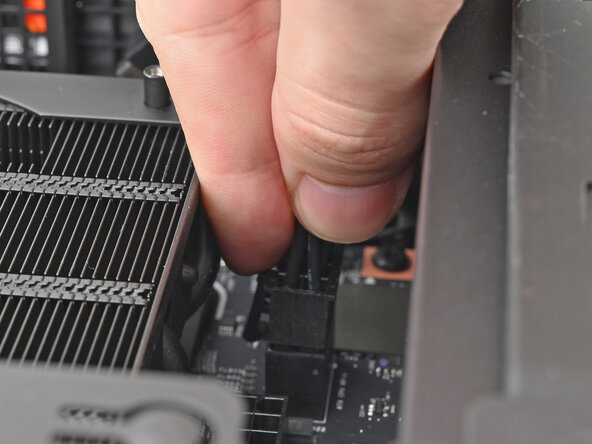
    3. Framework Desktop Mainboard Removal (Mainboard Replacement), Disconnect the CPU power cable: step 3, image 1 of 2 Framework Desktop Mainboard Removal (Mainboard Replacement), Disconnect the CPU power cable: step 3, image 2 of 2
      • While squeezing the clip on the CPU power cable, pull it straight up and out of its socket to disconnect it.

      Ask FixBot

      Add Comment

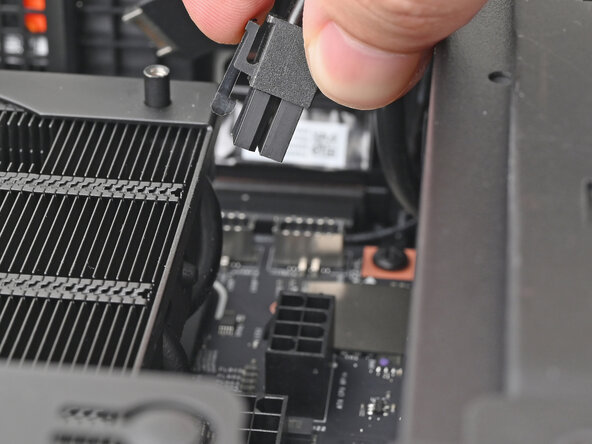
    4. Framework Desktop Mainboard Removal (Mainboard Replacement), Disconnect the bottom Expansion Card cable: step 4, image 1 of 2 Framework Desktop Mainboard Removal (Mainboard Replacement), Disconnect the bottom Expansion Card cable: step 4, image 2 of 2
      • Pull the bottom Expansion Card connector straight out of its socket in the Mainboard to disconnect it.

      Ask FixBot

      Add Comment

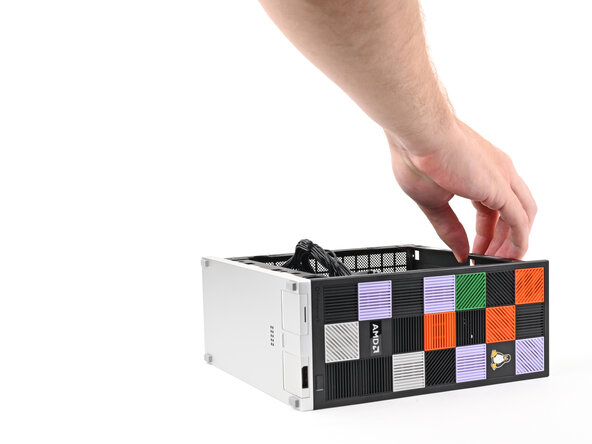
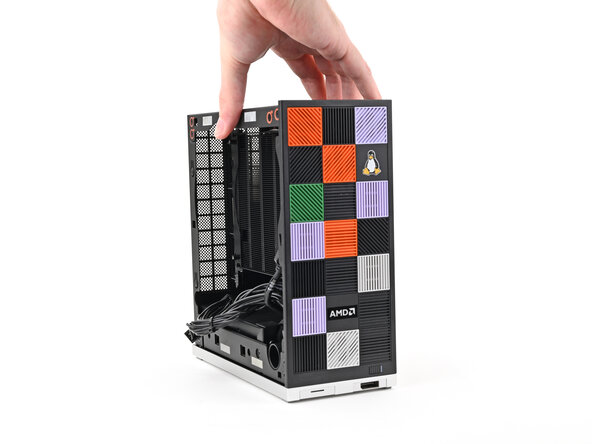
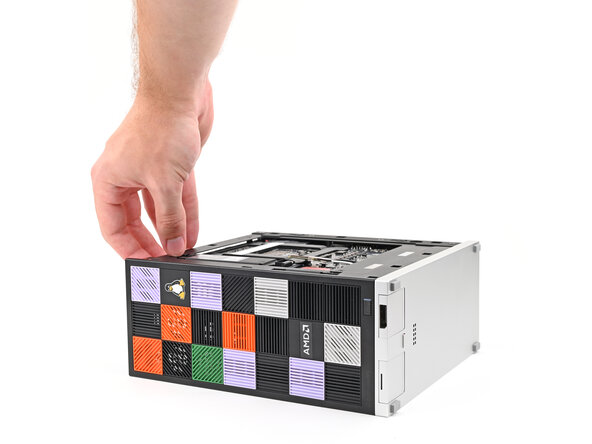
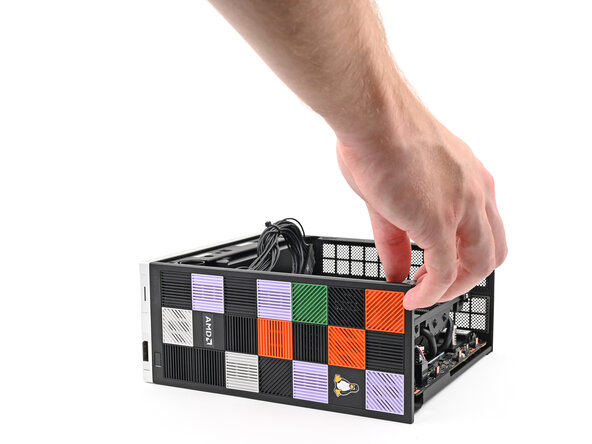
    5. Framework Desktop Mainboard Removal (Mainboard Replacement), Reposition the Desktop: step 5, image 1 of 2 Framework Desktop Mainboard Removal (Mainboard Replacement), Reposition the Desktop: step 5, image 2 of 2
      • Lift the Desktop so it stands upright on your work surface.

      Ask FixBot

      Add Comment

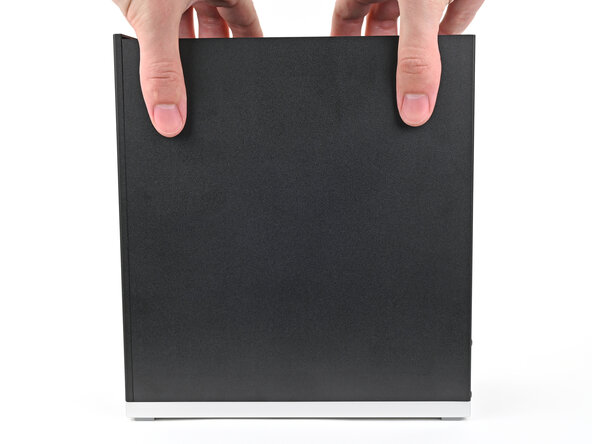
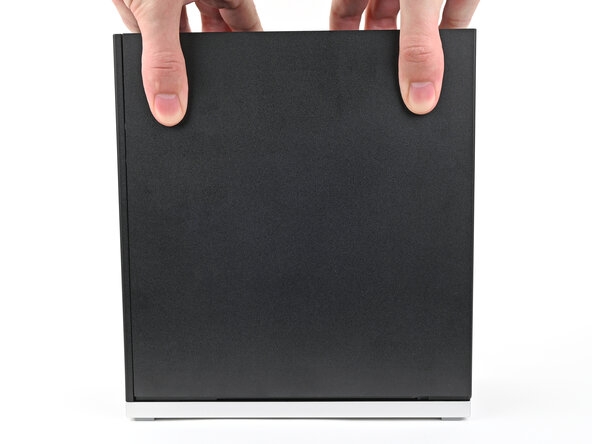
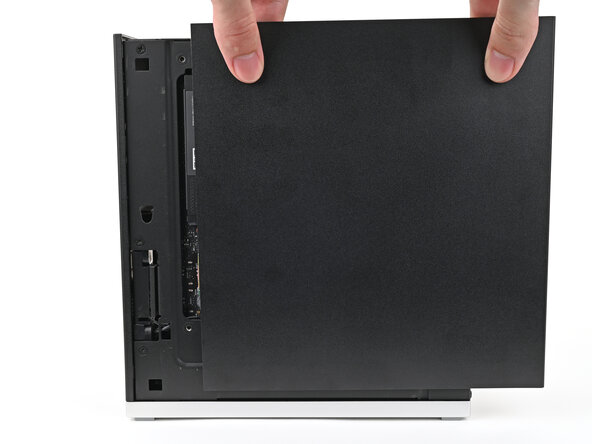
    6. Framework Desktop Mainboard Removal (Mainboard Replacement), Remove the Right Panel: step 6, image 1 of 3 Framework Desktop Mainboard Removal (Mainboard Replacement), Remove the Right Panel: step 6, image 2 of 3 Framework Desktop Mainboard Removal (Mainboard Replacement), Remove the Right Panel: step 6, image 3 of 3
      • Use your fingers to grip the top of the Right Panel and slide it upward to release its clips.

      • Remove the Right Panel.

      Ask FixBot

      Add Comment

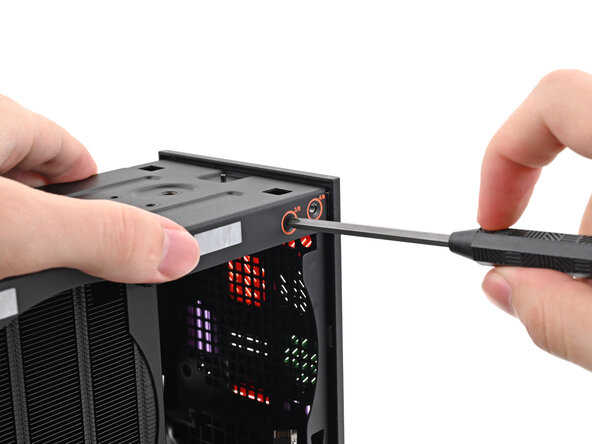
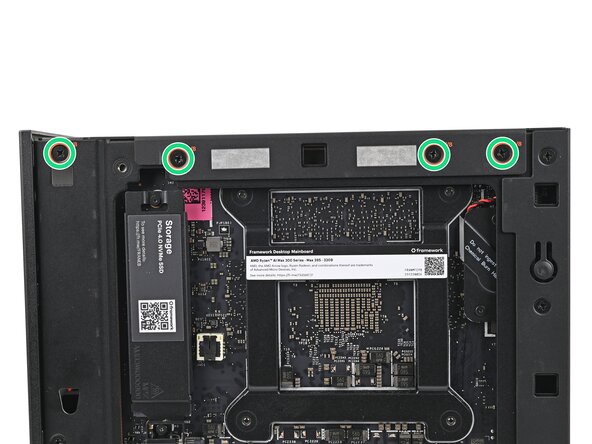
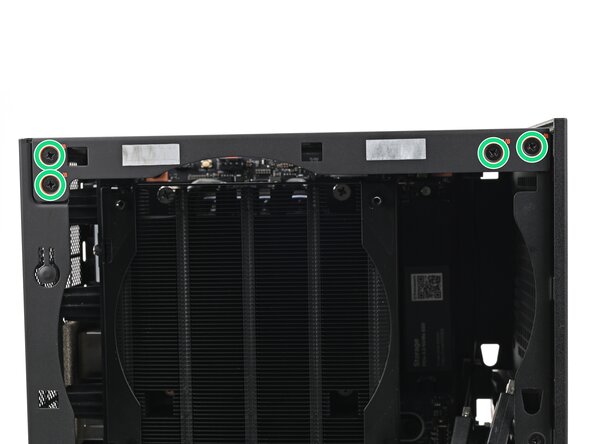
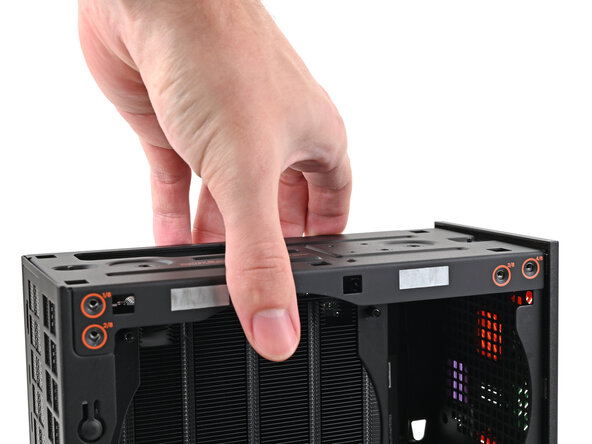
    7. Framework Desktop Mainboard Removal (Mainboard Replacement), Remove the top plate screws: step 7, image 1 of 3 Framework Desktop Mainboard Removal (Mainboard Replacement), Remove the top plate screws: step 7, image 2 of 3 Framework Desktop Mainboard Removal (Mainboard Replacement), Remove the top plate screws: step 7, image 3 of 3
      • While holding the Desktop steady, use your Framework Desktop Screwdriver to remove the eight 4.0 mm‑long Phillips screws securing the top plate.

      Ask FixBot

      Add Comment

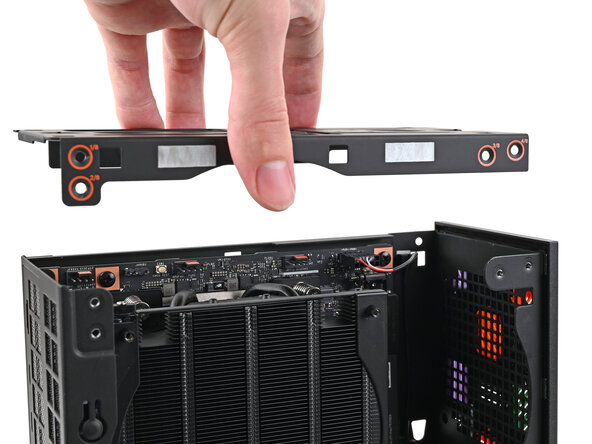
    8. Framework Desktop Mainboard Removal (Mainboard Replacement), Remove the top plate: step 8, image 1 of 2 Framework Desktop Mainboard Removal (Mainboard Replacement), Remove the top plate: step 8, image 2 of 2
      • Lift the top plate off the Desktop and remove it.

      Ask FixBot

      Add Comment

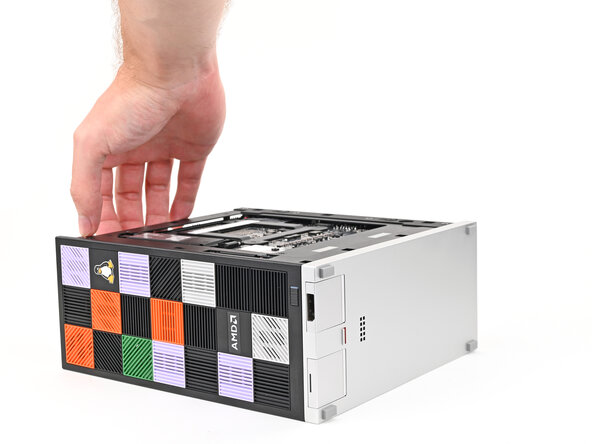
    9. Framework Desktop Mainboard Removal (Mainboard Replacement), Reposition the Desktop: step 9, image 1 of 2 Framework Desktop Mainboard Removal (Mainboard Replacement), Reposition the Desktop: step 9, image 2 of 2
      • Lay the left side of the Desktop on your work surface so the underside of the Mainboard is facing upward.

      Ask FixBot

      Add Comment

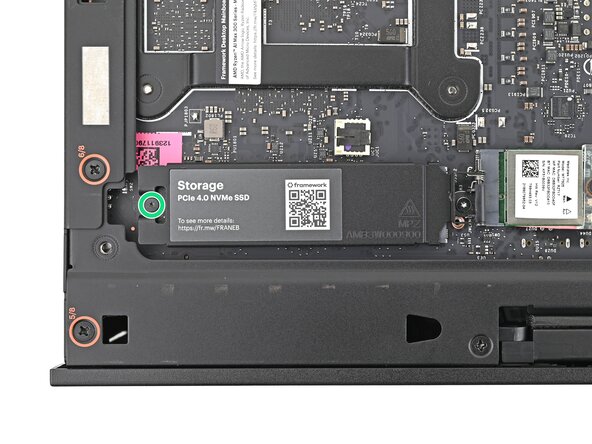
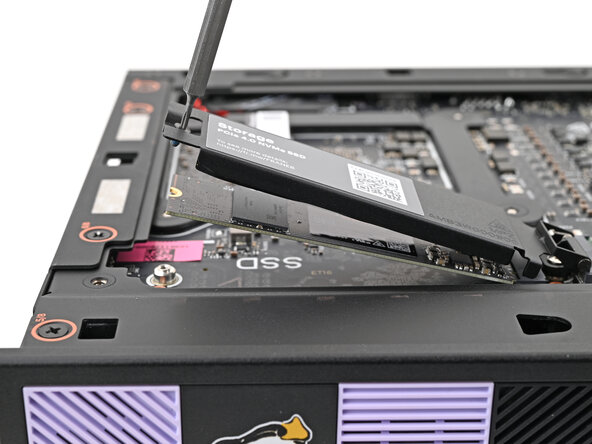
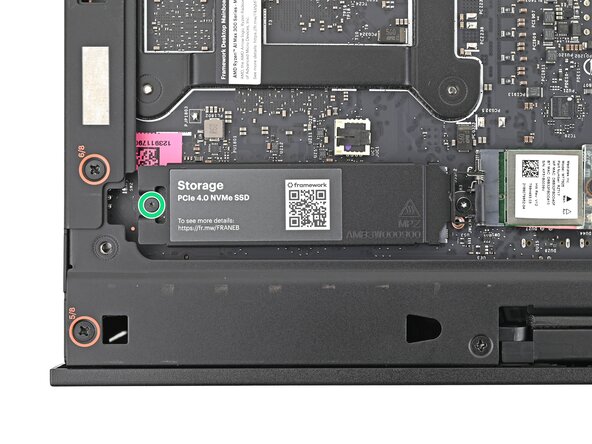
    10. Framework Desktop Mainboard Removal (Mainboard Replacement), Loosen the SSD screw: step 10, image 1 of 2 Framework Desktop Mainboard Removal (Mainboard Replacement), Loosen the SSD screw: step 10, image 2 of 2
      • If you have secondary storage installed, follow the next two steps. Otherwise, skip here.

      • Use your Framework Desktop Screwdriver to loosen the captive T5 Torx screw securing the SSD.

      • The SSD and its heat spreader will pop up to an angle when its screw is fully loosened.

      Ask FixBot

      Add Comment

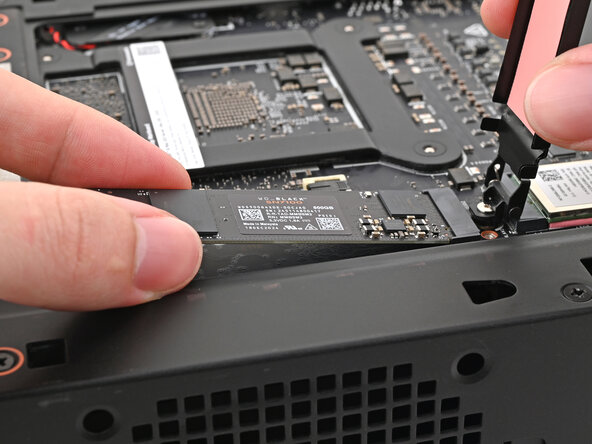
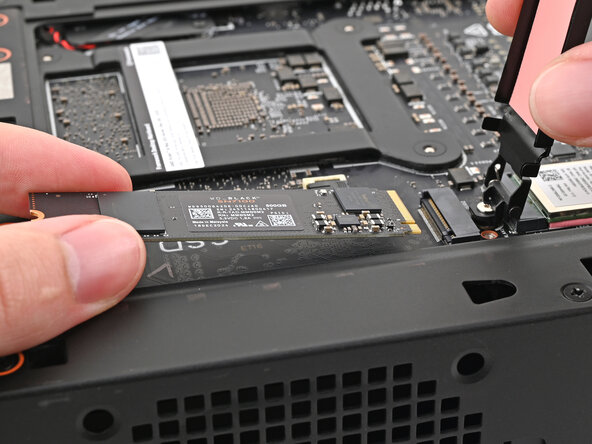
    11. Framework Desktop Mainboard Removal (Mainboard Replacement), Remove the SSD: step 11, image 1 of 2 Framework Desktop Mainboard Removal (Mainboard Replacement), Remove the SSD: step 11, image 2 of 2
      • While holding the heat spreader upright, grab the SSD by its edges and pull it out of its socket.

      • Remove the SSD.

      Ask FixBot

      Add Comment

    12. Framework Desktop Mainboard Removal (Mainboard Replacement), Install the heat spreader: step 12, image 1 of 1
      • Use your Framework Desktop Screwdriver to tighten the captive T5 Torx screw securing the heat spreader.

      Ask FixBot

      Add Comment

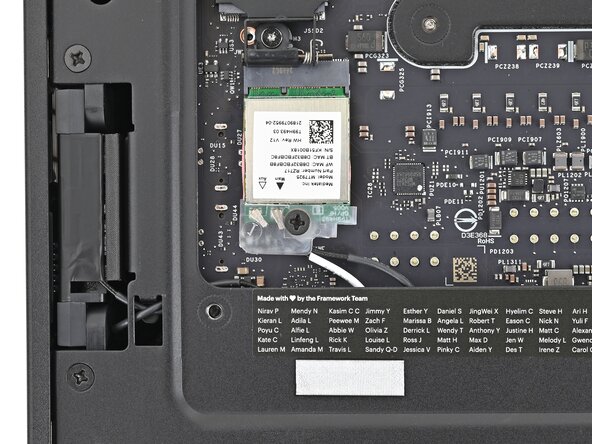
    13. Framework Desktop Mainboard Removal (Mainboard Replacement), Remove the Wi-Fi Module screw: step 13, image 1 of 2 Framework Desktop Mainboard Removal (Mainboard Replacement), Remove the Wi-Fi Module screw: step 13, image 2 of 2
      • Use your Framework Desktop Screwdriver to remove the 7.0 mm‑long Phillips screw securing the Wi-Fi module.

      Ask FixBot

      Add Comment

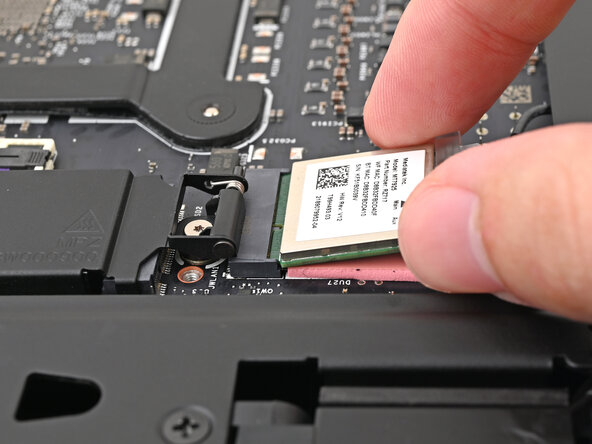
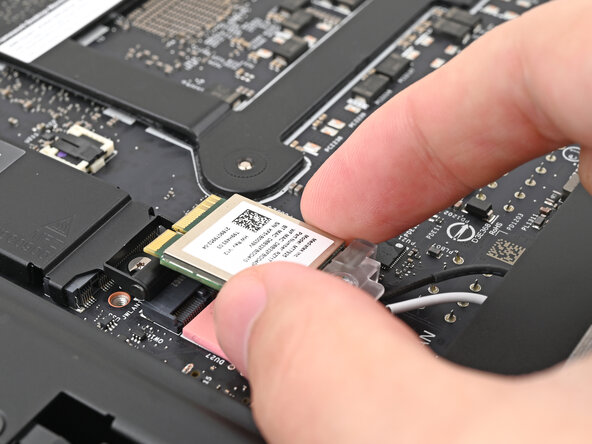
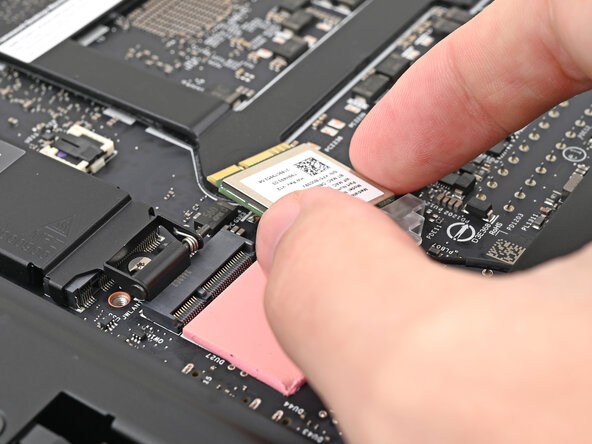
    14. Framework Desktop Mainboard Removal (Mainboard Replacement), Disconnect the Wi-Fi module: step 14, image 1 of 2 Framework Desktop Mainboard Removal (Mainboard Replacement), Disconnect the Wi-Fi module: step 14, image 2 of 2
      • Grip the Wi-Fi module by its edges and pull it straight out of its socket.

      Ask FixBot

      Add Comment

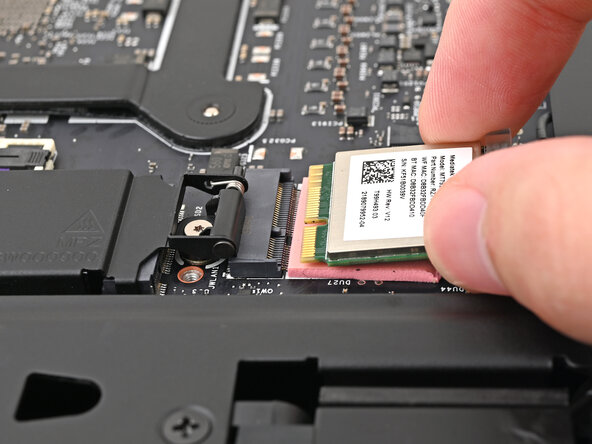
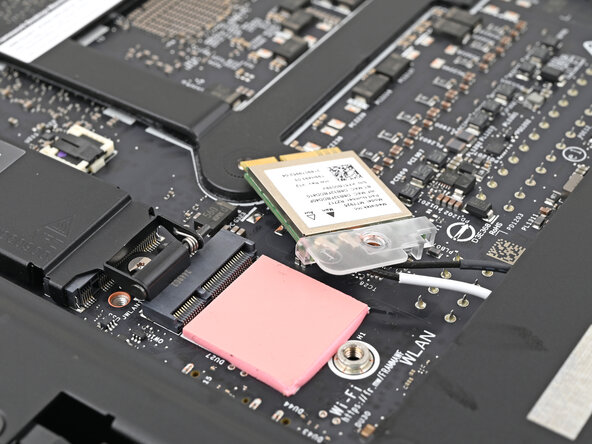
    15. Framework Desktop Mainboard Removal (Mainboard Replacement), Reposition the Wi-Fi module: step 15, image 1 of 3 Framework Desktop Mainboard Removal (Mainboard Replacement), Reposition the Wi-Fi module: step 15, image 2 of 3 Framework Desktop Mainboard Removal (Mainboard Replacement), Reposition the Wi-Fi module: step 15, image 3 of 3
      • Move the Wi-Fi module towards the center of the Mainboard to keep it out of the way.

      Ask FixBot

      Add Comment

    16. Framework Desktop Mainboard Removal (Mainboard Replacement), Reposition the Desktop: step 16, image 1 of 3 Framework Desktop Mainboard Removal (Mainboard Replacement), Reposition the Desktop: step 16, image 2 of 3 Framework Desktop Mainboard Removal (Mainboard Replacement), Reposition the Desktop: step 16, image 3 of 3
      • Rotate the Desktop onto its right side so the Mainboard is facing upward.

      Ask FixBot

      Add Comment

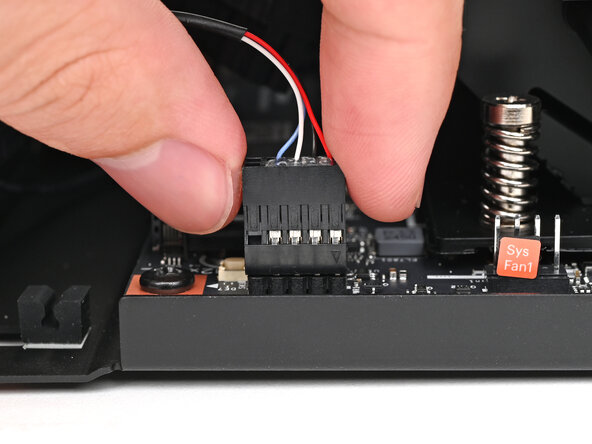
    17. Framework Desktop Mainboard Removal (Mainboard Replacement), Disconnect the power button: step 17, image 1 of 2 Framework Desktop Mainboard Removal (Mainboard Replacement), Disconnect the power button: step 17, image 2 of 2
      • Use your fingers to lift the power button cable connector off its nine‑pronged socket on the Mainboard.

      Ask FixBot

      Add Comment

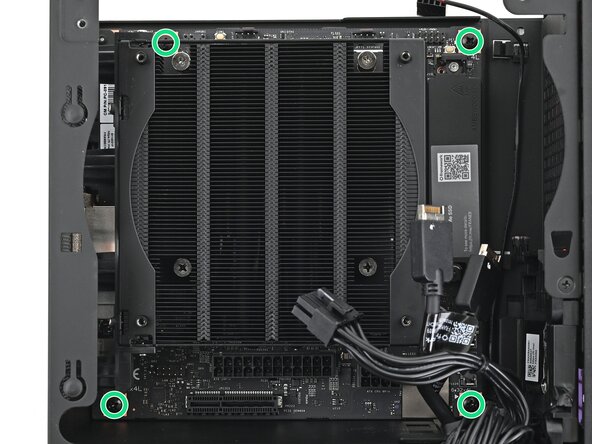
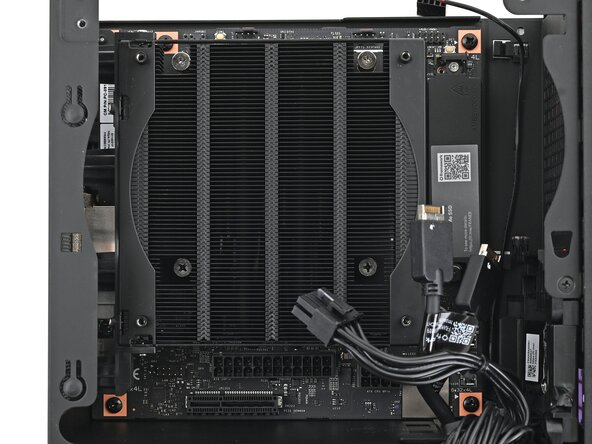
    18. Framework Desktop Mainboard Removal (Mainboard Replacement), Remove the Mainboard screws: step 18, image 1 of 2 Framework Desktop Mainboard Removal (Mainboard Replacement), Remove the Mainboard screws: step 18, image 2 of 2
      • Use your Framework Desktop Screwdriver to remove the four 8.2 mm‑long Phillips screws securing the Mainboard.

      Ask FixBot

      Add Comment

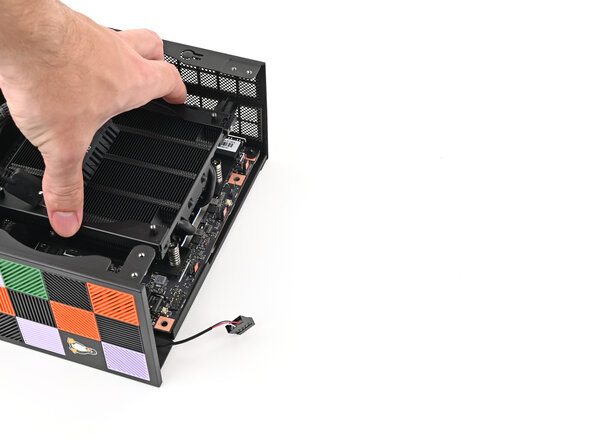
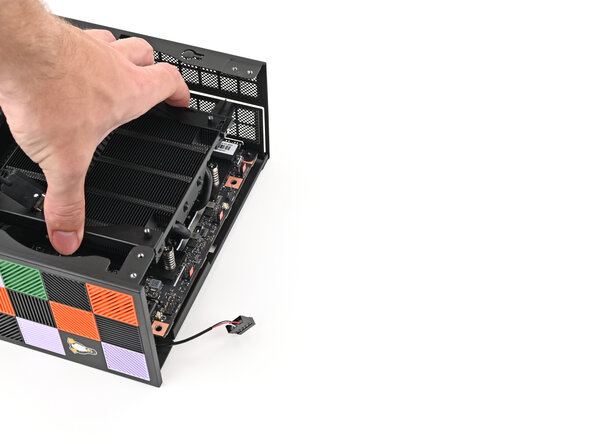
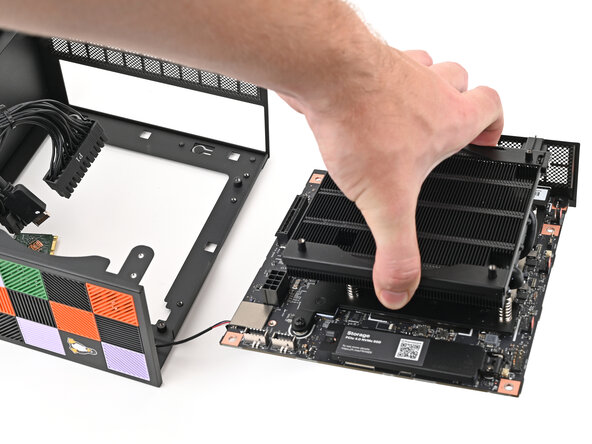
    19. Framework Desktop Mainboard Removal (Mainboard Replacement), Remove the Mainboard: step 19, image 1 of 3 Framework Desktop Mainboard Removal (Mainboard Replacement), Remove the Mainboard: step 19, image 2 of 3 Framework Desktop Mainboard Removal (Mainboard Replacement), Remove the Mainboard: step 19, image 3 of 3
      • Grab the Mainboard by its heatsink and pull it towards the front of the Desktop to slide it out of the rear port cutout.

      • Slide the Mainboard towards the top of the Desktop to remove it from the chassis.

      Ask FixBot

      Add Comment

Conclusion

To reassemble your device, follow these instructions in reverse order.

Cancel: I did not complete this guide.

Alex Diaz-Kokaisl

Member since: 01/16/22

250,018 Reputation

1,203 Guides authored

0 Guide Comments

Add Comment

View Statistics:

Past 24 Hours: 0

Past 7 Days: 4

Past 30 Days: 13

All Time: 74