
Fix battery disabled/not recognised

Dylan and one other contributor
Last updated on May 14, 2024
Views: 1.5K
View statistics:
- Past 24 Hours:
- 4
- Past 7 Days:
- 26
- Past 30 Days:
- 137
- All Time:
- 1,548
Comments: 0
No one has left comments on this guide. Will you be first?
Go to guide commentsCompleted: 3 4
3 people have marked this guide "completed." Will you be next?
4 people have marked this guide "completed." Including you — great job!
Favorites: 0 1
No one has favorited (and subscribed to) this guide. Will you be the first?
1 person has favorited (and subscribed to) this guide — and that's you!
Community-Contributed Guide
An awesome member of our community made this guide. It was not created by iFixit staff.
Introduction
Go to step 1 ↓The A315-21-40AL variant of the acer aspire 3 has a strange issue - the system can out of nowhere either stop utilising the fully functional internal battery, or stop recognising that it even has a battery connected. This means that even when given hours to charge, it will still lose all power when the cable is unplugged - whether the red charging LED was on or not.
This issue is caused by an intrusion switch on the top side of the motherboard, accessible under the ram slot cover. For some reason, acer has set up this intrusion switch so that when not pressed down the battery cannot be used.
This means that if you have taken the bottom cover off of your laptop, or if it is not screwed in properly it can depress the intrusion switch which will instantly shut off the laptop, and disable the battery until pressed down again.
What you need
Tools

-
-
-
Unscrew the single screw from the RAM access panel as shown, using a PH1 (or similar) screwdriver. Then, lever the panel off from the bottom.
-
-
-
-
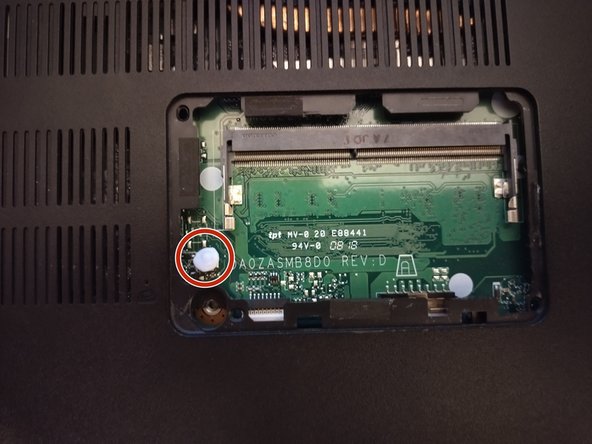
Locate the chassis intrusion switch, at the bottom left of the exposed board section. You might want to put some blu-tack or very fine tape over it to help with pressing it down. Fortunately, this part of the board will not get too hot, so it shouldn't matter what you place there to press the switch into the ram slot cover.
-

 Ask FixBot


To reassemble your device, press the RAM slot cover back onto the opening, sliding it in top first and then pressing down so it sits flush with the rest of the chassis. Then, screw it in with the singular mounting screw.
Cancel: I did not complete this guide.
3 other people completed this guide.
