Free Shipping on Domestic Orders $75+

Expansion Bay Prereq

Prerequisite Only
This is a prerequisite-only guide! This guide is part of another procedure and isn’t meant to be used alone.

What you need

  1. Expansion Bay Prereq, Before you begin: step 1, image 1 of 2 Expansion Bay Prereq, Before you begin: step 1, image 2 of 2
    • Unplug all cables and fully shut down your laptop.

    • If your repair requires a spudger, a T5 Torx, or a Phillips screwdriver, you can use the included Framework screwdriver. Whichever works best for you!

  2. Expansion Bay Prereq, Remove the touchpad spacers: step 2, image 1 of 3 Expansion Bay Prereq, Remove the touchpad spacers: step 2, image 2 of 3 Expansion Bay Prereq, Remove the touchpad spacers: step 2, image 3 of 3
    • Use your fingers to slide the touchpad spacer toward the bottom edge of the laptop and unclip it.

    • If you're having trouble, check if the corresponding Input Module latch is properly unlocked.

    • Lift the touchpad spacer off the laptop and remove it.

  3. Expansion Bay Prereq: step 3, image 1 of 1
    • Repeat the same procedure for the other touchpad spacer.

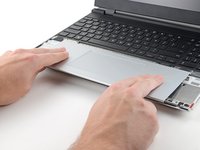
  4. Expansion Bay Prereq, Remove the touchpad: step 4, image 1 of 3 Expansion Bay Prereq, Remove the touchpad: step 4, image 2 of 3 Expansion Bay Prereq, Remove the touchpad: step 4, image 3 of 3
    • Use your fingers to slide the touchpad toward the bottom edge of the laptop and disconnect it.

    • If you're having trouble, check if the Input Module latches are properly unlocked.

    • Lift the touchpad and remove it.

    • During reassembly, perform the following:

    • Place the touchpad flat on its cutout so its clips are properly aligned.

    • Press the touchpad down and slide it into place so it lines up evenly with the bottom edge of the laptop.

  5. Expansion Bay Prereq, Remove the keyboard: step 5, image 1 of 3 Expansion Bay Prereq, Remove the keyboard: step 5, image 2 of 3 Expansion Bay Prereq, Remove the keyboard: step 5, image 3 of 3
    • The keyboard is held in place with strong magnets. Apply gradually increasing force to avoid having the keyboard violently eject.

    • Grip the two pull tabs along the bottom of the keyboard.

    • Lift the pull tabs until the keyboard magnets release.

    • Remove the keyboard.

    • During reassembly, make sure the keyboard is seated properly on its alignment pegs and sits evenly with the edges of the laptop.

  6. Expansion Bay Prereq, Remove the numpad: step 6, image 1 of 3 Expansion Bay Prereq, Remove the numpad: step 6, image 2 of 3 Expansion Bay Prereq, Remove the numpad: step 6, image 3 of 3
    • The numpad is held in place with strong magnets. Apply gradually increasing force to avoid having the numpad violently eject.

    • Grip the pull tab at the bottom of the numpad.

    • Lift the pull tab until the numpad magnets release.

    • Remove the numpad.

    • During reassembly, make sure the numpad is seated properly on its alignment pegs and sits flush with the edges of the laptop.

  7. Expansion Bay Prereq, Disconnect the midframe cable: step 7, image 1 of 2 Expansion Bay Prereq, Disconnect the midframe cable: step 7, image 2 of 2
    • Grip the black pull tab on the midframe cable press connector.

    • Lift up to disconnect the midframe cable.

  8. Expansion Bay Prereq, Loosen the midframe screws: step 8, image 1 of 2 Expansion Bay Prereq, Loosen the midframe screws: step 8, image 2 of 2
    • The midframe screws are ordered from 2–17 (number 1 is the press connector). You don't have to follow the order, but you can use it to help keep track of the screws you've loosened.

    • Use a T5 Torx screwdriver to loosen the 16 captive screws securing the midframe.

    • During reassembly, follow the order (starting with 2) to reinstall the screws across the midframe evenly.

  9. Expansion Bay Prereq, Remove the midframe: step 9, image 1 of 2 Expansion Bay Prereq, Remove the midframe: step 9, image 2 of 2
    • Use your fingernail to lift the bottom edge of the midframe enough to grip it with your fingers.

  10. Expansion Bay Prereq: step 10, image 1 of 2 Expansion Bay Prereq: step 10, image 2 of 2
    • Lift the midframe off the laptop and remove it.

    • During reassembly, make sure the midframe sits evenly on its alignment pegs before tightening the screws.

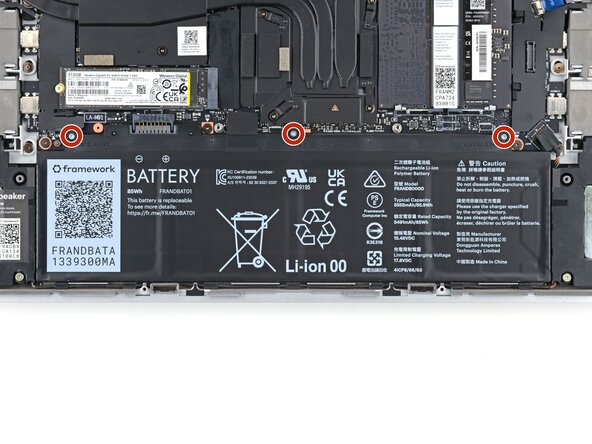
  11. Expansion Bay Prereq, Loosen the battery screws: step 11, image 1 of 2 Expansion Bay Prereq, Loosen the battery screws: step 11, image 2 of 2
    • Use a T5 Torx screwdriver to loosen the three captive screws securing the battery.

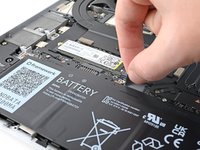
  12. Expansion Bay Prereq, Remove the battery: step 12, image 1 of 3 Expansion Bay Prereq, Remove the battery: step 12, image 2 of 3 Expansion Bay Prereq, Remove the battery: step 12, image 3 of 3
    • Grip the black pull tab at the top of the battery.

    • Lift the pull tab to disconnect the battery connector.

    • Remove the battery.

  13. Expansion Bay Prereq, Lift the interposer door: step 13, image 1 of 2 Expansion Bay Prereq, Lift the interposer door: step 13, image 2 of 2
    • Lift the interposer door by its black pull tab and let it rest upright.

  14. Expansion Bay Prereq, Loosen the interposer screws: step 14, image 1 of 3 Expansion Bay Prereq, Loosen the interposer screws: step 14, image 2 of 3 Expansion Bay Prereq, Loosen the interposer screws: step 14, image 3 of 3
    • If you have the graphics module installed, your interposer will have four screws. Otherwise, you'll have three screws.

    • Lift the pull tab on the interposer and let it rest vertically to access all of its screws.

    • Use a T5 Torx screwdriver to loosen the three captive screws securing the interposer.

    • If you have the graphics module, use a T5 Torx screwdriver to loosen the four captive screws securing the interposer.

  15. Expansion Bay Prereq, Remove the interposer: step 15, image 1 of 2 Expansion Bay Prereq, Remove the interposer: step 15, image 2 of 2
    • Lift the interposer by its pull tab and remove it.

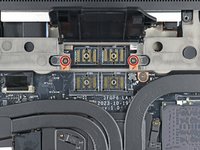
  16. Expansion Bay Prereq, Loosen the expansion bay screws: step 16, image 1 of 2 Expansion Bay Prereq, Loosen the expansion bay screws: step 16, image 2 of 2
    • Use a T5 Torx screwdriver to loosen the two captive screws securing the expansion bay.

    • Close the interposer door before continuing.

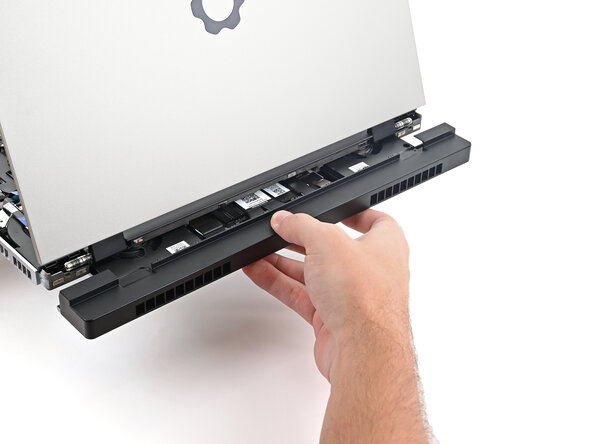
  17. Expansion Bay Prereq, Remove the Expansion Bay module: step 17, image 1 of 3 Expansion Bay Prereq, Remove the Expansion Bay module: step 17, image 2 of 3 Expansion Bay Prereq, Remove the Expansion Bay module: step 17, image 3 of 3
    • Slide the Expansion Bay module out of the laptop and remove it.

    • The module should slide out easily. If you feel any resistance, check if the screws holding it in place are fully loosened.

Conclusion

To reassemble your device, follow these instructions in reverse order.

Alex Diaz-Kokaisl

Member since: 01/16/22

216,864 Reputation

1,047 Guides authored

Team

iFixit Member of iFixit

Staff

123 Members

23,922 Guides authored

0 Guide Comments

Add Comment

View Statistics:

Past 24 Hours: 1

Past 7 Days: 1

Past 30 Days: 2

All Time: 38