
Ematic FunTab 3 Camera Replacement

Amanda Davis and 3 other contributors
Last updated on Aug 30, 2018
Views: 557
View statistics:
- Past 24 Hours:
- 1
- Past 7 Days:
- 7
- Past 30 Days:
- 44
- All Time:
- 557
Comments: 0
No one has left comments on this guide. Will you be first?
Go to guide commentsCompleted: 0 1
No one has marked this guide "completed." Will you be the first?
1 person has marked this guide "completed." It's you — great job!
Favorites: 0 1
No one has favorited (and subscribed to) this guide. Will you be the first?
1 person has favorited (and subscribed to) this guide — and that's you!
Introduction
Go to step 1 ↓If your photos are hazy, pixelated, distorted or spotty, then this guide will show how to fix this problem by replacing the front-facing and the rear-facing camera.
What you need
Tools

-
-
-
Insert the hooked end of the plastic opening tool in the gap between the screen and the back panel on the edge of the device.
-
Slide the plastic opening tool down the long side of the device.
-
Insert tool again and slide it down the long slide of the case a second time.
 Ask FixBot
-
-
-
-
-
-
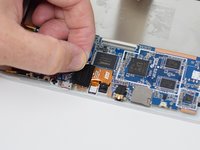
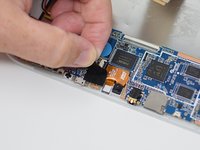
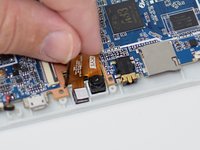
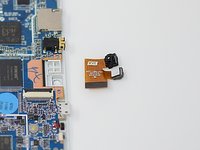
Pull out the wire ribbon connected to the camera.
-
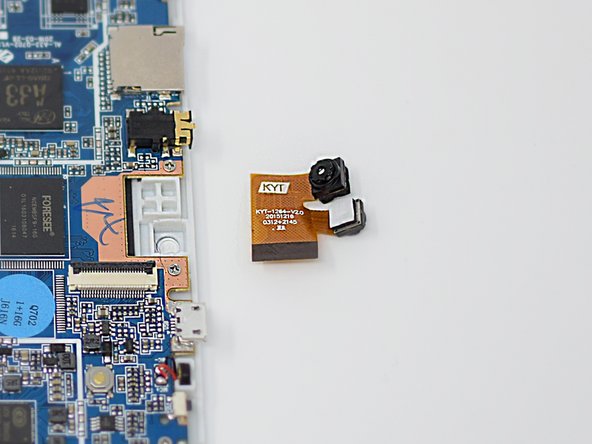
Remove the camera from the device.
-




To reassemble your device, follow these instructions in reverse order.

Team

UW Tacoma, Team S1-G5, Cardinal Summer 2018 Member of UW Tacoma, Team S1-G5, Cardinal Summer 2018
UWT-CARDINAL-SU18S1G5
4 Members
72 Guides authored
