
Disassembling JBL Charge Casing

Joe Durand and 12 other contributors
Last updated on Oct 19, 2026
Views: 93K
View statistics:
- Past 24 Hours:
- 13
- Past 7 Days:
- 87
- Past 30 Days:
- 346
- All Time:
- 93,460
Comments: 15
4 comments on steps, 11 guide comments.
Go to guide commentsCompleted: 36 37
36 people have marked this guide "completed." Will you be next?
37 people have marked this guide "completed." Including you — great job!
Favorites: 6 7
6 people have favorited (and subscribed to) this guide. Will you be next?
7 people have favorited (and subscribed to) this guide — including you!
Incorrect Tools
Help make this guide better by using the correct tools in images and/or text.
Introduction
Go to step 1 ↓This guide outlines how to disassemble a JBL Charge speaker’s case. Disassembling the speaker’s case will be useful in repairing water damage, and/or replacing batteries. This guide does not require special skills, besides basic knowledge of common hand held tools.
What you need
Tools
-
-
Spudger4.9
-
-


-
-
-
Make sure the device is powered off before you begin to disassemble the speaker.
-
Remove the trim from the speaker using a jimmy or metal spudger.
 Ask FixBot
-
-
-
Use a Phillips #1 screwdriver to remove the five 6 mm screws securing the battery cover.
-
Remove the battery cover and set the cover aside.
-
-
-
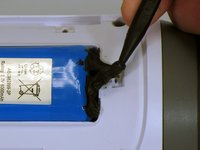
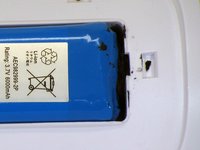
Do not puncture or bend the battery. Take care not to damage the battery cable beneath the black adhesive.
-
Use a plastic spudger to carefully loosen the black adhesive securing the battery in its compartment.
-
-
-
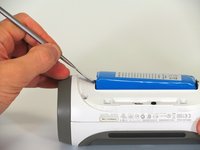
The first photo shows a metal spudger. Use a plastic spudger instead to avoid damaging the battery.
-
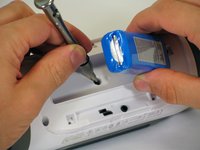
Use the flat end of a plastic spudger to gently lift the end of the battery opposite the cable. Lift it only far enough to access the screw underneath. Do not bend the battery or strain its cable.
-
Use a Phillips #2 screwdriver to remove the 16 mm screw beneath the battery.
-
-
-
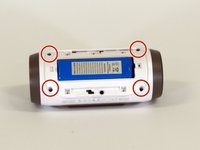
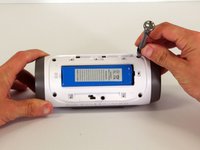
Use a Phillips #2 screwdriver to remove the four remaining 16 mm screws securing the white plastic housing.
-
Keep these screws separate from the shorter battery-cover screws.
-
-
-
-
The rear housing is still connected to the speaker by cables. Do not pull the housing halves apart.
-
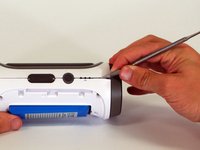
Starting at the corner shown in the photos, carefully insert a metal spudger into the seam between the rear housing and the speaker.
-
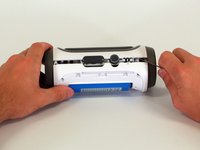
Work along the seam to release the adhesive. Avoid inserting the tool deeply into the speaker, where it could damage internal components.
-
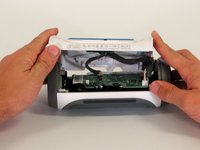
Open the rear housing only far enough to access the connectors.
-
-
-
Support the rear housing so that it does not hang from its cables.
-
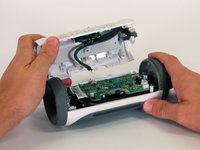
Disconnect the three white connectors from the motherboard. Grip the connector housings rather than pulling on the wires. Do not force the connectors.
-
Remove the rear housing.
-
-










To reassemble your device, follow these instructions in reverse order.
Cancel: I did not complete this guide.
36 other people completed this guide.

Team

Cal Poly, Team 12-4, Lancaster Spring 2015 Member of Cal Poly, Team 12-4, Lancaster Spring 2015
CPSU-LANCASTER-S15S12G4
2 Members
48 Guides authored
11 Guide Comments
Breaking apart the halves takes patience. Took 30 minutes. Mine was glued together like a tank, and it was not easy at all to separate the halves. Maybe JBL saw this post and doubled the glue to dissuade DIY fixes. Once I separated the halves, it was easy, but be prepared to get moderately frustrated in doing so. Also, don't get angry and try to force them apart, because from my experience, I do believe there is a high risk potential of cracking either halve if attempting to brute force the issue. Remember, patience is a virtue here. Lastly, you can get a good set of spudger tools at Harbor Freight Tools for cheap. They are actually called Wax Carving tools made in India of stainless steel. Excellent set to complete this fix, and I can see that they will be very useful in the future if needed. 10/10 for the author for the breakdown instructions. Cheers!
Follow these directions, Do not deviate from the path and you shall find Success awaits at journey's end.
one essential moment. when you're trying to disasemble a cover there is also one bolt under the battery socket! it not shown on step 5!
