Free Shipping on Domestic Orders $75+

Disassembling HP Notebook 15-ay087no Backplate

What you need

    1. Disassembling HP Notebook 15-ay087no Backplate, Take out the battery: step 1, image 1 of 2 Disassembling HP Notebook 15-ay087no Backplate, Take out the battery: step 1, image 2 of 2
      • Firstly we got to remove the battery to remove it we just gotta on the left side pull the tab to the right and then take it straight out by pulling back

      • Remember that on the right side it should should show an unlocked lock symbol instead of a locked one

      Ask FixBot

      Add Comment

    2. Disassembling HP Notebook 15-ay087no Backplate, Unscrewing the bottom: step 2, image 1 of 2 Disassembling HP Notebook 15-ay087no Backplate, Unscrewing the bottom: step 2, image 2 of 2
      • Now we have to unscrew 10 screws Using a Philips #0 screwdriver

      • Please take off the silicone feet from the computer there are screws hidden behind them

      • It is always recommended to have some sort of map of the screws to remember where you should put them

      Ask FixBot

      Add Comment

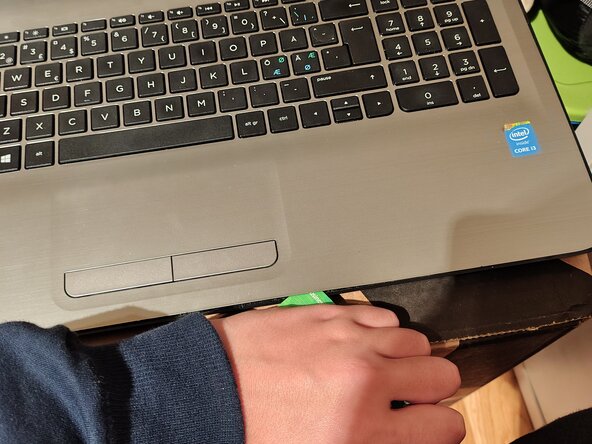
    3. Disassembling HP Notebook 15-ay087no Backplate, Pry it open: step 3, image 1 of 1
      • Now we have to pry it up with a prying tool or a old card

      • Do NOT use a metal prying tool if you use one you will damage the computer

      Ask FixBot

      Add Comment

    4. Disassembling HP Notebook 15-ay087no Backplate, Take the backplate off: step 4, image 1 of 1
      • Now to take the backplate off we need to only grip the backplate and open it up like you're opening a laptop from the underside and then take it off entirely.

      • If it doesn't want to go off or you need to have much force double check you haven't missed some screws on the underside especially those hidden in the two silicone feet

      Ask FixBot

      Add Comment

    5. Disassembling HP Notebook 15-ay087no Backplate, Congrats: step 5, image 1 of 1
      • Congratulations! If you see the inside of the computer entirely you have done it!

      Ask FixBot

      Add Comment

Conclusion

To reassemble your device, follow these instructions in reverse order.

Cancel: I did not complete this guide.

One other person completed this guide.

SupTheFirst

Member since: 09/25/26

1 Reputation

6 Guides authored

0 Guide Comments

Add Comment

View Statistics:

Past 24 Hours: 3

Past 7 Days: 9

Past 30 Days: 9

All Time: 9