Introduction
If your screen has become damaged--cracked, scratched, or more--then it is in need of replacement. This guide will show you how to remove the battery and motherboard in order to access your broken screen.
What you need
-
-
-
To begin, locate the two 4.9mm Phillips #00 screws at the top corners of the case and remove them.
 Ask FixBot
-
-
-
Squeeze the plastic opening tool in between the seam where the screen joins the plastic case.
-
Begin separating the bottom of the case from the screen by carefully going around the whole edge of the case and slowly prying it apart.
-
-
Tool used on this step:Tweezers$4.99
-
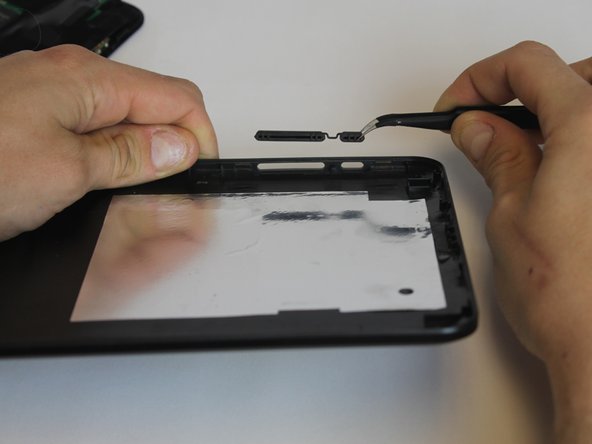
Carefully place the bottom lid next to the screen case. The power/speaker buttons should be visible at the corner of the lid. Remove the buttons with the tweezers.
-
-
-
-
-
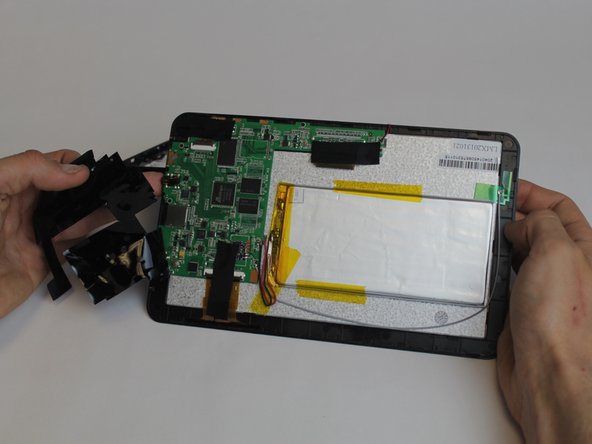
Begin removing the black tape covering the motherboard inside the tablet.
-
-
-
-
You will need to desolder the two contact points that connect the battery to the mother board.
-
Touch the hot iron to the contact points and gently pull on the wires to loosen them from the solder. They should release easily.
-
-
-
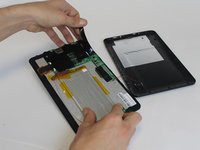
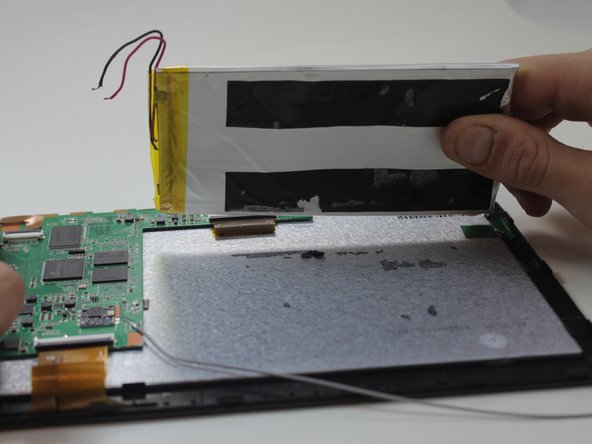
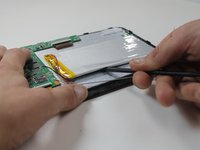
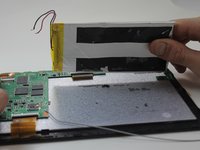
Using the black nylon spudger, get underneath the battery and begin prying it loose from the rest of the tablet.
-
-
-
-
-
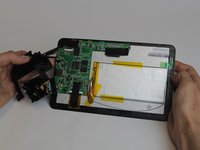
The motherboard will need to be removed in order to access the screen.
-
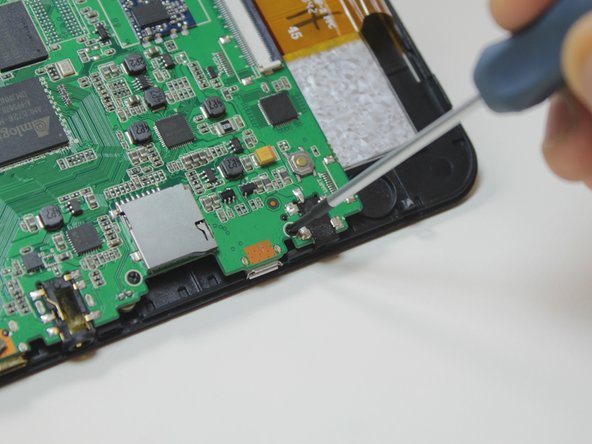
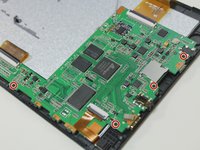
To remove the motherboard you must first unscrew four 4.9mm Phillips #00 screws.
-
-
-
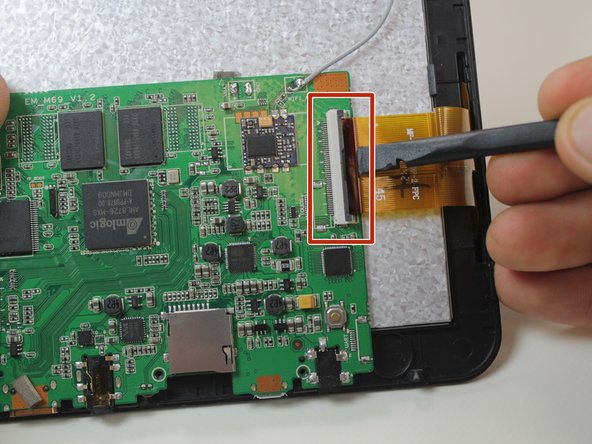
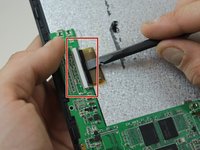
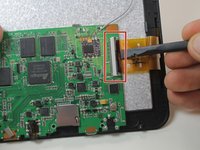
To finish removing the motherboard you must release the two data cables holding the screen to it.
-
Use the black nylon spudger to lift the gray clips up 90° on the white connectors.
-
You can now remove the data cables from the slots and lift the motherboard out from the device.
-
-
-
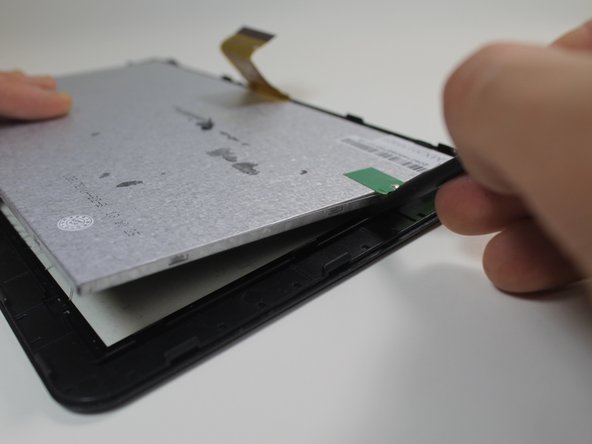
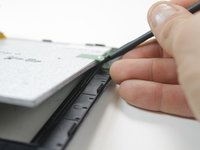
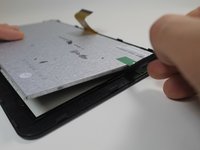
After removing the motherboard, use the black nylon spudger to pop the screen out of the housing holding it to the front of the screen case.
-
-
-
Pull the thin plastic screen casing apart and you can remove the damaged screen.
-
-










To reassemble your device, follow these instructions in reverse order.
Cancel: I did not complete this guide.
One other person completed this guide.

Team

USF Tampa, Team 9-1, Leahy Winter 2015 Member of USF Tampa, Team 9-1, Leahy Winter 2015
USFT-LEAHY-W15S9G1
3 Members
60 Guides authored
