
Desktop PC GPU Replacement

Joseph Thompson and 2 other contributors
Last updated on Aug 6, 2024
Views: 2.4K
View statistics:
- Past 24 Hours:
- 3
- Past 7 Days:
- 17
- Past 30 Days:
- 97
- All Time:
- 2,445
Comments: 1
1 comment on steps.
Completed: 3 4
3 people have marked this guide "completed." Will you be next?
4 people have marked this guide "completed." Including you — great job!
Favorites: 0 1
No one has favorited (and subscribed to) this guide. Will you be the first?
1 person has favorited (and subscribed to) this guide — and that's you!
Community-Contributed Guide
An awesome member of our community made this guide. It was not created by iFixit staff.
What you need
Tools


-
-
-
Minimize exposure to items that can charge up and produce static electricity.
-
Use an anti-static wrist band.
 Ask FixBot
-
-
-
Be gentle to not pull with to much force when removing power cables.
-
-
-
Verify that the notch in the connector matches the motherboard before sliding in.
-
Carefully slide in GPU until you hear a click on the motherboard.
-
-
-
-
Flip power supply switch back to on.
-
Plug in PC and turn on.
-
If PC does not post go back through the steps to see if you missed something.
-
-
-
Go to manufacturer's website or use the CD that came with the card to download the latest drivers for the GPU to ensure better stability of GPU.
-
-


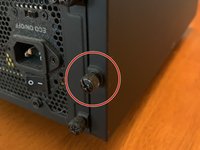


To reassemble your device, follow these instructions in reverse order.
Cancel: I did not complete this guide.
3 other people completed this guide.

