
Dell Precision M4600 KeyBoard Replacement

Johnathan Hammond and one other contributor
Last updated on May 29, 2018
Views: 1.8K
View statistics:
- Past 24 Hours:
- 1
- Past 7 Days:
- 13
- Past 30 Days:
- 53
- All Time:
- 1,810
Comments: 0
No one has left comments on this guide. Will you be first?
Go to guide commentsCompleted: 1 2
1 person has marked this guide "completed." Will you be next?
2 people have marked this guide "completed." Including you — great job!
Favorites: 1 2
1 person has favorited (and subscribed to) this guide. Will you be next?
2 people have favorited (and subscribed to) this guide — including you!
Community-Contributed Guide
An awesome member of our community made this guide. It was not created by iFixit staff.
What you need
Tools
-
Spudger4.9


-
-
-
Slide the battery release latch into the unlock position.
-
Remove the battery from the system.
 Ask FixBot
-
-
-
-
-
Using a plastic scribe, pry under the keyboard trim to release it from the computer.
-
Work your way around the sides and bottom edge of the keyboard trim.
-
Lift up to remove the keyboard trim from the unit.
-
-
-
-
-
-
Remove the screws securing the keyboard in place.
-
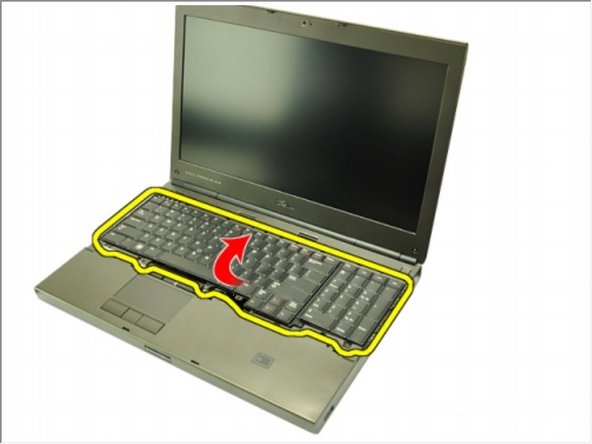
Starting from the bottom of the keyboard, separate the keyboard from the system and turn the keyboard over.
-
Disconnect the keyboard data cable from the system board.
-
-
-
Remove the keyboard.
-
Peel back the adhesive tape securing the keyboard data cable to the back of the keyboard.
-
Disconnect the keyboard data cable from the back of the keyboard.
-
-




To reassemble your device, follow these instructions in reverse order.
Cancel: I did not complete this guide.
One other person completed this guide.


