Free Shipping on Domestic Orders $75+

Dell Precision M4300 Keyboard Replacement

What you need

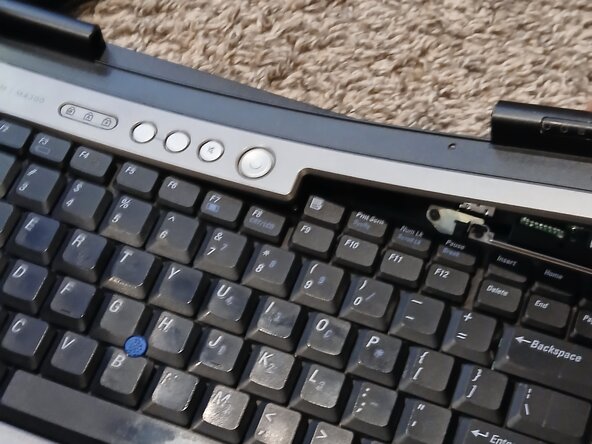
  1. Dell Precision M4300 Keyboard Replacement, Remove button trim.: step 1, image 1 of 2 Dell Precision M4300 Keyboard Replacement, Remove button trim.: step 1, image 2 of 2
    • Use a spudger to remove the trim

  2. Dell Precision M4300 Keyboard Replacement, Remove 3 PH#0 screws: step 2, image 1 of 1
    • Be careful not scratch the button assembly

  3. Dell Precision M4300 Keyboard Replacement, Removing the keyboard: step 3, image 1 of 2 Dell Precision M4300 Keyboard Replacement, Removing the keyboard: step 3, image 2 of 2
    • Be patient and try both sides away from the laptop

  4. Dell Precision M4300 Keyboard Replacement, Lift up the keyboard: step 4, image 1 of 1
    • Be careful not to sever the keyboard ribbon

  5. Dell Precision M4300 Keyboard Replacement, Remove keyboard connecter: step 5, image 1 of 2 Dell Precision M4300 Keyboard Replacement, Remove keyboard connecter: step 5, image 2 of 2
    • Now is also perfect to upgrade the ram

Conclusion

To reassemble your device, follow these instructions in reverse order.

One other person completed this guide.

Nathan Slotto

Member since: 05/19/24

224 Reputation

1 Guide authored

0 Guide Comments

Add Comment

View Statistics:

Past 24 Hours: 1

Past 7 Days: 6

Past 30 Days: 13

All Time: 72