15% Off Selected iFixit Tools — Limited Time
Free Shipping on Domestic Orders $75+

Dell Latitude D600 RAM (Main Memory) Replacement

What you need

  1. Dell Latitude D600 RAM (Main Memory) Replacement, Battery: step 1, image 1 of 1
    • Find the battery

    Ask FixBot

    Add Comment

  2. Dell Latitude D600 RAM (Main Memory) Replacement: step 2, image 1 of 2 Dell Latitude D600 RAM (Main Memory) Replacement: step 2, image 2 of 2
    • Pull the tab to release the battery

    Ask FixBot

    Add Comment

  3. Dell Latitude D600 RAM (Main Memory) Replacement: step 3, image 1 of 1
    • Pull the battery out

    Ask FixBot

    Add Comment

  4. Dell Latitude D600 RAM (Main Memory) Replacement, RAM (Main Memory): step 4, image 1 of 2 Dell Latitude D600 RAM (Main Memory) Replacement, RAM (Main Memory): step 4, image 2 of 2
    • Find the panel underneath the microsoft product key sticker, the panel is labeled with an M

    • Unscrew the single screw above the M

    Ask FixBot

    Add Comment

  5. Dell Latitude D600 RAM (Main Memory) Replacement: step 5, image 1 of 3 Dell Latitude D600 RAM (Main Memory) Replacement: step 5, image 2 of 3 Dell Latitude D600 RAM (Main Memory) Replacement: step 5, image 3 of 3
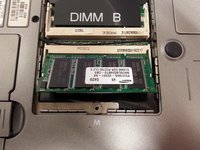
    • Pull off the panel to reveal the RAM

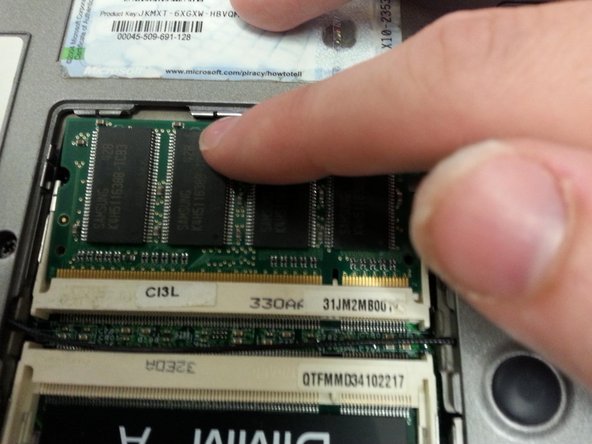
    • RAM is held in by two tabs, pull each tab to the side and the RAM will pop up

    Ask FixBot

    Add Comment

  6. Dell Latitude D600 RAM (Main Memory) Replacement: step 6, image 1 of 1
    • Once the RAM is popped up, slowly pull it out of the slot

    Ask FixBot

    Add Comment

  7. Dell Latitude D600 RAM (Main Memory) Replacement: step 7, image 1 of 3 Dell Latitude D600 RAM (Main Memory) Replacement: step 7, image 2 of 3 Dell Latitude D600 RAM (Main Memory) Replacement: step 7, image 3 of 3
    • To add or replace RAM, place the memory into the slot at an angle

    • Make sure you line it up correctly

    • If it is in correctly it should stay up at an angle by itself

    • Then push down in the middle until it clicks into place

    Ask FixBot

    Add Comment

  8. Dell Latitude D600 RAM (Main Memory) Replacement: step 8, image 1 of 1
    • The RAM should be secured by the tabs where the two semi circles are on the RAM

    • If it is not secure, just gently pull it out and try again, use the images to help you out

    Ask FixBot

    Add Comment

Conclusion

To reassemble your device, follow these instructions in reverse order.

Cancel: I did not complete this guide.

6 other people completed this guide.

Joseph

Member since: 07/16/14

1,497 Reputation

5 Guides authored

1 Guide Comment

Almost perfect: easy; clear;

Herman - Reply Share

Add Comment

View Statistics:

Past 24 Hours: 1

Past 7 Days: 5

Past 30 Days: 31

All Time: 3,264