
Dell Inspiron 5555 Keyboard Replacement

Jahnavi Pathak and
Last updated on May 30, 2023
Views: 1.4K
View statistics:
- Past 24 Hours:
- 4
- Past 7 Days:
- 10
- Past 30 Days:
- 62
- All Time:
- 1,386
Comments: 4
3 comments on steps, 1 guide comment.
Go to guide commentsCompleted: 1 2
1 person has marked this guide "completed." Will you be next?
2 people have marked this guide "completed." Including you — great job!
Favorites: 0 1
No one has favorited (and subscribed to) this guide. Will you be the first?
1 person has favorited (and subscribed to) this guide — and that's you!
Introduction
Go to step 1 ↓If your keyboard does not respond to your actions use this guide to replace the keyboard part of your laptop.
Before using this guide inspect the battery life, typically the battery drains the power fast and it may also cause the loss of keyboard power.
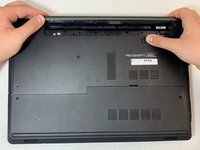
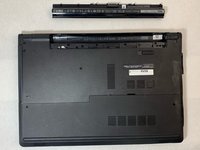
Step one-three shows you how to replace the battery.
Before beginning, make sure to power off your laptop completely and disconnect from any external power source.
What you need


-
-
-
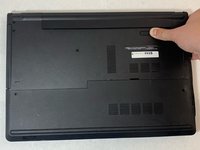
Close the laptop and lay it flat, logo side down.
-
Make sure that the battery is visible and at the top of the device.
 Ask FixBot
-
-
-
-
-
-
Turn the laptop over and open the device.
-
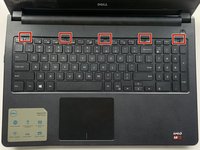
Insert the flat end of the spudger into the five notches located at the top of the keyboard and pry the keyboard up by pushing down and up.
-
-
-
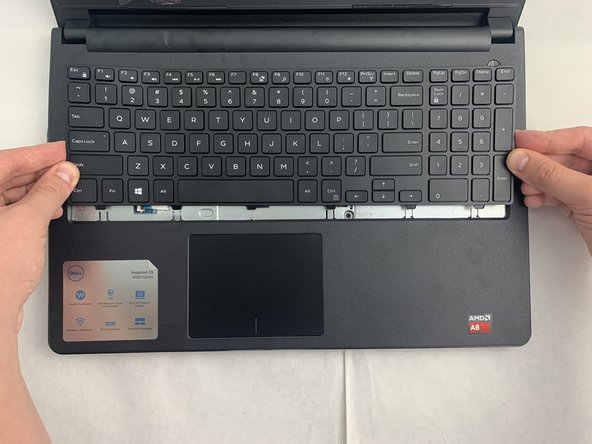
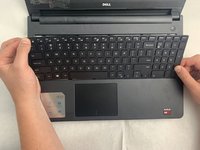
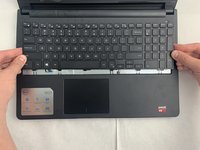
Lift up and slide back to release the six notches from the bottom of the keyboard.
-
-
-
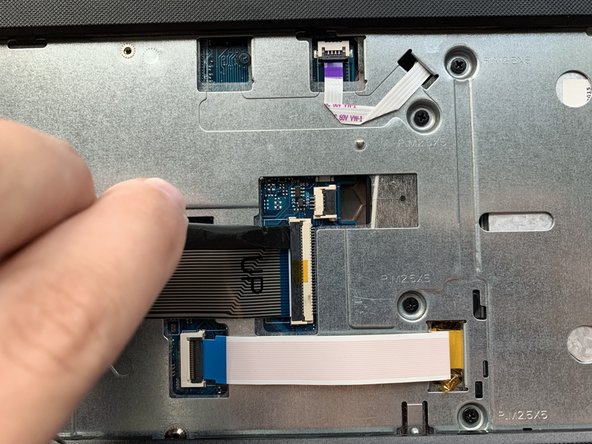
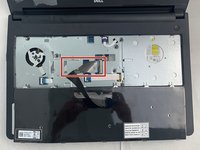
Flip the keyboard upside down to access the keyboard cable.
-
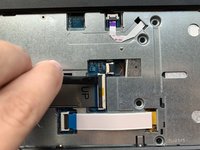
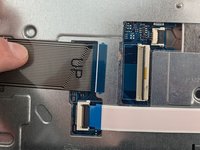
Using the flat end of the spudger, flip the black tab securing the keyboard cable up to remove the keyboard cable.
-
Remove the keyboard by lifting it off of the laptop.
-
-









To reassemble your device, follow these instructions in reverse order.
Cancel: I did not complete this guide.
One other person completed this guide.

Team

Embry-Riddle Aeronautical University, Team S2-G6, Watkins Fall 2019 Member of Embry-Riddle Aeronautical University, Team S2-G6, Watkins Fall 2019
ERAU-WATKINS-F19S2G6
4 Members
60 Guides authored
1 Guide Comment
Thank you so much for this guide! The steps were clear and concise.
