Introduction
If your files are corrupted or you see the blue screen of death you might have a faulty RAM. The RAM is an acronym for Random Access Memory which is where data currently in use are kept. This guide will show you how to replace a faulty RAM.
What you need
-
-
-
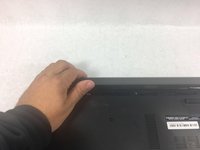
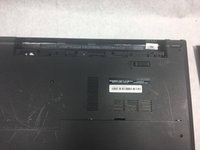
Slide the battery latch all the way to the left until you hear the click and see the battery prop up.
-
-
-
-
-
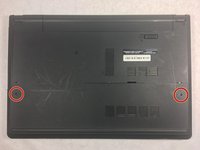
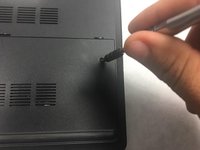
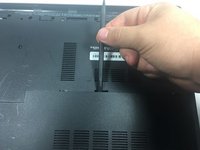
Using a Phillips #0 screwdriver, unscrew the two 8mm screws from the panel.
-
Take a spudger and wedge it between the panel and the base of the device.
-
Push down on the spudger until you hear a click sound.
-
Slide the spudger along the panel and continue to push down until the panel is completely detached.
-
Remove the panel.
-
-
-
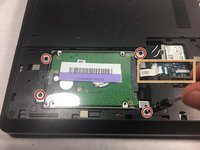
Using the Phillips #0 screwdriver, remove the four 8mm screws holding down the hard drive.
-
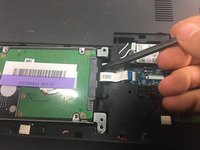
Take the spudger and prop up the connector so it is no longer attached.
-
Use the spudger and prop up the hard drive and remove it.
-
-
-
-
-
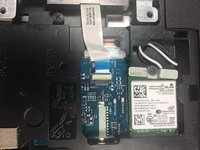
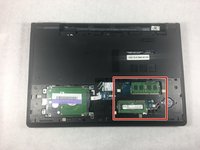
Locate the two RAM cards.
-
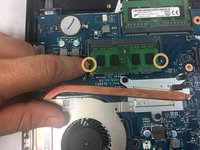
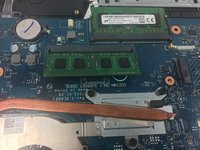
Using your finger, pull the two small pins back from the RAM causing it to pop up.
-
-

 Ask FixBot









To reassemble your device, follow these instructions in reverse order.
Cancel: I did not complete this guide.
One other person completed this guide.

Team

UMass Dartmouth, Team S3-G4, Bailey Fall 2017 Member of UMass Dartmouth, Team S3-G4, Bailey Fall 2017
UMASSD-BAILEY-F17S3G4
3 Members
60 Guides authored
