Introduction
You will be able to remove and replace the Ram in your computer with ease after this guide.
What you need
-
-
Close the laptop and place it so that the back of the screen is lying flat on your work surface.
-
Slide both of the battery-release latches towards the outer edges of the laptop to unlock the battery flap.
 Ask FixBot
-
-
-
Lift the battery at an angle using your fingertips and remove it from the laptop.
-
-
-
-
Remove the bottom cover by removing the 4 mm screw using a PH-0 Phillips screwdriver that secures the base cover to the laptop base.
-
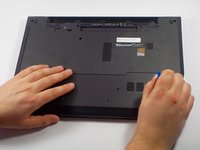
Using the plastic opening tool, pry the base cover from the base.
-
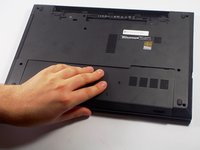
Slide the base cover towards you and remove it from the base. Put it aside.
-
-
-
Using your fingertips, pry the vertical sides of the memory module apart until the piece pops out of place.
-
Slide the memory module out of its slot and lift it out of the laptop base.
-




To reassemble your device, follow these instructions in reverse order.
Cancel: I did not complete this guide.
4 other people completed this guide.

Team

UMass Dartmouth, Team 5-8, Landers Spring 2016 Member of UMass Dartmouth, Team 5-8, Landers Spring 2016
UMASSD-LANDERS-S16S5G8
3 Members
6 Guides authored
