Free Shipping on Domestic Orders $75+

Dell E193FPc Screen Replacement

What you need

  1. Dell E193FPc Screen Replacement, Stand: step 1, image 1 of 1
    • Lay the monitor screen-down so the back screws are exposed.

    • Remove the four 11.9 mm Phillips #2 screws securing the stand to the back of the monitor.

    Ask FixBot
  2. Dell E193FPc Screen Replacement: step 2, image 1 of 1
    • Gently lift and pull away the stand at a slight angle away from the monitor.

    Ask FixBot
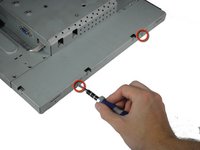
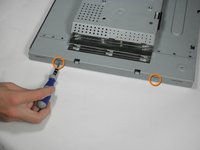
  3. Dell E193FPc Screen Replacement, Display Bezel: step 3, image 1 of 2 Dell E193FPc Screen Replacement, Display Bezel: step 3, image 2 of 2
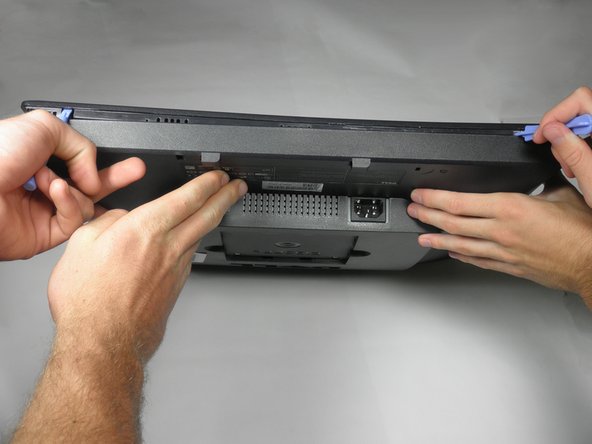
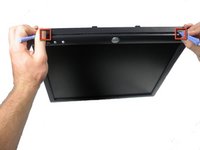
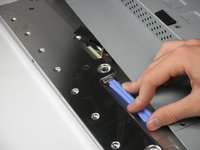
    • Locate the two holes on the bottom of the monitor.

    • Insert a plastic opening tool or spudger into the holes and gently pry the plastic apart along the groove.

    • This task is much easier if two people pry simultaneously at each hole.

    • Continue prying along the entire edge of the monitor.

    Ask FixBot
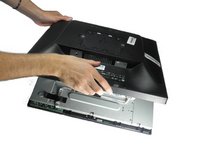
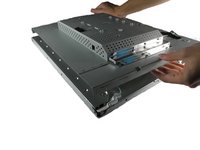
  4. Dell E193FPc Screen Replacement: step 4, image 1 of 2 Dell E193FPc Screen Replacement: step 4, image 2 of 2
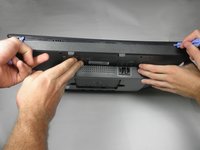
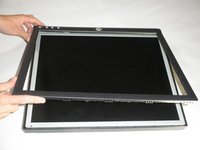
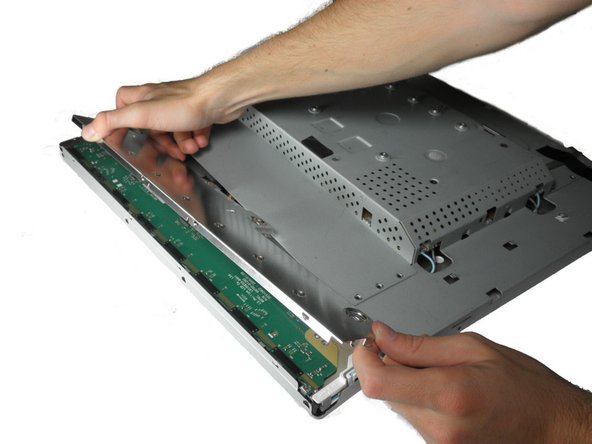
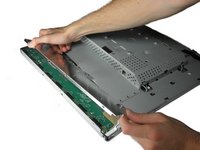
    • When finished prying, the plastic will partially fall away from the rest of the monitor.

    • Do not try to fully remove the front frame yet. The frame is still attached to the buttons.

    • While holding the frames together, carefully flip the monitor over so it faces screen down.

    • Gently lift and remove remove the rear case from the monitor.

    Ask FixBot
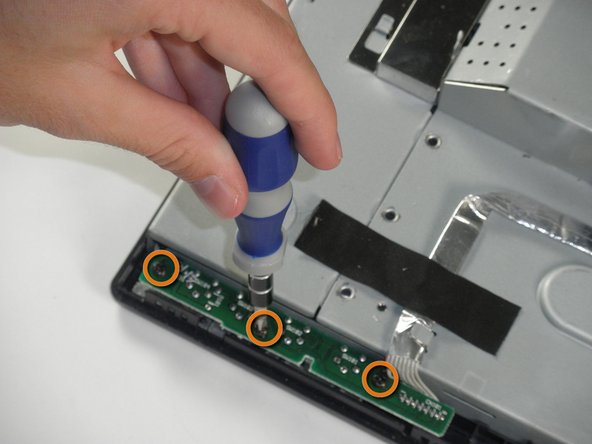
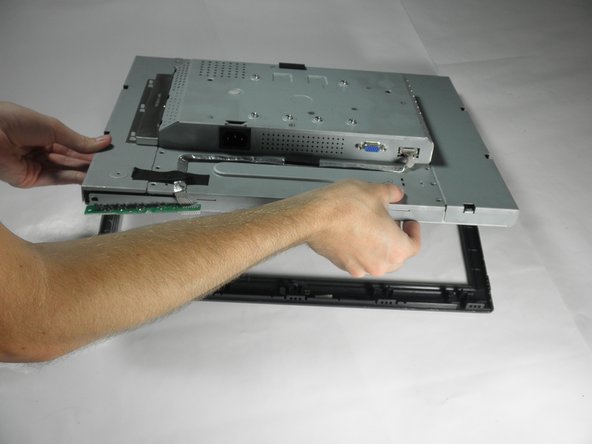
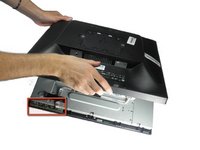
  5. Dell E193FPc Screen Replacement: step 5, image 1 of 3 Dell E193FPc Screen Replacement: step 5, image 2 of 3 Dell E193FPc Screen Replacement: step 5, image 3 of 3
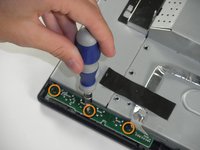
    • Locate the green interface button board.

    • Remove the three 9.71 mm Phillips #2 screws holding the interface button board to the display bezel.

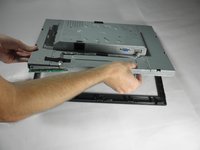
    • Lift the monitor interior away from the front cover.

    Ask FixBot
  6. Dell E193FPc Screen Replacement, Inverter Board: step 6, image 1 of 3 Dell E193FPc Screen Replacement, Inverter Board: step 6, image 2 of 3 Dell E193FPc Screen Replacement, Inverter Board: step 6, image 3 of 3
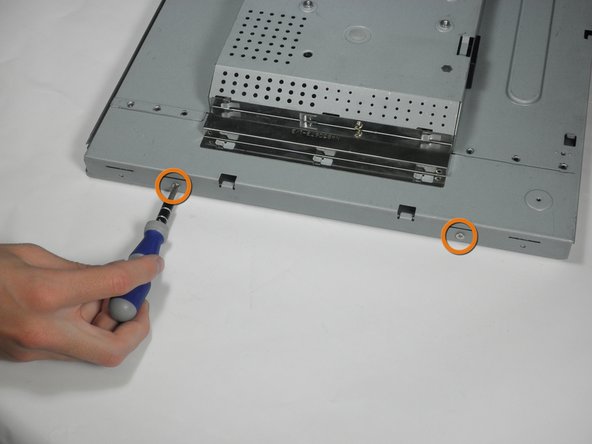
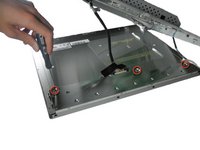
    • With the monitor facing down, remove the two 5.81 mm Phillips #2 screws on the right side of the metal casing.

    • With the monitor still facing down, remove the two 5.81 mm Phillips #2 screws on the left side of the casing.

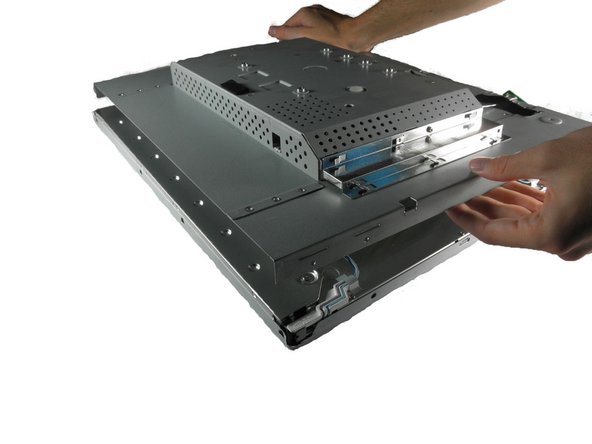
    • Do attempt to pull apart the casing. There are still wires holding the front and back together.

    Ask FixBot
  7. Dell E193FPc Screen Replacement: step 7, image 1 of 1
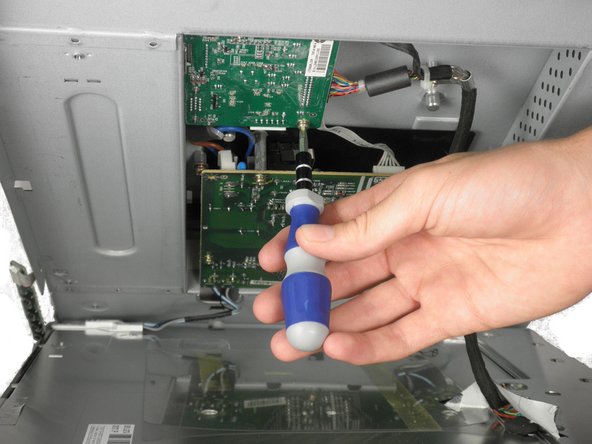
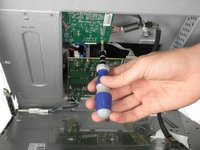
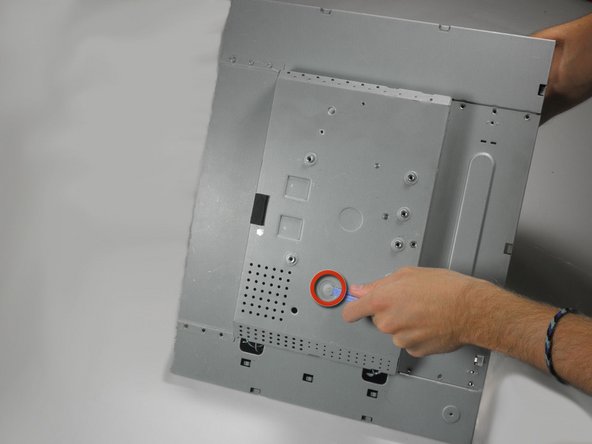
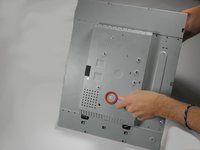
    • Using a 5 mm nut driver, unscrew the VGA port's mounting screws from the metal casing.

    Ask FixBot
  8. Dell E193FPc Screen Replacement: step 8, image 1 of 1
    • With the monitor facing down, gently lift the back case away from the rest of the monitor to expose the inverter board and mother board.

    • Recall that the casing is still held together by several wires. Do not attempt to fully remove the back casing.

    Ask FixBot
  9. Dell E193FPc Screen Replacement: step 9, image 1 of 2 Dell E193FPc Screen Replacement: step 9, image 2 of 2
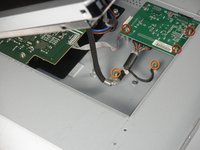
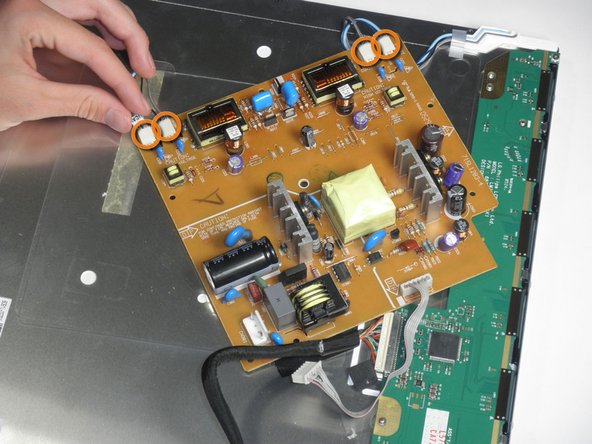
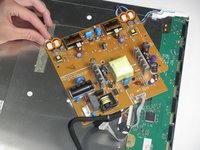
    • The inverter board is the smaller board in the corner.

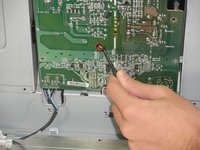
    • Remove the three 7.69 mm Phillips #2 screws from the inverter board.

    • Remove the two 7.69 mm Phillips #2 grounding screws from the wire with the black connector.

    • Gently pull the inverter board away from the case. Note that the board is still connected to several components by wires.

    Ask FixBot
  10. Dell E193FPc Screen Replacement: step 10, image 1 of 2 Dell E193FPc Screen Replacement: step 10, image 2 of 2
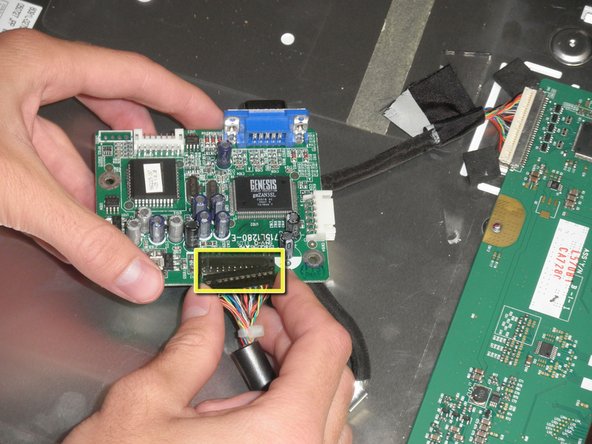
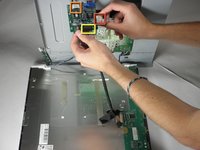
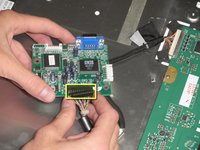
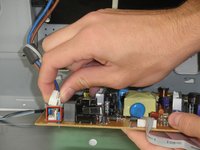
    • There is a wire connecting the motherboard to the inverter board. Squeeze both sides of the connector and pull to remove it from the socket.

    • There is another wire connecting the button board to the inverter board. Remove the second white wire connector.

    • A third wire connects the inverter board to the screen circuit board. Remove the black wire connector.

    • The inverter board can now be fully removed.

    Ask FixBot
  11. Dell E193FPc Screen Replacement, Motherboard: step 11, image 1 of 1
    • With the monitor facing down, remove the 5.84 mm Phillips #2 screw from the metal sheet.

    • You can now open the device up. Be careful, there are still wires attached to the motherboard.

    Ask FixBot
  12. Dell E193FPc Screen Replacement: step 12, image 1 of 1
    • With the monitor facing down, lift the back cover up and lay it face up, exposing the motherboard.

    • Remove the five 7.7 mm Phillips #2 screws from the motherboard.

    Ask FixBot
  13. Dell E193FPc Screen Replacement: step 13, image 1 of 2 Dell E193FPc Screen Replacement: step 13, image 2 of 2
    Tool used on this step:
    Tweezers
    $4.99
    Buy
    • Squeeze the plastic prong in the middle of the motherboard with a metal tweezer, while gently prying the other side with the plastic prying tool.

    • Be careful when using the metal tweezers. Make sure you do not make contact with any part that contains metal, for it may still have a charge. Discharge all capacitors.

    • This is easiest when the monitor is positioned such that motherboard is beneath the metal casing.

    Ask FixBot
  14. Dell E193FPc Screen Replacement: step 14, image 1 of 2 Dell E193FPc Screen Replacement: step 14, image 2 of 2
    • Remove the connector to the power outlet from the motherboard.

    • Remove the 4 connectors to the metal casing from the motherboard.

    • The motherboard can now be fully removed from the casing.

    Ask FixBot
  15. Dell E193FPc Screen Replacement, Screen: step 15, image 1 of 1
    • Remove the three 5.44 mm Phillips #00 screws on each side of the front of the metal casing.

    Ask FixBot
  16. Dell E193FPc Screen Replacement: step 16, image 1 of 3 Dell E193FPc Screen Replacement: step 16, image 2 of 3 Dell E193FPc Screen Replacement: step 16, image 3 of 3
    • Remove the three 3.94 mm Phillips #00 screws from the metal sheet along the front metal casing.

    • Gently pry the metal sheet away from the metal casing and lift off the metal piece.

    Ask FixBot
  17. Dell E193FPc Screen Replacement: step 17, image 1 of 1
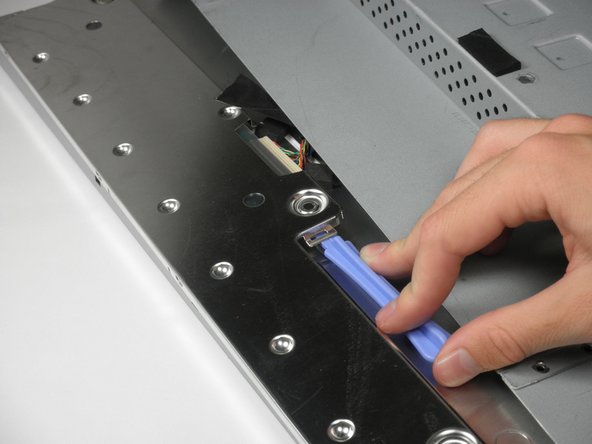
    • Use a spudger to pry the screen casing away from the metal casing.

    Ask FixBot
  18. Dell E193FPc Screen Replacement: step 18, image 1 of 1
    • Gently pry the screen away from the metal casing.

    • The circuit board will still be connected to the metal casing. Do not rip out the screen to avoid damage to the board.

    Ask FixBot
  19. Dell E193FPc Screen Replacement: step 19, image 1 of 1
    • Squeeze the connector and remove the circuit board from the metal casing connector.

    • Use both hands to remove the circuit board. The screen is attached to the circuit board, so do not pull by the screen.

    Ask FixBot
Conclusion

To reassemble your device, follow these instructions in reverse order.

5 other people completed this guide.

Mackenzie Keane

Member since: 10/04/11

523 Reputation

5 Guides authored

Team

Cal Poly, Team 5-36, Amido Fall 2011 Member of Cal Poly, Team 5-36, Amido Fall 2011

CPSU-AMIDO-F11S5G36

4 Members

12 Guides authored

0 Guide Comments

Add Comment

View Statistics:

Past 24 Hours: 1

Past 7 Days: 12

Past 30 Days: 75

All Time: 5,856