Free Shipping on Domestic Orders $75+

Dell Alienware M14x Memory Module Replacement

Prerequisite Only
This is a prerequisite-only guide! This guide is part of another procedure and isn’t meant to be used alone.

What you need

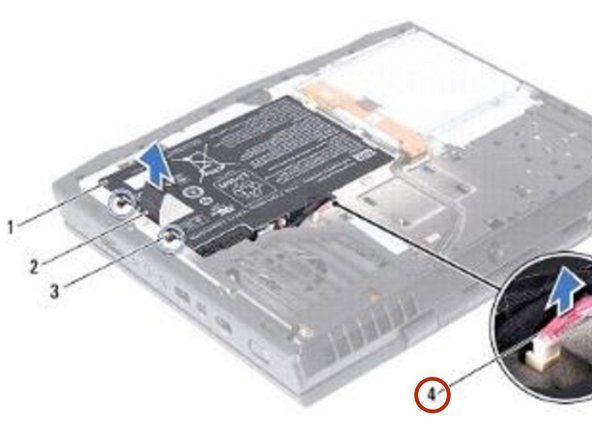
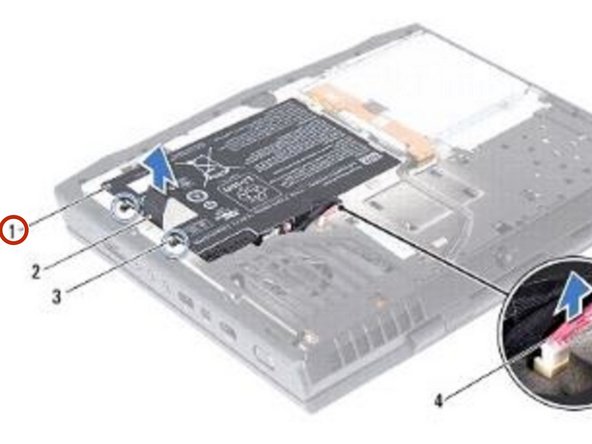
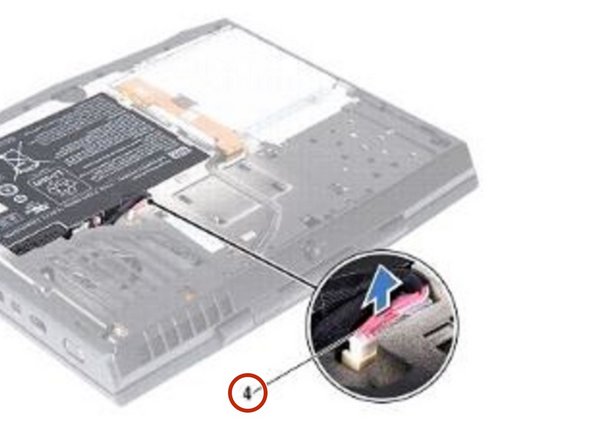
    1. Dell Alienware M14x Memory Module Replacement, Disconnecting the Battery-Pack Cable: step 1, image 1 of 1
      • WARNING: Before working inside your computer, read the safety information that shipped with your computer.

      • CAUTION: To avoid electrostatic discharge, ground yourself by using a wrist grounding strap or by periodically touching an unpainted metal surface (such as a connector on your computer).

      • Disconnect the battery-pack cable from the connector on the system board.

      Ask FixBot

      Add Comment

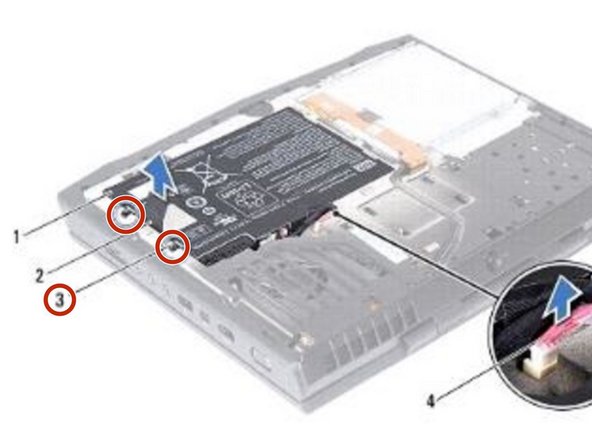
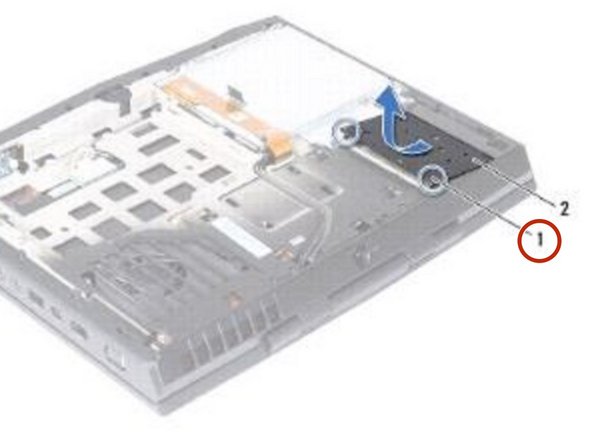
    2. Dell Alienware M14x Memory Module Replacement, Loosen the Two Captive Screws: step 2, image 1 of 1
      • Loosen the two captive screws that secure the battery pack to the computer base.

      Ask FixBot

      Add Comment

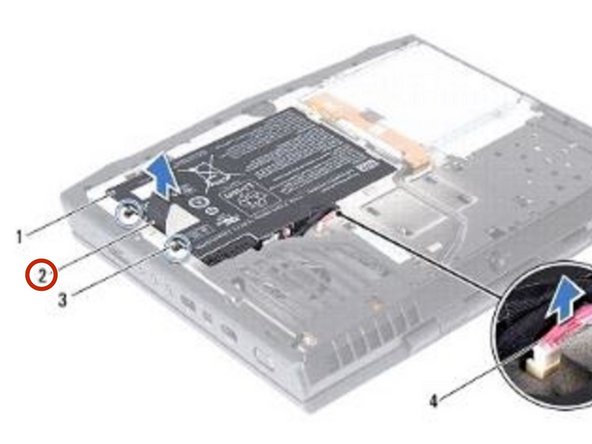
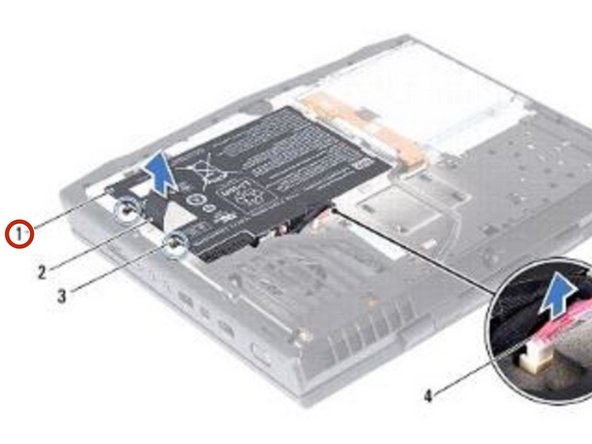
    3. Dell Alienware M14x Memory Module Replacement, Lifting the Battery Pack: step 3, image 1 of 2 Dell Alienware M14x Memory Module Replacement, Lifting the Battery Pack: step 3, image 2 of 2
      • Using the pull-tab, lift the battery pack off the computer base.

      Ask FixBot

      Add Comment

    4. Dell Alienware M14x Memory Module Replacement, Securing the Battery Pack: step 4, image 1 of 1
      • Place the NEW battery pack in the battery bay and tighten the two captive screws that secure the battery pack to the computer base.

      Ask FixBot

      Add Comment

    5. Dell Alienware M14x Memory Module Replacement, Connecting the Battery-Pack Cable: step 5, image 1 of 1
      • Connect the battery-pack cable to the connector on the system board.

      Ask FixBot

      Add Comment

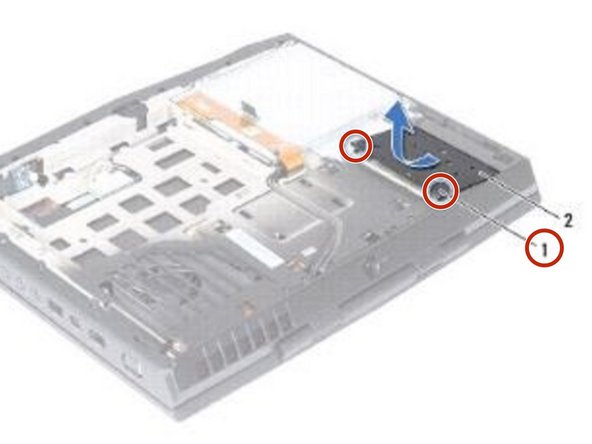
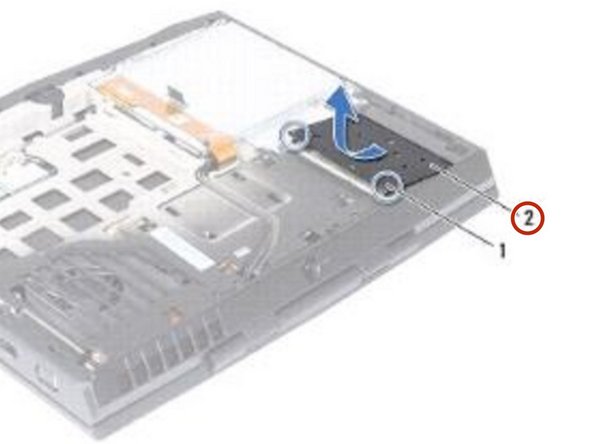
    1. Dell Alienware M14x Memory Module Replacement, Loosen the Screws: step 6, image 1 of 1
      • WARNING: Before working inside your computer, read the safety information that shipped with your computer.

      • Loosen the two captive screws that secure the memory-module cover to the computer base.

      Ask FixBot

      Add Comment

    2. Dell Alienware M14x Memory Module Replacement, Slide the Tabs: step 7, image 1 of 1
      • Slide the tabs on the memory-module cover out of the slots on the computer base.

      Ask FixBot

      Add Comment

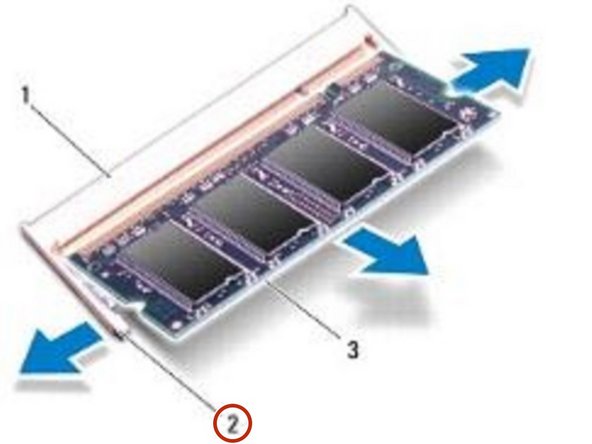
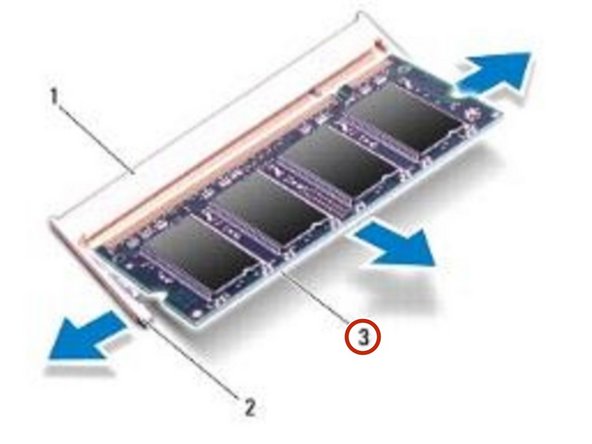
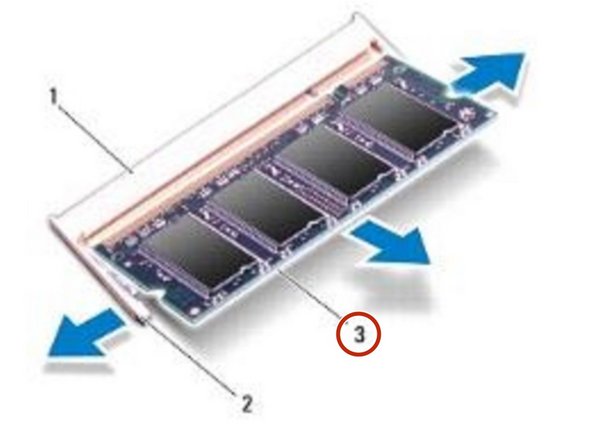
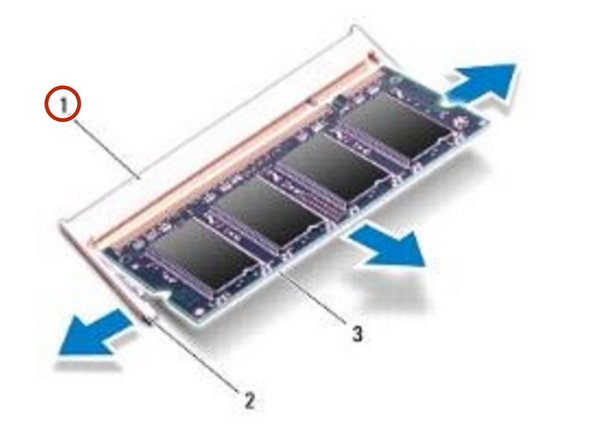
    3. Dell Alienware M14x Memory Module Replacement, Popping up the Memory Module: step 8, image 1 of 2 Dell Alienware M14x Memory Module Replacement, Popping up the Memory Module: step 8, image 2 of 2
      • CAUTION: To prevent damage to the memory-module connector, do not use tools to spread the memory module securing clips.

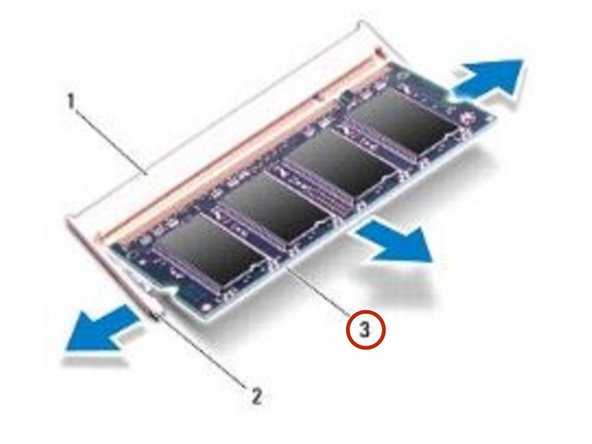
      • Use your fingertips to carefully spread apart the securing clips on each end of the memory-module connector until the memory module pops up.

      Ask FixBot

      Add Comment

    4. Dell Alienware M14x Memory Module Replacement, Remove the Memory Module: step 9, image 1 of 2 Dell Alienware M14x Memory Module Replacement, Remove the Memory Module: step 9, image 2 of 2
      • Remove the memory module from the memory-module connector.

      Ask FixBot

      Add Comment

    5. Dell Alienware M14x Memory Module Replacement, Align the Notch: step 10, image 1 of 2 Dell Alienware M14x Memory Module Replacement, Align the Notch: step 10, image 2 of 2
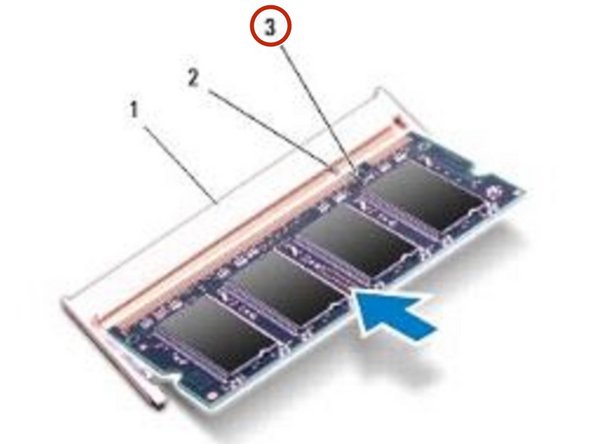
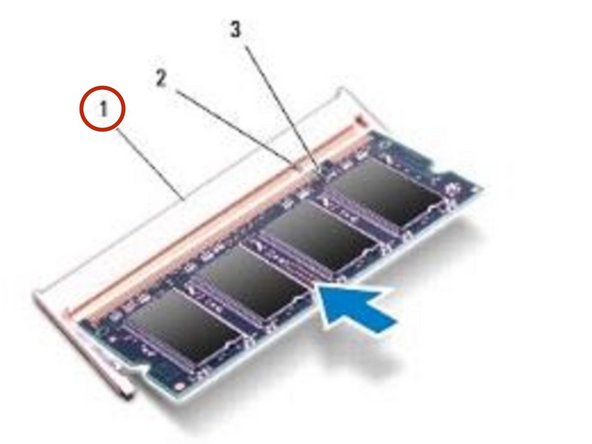
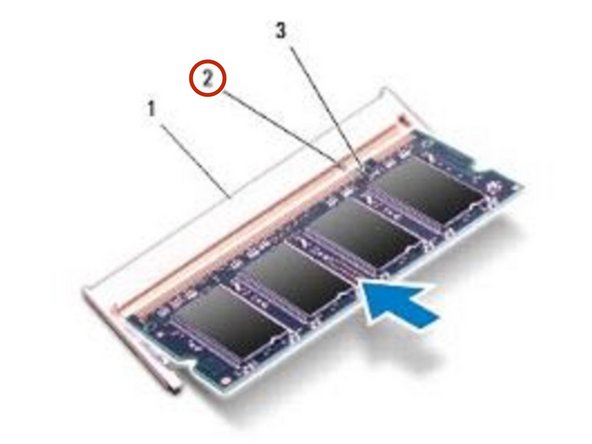
      • Align the notch in the NEW memory module with the tab in the memory- module connector.

      Ask FixBot

      Add Comment

    6. Dell Alienware M14x Memory Module Replacement, Sliding the Memory Module: step 11, image 1 of 1
      • Slide the memory module firmly into the connector at a 45-degree angle, and press the memory module down until it clicks into place. If you do not hear the click, remove the memory module and reinstall it.

      Ask FixBot

      Add Comment

    7. Dell Alienware M14x Memory Module Replacement, Slide the Tabs: step 12, image 1 of 1
      • Slide the tabs on the memory-module cover into the slots on the computer base and lower the memory-module cover into place.

      Ask FixBot

      Add Comment

    8. Dell Alienware M14x Memory Module Replacement, Tighten the Two Captive Screws: step 13, image 1 of 1
      • Tighten the two captive screws that secure the memory-module cover to the computer base.

      Ask FixBot

      Add Comment

Conclusion

To reassemble your device, follow these instructions in reverse order.

Cancel: I did not complete this guide.

Terrence15

Member since: 12/18/17

80,137 Reputation

441 Guides authored

Team

RampUP America, Inc. Member of RampUP America, Inc.

Community

45 Members

12,277 Guides authored

0 Guide Comments

Add Comment

View Statistics:

Past 24 Hours: 2

Past 7 Days: 6

Past 30 Days: 15

All Time: 97