Free Shipping on Domestic Orders $75+

Dell Alienware 15 R2 Solid-State Drives Replacement

Prerequisite Only
This is a prerequisite-only guide! This guide is part of another procedure and isn’t meant to be used alone.

What you need

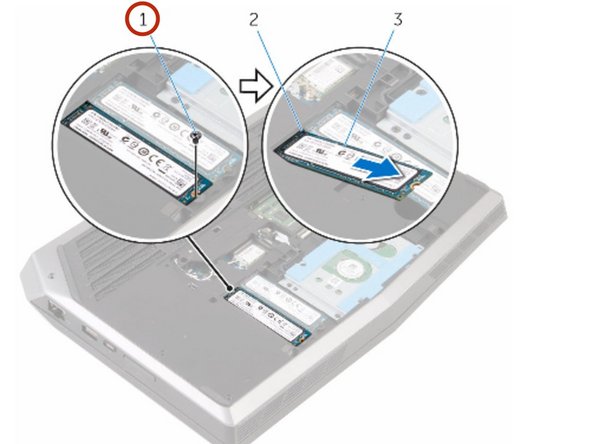
    1. Dell Alienware 15 R2 Solid-State Drives Replacement, Remove the Screw: step 1, image 1 of 1
      • WARNING: Before working inside your computer, read the safety information that shipped with your computer and follow the steps in Before Working Inside Your Computer. After working inside your computer, follow the instructions in After Working Inside Your Computer.

      • CAUTION: Solid-state drives are fragile. Exercise care when handling the hard drive.

      • CAUTION: To avoid data loss, do not remove the solid-state drive while the computer is in sleep or on state.

      • Remove the screw that secures the solid-state drive to the computer base.

      Ask FixBot

      Add Comment

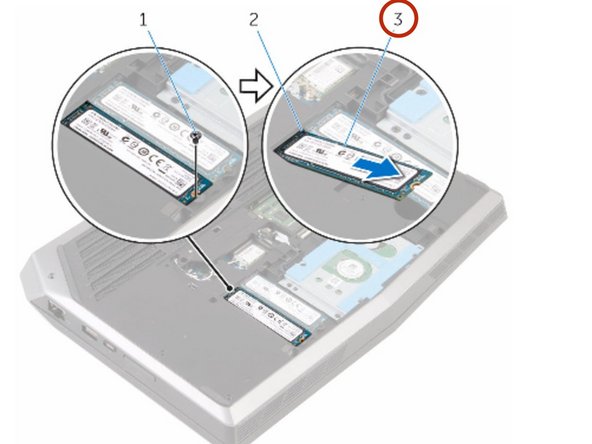
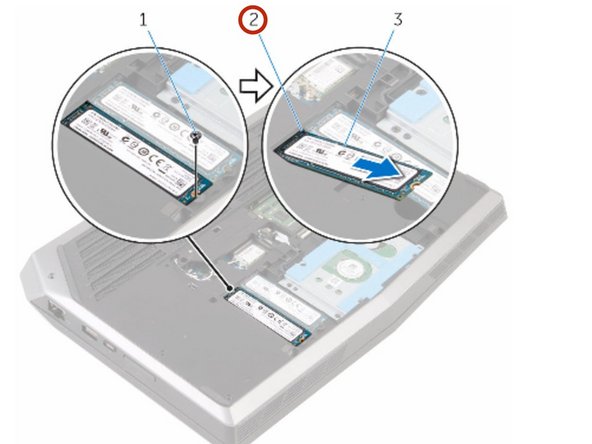
    2. Dell Alienware 15 R2 Solid-State Drives Replacement, Removing the Solid-State Drive: step 2, image 1 of 2 Dell Alienware 15 R2 Solid-State Drives Replacement, Removing the Solid-State Drive: step 2, image 2 of 2
      • Slide and remove the solid-state drive from the solid-state drive slot.

      Ask FixBot

      Add Comment

    3. Dell Alienware 15 R2 Solid-State Drives Replacement, Sliding the Solid-State Drive: step 3, image 1 of 2 Dell Alienware 15 R2 Solid-State Drives Replacement, Sliding the Solid-State Drive: step 3, image 2 of 2
      • Slide the NEW solid-state drive into the solid-state drive slot.

      Ask FixBot

      Add Comment

    4. Dell Alienware 15 R2 Solid-State Drives Replacement, Align the Screw Hole: step 4, image 1 of 1
      • Align the screw hole on the solid-state drive with the screw hole on the computer base.

      Ask FixBot

      Add Comment

    5. Dell Alienware 15 R2 Solid-State Drives Replacement, Replace the Screw: step 5, image 1 of 1
      • Replace the screw that secures the solid-state drive to the computer base.

      Ask FixBot

      Add Comment

Conclusion

To reassemble your device, follow these instructions in reverse order.

Cancel: I did not complete this guide.

Terrence15

Member since: 12/18/17

80,137 Reputation

441 Guides authored

Team

RampUP America, Inc. Member of RampUP America, Inc.

Community

45 Members

12,277 Guides authored

0 Guide Comments

Add Comment

View Statistics:

Past 24 Hours: 0

Past 7 Days: 2

Past 30 Days: 12

All Time: 101