Free Shipping on Domestic Orders $75+

Dell Alienware 13 R2 Display Assembly Replacement

What you need

  1. Dell Alienware 13 R2 Display Assembly Replacement, Turning Over the PC: step 1, image 1 of 1
    • WARNING: Before working inside your computer, read the safety information that shipped with your computer and follow the steps in Before Working Inside Your Computer After working inside your computer, follow the instructions in After Working Inside Your Computer For more safety best practices, see the regulatory compliance home page.

    • Close the display and turn the computer over.

    Ask FixBot
  2. Dell Alienware 13 R2 Display Assembly Replacement, Loosen the screws: step 2, image 1 of 1
    • Loosen the captive screws that secure the base panel to the computer base.

    Ask FixBot
  3. Dell Alienware 13 R2 Display Assembly Replacement, Releasing the Tabs: step 3, image 1 of 1
    • Using a plastic scribe, gently release the tabs that secure the base panel to the computer base.

    Ask FixBot
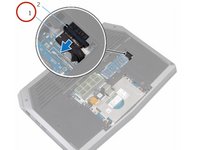
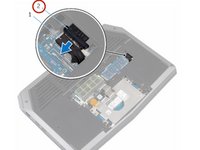
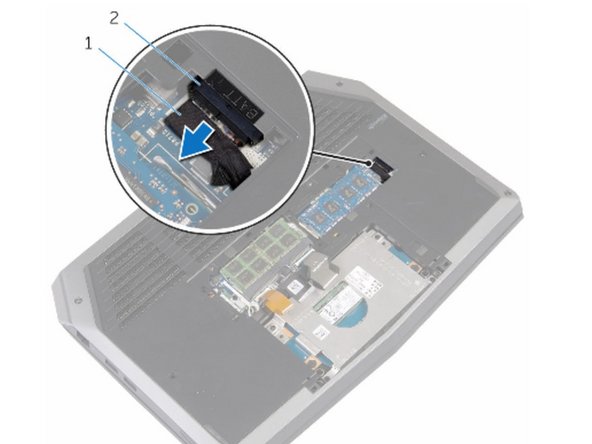
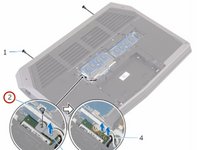
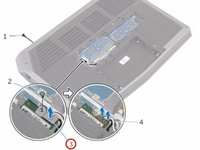
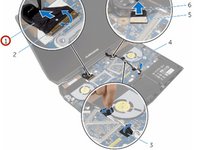
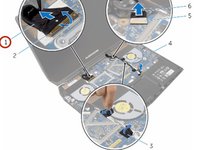
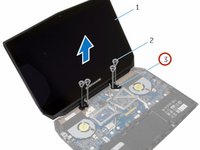
  4. Dell Alienware 13 R2 Display Assembly Replacement, Disconnecting the Battery Cable: step 4, image 1 of 2 Dell Alienware 13 R2 Display Assembly Replacement, Disconnecting the Battery Cable: step 4, image 2 of 2
    • Disconnect the battery cable from the battery-cable connector.

    • Turn the computer over.

    Ask FixBot
  5. Dell Alienware 13 R2 Display Assembly Replacement, Power Button: step 5, image 1 of 1
    • Press and hold the power button for 5 seconds to ground the system board.

    Ask FixBot
    • Connect the battery cable to the battery-cable connector.

    Ask FixBot
  6. Dell Alienware 13 R2 Display Assembly Replacement, Aligning the tabs: step 7, image 1 of 1
    • Align the tabs on the base panel with the slots on the computer base and snap the base panel into place.

    Ask FixBot
  7. Dell Alienware 13 R2 Display Assembly Replacement, Tighten the screws: step 8, image 1 of 1
    • Tighten the captive screws that secure the base panel to the computer base.

    Ask FixBot
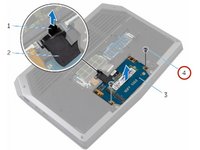
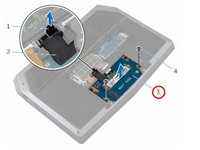
  8. Dell Alienware 13 R2 Display Assembly Replacement, Removing the Screws: step 9, image 1 of 2 Dell Alienware 13 R2 Display Assembly Replacement, Removing the Screws: step 9, image 2 of 2
    • WARNING: Before working inside your computer, read the safety information that shipped with your computer and follow the steps in Before Working Inside Your Computer. After working inside your computer, follow the instructions in After Working Inside Your Computer.

    • Remove the screws that secure the solid-state drive bracket to the solid-state drive assembly.

    Ask FixBot
  9. Dell Alienware 13 R2 Display Assembly Replacement, Peel off Computer Base Tabs: step 10, image 1 of 2 Dell Alienware 13 R2 Display Assembly Replacement, Peel off Computer Base Tabs: step 10, image 2 of 2
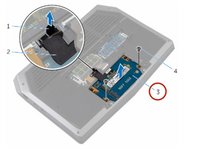
    • Using the pull tab, pivot the solid-state drive bracket and peel off the bracket from the tabs on the computer base.

    Ask FixBot
  10. Dell Alienware 13 R2 Display Assembly Replacement, Disconnecting the Solid-State Drive Cable: step 11, image 1 of 1
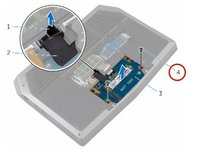
    • Using the pull tab, disconnect the solid-state drive cable from the system board.

    Ask FixBot
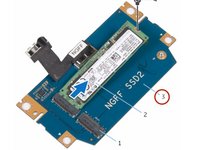
  11. Dell Alienware 13 R2 Display Assembly Replacement, Removing the Solid-State Drive: step 12, image 1 of 2 Dell Alienware 13 R2 Display Assembly Replacement, Removing the Solid-State Drive: step 12, image 2 of 2
    • Remove the screws that secure the solid-state drive assembly to the computer base.

    Ask FixBot
  12. Dell Alienware 13 R2 Display Assembly Replacement, Lifting the Solid-State Assembly: step 13, image 1 of 1
    • Lift the solid-state drive assembly off the computer base.

    Ask FixBot
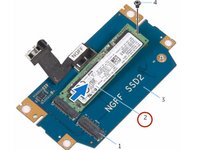
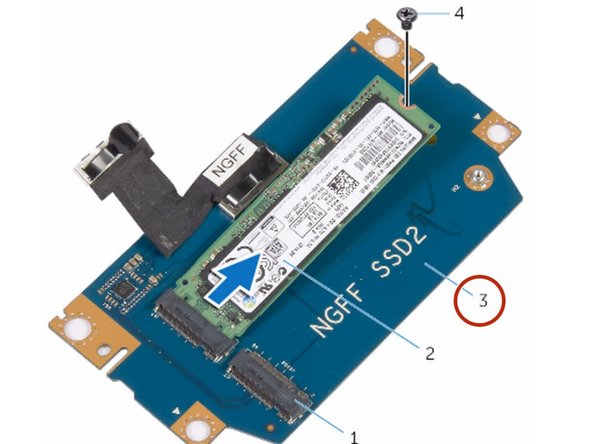
  13. Dell Alienware 13 R2 Display Assembly Replacement, Remove the Screw: step 14, image 1 of 1
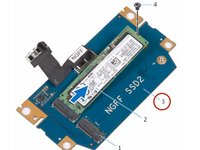
    • Remove the screw that secures the solid-state drive to the solid-state drive assembly.

    Ask FixBot
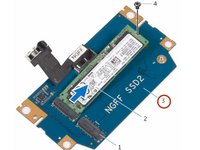
  14. Dell Alienware 13 R2 Display Assembly Replacement, Lift the Solid-State Assembly.: step 15, image 1 of 2 Dell Alienware 13 R2 Display Assembly Replacement, Lift the Solid-State Assembly.: step 15, image 2 of 2
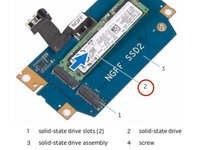
    • Slide and lift the solid-state drive off the solid-state drive assembly.

    Ask FixBot
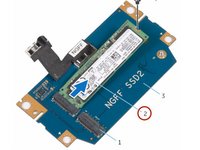
  15. Dell Alienware 13 R2 Display Assembly Replacement, The New Solid-State Drive: step 16, image 1 of 1
    • Slide the NEW solid-state drive into the slot on the solid-state drive assembly.

    Ask FixBot
  16. Dell Alienware 13 R2 Display Assembly Replacement, Screw Replacement: step 17, image 1 of 2 Dell Alienware 13 R2 Display Assembly Replacement, Screw Replacement: step 17, image 2 of 2
    • Replace the screw that secures the solid-state drive to the solid-state drive assembly.

    Ask FixBot
  17. Dell Alienware 13 R2 Display Assembly Replacement, Align the Screws: step 18, image 1 of 2 Dell Alienware 13 R2 Display Assembly Replacement, Align the Screws: step 18, image 2 of 2
    • Align the screw holes on the solid-state drive assembly with the screw holes on the computer base.

    Ask FixBot
  18. Dell Alienware 13 R2 Display Assembly Replacement, Replace the Screws: step 19, image 1 of 1
    • Replace the screws that secure the solid-state drive assembly to the computer base.

    Ask FixBot
  19. Dell Alienware 13 R2 Display Assembly Replacement, Connect the Cable to the System Board: step 20, image 1 of 1
    • Connect the solid-state drive cable to the system board.

    Ask FixBot
  20. Dell Alienware 13 R2 Display Assembly Replacement, Align the Screw Holes: step 21, image 1 of 1
    • Align the screw holes on the solid-state drive bracket with the screw holes on the solid-state drive assembly.

    Ask FixBot
  21. Dell Alienware 13 R2 Display Assembly Replacement, Replace the Screws: step 22, image 1 of 2 Dell Alienware 13 R2 Display Assembly Replacement, Replace the Screws: step 22, image 2 of 2
    • Replace the screws that secure the solid-state drive bracket to the solid-state drive assembly.

    Ask FixBot
  22. Dell Alienware 13 R2 Display Assembly Replacement, Lifting the Latches: step 23, image 1 of 1
    • Lift the latches and disconnect the keyboard and keyboard-backlight cables from the system board.

    Ask FixBot
  23. Dell Alienware 13 R2 Display Assembly Replacement, Remove the Screws: step 24, image 1 of 1
    • Remove the screws that secure the palm-rest assembly to the computer base.

    Ask FixBot
  24. Dell Alienware 13 R2 Display Assembly Replacement, Lift the Computer Base: step 25, image 1 of 1
    • Lift the computer base slightly and push the release tabs on the palm-rest assembly until it pops out.

    Ask FixBot
    • Turn the computer over and open the display as far as possible.

    Ask FixBot
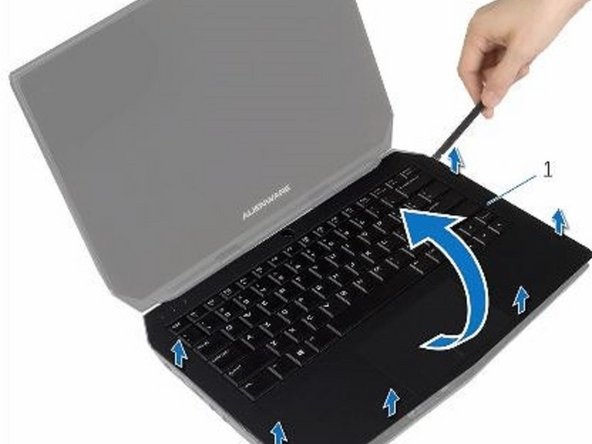
  25. Dell Alienware 13 R2 Display Assembly Replacement, Prying the Palm-Rest Assembly: step 27, image 1 of 1
    • Using a plastic scribe, pry up along the edges of the palm-rest assembly.

    Ask FixBot
  26. Dell Alienware 13 R2 Display Assembly Replacement, Lift the Palm-Rest Assembly: step 28, image 1 of 1
    • Gently lift the palm-rest assembly and turn it over.

    Ask FixBot
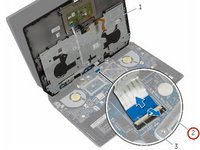
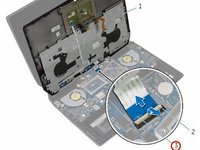
  27. Dell Alienware 13 R2 Display Assembly Replacement, Lift the Connector Latch: step 29, image 1 of 2 Dell Alienware 13 R2 Display Assembly Replacement, Lift the Connector Latch: step 29, image 2 of 2
    • Lift the connector latch and disconnect the power-button board cable from the system board.

    Ask FixBot
  28. Dell Alienware 13 R2 Display Assembly Replacement, Lift the Palm-Rest Assembly: step 30, image 1 of 1
    • Lift the palm-rest assembly off the computer base.

    Ask FixBot
  29. Dell Alienware 13 R2 Display Assembly Replacement, Removing: step 31, image 1 of 1
    • Remove the keyboard.

    • Remove the power-button board.

    • Remove the status-light board.

    • Remove the Touchpad.

    Ask FixBot
    • Replace the touchpad.

    • Replace the status-light board.

    • Replace the power-button board.

    • Replace the keyboard.

    Ask FixBot
    • Connect the power-button board cable to the system board.

    Ask FixBot
  30. Dell Alienware 13 R2 Display Assembly Replacement, Align the Palm-Rest Assembly: step 34, image 1 of 1
    • Align the palm-rest assembly on the computer base and snap it into place.

    Ask FixBot
    • Close the display and turn the computer over.

    Ask FixBot
    • Replace the screws that secure the palm-rest assembly to the computer base.

    Ask FixBot
    • Connect the keyboard cable and the keyboard-backlight cable to the system board.

    Ask FixBot
  31. Ask FixBot
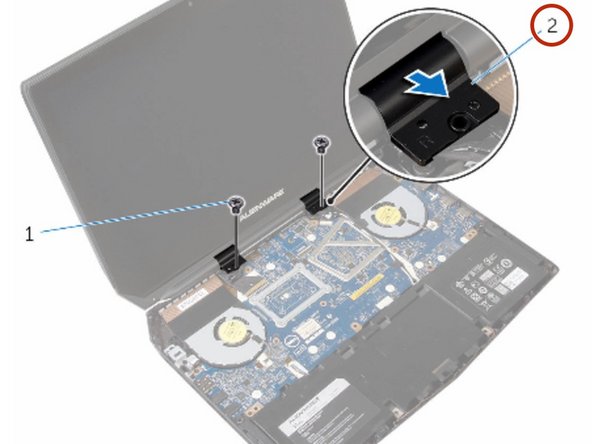
  32. Dell Alienware 13 R2 Display Assembly Replacement, Remove the Screws: step 39, image 1 of 2 Dell Alienware 13 R2 Display Assembly Replacement, Remove the Screws: step 39, image 2 of 2
    • Remove the screws that secure the hinge caps to the display hinges.

    Ask FixBot
  33. Dell Alienware 13 R2 Display Assembly Replacement, Lifting the Hinge Caps: step 40, image 1 of 1
    • Slide and lift the hinge caps off the display hinges.

    Ask FixBot
    • Close the display and turn the computer over.

    Ask FixBot
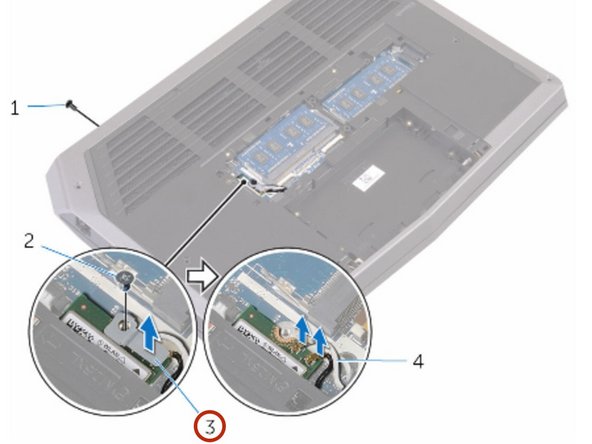
  34. Dell Alienware 13 R2 Display Assembly Replacement, Remove the Screw: step 42, image 1 of 2 Dell Alienware 13 R2 Display Assembly Replacement, Remove the Screw: step 42, image 2 of 2
    • Remove the screw that secures the wireless-card bracket to the wireless card.

    Ask FixBot
  35. Dell Alienware 13 R2 Display Assembly Replacement, Disconnect the Antenna Cables: step 43, image 1 of 1
    • Disconnect the antenna cables from the wireless card.

    Ask FixBot
    • Turn the computer over and open the display.

    Ask FixBot
  36. Dell Alienware 13 R2 Display Assembly Replacement, Remove the Antenna Cables: step 45, image 1 of 1
    • Remove the antenna cables from the routing guides on the display hinges.

    Ask FixBot
  37. Dell Alienware 13 R2 Display Assembly Replacement, Disconnect the Display Cable: step 46, image 1 of 2 Dell Alienware 13 R2 Display Assembly Replacement, Disconnect the Display Cable: step 46, image 2 of 2
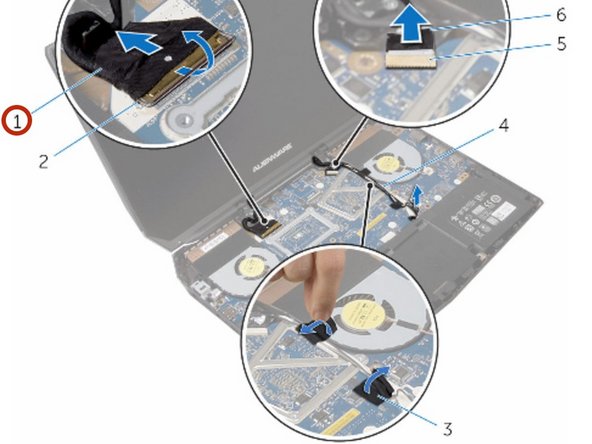
    • Lift the connector latch and disconnect the display cable from the system board.

    Ask FixBot
  38. Dell Alienware 13 R2 Display Assembly Replacement, Remove the Display Cable: step 47, image 1 of 2 Dell Alienware 13 R2 Display Assembly Replacement, Remove the Display Cable: step 47, image 2 of 2
    • Remove the display cable from the routing guides on the display hinges.

    Ask FixBot
  39. Dell Alienware 13 R2 Display Assembly Replacement, Disconnect the Logo-Board Cable: step 48, image 1 of 1
    • Disconnect the logo-board cable from the system board and remove it from the routing guides on the display hinges.

    Ask FixBot
  40. Dell Alienware 13 R2 Display Assembly Replacement, Remove the Screws: step 49, image 1 of 1
    • Remove the screws that secure the display assembly to the computer base.

    Ask FixBot
    • Lift the display assembly off the computer base.

    Ask FixBot
  41. Dell Alienware 13 R2 Display Assembly Replacement, Align the Screw Holes: step 51, image 1 of 1
    • Align the screw holes on the display hinges with the screw holes on the computer base.

    Ask FixBot
  42. Dell Alienware 13 R2 Display Assembly Replacement, Replace the Screws: step 52, image 1 of 1
    • Replace the screws that secure the display hinges to the computer base.

    Ask FixBot
  43. Dell Alienware 13 R2 Display Assembly Replacement, Routing the Logo-Board Cable: step 53, image 1 of 1
    • Route the logo-board cable through the routing guides on the display hinge and connect the logo-board cable to the system board.

    Ask FixBot
  44. Dell Alienware 13 R2 Display Assembly Replacement, Route the Cable: step 54, image 1 of 1
    • Route the display cable through the routing guides on the display hinge.

    Ask FixBot
  45. Dell Alienware 13 R2 Display Assembly Replacement, Slide the Display Cable: step 55, image 1 of 1
    • Slide the display cable into the connector on the system board and press down the latch to secure the cable.

    Ask FixBot
    • Route the antenna cables through the routing guides on the display hinges.

    Ask FixBot
  46. Dell Alienware 13 R2 Display Assembly Replacement, Adhere the Adhesive Tapes: step 57, image 1 of 1
    • Adhere the adhesive tapes that secure the antenna cables to the system board.

    Ask FixBot
    • Close the display and turn the computer over.

    Ask FixBot
    • Connect the antenna cables to the wireless card.

    Ask FixBot
    • Replace the screw that secures the wireless-card bracket to the wireless card.

    Ask FixBot
    • Turn the computer over and open the display.

    Ask FixBot
  47. Dell Alienware 13 R2 Display Assembly Replacement, Align the Screw Holes: step 62, image 1 of 1
    • Align the screw holes on the hinge caps with the screw holes on the display hinges.

    Ask FixBot
    • Replace the screws that secure the hinge caps to the display hinges.

    Ask FixBot
Conclusion

To reassemble your device, follow these instructions in reverse order.

Terrence15

Member since: 12/18/17

80,125 Reputation

441 Guides authored

Team

RampUP America, Inc. Member of RampUP America, Inc.

Community

45 Members

2,002 Guides authored

0 Guide Comments

Add Comment

View Statistics:

Past 24 Hours: 1

Past 7 Days: 7

Past 30 Days: 49

All Time: 697