
DOPO 10.1 Tablet Battery Replacement

Kaitlyn Hayes and
Last updated on Jun 15, 2015
Views: 3K
View statistics:
- Past 24 Hours:
- 4
- Past 7 Days:
- 34
- Past 30 Days:
- 100
- All Time:
- 3,045
Comments: 0
No one has left comments on this guide. Will you be first?
Go to guide commentsCompleted: 1 2
1 person has marked this guide "completed." Will you be next?
2 people have marked this guide "completed." Including you — great job!
Favorites: 0 1
No one has favorited (and subscribed to) this guide. Will you be the first?
1 person has favorited (and subscribed to) this guide — and that's you!
Slice and Dice
The steps in this guide should be split up and made into a series of prerequisite guides.
Introduction
Go to step 1 ↓For this project you will need to have the knowledge, and tools necessary to solder. The following link gives instructions on how to solder. How To Solder and Desolder Connections
What you need
Tools


-
-
-
Take plastic opening tools, and find a spot on the back of tablet to lift the back plate. Once back is lifted enough, remove the back of the tablet carefully with fingers
 Ask FixBot
-
-
-
-
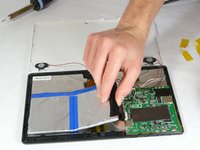
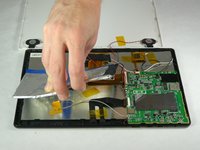
Carefully remove battery without putting any strain on connected wires. The battery is held to the tablet with adhesive, so be careful not to jerk the battery when it becomes loose.
-
-
-
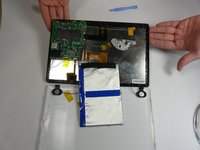
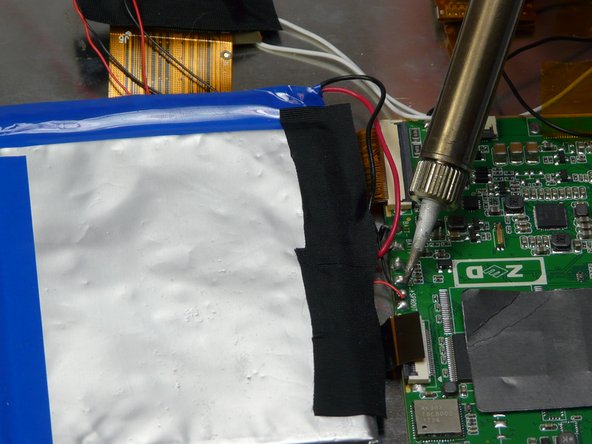
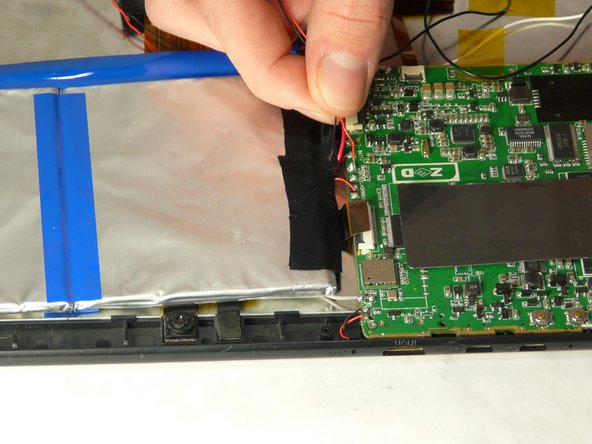
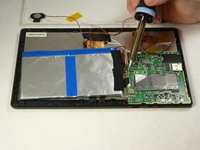
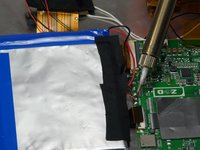
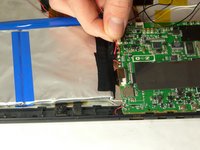
Use a soldering iron to carefully remove wires from motherboard. Then remove battery.
-
-



To reassemble your device, follow these instructions in reverse order.
Cancel: I did not complete this guide.
One other person completed this guide.

Team

USF Tampa, Team 5-2, Brown Winter 2015 Member of USF Tampa, Team 5-2, Brown Winter 2015
USFT-BROWN-W15S5G2
4 Members
60 Guides authored
