
DJI Phantom 3 Advanced LED Replacement

Tate Morell and 3 other contributors
Last updated on Dec 22, 2016
Views: 3.3K
View statistics:
- Past 24 Hours:
- 2
- Past 7 Days:
- 17
- Past 30 Days:
- 79
- All Time:
- 3,306
Comments: 1
1 comment on steps.
Completed: 3 4
3 people have marked this guide "completed." Will you be next?
4 people have marked this guide "completed." Including you — great job!
Favorites: 2 3
2 people have favorited (and subscribed to) this guide. Will you be next?
3 people have favorited (and subscribed to) this guide — including you!
Introduction
Go to step 1 ↓In this guide you will remove the glue on the wires, desolder the wires connecting the LED to the control board and remove the LED from the drone.
What you need
Tools


-
-
-
With the battery facing you, locate the two tabs on the top and bottom of the battery as shown.
 Ask FixBot
-
-
-
Press the two tabs with your finger and thumb, and gently slide the battery towards you, out of the quadcopter frame.
-
With your other hand, be sure to hold the quadcopter steady to ensure that it stays still.
-
-
-
-
-
Carefully flip the phantom back over with the motors facing up.
-
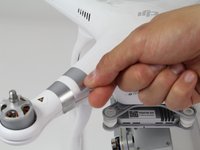
Peel back the silver stickers from the seam in the cover.
-
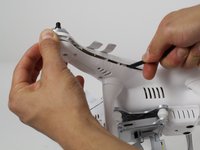
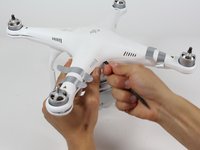
Using a plastic spudger, slowly separate the two halves of the plastic shell.
-
-
-
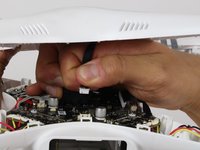
Slowly remove the upper half of the plastic case about halfway. There is a ribbon cable that's connects the cover and the control board.
-
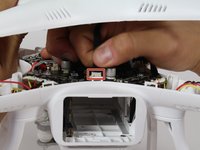
Follow the ribbon cable to the control board and locate the connector that connects the cable to the control board.
-
Press the tab on the side of the connector and pull up on the cable.
-
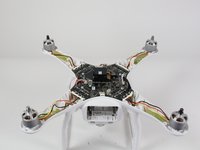
Continue to remove the shell the rest of the way.
-
-
-
-
-
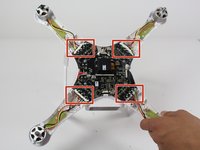
Follow the red,yellow and black wires from the LED to where they connect on the control board.
-
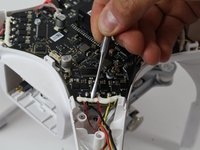
Scrape off the glue with a plastic opening tool. Use a metal opening tool if needed.
-
-
-
Desolder the red, yellow and black wires that connect the LED to the control board. Check out the link below for more information on desoldering. Desoldering Information
-
-
-
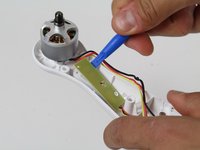
Use a plastic opening tool and wedge it under the LED.
-
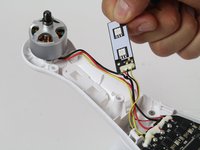
Press down on the plastic opening tool and remove the LED.
-
-


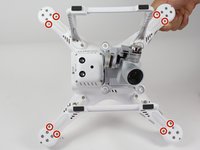
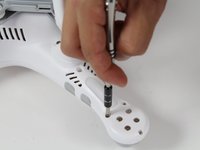


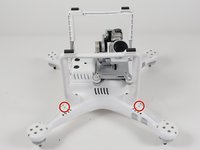
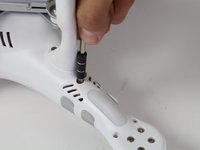








To reassemble your device, follow these instructions in reverse order.
Cancel: I did not complete this guide.
3 other people completed this guide.

Team

Cal Poly, Team 10-2, Livingston Fall 2016 Member of Cal Poly, Team 10-2, Livingston Fall 2016
CPSU-LIVINGSTON-F16S10G2
3 Members
72 Guides authored
