Free Shipping on Domestic Orders $75+

CyberPower UPS Battery Replacement

What you need

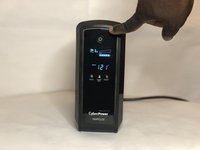
    1. CyberPower UPS Battery Replacement, Battery: step 1, image 1 of 2 CyberPower UPS Battery Replacement, Battery: step 1, image 2 of 2
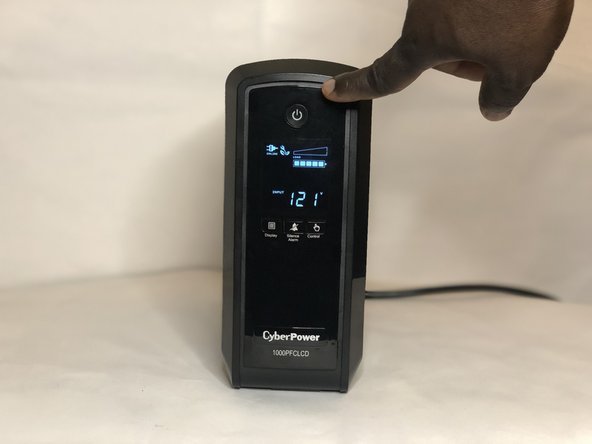
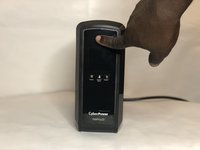
      • Power down the unit by pressing the power button until the display goes black.

      • This is usually about 3 seconds.

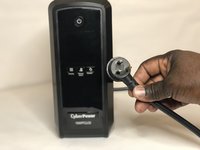
      • Unplug the power cord from the wall outlet.

      Ask FixBot

      Add Comment

    2. CyberPower UPS Battery Replacement: step 2, image 1 of 3 CyberPower UPS Battery Replacement: step 2, image 2 of 3 CyberPower UPS Battery Replacement: step 2, image 3 of 3
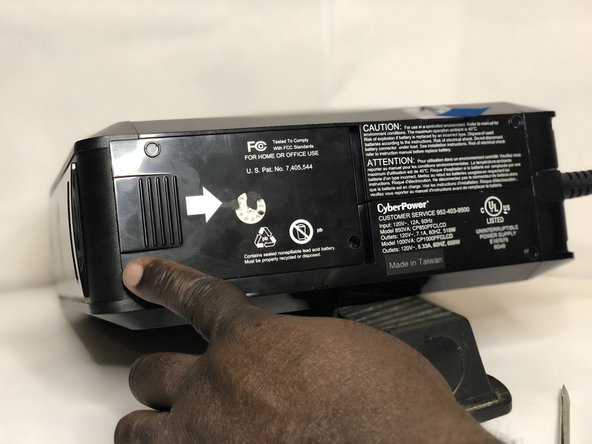
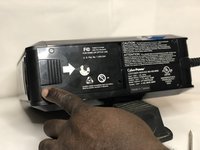
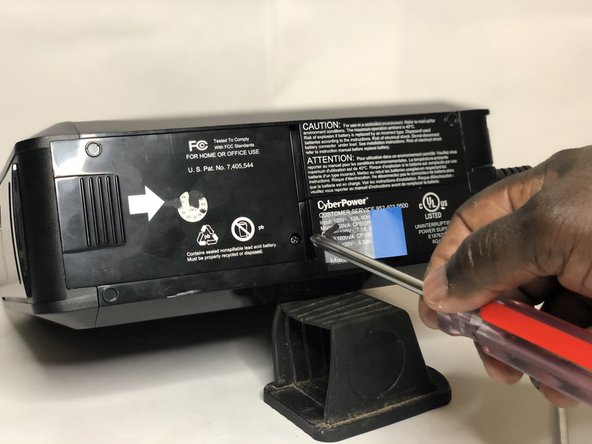
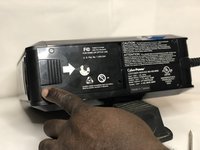
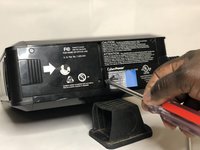
      • Remove the battery plate cover at the bottom of the UPS using a Phillips #1 screwdriver.

      • If the screwdriver is not magnetized, tap on the cover plate to completely remove the screw.

      Ask FixBot

      Add Comment

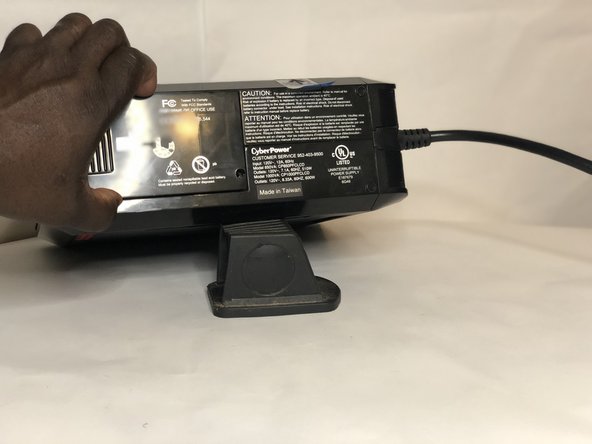
    3. CyberPower UPS Battery Replacement: step 3, image 1 of 2 CyberPower UPS Battery Replacement: step 3, image 2 of 2
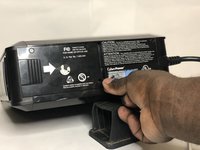
      • Slide the battery cover plate to the left.

      • Grasp the battery plate cover and lift it off the the UPS.

      Ask FixBot

      Add Comment

    4. CyberPower UPS Battery Replacement: step 4, image 1 of 3 CyberPower UPS Battery Replacement: step 4, image 2 of 3 CyberPower UPS Battery Replacement: step 4, image 3 of 3
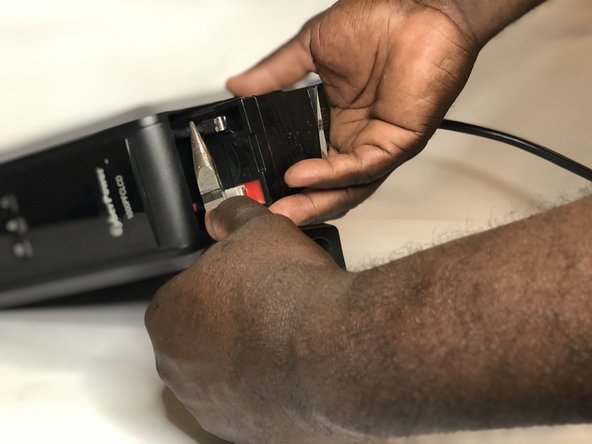
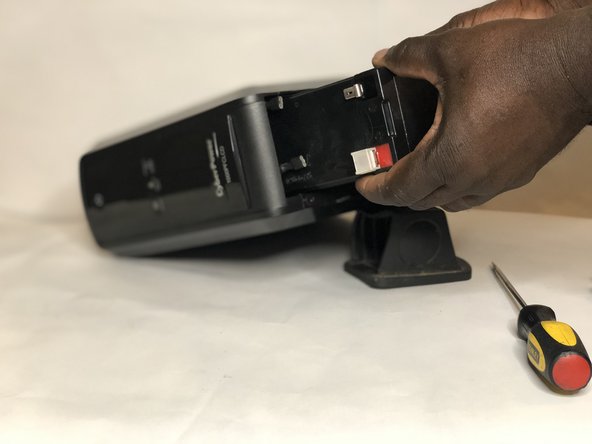
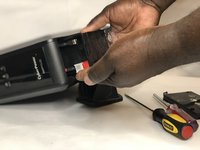
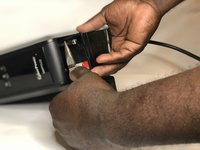
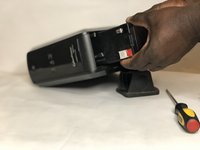
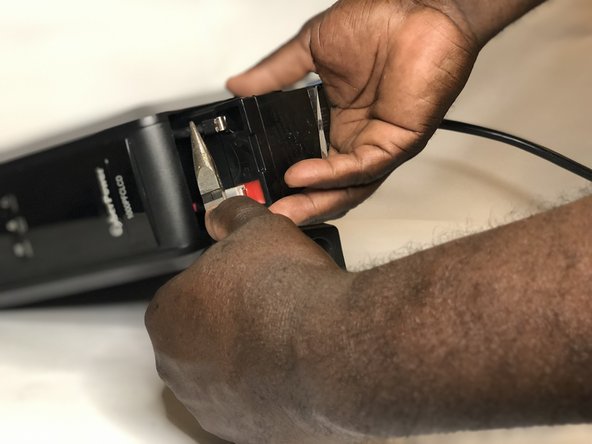
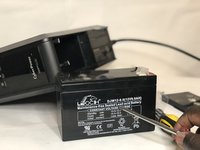
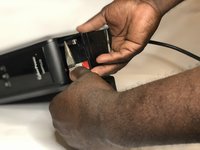
      • Pull out the battery to expose the terminal connectors.

      • Use needlenose pliers to disconnect both battery terminal connectors.

      • Do not pull the connectors by the wires, pull connectors by grabbing the connector itself.

      • With the battery terminal connectors disconnected, slide the battery all the way out.

      Ask FixBot

      Add Comment

    5. CyberPower UPS Battery Replacement: step 5, image 1 of 3 CyberPower UPS Battery Replacement: step 5, image 2 of 3 CyberPower UPS Battery Replacement: step 5, image 3 of 3
      • The replacement battery should be a 12 volt, 9 amp-hour, sealed lead acid battery with f2 type connectors.

      • Install the new battery and reconnect the terminals.

      Ask FixBot

      Add Comment

    6. CyberPower UPS Battery Replacement: step 6, image 1 of 3 CyberPower UPS Battery Replacement: step 6, image 2 of 3 CyberPower UPS Battery Replacement: step 6, image 3 of 3
      • Slide the battery cover plate to the left.

      • Insert the screw to secure the battery cover plate.

      • Tighten the screw with a Phillips #1 screwdriver.

      Ask FixBot

      Add Comment

    7. CyberPower UPS Battery Replacement: step 7, image 1 of 3 CyberPower UPS Battery Replacement: step 7, image 2 of 3 CyberPower UPS Battery Replacement: step 7, image 3 of 3
      • Plug system into the wall outlet.

      • Press the power button to turn on the unit.

      Ask FixBot

      Add Comment

Conclusion

To reassemble your device, follow these instructions in reverse order.

Cancel: I did not complete this guide.

3 other people completed this guide.

1 Guide Comment

This guide is very educative and helpful.

Philip Saviour - Reply Share
Add Comment

View Statistics:

Past 24 Hours: 7

Past 7 Days: 77

Past 30 Days: 476

All Time: 21,682